
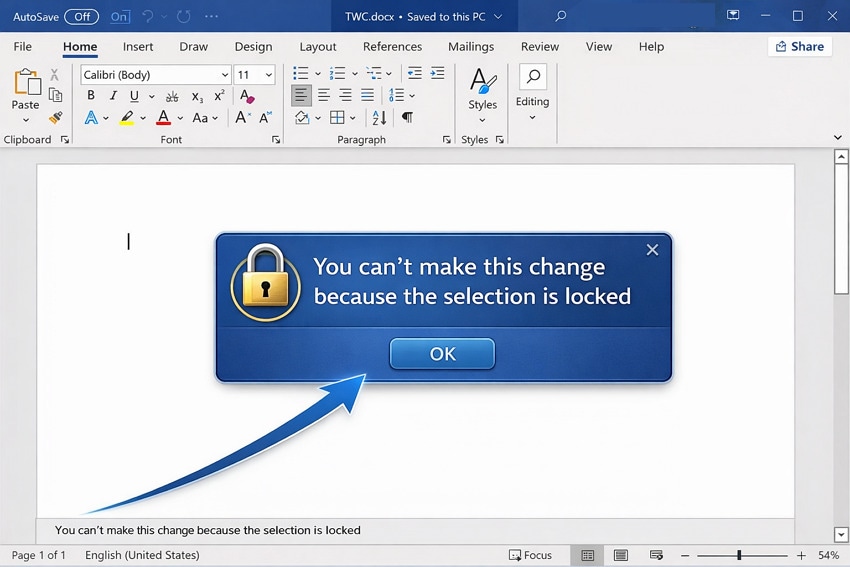
You're deep into writing a Word report when a message appears: You can't make this change because the selection is locked. Instantly, your flow is interrupted, and confusion sets in; how can a simple text edit turn into this error? Subsequently, the error can stop deadlines, slow down collaborations, and make even the smallest adjustment feel impossible.
However, the bright side is it's usually easy to fix once you know the actual reason behind it. To never be stuck mid-edit again, we'll walk you through the simplest solutions, and then to the advanced ones. The article even highlights the most common reasons to understand why this error occurs in your Word document.
Table of Contents
Part 1. What the "Selection Is Locked" Error Really Means in Word
"The selection is locked" in Word means you are trying to type or format text in an area that Word treats as read‑only. As a result, it blocks changes and displays messages such as "you can't make this change because the selection is locked." Simply, your Word is not broken; it's just enforcing limits imposed by licensing, protection, and permissions on the document.
Common Reasons Behind the Locked Selection Issue
Before solutions, read the given points and understand the root causes to help you address the issue as per the situation:
- Inactivated or Expired Office License: If your Microsoft 365 or Office license is not activated or signed in with the wrong account, Word can enter "Read-Only." In that state, you can open the documents, but when you try to edit, you get a "selection-locked" message.
- Document Protection and Restricted Editing: The file might itself be protected with restricted editing, for example, only comments allowed. Once protection is turned on, any attempt to change locked parts of the document activates the "selection is locked" message.
- Read‑only or Limited Permissions on a Shared File: When you access a document in read-only mode, you only have permission to view the document. In this case, the lock is tied to file permissions or how the document was opened, allowing you to select text only.
- Trial Version or Feature‑Limited Mode: Word in a trial or limited mode can also implement editing restrictions once the trial period or allowed usage is over. When this happens, Word behaves much like an unlicensed product and shows a "selection locked" error.
Part 2. 6 Proven Fixes to Unlock the Selection and Enable Editing
Most of the time, a few simple adjustments are all it takes to regain complete editing access and continue your work. Thus, here are 6 reliable ways to resolve "you can't make this change because the selection is locked," complete with proper instructions:
Fix 1. Check and Activate Your Office License
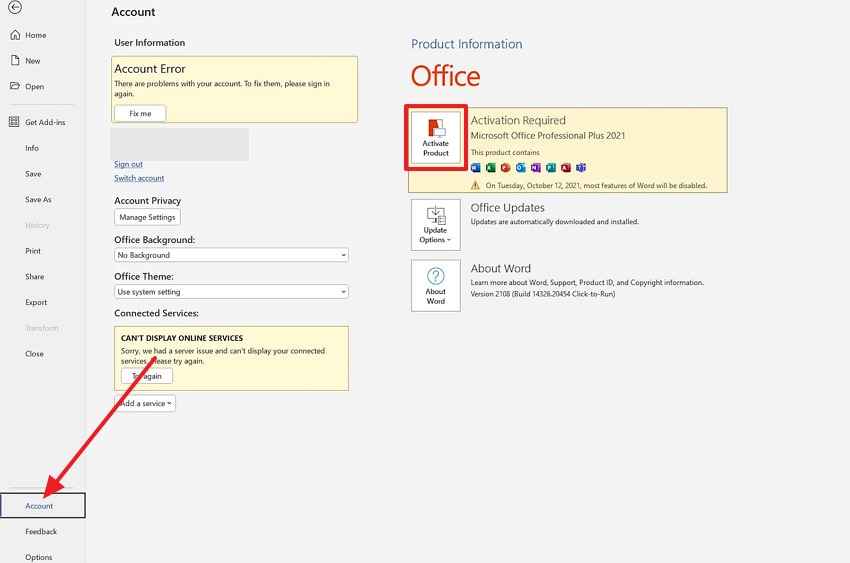
If your Microsoft Office installation isn't properly activated, Word may limit your ability to edit documents. Moreover, activating your license not only restores complete editing functionality but also ensures access to all premium features and updates. Once your license is verified, Word operates smoothly without unexpected restrictions, keeping your workflow uninterrupted. Simply follow the guided tutorial to check and activate your Office license for full accessibility:
Instructions. In your Word file, press the "File" tab and then locate the "Account" option. After this, look under Product Information and click the "Activate Product" option (if available). Then sign in with your Microsoft Office account and follow the on-screen instructions.
Fix 2. Enable Editing and Remove Read‑Only Mode
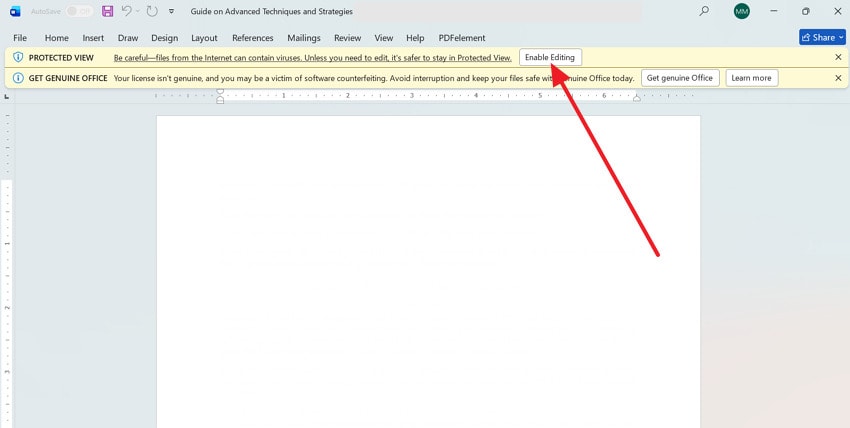
Documents downloaded from email, the web, or shared drives often open in read-only mode as a security precaution. This can make Word display the "you can't make this change because the selection is locked" message when you try to type. Hence, enabling editing removes these restrictions, allowing you to modify the documents, save changes, and collaborate. To know how to proceed, explore the tutorial and enable editing, plus remove read-only mode:
Step 1. Open a locked Word file, and from the top yellow bar (Protected View), press the "Enable Editing" option.
Step 2. To remove Read-Only mode, locate your Word file in File Explorer and right-click it. After this, choose the "Properties" option from the drop-down menu.
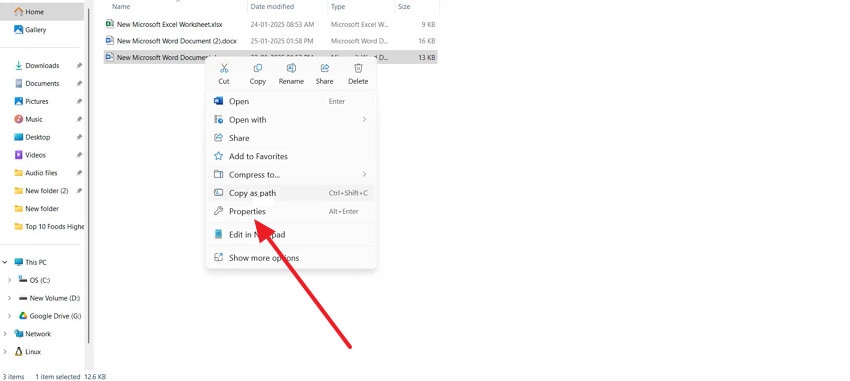
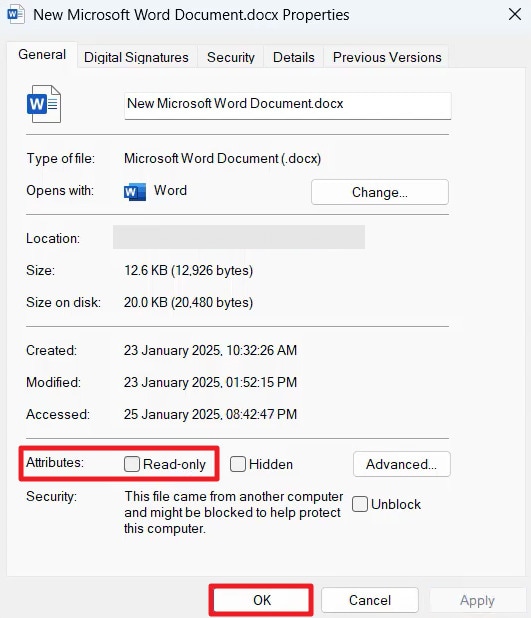
Step 3. In the file properties, uncheck the "Read-Only" option from the Attributes and press "OK" later.
Fix 3. Disable "Mark as Final" Protection
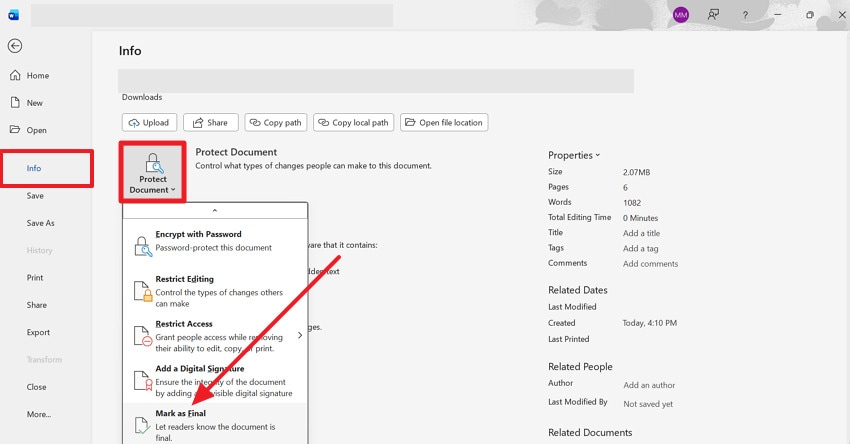
The "Mark as Final" feature in Word is built to prevent accidental edits by locking the document visually and functionally. However, if you need to make changes, this can trigger the "you can't make this change because the selection is locked" error. Once you disable this feature, you gain complete control over the content and can continue tracking finalized sections. For confident formatting or modifications, follow the guidelines to disable Mark as Final:
Instructions. Go to the "File" tab first, then access the "Info" section and expand the menu for "Protect Document." If "Mark as Final" is checked, click it to toggle it off. Next, confirm the change and press the "OK" button to edit the document freely.
Fix 4. Turn Off Restrict Editing & Enable Design Mode
Word's Restrict Editing feature is designed to protect specific sections, formats, or content controls in a document. Though it's useful for maintaining structure, it can trigger "you can't make this change because the selection is locked" while editing. Thus, turning off restrictions or enabling Design Mode allows you to edit fields, tables, and other elements without errors. To restore editing freedom, follow the tutorial to disable Restrict Editing and enable Design Mode:
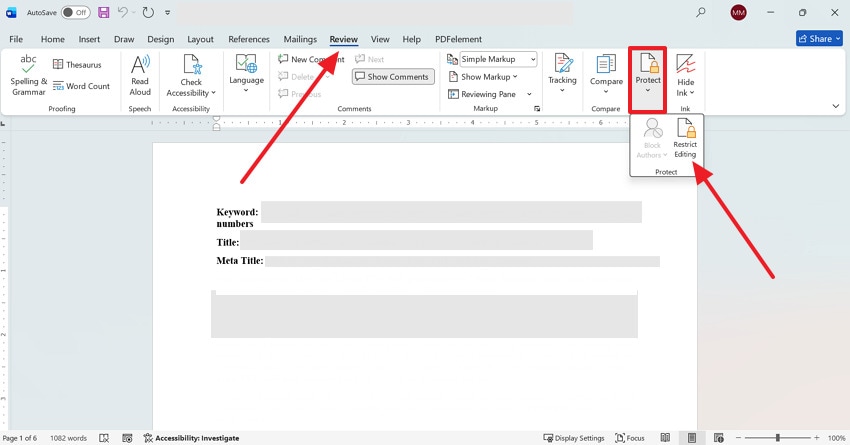
Step 1. Initially, open the "Review" tab from the top toolkit in your Word file, then expand the options for "Protect." Choose the "Restrict Editing" option to remove any restrictions applied for editing.
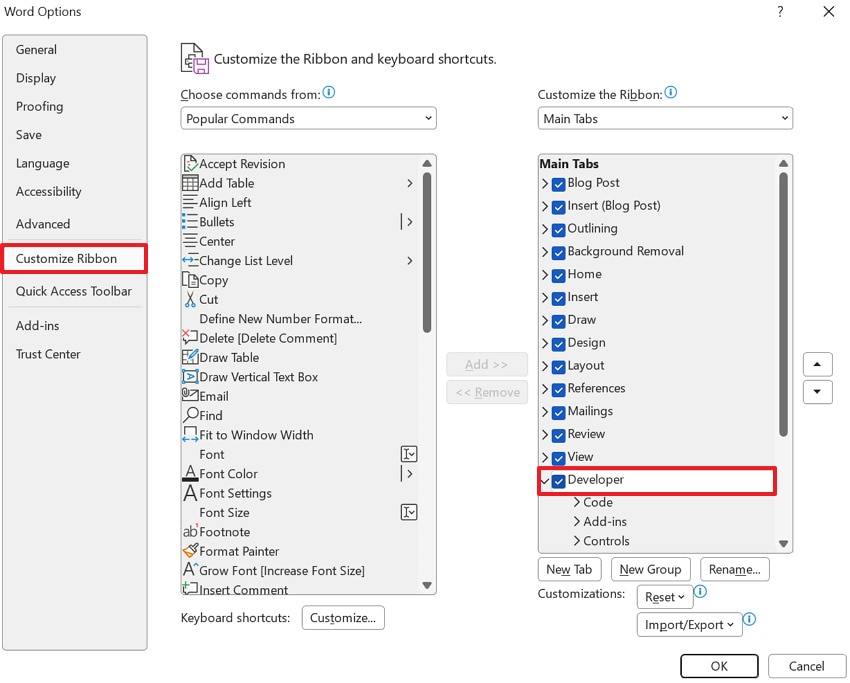
Step 2. To enable Design Mode, go to the File tab, locate the "Options" option, and access the "Custom Ribbon" tab. From the Main Tabs list, tick the "Developers" option and press "OK" to proceed.
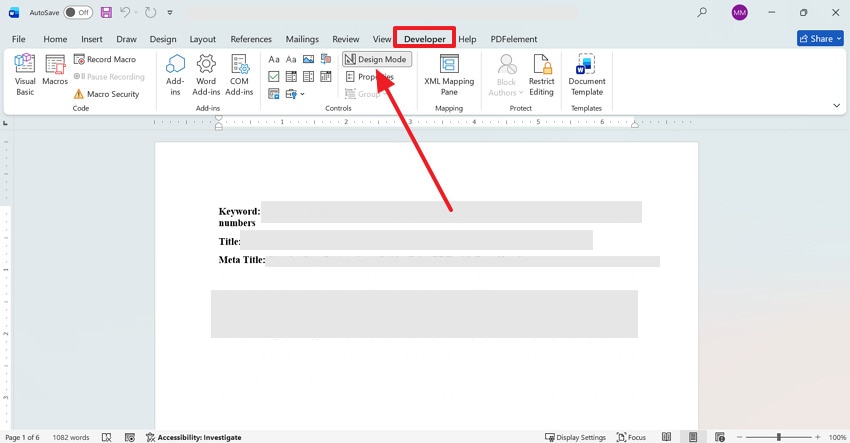
Step 3. After this, click the "Developers" tab and press the "Design Mode" option to enable it.
Fix 5. Stop Protection on Protected Sections
Many templates, shared documents, or Word forms include protected sections that prevent editing in certain areas. This protection can block necessary changes and cause the "you can't make this change because the selection is locked" error. Hence, when you stop protection, you can edit only the areas you need, while keeping other sections secure. Adhere to the stepwise manual and learn how to stop protection on protected sections:
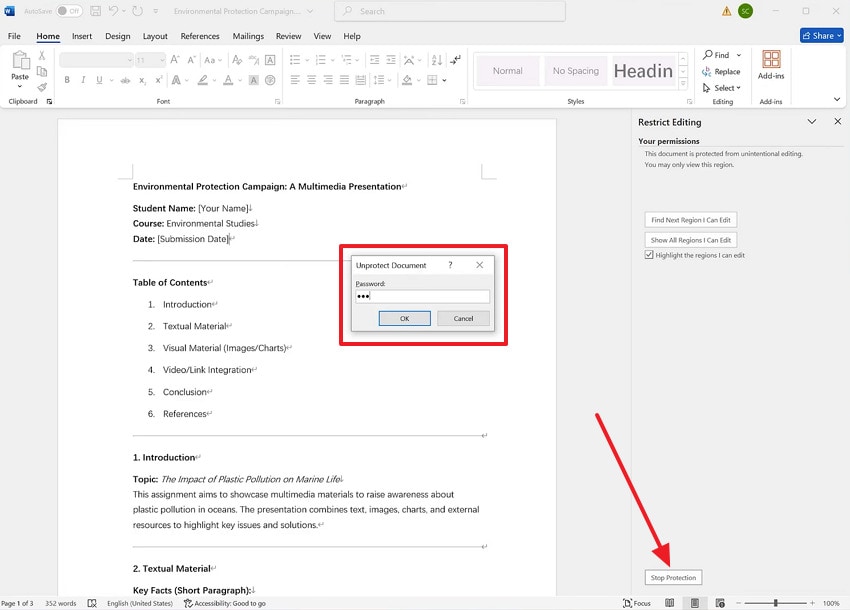
Instructions. Open the Restrict Editing option, then navigate to the "Stop Protection" option at the bottom. Next, enter the password for the document in the "Unprotect Document" pop-up to remove protection.
Fix 6. Resolve Locked Controls or Metadata Issues
Some Word documents contain form fields, content controls, or metadata that can be inadvertently locked. This eventually activates the error and requires resolving these restrictions to ensure your document is completely accessible. Besides, you'll be able to edit any part of the file, update forms, or remove unnecessary metadata. Explore the given guidelines and prevent recurring interruptions, making the document management by resolving locked controls:
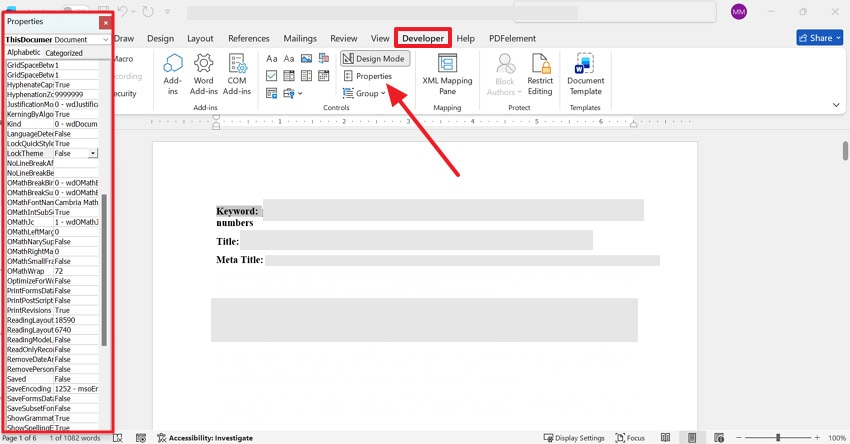
Instructions. For certain field controls, navigate to the "Developers" tab and access the "Properties" option. Next, adjust or remove restrictions on the control or metadata, then save the document and confirm that editing is possible.
Pro Tip. Fix Locked Word Selections Quickly by Repairing Corrupted Files with Repairit
When your Word keeps saying, "you can't make this change because the selection is locked", the file itself might be damaged. Corrupted documents can trigger unexpected restrictions, making Word behave as if sections are protected even when they aren't. This type of corruption can only be handled through Repairit, a professional document repair program. It can fix .doc and .docx files that may have become corrupted due to crashes or sudden shutdowns.
Impressively, it rebuilds the document's internal structure while opening it smoothly for proper editing. Even if Word displays messages like "Word found unreadable content" or opens in restricted mode, Repairit can still attempt to fix it. When the program repairs a document, it aims to preserve your original content, paragraphs, and formatting. This means you're not just getting raw text; you're getting a usable, familiar document back.
Key Features

-
Repairs Multiple Word Files: Repairit loads and repairs multiple Word documents simultaneously to fix them all at once.
-
Supports Mixed Office Documents: The program can fix numerous Office formats (Excel or PowerPoint) in a single go.
-
Facilitates Many Word Versions: It supports nearly all Office versions, from 2019 to 2007, and earlier versions as well.
Simplified Tutorial to Fix Corrupted Files for Locked Selections
Follow the simple tutorial below, and fix corrupted Word files that cause locked selection issues in your document:
Step 1. Access the Word Repair Tool
To initiate, access the "More Types Repair" tab from the left sidebar and click the "Start" button for Document Repair.

Step 2. Add All the Corrupted Word Documents
Press the "+Add" button to insert corrupted or damaged Word documents for an instant repair.

Step 3. Start Fixing Your Word Documents
Once you're done adding Word files, click the "Repair" button to fix the corruption. Afterward, simply preview the fixed Word documents and export them to your device for editing.

Repair Corrupted Word Files
 Security Verified. Over 7,302,189 people have downloaded it.
Part 3. Try 3 Advanced Moves When Basic Fixes Don't Work
Just when you think you've tried everything, the dreaded "you can't make this change because the selection is locked" keeps appearing. This indicates that it's time to move beyond basic fixes and try the following advanced solutions:
Fix 1. Reset the Normal Template (Normal.dotm)
The Normal.dotm file is Word's default template that controls styles, formatting, macros, and basic behavior. Thus, if this file becomes corrupted, it can cause strange editing restrictions, formatting glitches, and repeated block errors. In this context, resetting forces Word to create a fresh template, which often removes hidden corruption and restores normal editing. For more understanding, read the stepwise tutorial and reset the normal Word template:
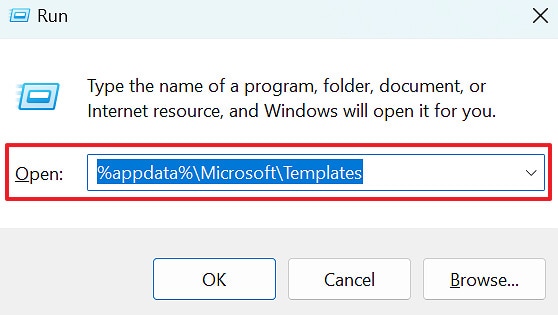
Step 1. Press the "Windows + R" keys together, then type "%appdata%\Microsoft\Templates" in the given space and press the "Enter" key.
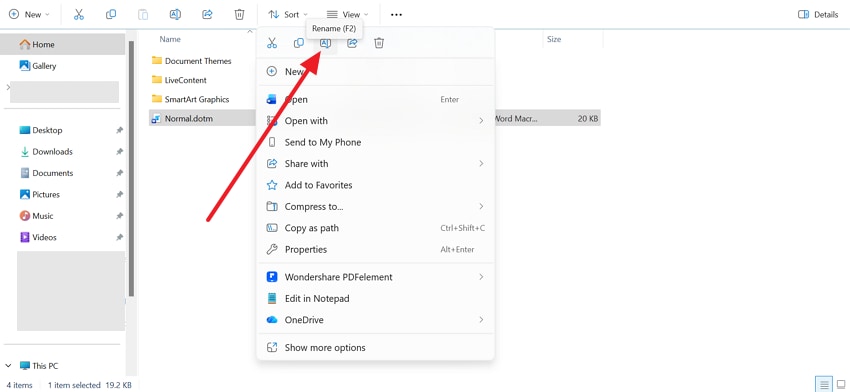
Step 2. Once the template is found, right-click it and choose the "Rename" option to rename it to "Normal.old." Now, reopen Microsoft Word, and it will automatically create a new Normal.dotm file.
Fix 2. Create and Test with a New User Profile
Possibly, the issue isn't with Word or the document but with your Windows user profile. For this, creating a new user profile helps determine whether the problem is system-wide or user-specific. Thus, if Word works correctly in the new profile, you can avoid wasting time troubleshooting documents and focus on migrating your profile settings. To overcome "you can't make this change because the selection is locked," follow the guidelines to create a new profile:
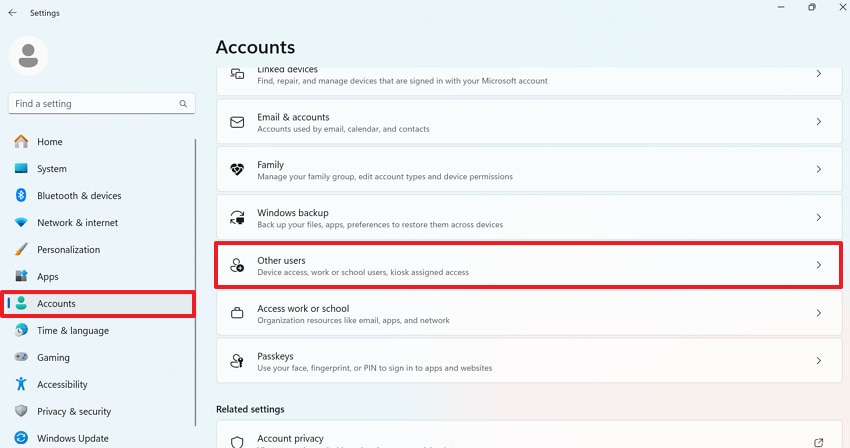
Step 1. From your Windows Settings, open the "Accounts" tab and press the "Other Users" option.
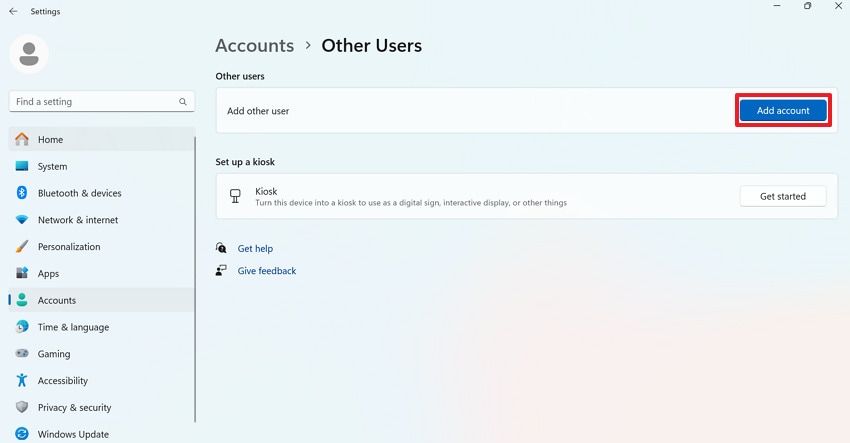
Step 2. Move ahead, click the "Add Account" option to create a new user profile for Windows.
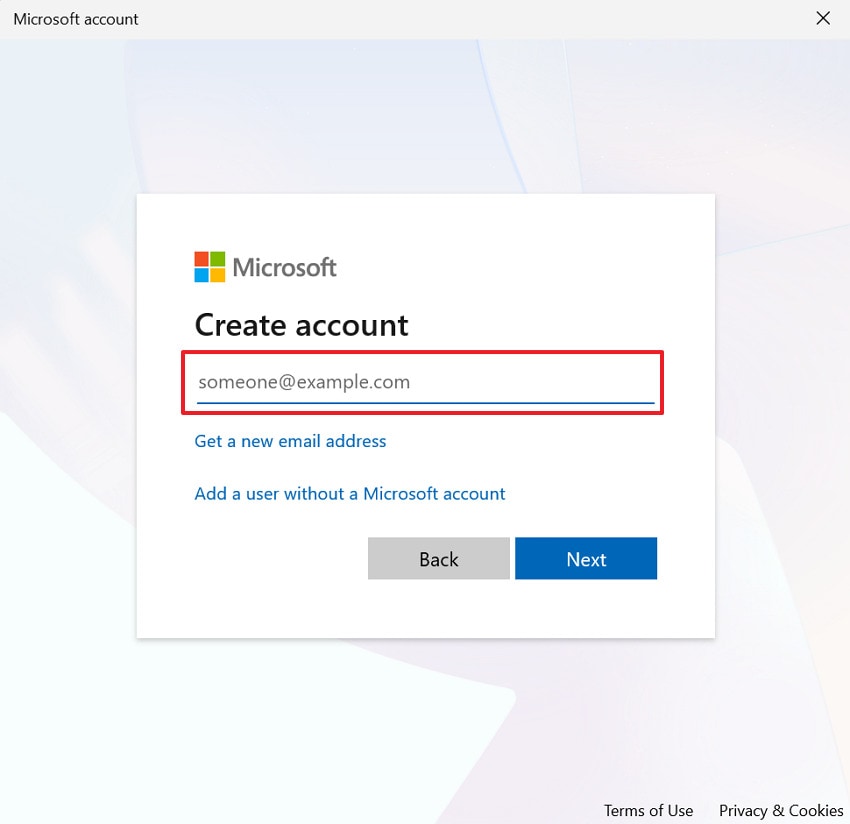
Step 3. In the Microsoft Account window, click the "I don't have this person's sign-in information" option. Type your new credentials and create a new account, then log out of your current account to log in to the new one. Finally, open Word, then test editing a document previously displaying the selection error.
Fix 3. Reinstall Microsoft Office to Fix Corruption or Licensing Issues
If Office installation files or licensing components are damaged, Word might restrict editing or display such errors. Here, reinstalling Office replaces corrupted program files, refreshes licensing services, and restores complete software functionality. This is often the most dependable solution when the error occurs across multiple documents and fixes don't work. Explore the step-by-step tutorial to reinstall Microsoft Office and fix corruption/licensing issues:
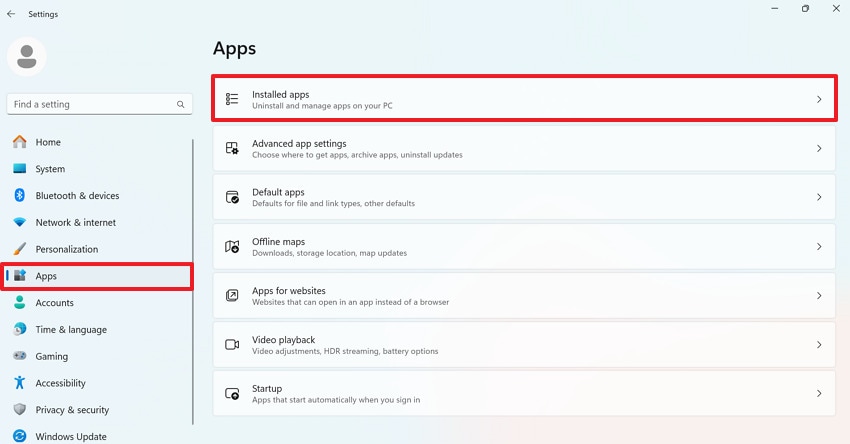
Step 1. Reveal your Windows Settings, open the "Apps" section, and press the "Installed Apps" option.
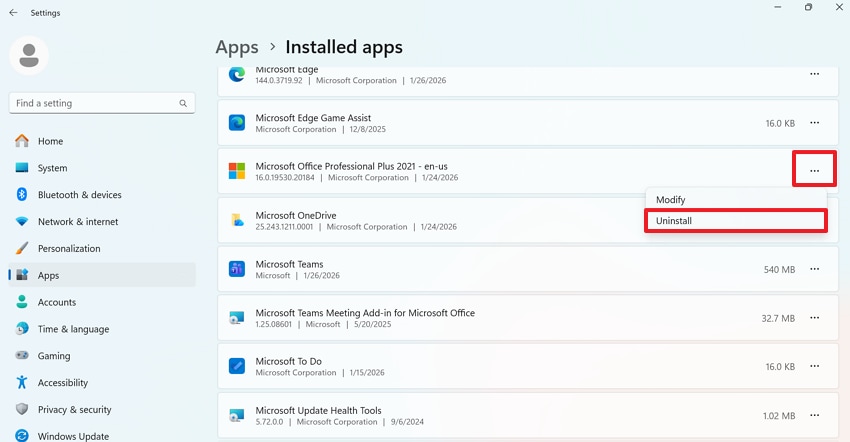
Step 2. In Installed Apps, locate Microsoft Office Professional Plus, then press the "Three Dots" icon beside it. Now, choose the "Uninstall" option from the drop-down menu to proceed with its removal.
Step 3. Next, visit the Microsoft Office Account website, log in to your account, and press the "Download Now" button. Following this, you'll download the Office installer from your account, then open Word and confirm that Office shows as Activated.

Conclusion
In summary, an error like "you can't make this change because the selection is locked" in Microsoft Word feels like a major obstacle. However, when it comes to quick, urgent edits, you're sorted with both simple and advanced solutions. Besides this, you're guided on the actual reasons behind the error so you can promptly address it. Lastly, it is recommended to use Repairit if manual troubleshooting doesn't restore the entire file structure.
Frequently Asked Questions
-
1. Can an inactive Office license cause this locked selection error?
Indeed, if Microsoft Office is not activated, Word might limit the editing features in the document. Therefore, an activated Microsoft Office account guarantees you receive security updates, feature improvements, and stable performance. -
2. Is it safe to remove document protection to fix this issue?
Absolutely, as long as you trust the document's source and understand why protection was applied. Moreover, always ensure the file is from a trusted source and consider making a backup before removing protections. -
3. Can outdated Office versions cause locked selection errors?
It is possible that older Office versions may have compatibility issues with newer document formats or templates. Due to this, an unexpected "you can't make this change because the selection is locked" error might appear when you attempt to edit.




