
Stumbling across a mysterious DAT file can be confusing, especially when you are not sure if it is safe to open or how to use it. In this guide, you will learn What is DAT File, how to figure out which program created it, safe ways to open it, how to convert a DAT video to MP4, and what to do if the file gets corrupted.
Repair Corrupted Files To Save Your Data
 Security Verified. Over 7,302,189 people have downloaded it.
In this article
What Is DAT File
A DAT file is a generic "data" container used by many programs to store information in a custom format. There is no single DAT file format, so one DAT file might hold video and audio data, another may store configuration settings, and others may contain email or game resources.
Because the extension is so broad, knowing what is DAT file in your specific case depends on which application created it and where it is stored on your system. For example:
- DAT video files sometimes come from VCD or older video discs and can be played by certain media players.
- Programs store internal settings in DAT files inside their installation or AppData folders.
- Email clients may use DAT attachments (such as winmail.dat) to bundle rich-text content or formatting.
This flexibility is why DAT files look mysterious: the same extension can represent several completely different underlying formats.
How to Open DAT File
There is no universal program that can open every DAT file. To avoid corruption or security issues, focus on identifying the origin of the file and then use appropriate tools.
Method 1: Open DAT file with its original program
The safest and most reliable way to open a DAT file is to use the software that created it.
- Check the folder path. If the DAT file is inside a program's installation or user-data folder, it likely belongs to that application.
- Right-click the DAT file and view its properties to see any hints in the description or path.
- Open the parent application and use its built-in "Open" or "Import" feature to load the DAT file, if supported.
System or application DAT files normally should not be edited manually. Treat them as internal data unless the documentation clearly says you can open or modify them.
Method 2: Check if the DAT file is a video or text
Many users meet a DAT file that is actually a video from an old VCD, camera, or download. To test this safely:
- Try opening the DAT file with a versatile media player such as VLC or other advanced players.
- If it plays, you are dealing with a DAT video file and can later convert it to MP4 for better compatibility.
- If the file does not play, avoid forcing it into video tools; it might be a different data type.
If you suspect the file is text-based (like configuration data):
- Open a copy of the DAT file with a text editor such as Notepad or Notepad++.
- Look for readable text that might show which program created it or what kind of content it holds.
Never change the original file unless you fully understand the format. Work on a duplicate instead to prevent accidental damage.
Method 3: Handle email-related DAT attachments
Some email clients, especially Microsoft Outlook, may generate winmail.dat or similar DAT attachments. These typically encapsulate rich-text formatting or extra content.
- Ask the sender to resend the message in plain text or standard HTML format instead of rich text.
- Use an online winmail.dat reader to extract attachments, but only from trusted sources and always scan the file first with antivirus software.
- Keep your email client updated to reduce compatibility issues that lead to these DAT attachments.
For unknown DAT files received via email or downloaded from the web, scan with security software before opening to avoid malware infection.
How to Convert DAT File to MP4
You can only convert a DAT file to MP4 if it actually contains video and audio data. If the DAT file stores settings or other non-media information, the conversion will not be meaningful.
Step 1: Confirm the DAT file is a video
- Play the DAT file in a robust media player.
- If it plays as expected, you can treat it like a video source.
- If you see errors or random noise, it may not be a valid video file or may be corrupted.
Step 2: Use a video converter to change DAT to MP4
- Choose a trusted desktop video converter that lists DAT or VCD formats among its inputs.
- Add your DAT video file to the converter's import panel.
- Select MP4 (H.264 or H.265) as the output format, and pick a suitable resolution and bitrate.
- Run the conversion and wait for the tool to finish encoding.
Once complete, test the new MP4 file in different players to confirm that picture and sound are synchronized and that no segments are missing.
Step 3: Address playback issues before or after conversion
- If the DAT file itself is damaged, conversion might fail or the resulting MP4 may stutter, freeze, or have errors.
- In such cases, you may need to repair the underlying DAT video file using a dedicated repair tool before you try another conversion.
- After repair, re-run the conversion and verify the MP4 with a reliable player.
How to Use Repairit to Fix a Corrupted DAT File
When a DAT file becomes corrupted, you might see playback errors, missing content, or an inability to open the file at all. Instead of giving up on that data, you can use dedicated repair software to restore it.
Wondershare Repairit is a professional data and file repair solution that works with damaged videos, photos, documents, and more. It provides a simple, guided workflow, so you can repair files even if you are not technical. To explore its full capabilities and supported formats, visit the Repairit official website.
Key features of Repairit for DAT files
- Repairs corrupted videos, photos, documents, and other file types in one unified interface, helping when your DAT file is part of a broader data set.
- Scans local drives, external storage devices, and specific folders to find damaged items related to DAT file content quickly.
- Lets you preview repaired files before saving, so you can confirm that the important information stored in the DAT file has been successfully restored.
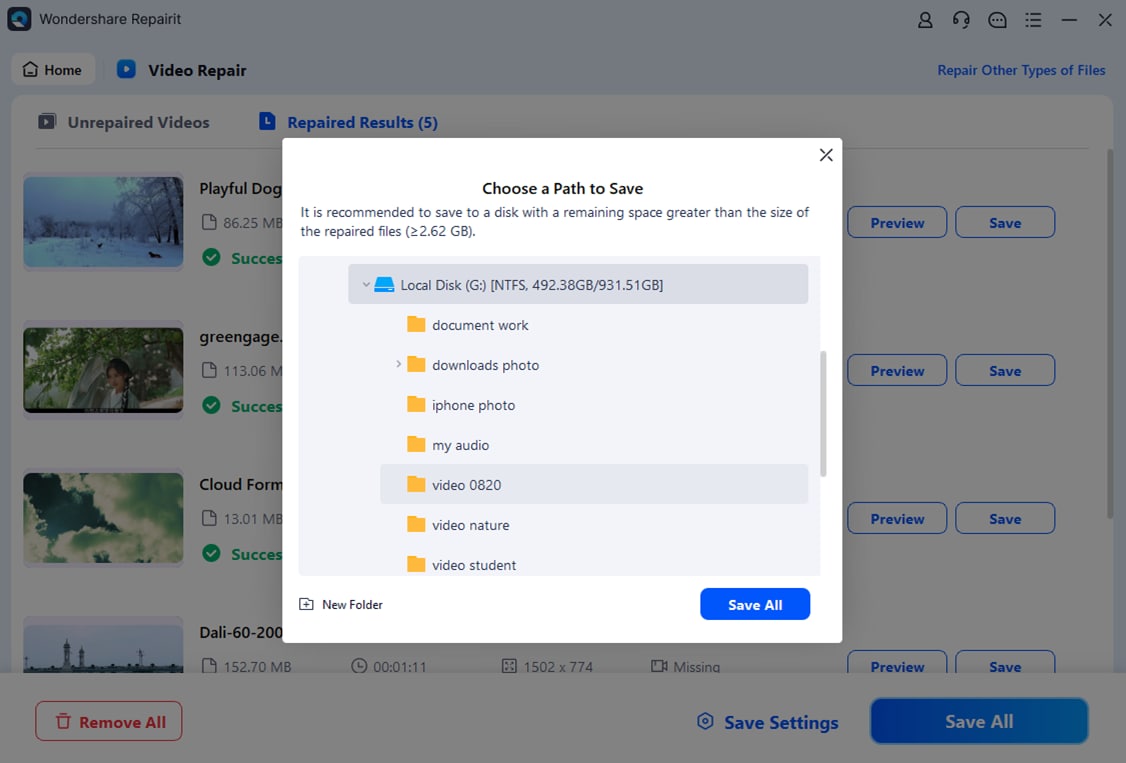
Step-by-step: Repair corrupted DAT data with Repairit
- Choose a Location to Repair Data

- Deep Scan the Location

- Preview and Repair Your Desired Data
Conclusion
DAT files are generic containers that can hold many different types of information, from video streams to email formatting and application settings. Understanding what is DAT file in your particular situation comes down to identifying which program created it and what role it plays in your system or workflow.
Once you know the origin, you can decide whether to open it with its original application, play it as a video, or convert it to MP4 for easier use. If the file is damaged or will not open at all, a dedicated repair solution such as Wondershare Repairit can help you scan the affected location, repair corrupted data, and recover valuable content with minimal effort.
Next: What Is Mdt File
FAQ
-
1. What is a DAT file used for?
A DAT file is a generic data file used by many applications to store different types of information. It can contain video streams, configuration settings, email formatting, game resources, or log data, depending on the software that created it. -
2. How can I safely open a DAT file?
First, identify where the DAT file came from and which program likely generated it. Try opening it inside that program or, if you suspect it is a video, test it with a reputable media player. Always scan unknown DAT files with up-to-date antivirus software before opening. -
3. Can I convert a DAT file to MP4?
You can convert a DAT file to MP4 only if it actually contains video and audio data. Use a trusted video converter that accepts DAT input, then export to MP4. Non-video DAT files, such as configuration or email data, cannot be meaningfully converted to MP4. -
4. Why will my DAT file not open?
A DAT file might not open because it is associated with the wrong program, is incomplete, or has been corrupted. In these cases, try opening it with its original application, checking for backups, or using repair software to recover the content. -
5. How do I repair a corrupted DAT file?
You can attempt to repair a corrupted DAT file by restoring a previous backup, letting the source application rebuild or re-download it, or using a dedicated repair tool such as Wondershare Repairit to scan the storage location, fix damaged data structures, and recover readable files.




