
What is MDT File is a question that usually appears when you find this uncommon extension inside backup sets, deployment packages, or technical media workflows. An MDT file is not a typical video or document, but a structured container created by specific software to store configuration, metadata, or image data. Understanding which program generated it, how it organizes information, and what options you have to open, convert, or repair it will help you avoid data loss and work with MDT content safely.
Repair Corrupted Files To Save Your Data
 Security Verified. Over 7,302,189 people have downloaded it.
In this article
What Is MDT File
An mdt file is usually a proprietary data or metadata container generated by a specific program rather than a standard format like MP4 or DOCX. Depending on the software, it may hold deployment settings, disk image information, project descriptions, or media index data.
For example, some system deployment or backup tools store configuration profiles, image descriptions, and mapping details in MDT files so they can automate installs or manage archives. In media workflows, an MDT file might store clip metadata, timecodes, or project parameters that reference but do not directly contain the raw audio or video inside.
Because the structure is tailored to the application that created it, an MDT file often appears unreadable outside that context. To work with it safely, you must identify its origin, confirm the exact file type in the software documentation, and then use that same program to open, export, or manage the contents.
How to Open MDT File
Opening an mdt file is less about using a universal viewer and more about matching the file to the right application. The process usually involves checking where the file came from, confirming its role (backup descriptor, deployment template, or media metadata), and then letting the original software interpret it.
Identify the Source Application
Before you try to open an MDT file, take a moment to understand its origin and purpose. This reduces the chance of damaging critical configuration or backup data.
- Check the folder and context. Look at the surrounding files and folders. If there are ISO, IMG, or configuration files nearby, the MDT may belong to a backup or deployment suite.
- Inspect file properties. On Windows or macOS, open the file properties or Get Info dialog and check the "Opens with" field, file description, and any digital signature clues.
- Review documentation. If the MDT came from a deployment toolkit, backup system, or media application, consult its manual or online help to confirm how it uses MDT files.
- Avoid random editors. Do not modify MDT content in a text editor or hex editor unless the vendor explicitly recommends it; this can corrupt backups or configuration sets.
Open MDT Files on Different Systems
Once you know which program owns the mdt file, the safest approach is to let that software handle all open operations.
- On Windows. Install or launch the associated tool, then use its File > Open menu or built-in browser to load the MDT. In some suites, you do not open MDT directly; instead, you load a project or task that automatically references the MDT file.
- On macOS. If a native version of the original application is available, install it and follow the same steps. When the tool is Windows-only, consider using a virtual machine or compatibility layer to run it while keeping the MDT file inside that environment.
- Within deployment or backup tools. Some MDT files appear only in management consoles. In those cases, you may import or register the MDT rather than double-click it directly.
- Handling errors. If the correct program still refuses to open the MDT, the file may be incomplete or damaged. Create a backup copy immediately, then consider using a repair utility to salvage related data or dependent media.
How to Convert MDT File to MP4
Users sometimes want to "convert mdt file to MP4," assuming MDT is a video format. In most scenarios, MDT is not a video file at all, so there is no one-click conversion. Instead, the MDT may only point to or describe media that lives in other files.
To end up with an MP4 video, you usually must first extract or export the underlying media from the original software into a standard format, and then convert that export to MP4 with a dedicated converter.
Extract Media from an MDT File
If your MDT file is part of a media workflow, it might store metadata and project settings that reference real audio or video files.
- Open the project or library. Launch the media application that created the MDT and load the associated project, catalog, or deployment set rather than opening MDT directly.
- Locate linked media. In the project browser, identify the clips, sequences, or assets you actually want in MP4 format. The MDT may simply describe these items.
- Use export or render functions. Many tools provide an "Export," "Render," or "Save As" option to create a self-contained media file from project timelines or referenced assets.
- Choose an intermediate format. If MP4 is not available directly, export to a common format like MOV, AVI, or MKV with high quality settings so that a second conversion step does not greatly reduce quality.
Convert the Exported File to MP4
After you have a standard video file that originated from the MDT-managed project, you can convert it into MP4 for easier playback or sharing.
- Select a reliable converter. Use a trusted desktop converter or an online tool from a reputable vendor. When using web-based converters, pick services that clearly state their privacy policy and security practices.
- Import your source file. Load the exported video into the converter and select MP4 (H.264 or H.265) as the target format. Adjust resolution and bitrate to balance quality and file size.
- Run the conversion. Start the process and wait until the converter finishes encoding the MP4. For long or high-resolution videos, allow extra time and keep your device powered and stable.
- Verify playback. After conversion, open the MP4 in a standard player (such as VLC or your system default) to ensure audio, video, and sync look correct before deleting any originals.
How to Use Repairit to Fix a Corrupted MDT File
Why Use Repairit for MDT-Related Issues
When an mdt file is corrupted, the biggest risk is usually the loss of the content it describes: videos, photos, documents, or other project data. Even if the MDT itself cannot be fully restored, you can often repair the underlying files stored on the same drive or within the same backup set.
Repairit official website offers a powerful yet approachable data repair solution for precisely these situations. Instead of manually hunting for damaged items or relying on complex command-line tools, Repairit guides you through a visual workflow that scans selected locations, analyzes damaged files, and attempts to make them accessible again.
Key Features of Repairit
- Repairs corrupted videos, photos, and documents from various storage locations, including local drives, external disks, and memory cards.
- Uses automatic deep scanning to locate damaged or inaccessible data and assess what can realistically be repaired.
- Provides an integrated preview window so you can check the quality of repaired items before deciding which ones to save.
Step-by-Step: Repair MDT-Related Data with Repairit
Even if your MDT file itself is broken, the media or documents linked to it might still be recoverable. Follow this Repairit workflow to scan the relevant drive or folder and attempt to repair affected files.
- Choose a Location to Repair Data

- Deep Scan the Location

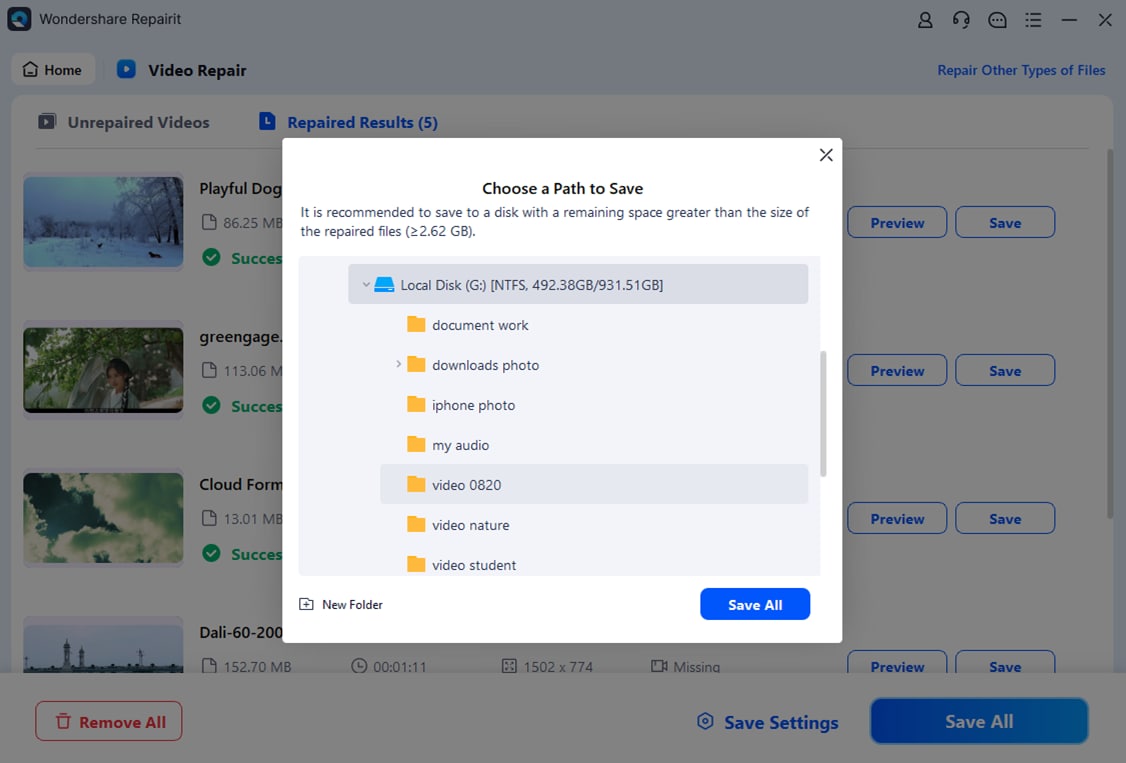
- Preview and Repair Your Desired Data
Conclusion
An mdt file is typically a specialized container or metadata file tied to particular software, such as deployment suites, backup tools, or media applications. Instead of holding simple, standalone content, it often organizes and describes other files that your projects rely on.
To use MDT files effectively, start by confirming what created them, open them only through the original application, and export any needed media or configuration in standard formats. If corruption affects MDT-related data, a dedicated repair solution like Repairit can help you recover critical videos, photos, and documents so you can keep your workflows running smoothly.
Next: What Is Crm File
FAQ
-
1. What program opens MDT files?
MDT files are usually opened by the software that created them, such as a deployment toolkit, backup solution, or media management application. Check where the file came from, review its folder context, and then install or launch that specific program to access the MDT content. -
2. Can I convert an MDT file directly to MP4?
In most situations, you cannot convert an MDT file directly to MP4 because MDT is not a standard video format. Instead, open the MDT in the original application, export or render any embedded or referenced media to a regular video file, and then convert that export to MP4 with a video converter. -
3. Why will my MDT file not open?
An MDT file may fail to open if you use the wrong program, the file association is incorrect, or the file is partially corrupted. Confirm the correct software, verify that the extension has not been changed, and if errors persist, consider using a repair tool to recover related data from the same location. -
4. How can I tell if an MDT file is corrupted?
Signs of corruption include repeated error messages, the application freezing or crashing when loading the file, or missing configuration and media after the MDT is opened. If the same MDT fails on multiple systems with the correct software installed, corruption is very likely. -
5. Is it safe to delete MDT files?
Deleting MDT files is only safe if you are sure they are not required for backups, deployment tasks, or active media projects. Always confirm that no running process or scheduled job depends on the MDT file, and consider making a backup copy before removing it permanently.




