
If you have ever transferred footage from an older camera or mobile device and found a file with the .crm extension, you might wonder what is CRM File and why it will not play on your usual media player. This guide explains what a CRM video file is, common devices that create it, and how to open, convert, and repair CRM files so your recordings remain watchable on modern systems.
Repair Corrupted Files To Save Your Data
 Security Verified. Over 7,302,189 people have downloaded it.
In this article
What Is CRM File
A CRM file is most often a proprietary or camera-specific video recording created by certain camcorders or mobile devices. Instead of saving footage directly as MP4 or MOV, these devices may capture data in a raw or lightly processed format and store it with the .crm extension.
Because CRM is not a universally standardized video container, many default media players and editors cannot recognize it straight away. That is why users frequently encounter playback errors or blank screens when double-clicking the file on Windows or macOS.
Typical characteristics of a crm file include:
- Saved by specific camera brands, firmware, or apps as an intermediate or raw recording format.
- Contains high-quality video data that may need extra processing or conversion.
- May rely on a particular codec or sidecar metadata files to play correctly.
In practice, you will usually open a CRM file with the manufacturer’s own software, a compatible professional editor, or by converting it to a common format like MP4.
How to Open CRM File
If you are unsure how to open a crm file extension on your computer, there are several reliable approaches. Start with the software that knows the format best, then move on to compatible players or editors if necessary.
Method 1: Use the original camera or bundled software
The most straightforward way to open a crm file is to use the ecosystem that created it.
- Reconnect the original camera, camcorder, or mobile device to your computer and see if its own import utility recognizes the file.
- Install the official desktop software that came with the device (or download it from the manufacturer’s website).
- Use that software to preview, manage, or export the CRM footage to a more common format.
This route usually offers the best compatibility, because the manufacturer’s tools are built around the exact recording format and metadata layout.
Method 2: Try compatible media players and editors
If you no longer have the original software, or you prefer third-party tools, some players and editors can open CRM directly once the correct codecs are present.
- Install a feature-rich media player such as VLC or similar multi-format players that handle less common containers.
- Open the crm video file from within the player instead of double-clicking it.
- If playback is choppy or fails, import the CRM file into a non-linear editor (NLE) such as Adobe Premiere Pro, DaVinci Resolve, or another pro-grade editor that supports a wide range of formats.
In many cases, these editors will either read the file or offer to transcode it into an internal working format for smooth editing.
Method 3: Check codecs and file integrity
Sometimes the reason you cannot open crm file types is simply a missing codec or a damaged file.
- Update or reinstall a comprehensive codec pack on Windows, then try opening the file again in your preferred player.
- Copy the file from its original SD card, USB drive, or camera to your computer first and avoid playing it directly from removable media.
- If the CRM file still refuses to open, it may be partially corrupted due to an interrupted transfer, power loss, or storage errors. In that case, a specialized video repair tool becomes necessary.
How to Convert CRM File to MP4
Because MP4 is widely supported across TVs, phones, and streaming platforms, many users want to convert crm to mp4 for easier playback and sharing. You can do this with a desktop video converter or video editing software.
Option 1: Convert with desktop video converters
Dedicated converters offer a simple and controlled way to turn a crm file into MP4 without manually adjusting complex settings.
- Add your CRM video to the converter.
- Launch your chosen video converter and click the Add or Import button.
- Browse to the folder containing your CRM footage and select the files you want to convert.
- Choose MP4 as the output format.
- Open the output format list and pick MP4 (H.264) or a similar preset optimized for your target device.
- Optionally tweak resolution, bitrate, or frame rate if you need a smaller file size or specific quality level.
- Start the conversion and save the new file.
- Select an output folder on a local drive with enough free space.
- Click Convert or Start and wait for the process to finish.
- Play the resulting MP4 in your usual media player to confirm that video and audio are in sync.
Option 2: Convert with video editing software
If you plan to trim, color-correct, or combine clips, it may be more efficient to handle crm file conversion inside a video editor.
- Import the CRM file into your editor.
- Create a new project and drag the CRM file into the media bin or timeline.
- Let the editor conform or transcode the footage if prompted.
- Apply any edits you need.
- Cut unwanted sections, add transitions, or adjust color and audio levels.
- Review the timeline to ensure there are no glitches or missing frames.
- Export the timeline as MP4.
- Go to the Export or Deliver section and select MP4 (H.264/H.265) as the output format.
- Choose a preset matched to your target (web, mobile, high-quality archive, etc.).
- Render the project and test the exported MP4 on different devices.
How to Use Repairit to Fix a Corrupted CRM File
Why choose Repairit for CRM video repair
When a crm file becomes corrupted, converting or re-opening it usually does not solve the underlying damage. Wondershare Repairit is designed specifically to fix broken videos, photos, and other files with minimal effort. You can learn more and download it from the Repairit official website. It analyzes the internal structure of your videos and rebuilds them so they can play normally again.
Key features of Repairit
- Repairs various video formats, including clips captured by cameras, camcorders, and mobile devices, even when they refuse to open or play smoothly.
- Supports files from multiple storage locations such as local hard drives, SD cards, USB flash drives, and external disks, making it easy to handle footage from different sources.
- Offers preview before saving so you can verify that the repaired CRM videos look and sound correct before writing them to a safe output folder.
Step-by-step: Repair corrupted CRM videos
- Choose a Location to Repair Data
- Install and open Wondershare Repairit on your computer.
- Select the video repair module from the main interface to focus on your crm video file issues.

- Deep Scan the Location
- Start the scan so Repairit can thoroughly inspect the selected location for corrupted or unreadable CRM and related video files.

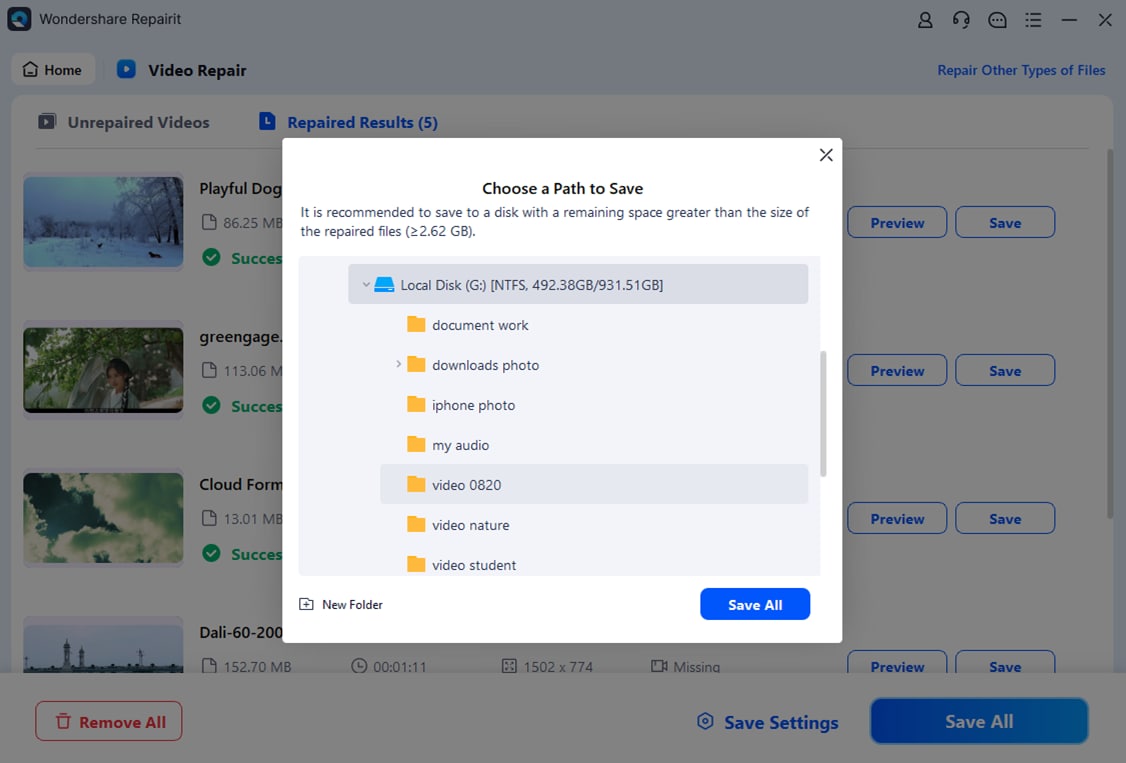
- Preview and Repair Your Desired Data
- When the scan finishes, Repairit lists the recoverable videos, including your CRM files, in an organized view.
Conclusion
Understanding what is crm file and how it differs from common formats like MP4 or MOV helps you avoid confusion when you encounter these recordings on older cameras or mobile devices. By using the right software, you can open and convert CRM footage for everyday playback, editing, and sharing.
If a crm file gets damaged or refuses to play, you do not have to lose your footage. Tools like Wondershare Repairit can analyze and repair corrupted CRM videos so you can recover important memories or professional recordings with just a few guided steps.
Next: What Is 3gpp File
FAQ
-
1. What is a CRM file used for?
A crm file is generally used to store video recordings created by specific camcorders or mobile devices. It may function as a raw or proprietary capture format that is later converted or processed into standard containers like MP4 or MOV for easier playback and editing. -
2. How can I open a CRM file on my computer?
To open crm file types on your computer, start with the manufacturer’s official software or import tool that came with your device. If that is not available, try a multi-format media player, a professional video editor, or convert the CRM footage to MP4 using a trusted converter. -
3. Can I convert a CRM file to MP4?
Yes. You can convert crm to mp4 using desktop video converters or editing software. Add the CRM file, set MP4 as the output format, adjust quality settings if needed, then export. The resulting MP4 will be much easier to play on phones, TVs, and standard media players. -
4. Why will my CRM file not play?
If your crm video file will not play, the cause might be an unsupported codec, missing manufacturer software, incomplete transfer, or file corruption. Try a different player, reinstall or update codecs, and if that fails, use a repair tool like Wondershare Repairit to fix underlying damage. -
5. How do I fix a corrupted CRM file?
To repair crm file issues, first copy the file to a safe location and stop using the original storage device. Then run Wondershare Repairit, select the folder or drive containing the damaged CRM video, let the program scan and repair it, and finally preview and save the recovered file to a secure destination.




