
If you have ever copied old phone recordings to a computer and seen a .3gp or .3gpp extension, you might have asked yourself: What is 3GPP File? This mobile-focused video format was created for early 3G networks, but it still appears in legacy clips and backups today. Understanding how 3GPP works makes it easier to play, convert, and repair these files so your past moments remain viewable on modern devices.
Repair Corrupted Files To Save Your Data
 Security Verified. Over 7,302,189 people have downloaded it.
In this article
What Is 3GPP File Format and How It Works
A 3GPP file format is a multimedia container created by the 3rd Generation Partnership Project (3GPP) for video, audio, and text streams on early 3G/4G phones. It usually uses the .3gp or .3gpp extension and is optimized for low bandwidth, small resolutions, and reduced storage usage.
Technically, 3GPP is based on the MPEG-4 Part 14 container, similar to MP4 but streamlined for mobile. It commonly stores H.263, H.264, or MPEG-4 video with AMR or AAC audio. Many people encounter 3GPP when exporting videos from older feature phones, legacy smartphones, or very old MMS backups.
Because it is a legacy standard, some modern apps and devices only offer partial support. That is why users often search for 3gpp vs mp4 to decide whether to keep the original file or convert it into a more universal MP4 for sharing and editing.
| Format | Main Purpose |
|---|---|
| 3GPP (.3gp / .3gpp) | Lightweight mobile recording and streaming on early 3G/4G devices |
| MP4 (.mp4) | General-purpose multimedia for web, editing, streaming, and modern devices |
How to Open 3GPP File
To open 3GPP file clips today, you can rely on several popular players and apps. In most cases, you simply double-click the file or drag it into a compatible player window.
Open 3GPP on Windows and Mac
On desktop systems, opening a 3gpp file format usually just requires the right media player or codecs.
- VLC Media Player: A free, cross-platform player that supports almost every format, including 3GPP, out of the box.
- Windows Media Player: May require additional codec packs to handle some 3GPP variants.
- QuickTime Player (macOS): Can open many .3gp files, especially those encoded with standard codecs like H.264 and AAC.
Basic steps to play:
- Install or update a compatible player like VLC.
- Right-click the 3GPP file and choose "Open with," then select your player.
- If playback fails, install a codec pack or try a different player before assuming the file is damaged.
Open 3GPP on Mobile and Online
Most Android phones can natively play 3GPP, since the format was originally designed for mobile. On iOS, support varies with file content, so converting to MP4 can be more reliable.
- Android: Use the built-in gallery or video app, or third-party players like VLC for Android.
- iPhone/iPad: Try the default Photos/TV app first; if playback fails, open the file in VLC for iOS or convert it on a computer.
- Online players: Some browser-based viewers will accept 3GPP uploads, but many tools recommend converting to MP4 first.
If your clip still refuses to open after testing multiple players, the file might be incomplete, incorrectly transferred, or corrupted and in need of repair.
How to Convert 3GPP File to MP4
Because MP4 is more widely supported, many users prefer to convert 3gpp to mp4 for easier viewing and editing. Conversion does not improve original quality, but it can prevent compatibility problems with websites, editors, and TVs.
Convert 3GPP to MP4 on Desktop
Desktop converters give you the most control over quality and output settings. Tools like VLC or HandBrake are commonly used.
- Install a converter such as VLC or HandBrake on your computer.
- Open the program and import your 3GPP video (for example, via "Media" > "Convert/Save" in VLC).
- Select MP4 (often labeled "MP4" or "H.264 + MP4") as the output format.
- Set resolution and bitrate; choose "same as source" or a higher bitrate if you want to avoid extra quality loss.
- Pick a destination folder and start the conversion, then test the new MP4 file in your usual player.
Convert 3GPP to MP4 Online
If you only have a few small clips, a web-based converter may be sufficient.
- Visit a reputable online converter such as CloudConvert or a similar service.
- Upload your 3GPP file from your device or cloud storage.
- Choose MP4 as the target format and adjust quality options if available.
- Start the conversion and wait for processing to finish.
- Download the converted MP4 and verify that audio and video stay in sync.
For large or sensitive videos, desktop conversion and local storage are generally safer than uploading everything to third-party servers.
How to Use Repairit to Fix a Corrupted 3GPP File
Why Use Repairit for Broken 3GPP Clips
If a 3GPP recording will not open, freezes midway, or shows glitches, the container or streams may be corrupted. Wondershare Repairit is designed to repair such damaged media quickly, even when standard players and converters fail. You can learn more and download it from the Repairit official website.
Key Features of Repairit for 3GPP Repair
- Repairs corrupted or unplayable repair 3gpp file videos and many other formats in batches.
- Scans multiple storage locations, including local drives, external disks, memory cards, and USB sticks.
- Lets you preview repaired 3GPP clips first so you only save the files that are fully playable.
Step-by-Step: Fix Corrupted 3GPP Files with Repairit
- Choose a Location to Repair Data
Install and open Repairit, then select the data or video repair module that fits your issue. On the start screen, point the tool to the drive, folder, memory card, or USB device where your problematic 3GPP videos are stored. This tells Repairit exactly where to search for damaged clips.

- Deep Scan the Location
Click the scan button to launch an in-depth analysis of the selected location. Repairit automatically detects corrupted or unplayable 3GPP files and inspects their structure. While the scan runs, you can watch newly found videos appear in the results list without interrupting the process.

- Preview and Repair Your Desired Data
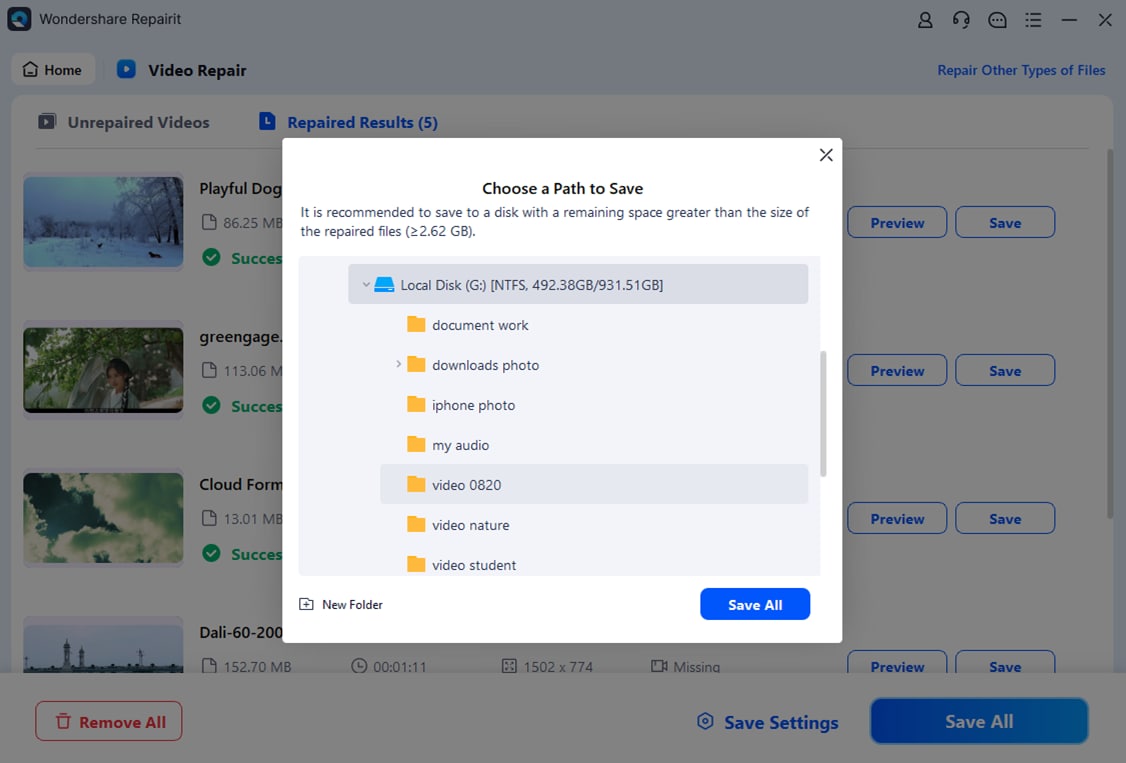
Once scanning and repair are complete, use the built-in player to preview each recovered 3GPP video. Tick the files that now play correctly and choose a safe output folder that is different from the original location. Confirm to save your repaired clips and keep them ready for viewing, backup, or conversion.
Conclusion
The what is 3gpp file question usually comes up when people rediscover old phone recordings. 3GPP is a lightweight mobile container that still opens in many modern players or can be easily converted to MP4 for better compatibility across devices, apps, and websites.
If a clip refuses to play, do not delete it right away. Try multiple players, then consider specialized tools like Wondershare Repairit to fix corrupted 3gpp videos. With the right workflow, you can open, convert, and repair 3GPP files safely and preserve your older mobile memories in more future-proof formats.
Next: What Is Lrv File
FAQ
-
1. What is a 3GPP file used for?
A 3GPP file is mainly used to store compressed video, audio, and text recorded on older 3G and early 4G mobile phones. It was created to keep file sizes small enough for limited storage and slower mobile networks. -
2. How do I open a 3GPP file on my computer?
You can usually open 3GPP files with players like VLC, Windows Media Player (with proper codecs), or QuickTime. Right-click the file, choose "Open with," and pick your preferred player, or drag the file directly into the player window. -
3. Can I convert 3GPP to MP4 without losing quality?
Tools such as VLC, HandBrake, or trusted online converters can convert 3GPP to MP4. Since 3GPP is already compressed, you cannot increase its original quality, but choosing "same as source" or a sufficiently high bitrate helps avoid extra visible loss. -
4. Why will my 3GPP file not play?
Playback may fail due to missing codecs, an incompatible player, incomplete downloads, transfer errors, or true file corruption. Try another player first; if the issue persists, the file may need repair or re-download from the original source. -
5. How can I repair a corrupted 3GPP video file?
Back up the damaged file, then use dedicated repair software like Wondershare Repairit. Point Repairit to the storage location of the 3GPP videos, run a deep scan, preview repaired results, and save the fixed clips to a safe folder.




