
An LRV file is a low-resolution video created as a preview or proxy for smoother playback and editing, especially on devices like GoPro cameras. Understanding what this topic is, how to open it, convert it to MP4, and repair it when something goes wrong helps you avoid losing valuable footage and streamlines your video workflow.
Repair Corrupted Files To Save Your Data
 Security Verified. Over 7,302,189 people have downloaded it.
In this article
What Is LRV File
An LRV file (Low Resolution Video) is a small, compressed copy of a larger high-resolution video. It is mainly used by GoPro and some other action cameras as a preview or proxy file. The camera records your main footage in formats like MP4, while creating an accompanying LRV video that is easier to play back, share quickly, or edit on low-powered devices.
Despite using a different extension, an LRV file is essentially an MP4/H.264 video encoded at a lower bitrate and resolution. It often sits in the same folder as your original footage and shares a similar filename. Because of this, deleting LRV files may not break your main videos, but you will lose fast previews and app-based playback performance.
| Property | LRV File |
|---|---|
| Full name | Low Resolution Video file |
| Typical creator | GoPro and some other action cameras |
| Purpose | Preview, proxy editing, quick playback and sharing |
| Common container/codec | MP4 container with H.264 video and AAC audio |
| Advantages | Small size, fast loading, smooth playback on low-end devices |
| Typical use cases | App previews, rough edits, checking framing and content |
Because the GoPro LRV file is closely tied to your main recordings, corruption or accidental deletion can disrupt your review and editing workflow. That is why understanding how to open, convert, and repair LRV file content is important for creators who rely on action cameras and mobile editing.
How to Open LRV Files
You can open an LRV file on Windows, macOS, Android, and iOS using standard media players or by renaming it to MP4. Below are common methods, depending on your device and tools.
Open LRV files on desktop
Most desktop media players do not recognize the LRV extension by default, even though the underlying format is standard video. You can still access LRV video content in a few simple ways.
- Use a versatile media player (like VLC or PotPlayer)
Many advanced players can open LRV file content directly. If the file does not open when double-clicked, right-click it, select "Open with", and choose your media player. If it still fails, rename "xxx.LRV" to "xxx.MP4" and open it again. - Use GoPro software
If your GoPro LRV file came from a GoPro camera, GoPro Quik or legacy GoPro Studio (if you still have it) may read it as part of the project for smooth previews. - Import into video editors
Some editing apps recognize LRV video as proxy footage. If your editor does not accept the LRV extension, rename the file to MP4 and import it as a normal clip.
Open LRV files on mobile devices
On mobile devices, LRV file playback is usually handled by the camera vendor's app, but you can also use third-party players.
- Open via the GoPro Quik app
If you transfer your footage through the official GoPro app, the GoPro LRV file is automatically used for fast preview. You do not usually open it manually; the app handles it in the background. - Use mobile video players
On Android or iOS, install players such as VLC. In your file manager, locate the LRV file, rename it from ".LRV" to ".MP4" if needed, and then open it in the player. - Cloud and gallery apps
If your LRV video is synced to a cloud drive, you may need to download it first and then open it with a compatible app that supports MP4-like content.
How to Convert LRV to MP4
Because an LRV file is essentially a low-resolution MP4, converting it to MP4 is usually straightforward. The main reasons for converting LRV video include sharing on platforms that do not accept the LRV extension, simplifying editing, or previewing clips on devices that recognize only common video formats.
Convert LRV to MP4 on computer
On Windows or macOS, you can turn an LRV file into a standard MP4 using either simple renaming or a full video converter if you want more control over codecs and settings.
- Rename the LRV extension to MP4
In File Explorer or Finder, right-click the LRV file, choose "Rename", and change ".LRV" to ".MP4". Confirm any warning about changing extensions, then open the file in your preferred player or editor. This works in most cases because the structure of the file is already MP4-compatible. - Use a desktop video converter
If renaming does not work or you need to adjust bitrate, resolution, or format, import the LRV video into a reliable converter such as Wondershare UniConverter, HandBrake, or similar tools. Choose MP4 as the output format, set your quality presets, and start the conversion. - Batch convert multiple LRV files
When you have many GoPro LRV file clips, add them all to your converter's queue. Apply the same MP4 output settings and process them together, keeping file names aligned with your original high-resolution videos for easier project management.
Convert LRV to MP4 online
If you do not want to install extra software, online converters can also turn an LRV file into MP4 directly from your browser. This is best for smaller clips, because upload and download times grow with file size.
- Upload your LRV file to an online converter
Visit a trustworthy online video converter such as CloudConvert or Zamzar. Click the upload button, browse to your LRV file, and confirm the selection. - Select MP4 as the target format
In the output options, choose MP4 as the desired format. If available, you can tweak resolution or bitrate, but remember that the LRV video is already low-resolution, so quality improvements are limited. - Convert and download the MP4 file
Start the conversion, wait for the process to complete, and then download your new MP4 clip. Test it in your media player to ensure the convert LRV to MP4 process preserved audio and video properly.
How to Use Repairit to Fix a Corrupted LRV File
If your LRV file becomes corrupted, you may face playback errors, black screens, or audio-only output. In some cases, the preview may refuse to open at all, affecting how you review and manage your footage. A specialized video repair tool like Repairit can help restore damaged LRV video files and recover as much playable data as possible.
Why choose Repairit for LRV repair
Wondershare Repairit is a dedicated data repair solution that handles a wide range of media and document formats, including videos related to LRV file workflows. It is designed for users who need a straightforward interface, automatic analysis, and effective repair performance without complex manual settings.
Whether your GoPro LRV file fails to open after a sudden power loss, SD card error, or transfer interruption, Repairit can scan the storage location and attempt to reconstruct the damaged video structure. For users who capture important events or professional action sequences, this capability significantly reduces the risk of losing crucial previews and proxy clips.
Key features of Repairit
You can learn more about the tool and download it from the Repairit official website. Below are some of the most relevant features for repair LRV file tasks.
- Advanced video repair engine that fixes structural corruption, missing headers, and playback errors in clips associated with LRV file workflows.
- User-friendly interface with guided steps, making it easy for beginners and professionals to fix corrupted LRV and other media files.
- Support for multiple storage locations and formats, allowing you to scan SD cards, external drives, and local folders where LRV video files are stored.
Step-by-step: Repair corrupted LRV files
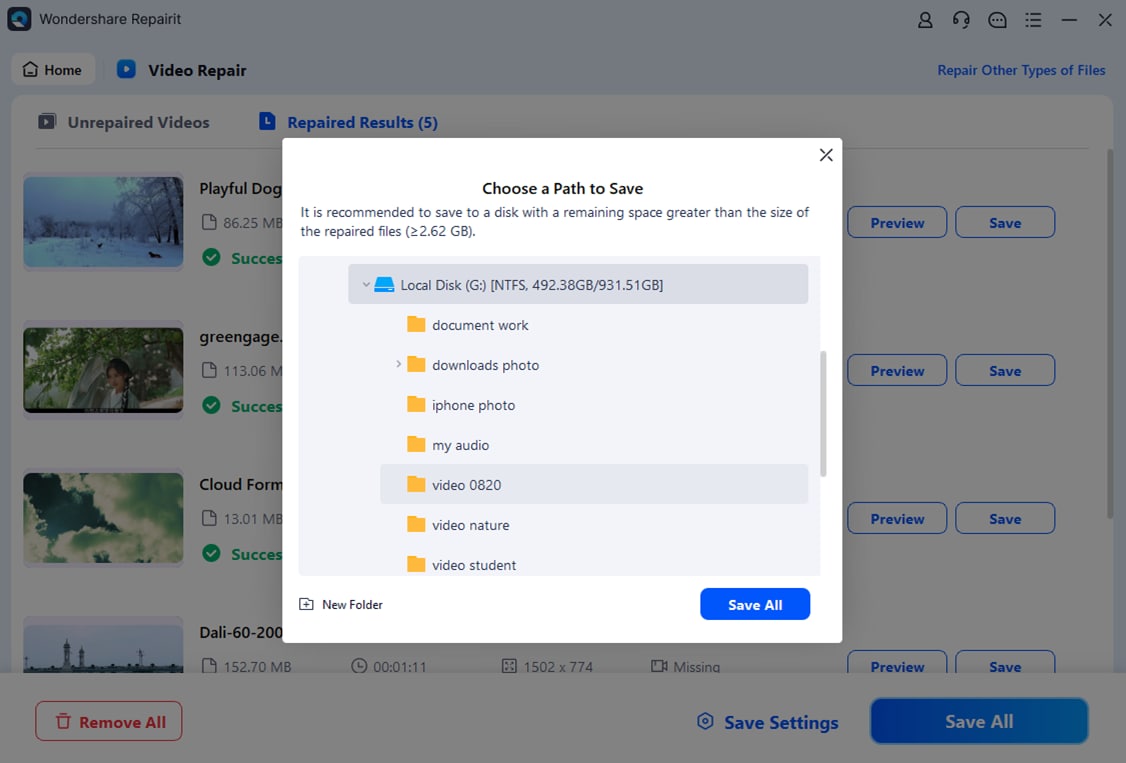
The desktop version of Repairit follows a simple three-step process to restore corrupted LRV file content. The workflow is similar to other video repair scenarios, so you can use the same approach for different media types.
- Choose a Location to Repair Data

- Deep Scan the Location

- Preview and Repair Your Desired Data
Tips to avoid future LRV file damage
- Always eject your SD card safely before removing it from the camera or computer.
- Ensure your action camera battery is sufficiently charged before long recordings.
- Back up both the high-resolution videos and associated LRV file previews to at least one external drive or cloud storage.
Conclusion
An LRV file is a lightweight proxy version of your main footage, created primarily by GoPro and similar devices to enable smooth playback, quick reviews, and mobile editing. Although it is often overlooked, it plays a key role in managing large, high-quality recordings efficiently.
By knowing how to open and convert LRV to MP4 on different platforms, you can integrate these preview clips into your broader editing workflow. When a preview becomes unreadable or corrupted, Repairit provides a practical way to repair LRV file content and safeguard your viewing and editing process.
FAQ
-
1. Is an LRV file the same as an MP4 video?
No. An LRV file is usually stored in an MP4-like container with H.264 video, but it is a low-resolution proxy created alongside your main, higher-quality recording. You can often play it as MP4, but it is not a replacement for your original footage. -
2. Can I delete LRV files from my GoPro or SD card?
Yes, deleting GoPro LRV file clips does not remove your main high-resolution videos. However, you will lose the ability to preview and edit smoothly in apps that rely on these proxies, so keep them until you finish your editing workflow. -
3. Why will my LRV file not play on my computer?
Common reasons include unsupported extensions, missing codecs, or file corruption. Try renaming the LRV file to ".MP4" and opening it with a robust player like VLC. If it still fails, the file may be damaged and require repair software. -
4. Does converting LRV to MP4 improve video quality?
No. When you convert LRV to MP4, you only change the container or extension. The clip remains low-resolution, because it was created as a compressed preview. For the best quality, always edit and export from your original high-resolution recordings. -
5. Can Repairit recover LRV files from a formatted SD card?
Repairit focuses on fixing corrupted or unplayable files that are still accessible. If your LRV video disappeared after formatting, you should first use dedicated data recovery software to restore the raw files, then import any corrupted LRV file into Repairit for repair.




