
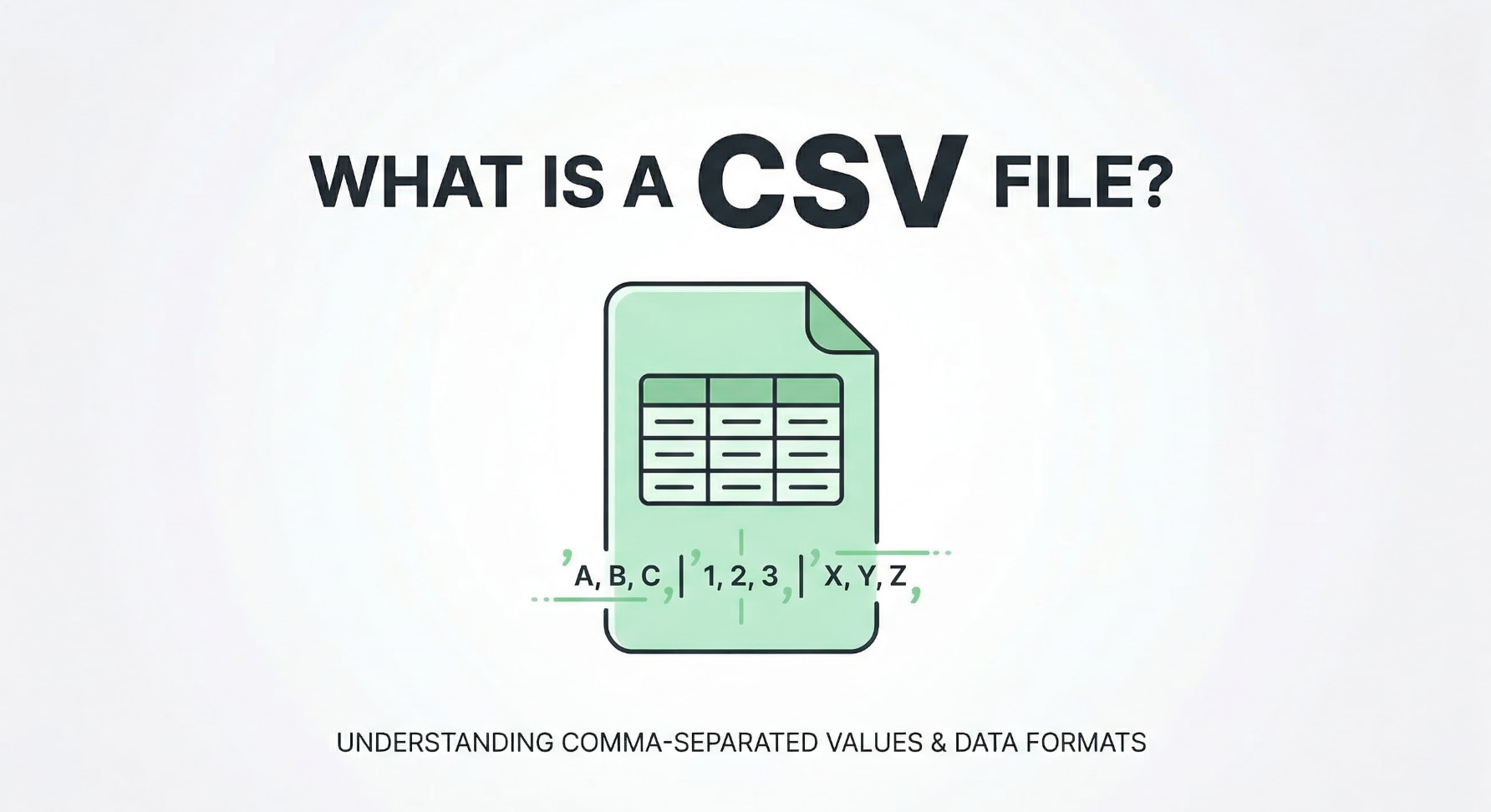
A CSV file (Comma Separated Values) is a simple text-based way to store rows and columns of data, such as spreadsheets, contact lists, or exports from online tools. Because it is lightweight and widely supported, CSV is often used to move information between apps. However, CSV files can show errors or even become corrupted if they are created, saved, or opened incorrectly. Knowing how CSV works, how to open it safely, and how to repair damaged files helps you keep your data reliable.
Repair Corrupted Files To Save Your Data
 Security Verified. Over 7,302,189 people have downloaded it.
In this article
What Is CSV File
A CSV file is a plain-text file that stores tabular data using a delimiter, most often a comma, to separate values. Each line represents one row, and each separated value on that line is a column. Because CSV is text-based, it is easy for many programs to read and write, from spreadsheet apps to databases and web services.
Unlike native spreadsheet formats such as XLSX, CSV does not store styling, formulas, or multiple sheets. It focuses purely on the raw data. This simplicity makes CSV ideal for exporting, importing, and backing up records, but also means you must handle structure and encoding correctly to avoid data issues.
| Aspect | CSV File Behavior |
|---|---|
| File extension | .csv |
| Data structure | Rows of text where values are separated by a delimiter (comma, semicolon, tab, etc.) |
| Stores formatting or formulas | No, only raw values are stored |
How to Open CSV Files
You can open a CSV file with many different tools, but you should always control the delimiter and character encoding to keep the columns aligned and characters readable.
Open CSV Files in Spreadsheet Software
Spreadsheet apps provide the most convenient way to view and edit CSV data in a table layout.
- Microsoft Excel: Use "Data" > "From Text/CSV" to import. Select the correct delimiter (comma, semicolon, or tab) and choose the right encoding, such as UTF-8. Check the preview to confirm columns and special characters look correct before loading.
- Google Sheets: In Google Drive, right-click the CSV and choose "Open with" > "Google Sheets", or create a blank sheet and use "File" > "Import" > "Upload". During import, set the separator type and file encoding to match the source.
- LibreOffice Calc or similar tools: Go to "File" > "Open", select the CSV, and in the import dialog verify the delimiter, text qualifier (often double quotes), and encoding options.
Whenever possible, avoid double-clicking a CSV file without confirming import settings, as default assumptions may scramble your columns or misinterpret dates and numbers.
Open CSV Files in Text Editors and Other Tools
Because CSV is plain text, you can inspect or edit it directly using text editors and specialized utilities.
- Text editors: Open the CSV in Notepad, Notepad++, VS Code, or another editor to see the raw structure. This is helpful for spotting broken lines, extra delimiters, or malformed quotes that spreadsheet programs may hide.
- Database tools: Many database systems can import CSV files into tables. During import, map each column, set data types, and explicitly choose separator and encoding to keep fields consistent.
- Data analysis and scripting languages: In Python (with pandas), R, or similar languages, use built-in CSV readers. Always specify delimiter, header presence, and encoding to avoid misinterpretation.
Common CSV File Errors
When a CSV file is created, exported, or opened with the wrong settings, errors can appear as broken columns, unreadable characters, or even complete corruption that prevents opening.
Formatting and Delimiter Issues
Formatting errors are among the most frequent problems users face with CSV files.
- Wrong delimiter: The file may use semicolons while your software expects commas, causing all data to appear in a single column. Adjust delimiter settings during import or convert the file with a text editor or script.
- Unescaped commas or quotes: If a value contains a comma but is not enclosed in quotes, the program may treat it as two columns. Likewise, unbalanced quotation marks can break row parsing and push data into the wrong fields.
- Inconsistent row lengths: Some lines might have more or fewer delimiters than others, typically due to manual edits or partial exports. Spreadsheet apps may display these as shifted columns or truncated rows.
Encoding, Formula, and Data Loss Problems
Even when the structure is correct, CSV files can still suffer from encoding and data integrity issues.
- Strange or garbled characters: If a file saved in UTF-8 is opened as ANSI (or another encoding), accented letters and symbols may turn into question marks or boxes. Re-import the CSV while explicitly choosing its original encoding.
- Leading zeros removed: Spreadsheet tools often treat columns as numbers and remove leading zeros from IDs, ZIP codes, or account numbers. To avoid this, import such fields as text instead of numeric.
- Date and time confusion: Different locales interpret dates differently (e.g., 01/02/2024 as January 2 vs. February 1). Choose the appropriate region or convert dates using a consistent format like ISO 8601 (YYYY-MM-DD).
- Corrupted file content: Power outages, improper device removal, or storage failures can truncate or scramble a CSV file. In such cases, you may need to repair or recover the file from backups or with specialized software.
How to Use Repairit to Fix a Corrupted CSV File
Why Use Repairit for Damaged CSV Files
When a CSV file becomes unreadable, partially opens, or disappears after a system problem, manual fixes in a text editor may not be enough. Wondershare Repairit provides an easier path by scanning the storage location for damaged or lost files and helping you restore healthy copies. You can explore detailed options and download the tool from the Repairit official website.
Repairit focuses on data repair rather than simple undelete, which is helpful when the underlying file is broken. Its guided workflow, clear interface, and preview options give both beginners and advanced users more control over what gets recovered.
Key Features of Repairit for CSV and Other Files
- Repairs damaged or corrupted files from different storage locations, including local drives, external disks, memory cards, and USB devices.
- Provides an intuitive repair workflow with on-screen instructions so you can move from scan to recovery without technical expertise.
- Allows file preview (where supported) before saving, so you can verify that the recovered data looks correct.
Step-by-Step: Repair CSV Data with Repairit
- Load your corrupted files on Repairit
Start Repairit and look at the main dashboard for a list of available drives and folders. Select the disk, partition, or specific directory where your problematic CSV files were stored. Confirm your choice so the scan focuses only on the area that matters, which saves time and helps you find the right files faster.

- Start the repair process
Click the scan button to launch a deep analysis of the selected location. Repairit will search for corrupted, lost, or otherwise inaccessible files, including broken CSV data. While the scan is running, you can watch the number of discovered items grow and pause or stop if you already see the files you need. Let the scan finish for the most complete results.

- Save Your Desired Data
When the scan ends, browse through the list of recoverable items, using filters or search to find your CSV file quickly. Where preview is supported, open a sample to confirm that the contents are intact. Select the files you want to keep, click the recover button, and choose a different, safe destination drive to store them. This prevents overwriting and keeps your repaired data protected.

Conclusion
CSV files are a simple, portable way to store structured data, which is why they are used everywhere from business exports to personal backups. By understanding how delimiter choices, quoting rules, and encoding affect your data, you can open and share CSV files without breaking their structure.
Even when things go wrong, many CSV issues can be fixed by re-importing with the right settings or repairing corrupted files with tools like Wondershare Repairit. Combining careful handling, regular backups, and reliable repair software greatly improves your chances of keeping CSV data complete and readable.
Next: What is HWP File?
FAQ
-
1. What does CSV stand for, and what is it used for?
CSV stands for Comma-Separated Values. It is a text-based format used to store tabular data such as spreadsheets, contact lists, logs, or exports from web applications, where each line is a row, and each value is separated by a delimiter, typically a comma. -
2. How can I open a CSV file without breaking the columns?
Open the CSV using an import dialog in Excel, Google Sheets, or similar software. During import, explicitly choose the correct delimiter (comma, semicolon, or tab), confirm whether the first row is a header, and select the right text encoding, such as UTF-8. -
3. Why do I see strange characters in my CSV file?
Strange characters usually indicate an encoding mismatch. The file might be saved in UTF-8 but opened as ANSI or another encoding. Re-import the CSV and choose the encoding that matches how the file was originally saved so accented letters and symbols display correctly. -
4. Can I repair a corrupted CSV file?
Yes, in many cases. You can try opening the file in a text editor to salvage intact rows or import it into a spreadsheet with relaxed settings. If the file is seriously damaged or partly missing, use a repair tool like Wondershare Repairit to scan the storage location and restore a readable version. -
5. How do I prevent CSV files from becoming corrupted?
Always close applications properly before shutting down your device, avoid unplugging external drives while files are being saved, keep multiple backups, and use reliable software when exporting or editing CSV files. Regularly verifying backups helps you recover quickly if a file becomes unusable.




