
A What is BRAW File topic centers on Blackmagic RAW, a modern video format created for high-quality, flexible post-production. It stores richly detailed camera sensor data in an efficient way, making it ideal for cinematic work, color grading, and visual effects. Understanding how BRAW behaves, how to open and convert it, and how to repair damaged clips helps you avoid workflow interruptions and keep your creative projects running smoothly from capture to final export.
Repair Corrupted Files To Save Your Data
 Security Verified. Over 7,302,189 people have downloaded it.
In this article
What is BRAW File
A braw file is a video container that uses the Blackmagic RAW codec, usually created by Blackmagic Design cinema cameras. Instead of baking in heavy processing, BRAW stores partially processed sensor data plus rich metadata, giving editors far more control over exposure, white balance, and color grading in post.
Because the braw format is designed around efficiency, it offers high image quality with manageable file sizes and smooth playback on modern hardware. This makes it a popular choice in independent filmmaking, commercials, music videos, and any workflow that depends on detailed color work and VFX.
| Property | Details |
|---|---|
| Format type | Compressed RAW video container from Blackmagic Design |
| Typical use | Cinematic capture, color grading, and VFX-heavy post-production |
| Key benefit | RAW flexibility with smoother performance than traditional RAW formats |
How to Open BRAW File
To work with open braw files, you need editing or playback software that understands the blackmagic raw codec. Most users rely on DaVinci Resolve, but other non-linear editors (NLEs) and viewers can handle BRAW with the right plugins or SDK installed.
Open BRAW in DaVinci Resolve
DaVinci Resolve is the primary environment for BRAW editing and grading. It supports BRAW natively and reads all the embedded metadata from compatible cameras.
- Install the latest version of DaVinci Resolve from Blackmagic Design.
- Make sure the Blackmagic RAW components are installed during setup.
- Launch Resolve and create or open a project.
- Import your braw file clips into the Media Pool via drag-and-drop or the Import command.
- Place the clips on a timeline to start editing, grading, or exporting.
Open BRAW with Other Compatible Tools
If you do not use Resolve, you can still view or edit BRAW with extra components.
- Use Blackmagic RAW Player to quickly preview BRAW files without a full NLE.
- Install the Blackmagic RAW SDK so your operating system and third-party tools can decode the braw format.
- Check for BRAW support or plugins in your preferred NLE (for example, Adobe Premiere Pro or Avid Media Composer) and follow the vendor's installation steps.
- After installation, restart your NLE and import the braw file as you would any other video file.
How to Convert BRAW File to MP4
Because raw workflows are not always practical for sharing or quick review, many users need to convert braw to mp4. MP4 is widely supported on phones, TVs, browsers, and social platforms, making it an ideal delivery format after editing or for proxies.
Convert BRAW to MP4 in an NLE
Most users convert BRAW to MP4 directly from their editing timeline. This keeps your color and edits while outputting a lightweight file.
- Import the braw file into a compatible NLE such as DaVinci Resolve.
- Edit the footage, apply color correction, and finalize your timeline.
- Go to the export or Deliver page and choose MP4 as the output format.
- Select an appropriate codec (like H.264 or H.265), resolution, and bitrate for your needs.
- Set a destination folder and start the render to generate the MP4 file.
Use Dedicated Conversion Utilities
If you only need to re-encode footage and not fully edit it, you can use dedicated converters that support convert braw workflows.
- Install a video converter that lists blackmagic raw among its input formats.
- Add one or more BRAW clips to the queue.
- Choose MP4 as the target format, adjust quality and size settings, and start the conversion.
- Check your new MP4 files for sync and quality before deleting or archiving the original BRAW sources.
How to Use Repairit to Fix a Corrupted BRAW File
Why Use Repairit for BRAW Repair
When recording is interrupted, storage fails, or transfers stop midway, a repair braw file workflow becomes essential. Corrupted BRAW clips may refuse to open, freeze on playback, or show error messages in your NLE. Repairit by Wondershare offers an accessible way to handle these issues without manual hex editing or advanced forensics.
Instead of trying risky one-off tricks, you can rely on Repairit to scan damaged media, rebuild structure where possible, and extract a playable copy. Learn more and download it from the Repairit official website.
Key features of Repairit
- Repairs corrupted or unplayable video, photo, and document files using a guided, click-based workflow that suits beginners and experts.
- Supports advanced repair modes for severely damaged footage while preserving the original image quality as much as possible.
- Lets you preview repaired content before saving it, so you only restore the clips and files that truly matter.
Step-by-Step: Repair BRAW with Repairit
Follow these steps to fix corrupted BRAW or other problem files with Repairit. The process is designed to minimize effort while maximizing your chance of getting usable footage back.
-
Choose a Location to Repair Data
Open Repairit and browse to the drive, folder, or external device where your corrupted braw file is stored. Confirm the selection so Repairit knows exactly which location to inspect for damaged items.

-
Deep Scan the Location
Start the deep scan so Repairit can automatically analyze the selected path. The tool searches for files that appear broken or unreadable, including fix corrupted braw candidates, then runs its repair engine in the background without requiring technical input from you.

-
Preview and Repair Your Desired Data
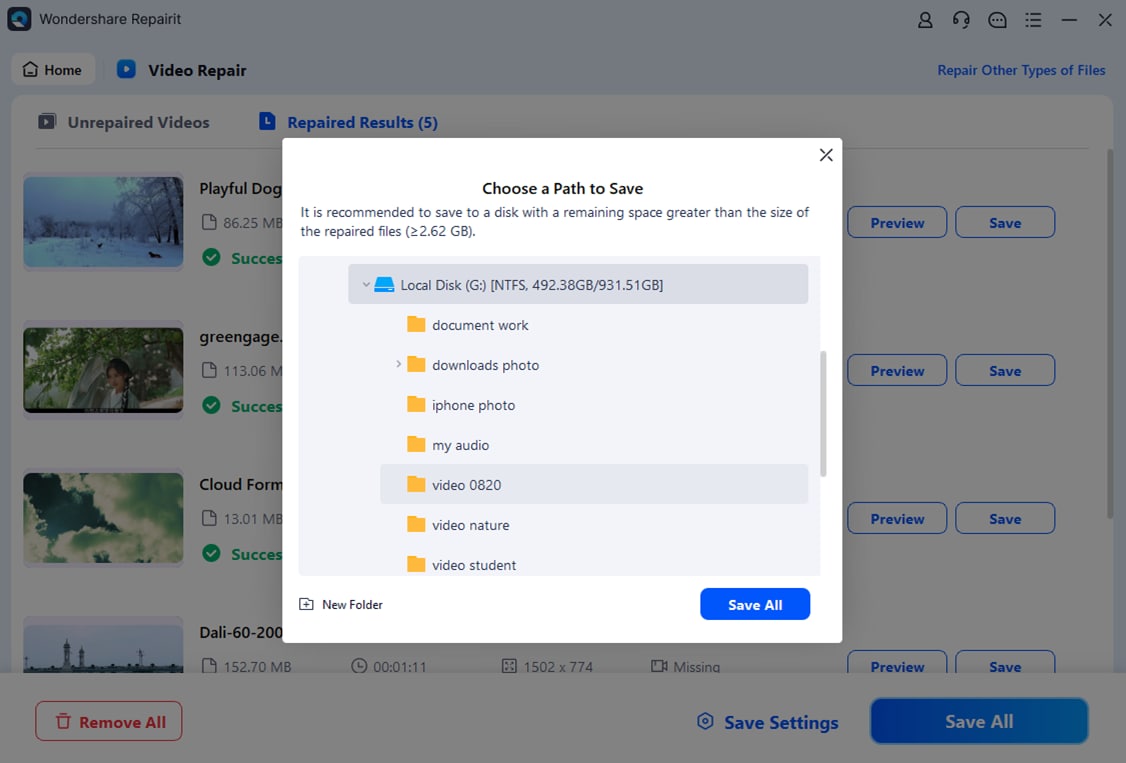
When scanning and processing finish, Repairit lists the recovered items. Use the built-in preview to check whether your BRAW clips play correctly. Select the videos and other files you want to keep, then click to save them to a secure output location that is different from the original storage.
Conclusion
The what is braw file question is more than a definition; it is about understanding a powerful Blackmagic RAW format designed for modern, flexible post-production. By learning how to open BRAW in compatible tools, convert braw to mp4 for everyday use, and protect your footage against corruption, you can keep demanding projects moving without compromise.
If a clip becomes unreadable, a dedicated solution like Repairit can scan, repair, and restore BRAW sequences that would otherwise be lost. With the right capture habits and recovery tools, the braw format remains a dependable foundation for cinematic and professional workflows.
Next: What Is R3d File
FAQ
-
1. What is a BRAW file used for?
A braw file is used to store compressed Blackmagic RAW video recorded by compatible Blackmagic Design cameras. It preserves extensive image data and metadata for precise color grading, visual effects, and flexible post-production adjustments. -
2. How do I open BRAW files on my computer?
You can open braw files with DaVinci Resolve, Blackmagic RAW Player, or other NLEs that support the blackmagic raw codec. Installing the Blackmagic RAW SDK ensures your system and supported apps can decode the format correctly. -
3. Can I convert BRAW to MP4?
Yes. Import the BRAW clip into a compatible editor such as DaVinci Resolve, finalize your timeline, then export it as MP4 using H.264 or H.265. Some third-party converters can also handle braw to mp4 if they include BRAW decoding support. -
4. Why will my BRAW file not play?
A BRAW file may fail to play if the required codec or SDK is missing, your playback software is outdated, or the clip itself is corrupted due to recording interruptions, transfer problems, or disk errors. Updating software or using a repair tool can often resolve this. -
5. How can I repair a corrupted BRAW file?
First, copy and back up the damaged file. Then try opening it in another BRAW-compatible application. If it remains unreadable, use Repairit to scan the storage location, repair braw file data, and recover a playable version of the clip.




