
An R3D file is a high-quality video format created by RED digital cinema cameras, widely used in professional film and TV production. If you work with RED RAW footage, you may need to know how to open, convert, and repair this topic when something goes wrong. This guide explains what the R3D format is, how to play and transcode it, and how to fix corrupted files safely.
Repair Corrupted Files To Save Your Data
 Security Verified. Over 7,302,189 people have downloaded it.
In this article
What Is R3D File
An R3D file is the proprietary REDCODE RAW video format created by RED digital cinema cameras such as RED KOMODO, RED RANGER, and RED EPIC. Instead of storing a fully processed video stream, it saves minimally processed sensor data along with metadata like color space, ISO, white balance, and lens information.
Because the footage is RAW, editors and colorists get enormous flexibility in post-production. They can adjust exposure, white balance, and color grading without significantly degrading image quality. R3D also supports high resolutions such as 4K, 6K, 8K, and beyond, making it ideal for high-end productions, VFX workflows, and HDR mastering.
However, this power comes with some trade-offs. R3D files are large, require powerful hardware, and need compatible software to decode the REDCODE compression efficiently. When something interrupts recording, transferring, or storage, you may also face corrupted this topic that will not open or play correctly.
How to Open R3D Files
Because R3D file is a professional camera format, it does not play in most default media players. You need compatible software and sufficiently strong hardware to decode RED RAW smoothly.
Recommended software for opening R3D files
Here are common tools that can open this topic on Windows and macOS:
| Software | Notes |
|---|---|
| REDCINE-X PRO | Free tool from RED for viewing, basic grading, and transcoding R3D clips. |
| DaVinci Resolve | Popular color grading and editing app with native R3D support. |
| Adobe Premiere Pro | Professional NLE that can import and edit RED RAW video with the right plug-ins. |
| Final Cut Pro | Supports R3D via plug-ins and workflows for macOS users. |
Always make sure you have the latest RED camera SDKs or plug-ins installed, as RED regularly updates the decoder to support new cameras and improve performance.
Steps to open an R3D file safely
Below is a typical workflow using REDCINE-X PRO as an example:
- Download and install REDCINE-X PRO from the official RED Digital Cinema website. Follow the instructions for your OS, and restart your system if requested.
- Launch the program and use the file browser inside the app to navigate to the folder containing your red raw video clips. Avoid opening R3D files directly from memory cards whenever possible.
- Select an R3D clip to load it into the viewer. From there, you can play it back, inspect metadata, and adjust basic parameters like exposure, contrast, and color temperature.
If your R3D files refuse to open, show black frames, or trigger crashes in your NLE, this can indicate damage to the recording or file structure. In those cases, use a specialized repair tool like Repairit to attempt recovery before making further changes or conversions.
How to Convert R3D to MP4
While R3D file is ideal for professional post-production, it is not convenient for everyday viewing or sharing. Converting this topic to MP4 creates a compressed, widely compatible file that can play on phones, TVs, and standard players.
Use a professional NLE to export MP4
Most editing applications that support R3D can export timelines or clips to MP4 (usually H.264 or H.265). Here is a generic workflow using an NLE like DaVinci Resolve or Adobe Premiere Pro:
- Import your R3D clip into the project panel or media pool. If necessary, create a new project using a timeline resolution that matches your delivery needs (for example, 1920x1080 for HD or 3840x2160 for UHD).
- Drag the red camera footage onto the timeline. Apply color corrections, LUTs, cropping, or other edits as desired. Preview the sequence to confirm there are no dropped frames or decoding issues.
- Open the export or deliver panel. Select MP4 as your container and H.264 or H.265 as the codec. Set resolution, frame rate, and bitrate, then choose a destination folder and start rendering your converted file.
Use a dedicated video converter
If you only need a quick conversion and do not plan heavy editing, a standalone converter can be more straightforward. Look for tools that explicitly mention RED or R3D support.
- Install a trusted converter that supports convert r3d to mp4. Open the application and click the option to add or import media files.
- Browse to your R3D files, select one or multiple clips, and confirm. Then choose MP4 as the output format and pick a preset that balances quality and file size based on your needs.
- Start the conversion process and wait for it to complete. Test the resulting MP4 files in a standard player such as VLC or your system video app to make sure audio and video are in sync.
Remember that converting from RAW to MP4 is a lossy process. Always keep your original R3D file archived for future color grading, re-edits, or higher-quality exports.
How to Use Repairit to Fix a Corrupted R3D File
Repairit introduction
When this topic becomes damaged due to interrupted recording, unsafe ejection, or storage issues, you risk losing valuable footage. Wondershare Repairit is a professional data repair solution designed to fix various media and file problems, including video corruption, without requiring deep technical skills. You can learn more and download the latest version from the Repairit official website.
Key features of Repairit for video issues
- Repairs corrupted or unplayable videos from cameras, memory cards, and drives while preserving original quality as much as possible.
- Supports a wide range of formats and scenarios, such as videos that will not open, freeze during playback, or show visual artifacts and glitches.
- Offers an intuitive interface with preview options so you can verify repaired content before saving it back to your device.
Step-by-step guide to repair a corrupted R3D file
- Choose a Location to Repair Data

- Deep Scan the Location

- Preview and Repair Your Desired Data
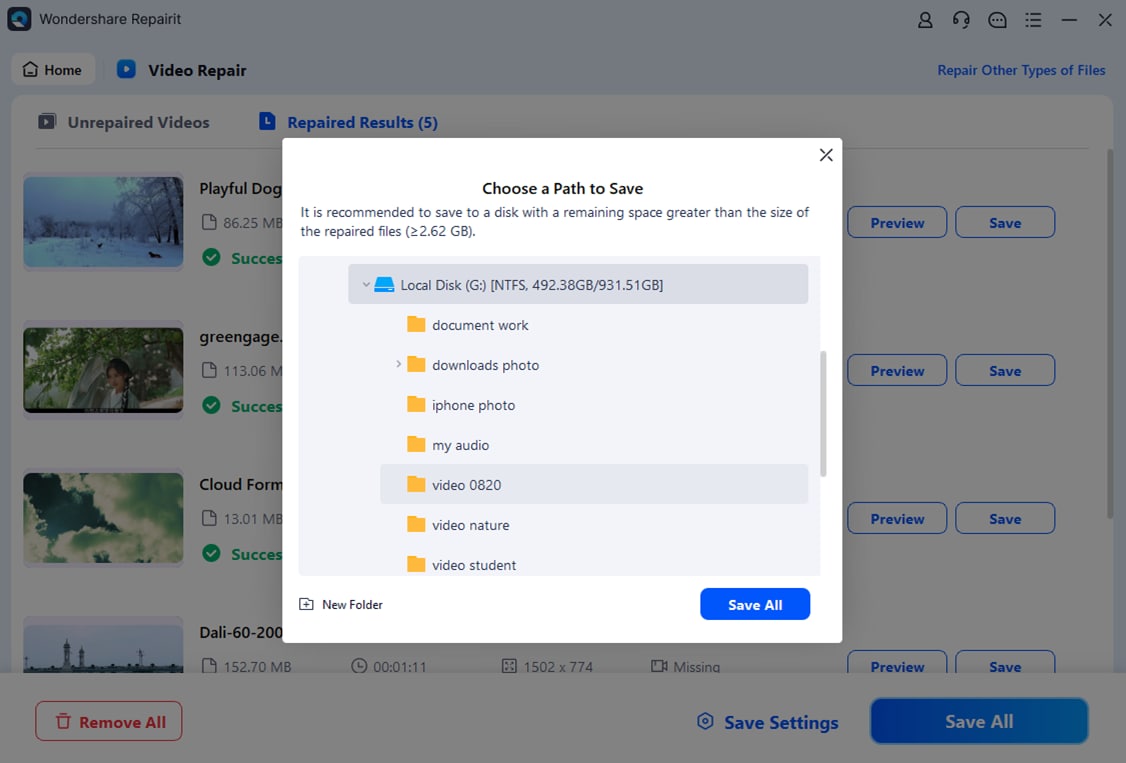
Following these steps gives you a practical way to rescue critical red camera footage that would otherwise be unusable because of corruption or playback errors.
Conclusion
R3D file is a powerful RAW format that underpins many modern film and TV workflows, offering flexible color grading and high resolution for demanding projects. To get the most from this topic, you need compatible software for viewing and editing and a solid understanding of how to convert the footage into more accessible formats like MP4.
When your r3d file refuses to open or behaves unpredictably, using a professional repair solution such as Repairit can help restore your RED RAW video and safeguard your production. Keep backups, handle media carefully, and rely on specialized tools to keep your creative work safe from unexpected data problems.
FAQ
-
1. What is an R3D file used for in video production?
An R3D file stores RAW image data from RED cinema cameras. It is mainly used in professional film, TV, and commercial projects where editors and colorists need maximum flexibility for grading, VFX, and high-resolution delivery. -
2. Why will my R3D file not open on my computer?
If this topic does not open, it may be due to incompatible software, outdated codecs, insufficient hardware, or file corruption. Install a compatible tool like REDCINE-X PRO, DaVinci Resolve, or Premiere Pro, and if the file still fails, use Repairit to check for and repair corruption. -
3. Does converting R3D to MP4 reduce quality?
Yes. Converting from RAW to MP4 involves compressing and baking in your color and exposure choices. While MP4 is great for delivery and sharing, you should always keep the original r3d file for future re-grades or higher-quality exports. -
4. Can I repair R3D files directly from a memory card?
It is safer to copy your red camera footage to a computer or external drive before repairing. Working directly on a camera card increases the risk of further damage. Once copied, you can run Repairit on the local storage location. -
5. How can I prevent R3D file corruption in the future?
Use high-quality, camera-approved media cards, avoid powering off the camera while recording, eject cards safely, and back up your red raw video as soon as possible. Maintaining healthy storage drives and using an uninterruptible power supply during transfers also helps reduce corruption risks.




