
An ICC color profile quietly controls how your photos and graphics look as they move from camera to editing software, web browsers, and printers. You will see this term when you export images from Lightroom or Photoshop, soft proof for print, or set up a calibrated monitor. Understanding ICC profiles helps you avoid washed-out colors, strange shifts, and surprises between screen and print so your images appear the way you intended everywhere.
Repair Corrupted Files To Save Your Data
 Security Verified. Over 7,302,189 people have downloaded it.
In this article
Introduction
When you shoot, edit, export, share, or print photos, a hidden system called color management decides how every color is translated between devices and apps. At the heart of that system is the ICC color profile. Whether you are preparing images for social media, a calibrated studio display, or a fine-art print, knowing how ICC profiles work helps you keep your colors consistent and predictable.
What Is ICC Color Profile?
An ICC color profile is a small data file that describes exactly how a particular device or color space represents color. It belongs to the category of image metadata and color management settings.
In plain terms, it is a translator. Your camera, monitor, printer, and editing software all "see" color differently. An ICC profile tells the system: "When this device says red, it actually means this specific red." Color management engines then use those profiles to convert colors correctly when you open, edit, encode, export, or print an image.
Common examples of ICC profiles include sRGB vs Adobe RGB color spaces, printer profiles for specific papers, and monitor calibration profiles created with hardware calibrators. Each one defines a color space so your photo editing apps, browsers, and printers can stay in sync.
What Does ICC Color Profile Affect?
Color accuracy and consistency
The most important thing an ICC color profile affects is how accurate and consistent your colors appear across devices and outputs.
- On monitors and laptops: The right profile plus monitor calibration helps skin tones, skies, and shadows look natural rather than too saturated or dull.
- In exported files: When you embed ICC profile data (for example, sRGB) in a JPEG, color-managed software can interpret and display those colors correctly.
- In printing: Printer ICC profiles control print color accuracy so the print matches your display as closely as possible, taking into account ink and paper limitations.
| ICC Profile Handling | Typical Result |
|---|---|
| Correct profile embedded (e.g., sRGB for web) | Colors look consistent on most screens and browsers |
| No profile embedded | Software guesses the color space; colors may shift or look flat |
| Wrong profile assigned or converted | Images can look oversaturated, washed out, or with odd tints |
Workflow, compatibility, and output
ICC profiles also influence your workflow and how compatible your images are across platforms.
- Editing flexibility: Working in wider-gamut spaces like Adobe RGB or ProPhoto RGB preserves more saturated colors for high-end prints, but you must handle conversions carefully for web or lab delivery.
- Platform compatibility: Some mobile apps and older browsers assume everything is sRGB. If you upload an Adobe RGB image without a profile, colors may look desaturated or off.
- Proofing and soft proofing: Printer ICC profiles let you soft proof inside editing software so you can preview how the file will look on a specific printer and paper before exporting or sending to the lab.
How Does ICC Color Profile Work in Real Use?
In practice, ICC color profiles appear at almost every stage of a photo workflow: capture, editing, encoding, exporting, and playback.
- In cameras: Many cameras let you choose a color space (often sRGB or Adobe RGB) for JPEGs. This sets the ICC profile that will be recorded and later read by compatible software.
- In photo editors: Apps like Lightroom, Photoshop, Capture One, and others manage images within a chosen working color space. When you export, you pick the output color space and choose whether to embed the ICC profile.
- In web browsers: Modern browsers are color-managed and will try to honor embedded ICC profiles. If no profile is present, they typically assume sRGB, which is why exporting sRGB with the profile embedded is safest for online use.
- In printing: Labs and printers often provide downloadable ICC profiles for specific printers and papers. You convert your edited image to that printer/paper profile at export time to maximize print accuracy.
- In operating systems: Windows and macOS both have system-level color management that uses ICC profiles to keep displays consistent. A calibration device will create and install a custom monitor ICC profile used by compatible apps.
Common Mistakes and Quick Tips
- Mistake: Ignoring color space on export. Exporting with "No color profile" or the wrong color space often leads to unexpected results on other devices.
- Mistake: Confusing assign vs convert. Assigning an ICC profile to an image that was created in another color space can radically change its appearance. Proper conversion preserves the look while changing the underlying color space.
- Mistake: Using wide-gamut profiles everywhere. Editing in ProPhoto RGB but exporting ProPhoto JPEGs for the web can cause problems in apps that do not understand those profiles.
- Mistake: Uncalibrated displays. Even perfect profiles cannot fix a wildly inaccurate monitor that has never been calibrated or profiled.
Quick tips for beginners:
- For web and general sharing, export JPEGs in sRGB vs Adobe RGB and always embed the ICC profile.
- For printing, use the ICC profile recommended by your lab or printer maker and soft proof when possible.
- Calibrate and profile your main display regularly so your editing decisions are reliable.
- Keep an eye on any "Color Management" or "Profile" options in your software when you open and export files.
How to Use Repairit to Fix a Corrupted Photo File
Repairit introduction
Even when you manage icc color profile settings perfectly, a corrupted image file can still destroy your hard work with broken previews, missing thumbnails, or unreadable photos. Wondershare Repairit is a dedicated media repair solution designed to fix damaged image and video files so your color-managed assets are not lost to file errors. With an intuitive interface and guided workflow, Repairit helps you restore broken photos quickly. You can learn more and download it from the Repairit official website.
Key features
- Repairs corrupted or unplayable videos from a wide range of cameras, phones, and storage devices while preserving visual quality.
- Supports batch repair so you can fix multiple damaged media files in one run, saving time in busy workflows.
- Provides an easy preview of repaired output before saving, letting you verify that colors, details, and playback look right.
Step-by-step guide
- Add corrupted photo files
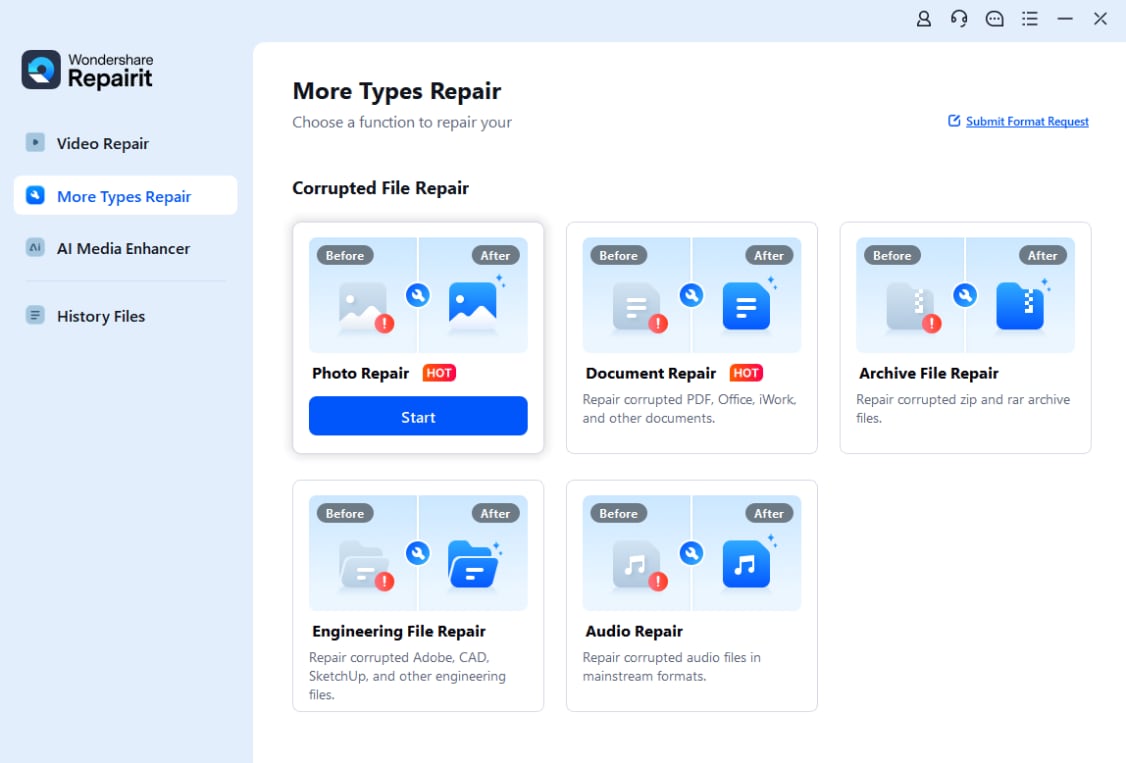
Install and launch Wondershare Repairit, then choose the Photo Repair feature on the main screen. Click the add button or drag and drop your corrupted images into the window. Check that each file appears in the list with the correct format and file path before continuing.
- Repair photo files

Start the repair process so Repairit can analyze each damaged photo and rebuild missing or broken data structures. Once the repair is complete, use the preview option to inspect key images, verifying that they open correctly and that colors look normal in your viewer or editor.
- Save the repaired photo files

When you are satisfied with the preview, select a safe output folder and export the repaired photos. Choose a different location or drive than the original source whenever possible, so your recovered images and their embedded icc color profile information remain protected from further issues.
Conclusion
ICC color profiles are the backbone of modern color management, linking cameras, displays, software, and printers so they interpret color in a consistent, predictable way. By choosing the right profiles, embedding them when you export, and calibrating your display, you dramatically reduce surprises between screen and print.
Combine solid ICC profile practices with reliable tools like Wondershare Repairit to protect both your color accuracy and your files themselves. With the right setup, your photos and designs will look closer to what you envisioned, wherever they are viewed or printed.
Next: What is Image Resampling?
FAQ
FAQ
-
1. What is an ICC color profile in simple terms?
An ICC color profile is a standardized file that describes how a device displays or prints color. It tells your system how to translate colors from one device to another so they appear as consistent as possible. -
2. Do I always need to embed an ICC color profile in my images?
You should embed an ICC profile whenever color accuracy matters, such as in professional photography, design, or printing. For casual web use, exporting in sRGB with the profile embedded is usually the safest and most compatible option. -
3. Which ICC color profile should I use for web images?
For most web images, sRGB is the recommended ICC color profile. It is widely supported by browsers, devices, and online platforms and helps your images look more consistent for most viewers. -
4. What profile should I choose for printing photos?
For printing, use the ICC profile recommended by your lab or printer manufacturer. Many photographers edit in a wide-gamut color space such as Adobe RGB or ProPhoto RGB, then convert to the specific printer and paper ICC profile just before exporting for print. -
5. Why do my photos look different on my monitor and in print even with ICC profiles?
Differences usually come from an uncalibrated monitor, using the wrong printer or paper profile, or viewing prints under very different lighting. Calibrate your display, select the correct printer ICC profile, soft proof your images, and compare prints under neutral, consistent light.




