
A TS file is a video container commonly used for broadcasting and digital TV recordings. If you have downloaded or captured TS videos and do not know how to open, convert, or repair them, this guide explains everything about what a TS file, how it works, and how to fix playback issues quickly.
Repair Corrupted Files To Save Your Data
 Security Verified. Over 7,302,189 people have downloaded it.
In this article
What Is TS File
A TS video file (Transport Stream) is a container format used to store audio, video, and data. It is based on MPEG-2 Part 1 and is widely used for digital broadcasting, DVDs, and streaming over unreliable networks where error correction is important.
Files with the .ts extension usually contain compressed video encoded with MPEG-2, H.264/AVC, or H.265/HEVC, along with audio and metadata. You will often see TS files in recorded TV streams (.ts, .mts, .m2ts) or when capturing live broadcasts from set‑top boxes and IPTV services.
Because TS is designed for transmission rather than editing, some editors and players may struggle with it, which is why many users choose to convert TS file content to MP4 for better compatibility.
| Property | Details |
|---|---|
| Full Name | Transport Stream (TS) |
| Typical Uses | Digital TV, IPTV, DVD video, streaming |
| Common Codecs | MPEG-2, H.264/AVC, H.265/HEVC |
| File Extension | .ts, .mts, .m2ts |
How to Open TS Files
Since TS video file is not as universally supported as MP4, you may need specific software or apps to play it smoothly. Below are reliable ways to open TS files on different platforms.
Open TS Files on Windows and Mac
On desktop systems, media players with wide codec support are the easiest way to open a TS file.
Use VLC Media Player
VLC is a free, cross‑platform player that natively supports TS playback.
- Download VLC from the official website: https://www.videolan.org/vlc/.
- Install and launch VLC on Windows, macOS, or Linux.
- Drag your TS file into VLC, or go to "Media" > "Open File" and select the TS video.
- The video should start playing instantly without additional codecs.
Use PotPlayer, MPC-HC, or Other Players (Windows)
Windows users can also rely on full-featured players like PotPlayer or MPC-HC, which support TS and many broadcast formats.
- Install the player from its official site.
- Right-click the TS file and choose "Open with" > your preferred player.
- If necessary, associate .ts files with that player for one-click playback in the future.
Use Media Players on macOS
QuickTime alone may not play every TS video file. Instead, you can use VLC or other third-party tools such as IINA.
- Install VLC or IINA on your Mac.
- Open the TS file directly or drop it onto the player window.
- If playback stutters, copy the TS file from external media to your internal drive and try again.
Open TS Files on Mobile Devices
If you want to play a TS file on a phone or tablet, you will need a capable media app.
Android
- Install VLC for Android from Google Play.
- Open VLC, grant storage permissions, and let it scan your device.
- Find the TS video in the "Video" tab and tap it to start playback.
iOS/iPadOS
- Download VLC or similar apps like nPlayer from the App Store.
- Use Files app, Wi‑Fi transfer, or cloud storage to copy the TS file to the device.
- Open the TS video inside the player app for smooth playback.
If your mobile device still cannot open the TS file, you may need to convert it to MP4 for better compatibility.
How to Convert TS to MP4
MP4 is one of the most compatible formats for players, editors, and mobile devices. Converting a TS video file to MP4 can eliminate playback errors and make sharing simpler.
Convert TS to MP4 on Desktop
Convert TS to MP4 with VLC
VLC is not just a player; it can also convert TS file content to MP4.
- Open VLC and go to "Media" > "Convert / Save".
- Click "Add" to import your TS video, then choose "Convert / Save".
- Select "Video - H.264 + MP3 (MP4)" as the profile, set a destination file, and click "Start" to convert.
Use a Dedicated Video Converter
Desktop converters give you more control over resolution, bitrate, and format presets.
- Install a trusted video converter program for Windows or Mac.
- Add one or more TS files to the conversion queue.
- Choose MP4 as the output format and adjust video settings if needed.
- Start the conversion and wait for the new MP4 files to be generated.
Convert TS to MP4 Online
For smaller files, an online converter is convenient because you do not need to install software. However, keep privacy, upload limits, and speed in mind.
- Visit a reputable online TS to MP4 converter such as CloudConvert or similar services.
- Upload your TS file from local storage, Google Drive, or Dropbox.
- Select MP4 as the target format and confirm the conversion.
- Download the converted MP4 once processing is complete.
Online tools are handy for quick conversions, but for large or sensitive TS recordings, a desktop solution is usually safer and faster.
How to Use Repairit to Fix a Corrupted TS File
Why Choose Repairit for TS File Repair
TS recordings can easily become corrupted due to interrupted downloads, bad sectors on storage media, power failures, or transfer errors. Damaged TS video file content often shows as videos that will not open, freeze, or lose audio. In such cases, a professional repair tool is the best solution.
Wondershare Repairit is designed to repair a wide range of video formats, including TS, and to handle issues like broken headers, missing frames, or audio-video desynchronization. It offers a guided process that even beginners can follow.
Key Features of Repairit
You can download and learn more about Repairit from the Repairit official website. It is built specifically to rescue damaged media and files in just a few clicks.
- Advanced video repair engine that supports TS and many other popular formats with high success rates.
- Batch repair mode to process multiple corrupted TS files and save time.
- Intuitive interface with preview options so you can validate repaired videos before saving.
Steps to Repair Corrupted TS Files with Repairit
Follow this simple workflow to fix a broken TS file using Repairit.
- Choose a Location to Repair Data

- Deep Scan the Location

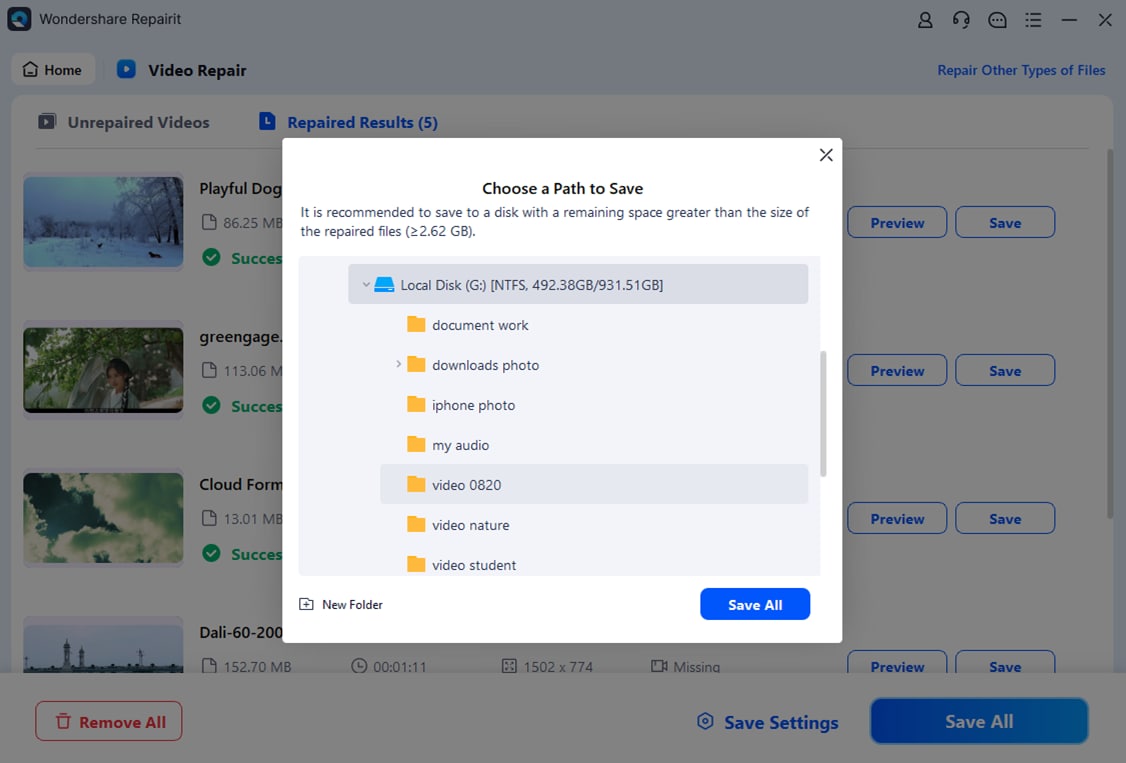
- Preview and Repair Your Desired Data
Conclusion
Understanding what is TS file helps you handle digital TV recordings, DVD streams, and broadcast videos more confidently. While TS is ideal for transmission and error correction, it is not always the most convenient format for everyday playback and editing.
By using capable players, converting TS to MP4 when necessary, and relying on Repairit to fix corrupted TS video file content, you can make sure your recordings stay accessible and watchable across all your devices.
FAQ
-
1. Is a TS file the same as an MP4 file?
No. A TS file is a transport stream format mainly used for broadcasting and digital TV, while MP4 is a general-purpose container optimized for playback and editing. Both can contain similar video codecs, but MP4 is typically more compatible across devices and platforms. -
2. Why will my TS file not play on my device?
Your device or media player may not support the TS container, or the file could be corrupted. Try using a capable player like VLC or convert the TS file to MP4. If the file is damaged, use a repair tool such as Wondershare Repairit to fix playback issues. -
3. Can I edit TS files directly in video editing software?
Some professional editors can import TS files, but performance and stability may not be ideal. For smoother editing, it is usually better to convert the TS video to an editing-friendly format such as MP4 or MOV before importing it into your editing software. -
4. How can I tell if my TS file is corrupted?
Typical signs of corruption include the video not opening at all, playing only audio without video, freezing during playback, or showing artifacts and glitches. If multiple players show the same issues with the same TS file, it is likely corrupted. -
5. Does repairing a TS file reduce its quality?
Repair tools like Wondershare Repairit aim to restore the original structure of the TS video without re-encoding the entire file, so there is usually no visible quality loss. In severe cases, some damaged segments may be dropped to keep the remaining video playable.




