
An What is AVI File topic usually confuses people because they see the .avi extension often but are not sure how it works. AVI is a classic Windows video format that can store both video and audio in a single file. Understanding this format helps you decide when to keep AVI, when to convert it to MP4, and what to do if an AVI video becomes unplayable or corrupted.
Repair Corrupted Files To Save Your Data
 Security Verified. Over 7,302,189 people have downloaded it.
In this article
What Is an AVI File?
An AVI file (Audio Video Interleave) is a multimedia container format introduced by Microsoft for the Windows platform. It stores video and audio streams in a single file using different codecs, which means quality and file size can vary widely. Because AVI is container-based, it does not define one specific compression method; instead, it can wrap content encoded with codecs such as DivX, Xvid, MJPEG, or uncompressed video for higher quality.
Due to its age and wide use, AVI became a standard for downloaded videos, early digital camera recordings, and archived footage. However, it is less efficient than modern containers like MP4 or MKV, often resulting in larger file sizes and occasional compatibility issues on mobile devices or smart TVs without the right codec support.
| Aspect | Details |
|---|---|
| Full Name | Audio Video Interleave (AVI) |
| Developer | Microsoft |
| Typical Uses | Movies, TV episodes, older camera recordings, screen captures |
| Main Advantage | Can store high-quality video and audio with flexible codec choices |
| Main Disadvantage | Large file sizes and possible playback issues without proper codecs |
How to Open AVI Files
You can open AVI files on almost any desktop operating system, but you might occasionally run into missing codec errors. In those cases, switching to a more capable video player or installing codec packs usually solves the issue.
Open AVI Files on Windows
On Windows, AVI is a native format, so the system can often handle it out of the box. Still, some combinations of video and audio codecs inside an AVI may not play correctly with the built-in player.
- Use the Movies & TV app or Windows Media Player to open standard AVI videos.
- If playback fails or there is no sound, install a universal player like VLC media player that bundles its own codecs.
- Optionally, install a reputable codec pack (such as K-Lite Codec Pack) to expand Windows' native AVI support.
- For editing AVI files, import them into tools like Adobe Premiere Pro, DaVinci Resolve, or Windows' Clipchamp, then export to a modern format such as MP4 if needed.
Open AVI Files on Mac and Other Platforms
macOS and other platforms can open AVI, but support is less direct than on Windows. QuickTime may fail to play some AVI videos, especially those compressed with older or proprietary codecs.
- Install third-party players like VLC, IINA, or Elmedia Player on Mac to open almost any avi file format without additional setup.
- On Linux, applications such as VLC, MPV, or SMPlayer handle AVI playback easily.
- On phones or tablets, look for mobile versions of VLC or similar apps if the default gallery or video player cannot open the avi video.
- If playback is still unreliable, converting to MP4 is often the simplest way to ensure compatibility across all devices.
How to Convert AVI to MP4
Converting an AVI file to MP4 helps reduce file size and makes the video easier to play on TVs, phones, consoles, and browsers. MP4 uses modern compression (such as H.264 or H.265) and is widely supported across platforms.
Convert AVI to MP4 with Desktop Software
Desktop video converters give you more control over quality, resolution, and bitrate when you convert avi to mp4. They are better suited for large files, long recordings, or batch conversion.
- Install a reliable converter like HandBrake, VLC, or a dedicated video toolkit on your computer.
- Open the program and load your AVI files (most tools support dragging and dropping multiple videos at once).
- Select MP4 as the output container and choose a video codec such as H.264 for broad compatibility.
- Adjust resolution, bitrate, and audio settings based on your quality and size preferences.
- Start the conversion and wait for the process to complete, then test the MP4 files in a standard avi player alternative like your default system player.
Convert AVI to MP4 with Online Tools
If you only need to convert a small AVI file and do not want to install software, online converters can be a quick solution. Keep in mind that upload limits, privacy concerns, and slower speeds for large files may apply.
- Visit a trusted online video converter website in your browser.
- Upload the AVI file from your computer, cloud storage, or a shared link.
- Choose MP4 as the target format and, if available, select your desired quality level.
- Start the conversion and wait for the service to process your video on its servers.
- Download the finished MP4 file and check that playback and audio sync are correct before deleting the original, especially if the AVI is your only copy.
How to Use Repairit to Fix a Corrupted AVI File
Why Use Repairit for AVI Repair
When an AVI video refuses to play, stops halfway, or shows broken frames, simple players or converters usually cannot fix the underlying damage. In these situations, a specialized repair tool is more effective. Wondershare Repairit is designed specifically to repair avi file issues and other video formats with a guided workflow. You can get the latest version from the Repairit official website and use it to scan for problems, reconstruct video and audio data, and restore your clips with minimal technical knowledge.
Key Features of Repairit for AVI Video Repair
- Repairs corrupted or unplayable AVI, MP4, MOV, and other video formats affected by transfer errors, crashes, or storage issues.
- Supports batch repair so you can fix multiple damaged AVI files in one operation instead of handling them separately.
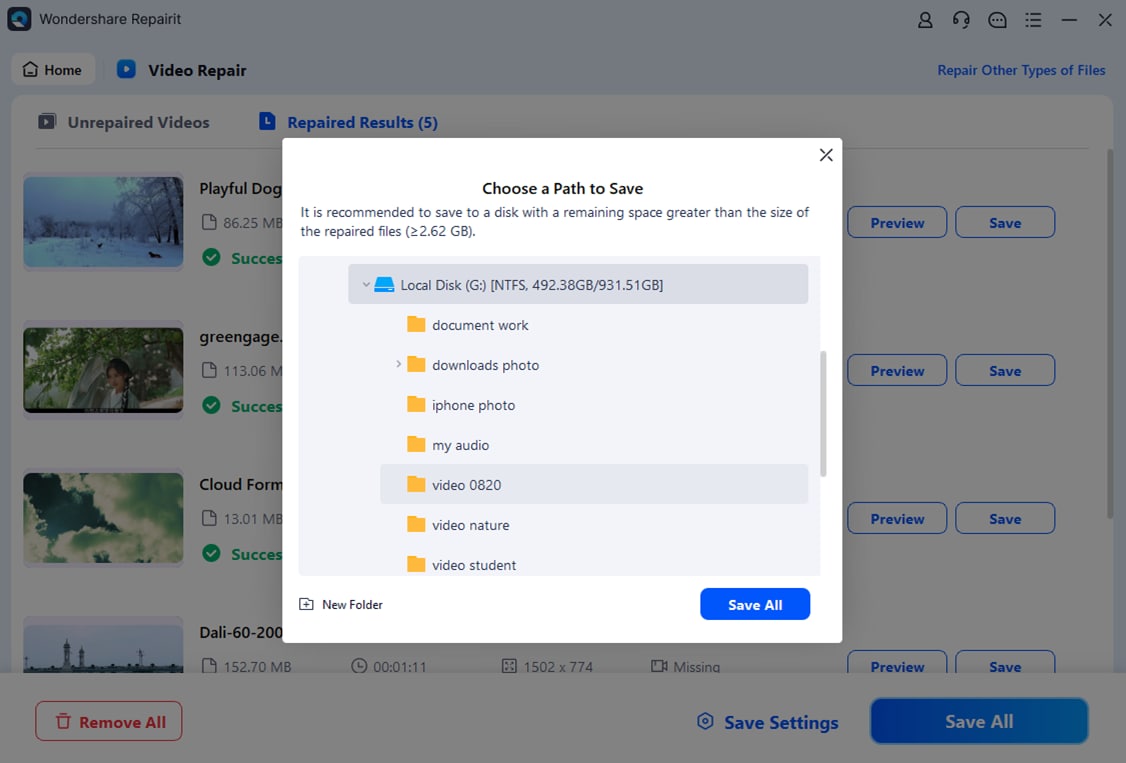
- Provides a detailed preview of repaired videos so you can confirm quality before saving them to a safe location.
Steps to Repair AVI Files with Repairit
Repairit follows a straightforward three-step process to help you fix corrupted avi files without needing advanced technical skills.
-
Choose a Location to Repair Data

-
Deep Scan the Location

-
Preview and Repair Your Desired Data
Conclusion
AVI is a classic container format that can deliver excellent quality but often depends on having the right codecs and players. Knowing what is avi file, how it packages audio and video, and where it differs from formats like MP4 helps you avoid playback issues and make smarter choices when storing or sharing your media.
When compatibility is your priority, converting AVI to MP4 ensures smoother playback across modern devices and platforms. If your AVI files become corrupted, using a dedicated repair solution such as Repairit gives you a reliable way to restore valuable recordings and keep your video library accessible for years to come.
FAQ
-
1. What is AVI file format used for?
An AVI file is a multimedia container used to store synchronized video and audio in one package. It is commonly used for movies, TV episodes, screen recordings, and raw camera footage, especially on older or Windows-focused workflows. -
2. How do I open AVI files on Windows or Mac?
On Windows, try the Movies & TV app or Windows Media Player first, then switch to VLC if you see codec errors. On Mac, QuickTime may not open every AVI, so players like VLC, IINA, or Elmedia Player are more reliable choices. -
3. Why will my AVI file not play properly?
Playback issues usually occur when the required codec is missing, the file is only partially downloaded, or the AVI structure is corrupted. Installing a versatile player, re-downloading the file, or repairing it with Repairit can help resolve these problems. -
4. How can I convert AVI to MP4 without losing too much quality?
Use a desktop converter such as HandBrake or VLC, select MP4 (H.264) as the output format, and choose a moderate bitrate or quality preset. This approach balances file size reduction with visual clarity and maintains good compatibility. -
5. Can I repair a corrupted AVI file?
Yes. Specialized repair tools like Wondershare Repairit can scan damaged AVI videos, reconstruct missing or broken segments, and let you preview the repaired results before saving them to a safe storage location.




