
Lag on Xbox Series X or Series S can make games feel slow, unresponsive, or choppy—especially during online matches or visually demanding scenes. Because “lag” can mean very different things, many players waste time trying fixes that don’t match their actual problem.
This guide focuses on step-by-step troubleshooting, starting with safe, reversible checks and moving toward more advanced solutions only when necessary. By identifying the type of lag first, you can fix the issue faster and avoid unnecessary changes or data loss.
Key Takeaways
- “Lag” can have different causes and symptoms.
- Identifying the symptom first prevents wasted troubleshooting.
- Most Xbox Series X lag issues are resolved with basic, low-risk fixes.
- Advanced solutions should only be used when standard steps fail.
Table of Contents
Part 1: Why Is Your Xbox Series X Lagging?
Before fixing anything, determine what kind of lag you’re actually seeing. “Lag” is a broad term, and different symptoms point to different causes.
Common Lag Types and Symptoms
Network (Online) Lag
- Delayed actions in multiplayer
- Rubber-banding
- High ping warnings
- Usually only affects online gameplay
System Performance Lag
- Slow menus
- Delayed controller response
- Long loading times across multiple games
Game-Specific or Storage Lag
- Lag occurs in one game only
- Freezing during certain levels or scenes
- Crashes after updates
Visual / Display Lag
- Frame drops
- Choppy motion
- Screen tearing or stuttering cutscenes
Once you identify the symptom, jump directly to the matching fix section below.
Part 2: Quick Checks Before You Start to Fix Xbox Series X Lagging
Before applying detailed fixes, quickly identify which type of lag you’re experiencing. This helps you avoid trying solutions that don’t match the problem.
Quick Decision Guide: Find the Right Fix Fast
- If lag happens only in online multiplayer games: Focus on network fixes.
- If menus feel slow or controller input is delayed: Focus on console performance fixes.
- If only one game lags: Focus on game and storage fixes.
- If gameplay is responsive but visuals stutter: Focus on display and video settings.
Skipping irrelevant fixes saves time and reduces the risk of unnecessary changes.
Quick Fix for Different Types of Lag
Here are some quick and easy solutions for different types of lag you may encounter while gaming:
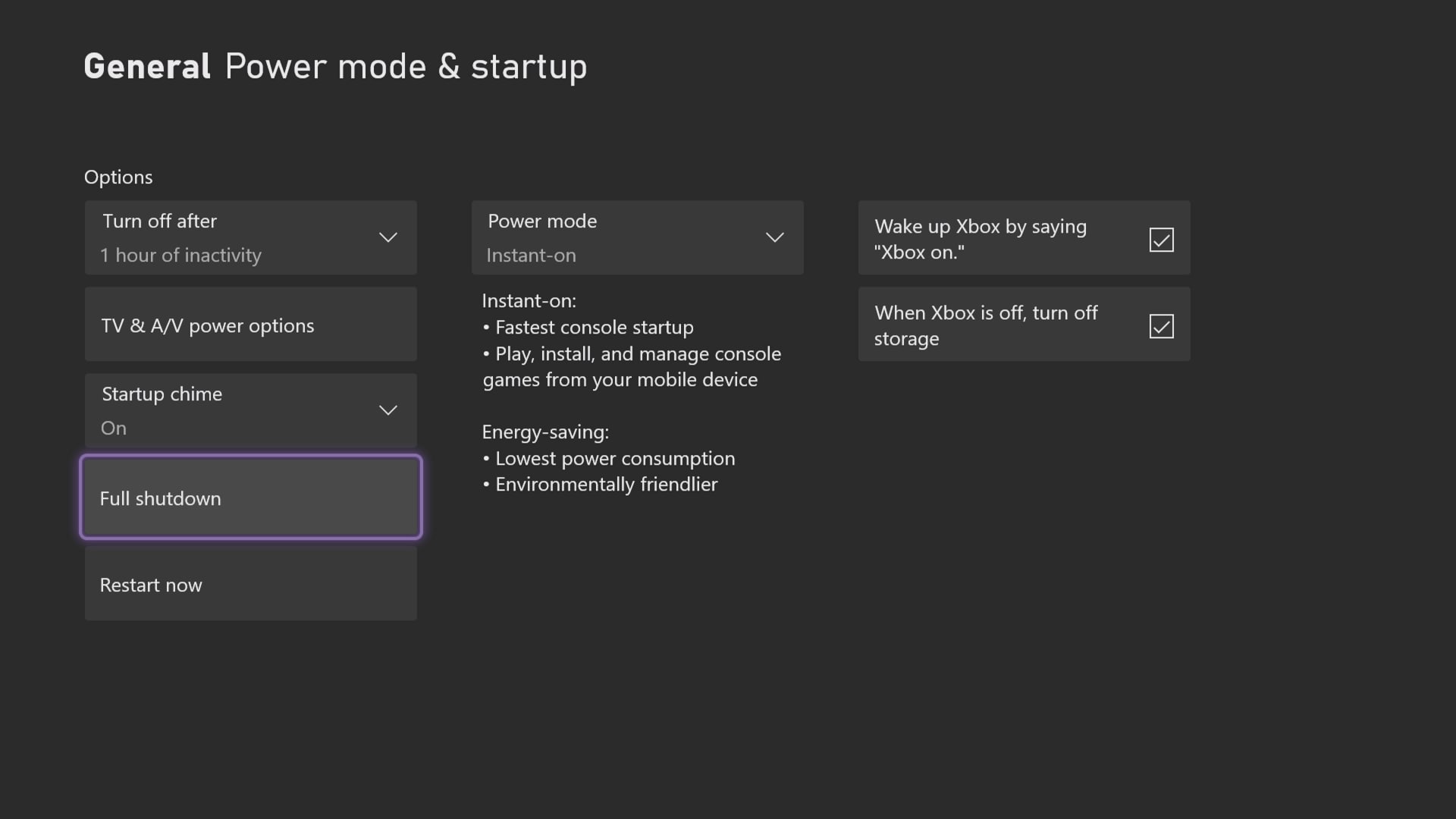
- Restart your Xbox Series X/S: A full restart clears temporary glitches and refreshes system resources.
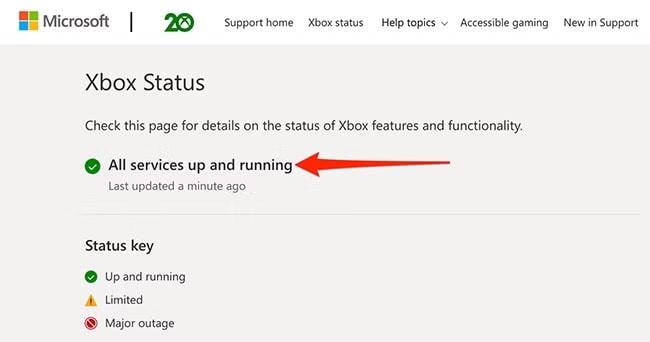
- Check Xbox Live service status: Server outages or degraded services can cause online lag even if your internet is fine.
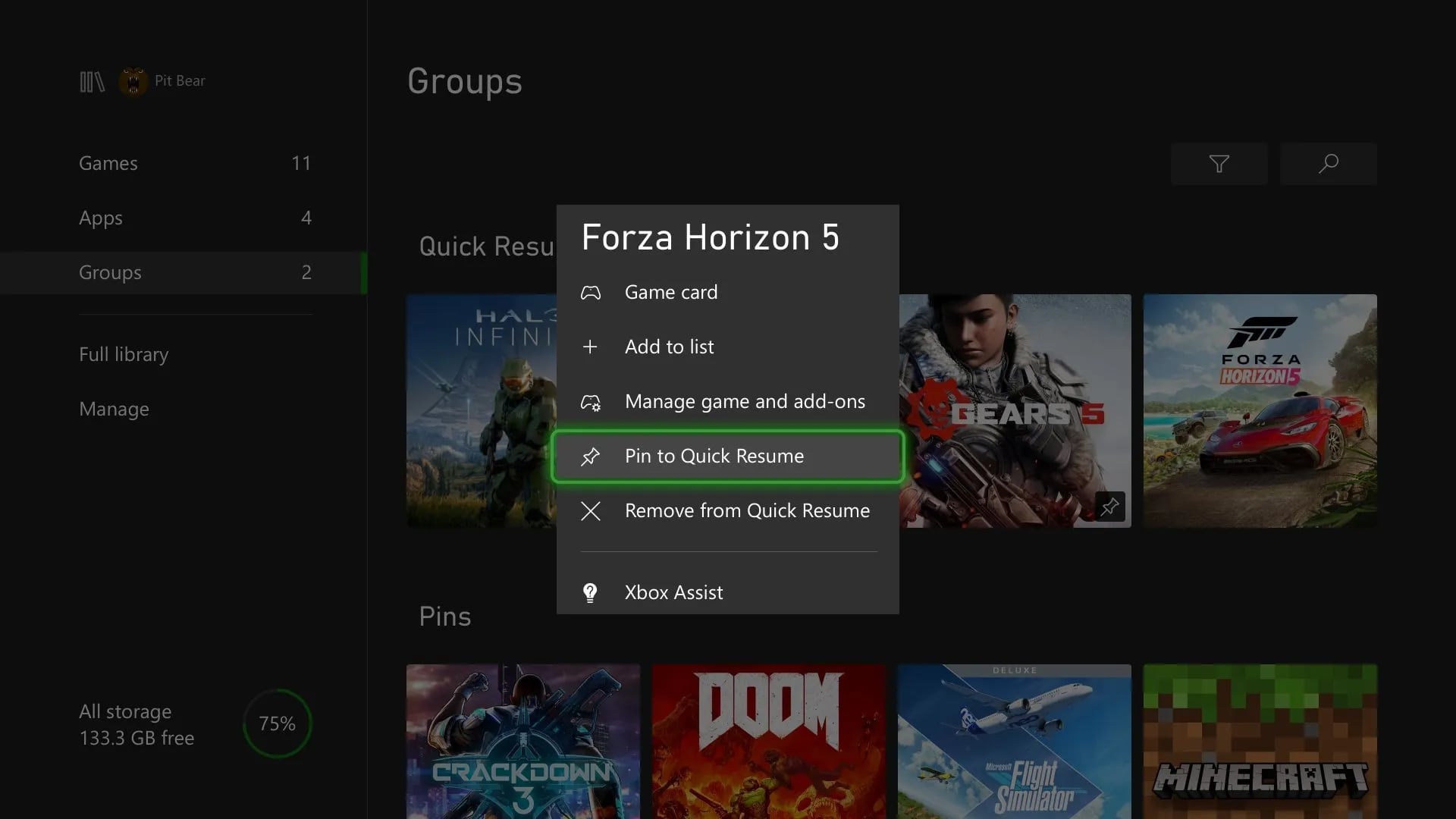
- Close background apps and Quick Resume games: Running apps and suspended games can use system resources and impact performance.
- Test multiple games: If lag only happens in one game, the issue is likely game-specific rather than system-wide.
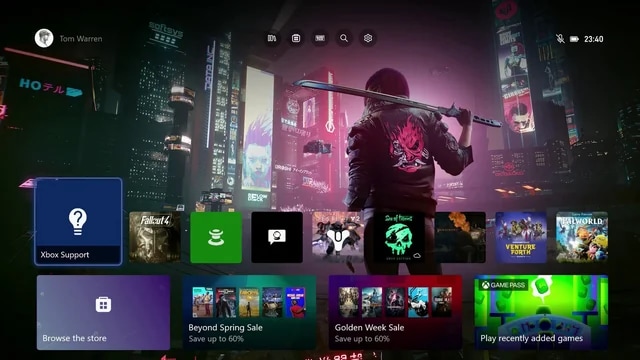
Part 3: Comprehensive Fixes to Resolve Xbox Series X Lag
Follow these step-by-step instructions to systematically resolve lag issues on your Xbox Series X or Series S. Each type of lag has specific fixes to improve performance.
1. Network-Related Lag Fixes
Network issues are the most common cause of lag during online gameplay. Follow the steps below in order, testing your game after each change.
Use these fixes if you experience:
- Lag only in online multiplayer
- Rubber-banding or delayed actions
- High ping warnings or sudden spikes
If menus are slow or single-player games lag, skip this section.
Fix 1. Switch to a Wired Ethernet Connection
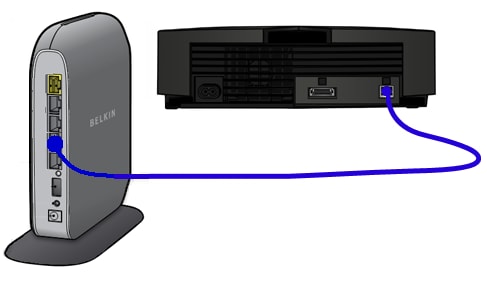
Use this fix if: You play online multiplayer games and use Wi-Fi.
- Connect an Ethernet cable from your router directly to your Xbox Series X/S
- Go to Settings → General → Network settings
- Confirm the connection shows Wired instead of Wireless
Fix 2. Restart Your Modem and Router
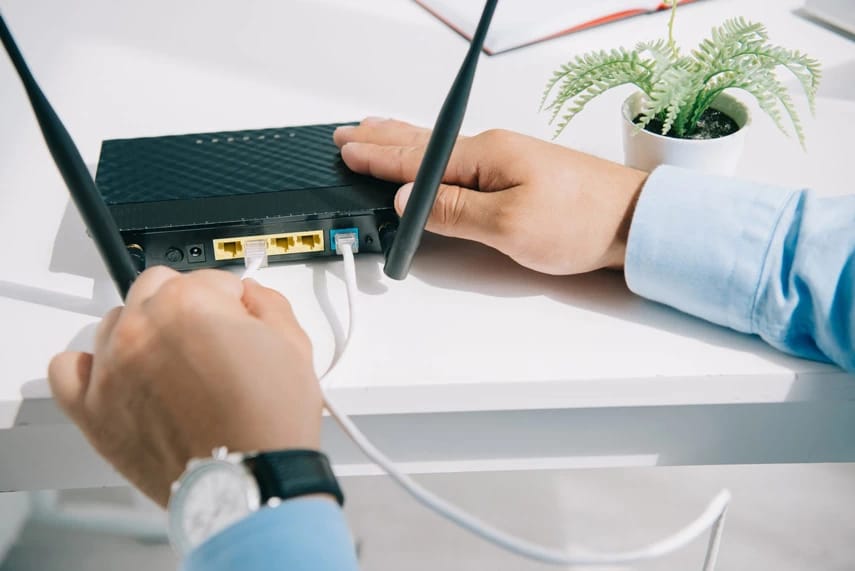
Use this fix if: Lag appears suddenly or comes and goes.
Turn off your modem and router
- Unplug both devices for 30–60 seconds
- Plug them back in and wait until the internet reconnects
- Restart your Xbox and test gameplay
Fix 3. Test Network Speed and Latency on Xbox
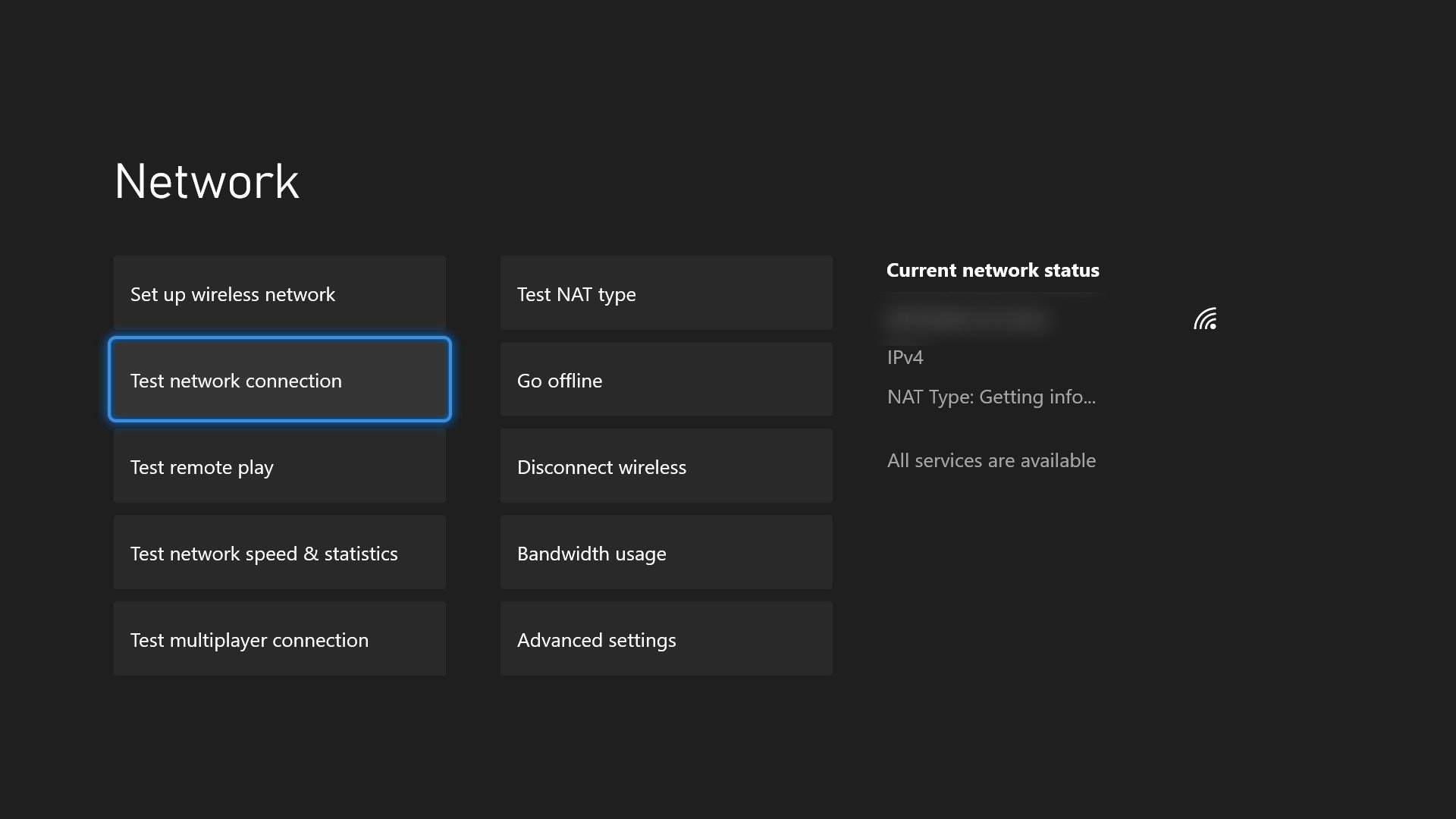
Use this fix if: You’re unsure whether your internet is the problem.
Go to Settings → General → Network settings
Select Test network speed & statistics
Pay attention to:
- Latency (ping): Under 60 ms is ideal
- Packet loss: Should be 0%
Fix 4. Reduce Network Congestion
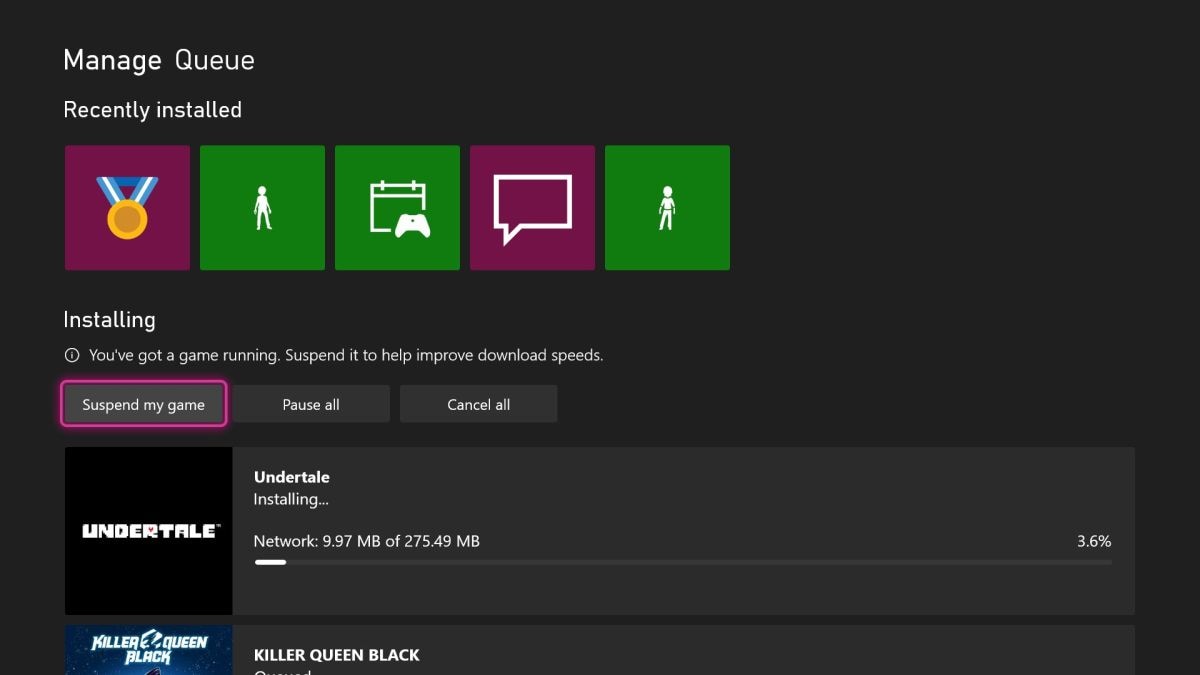
Use this fix if: Lag happens when others are using the internet.
- Pause game downloads on your Xbox
- Stop video streaming, large downloads, or cloud backups on other devices
- Avoid gaming during peak usage times if possible
Fix 5. Change DNS Settings
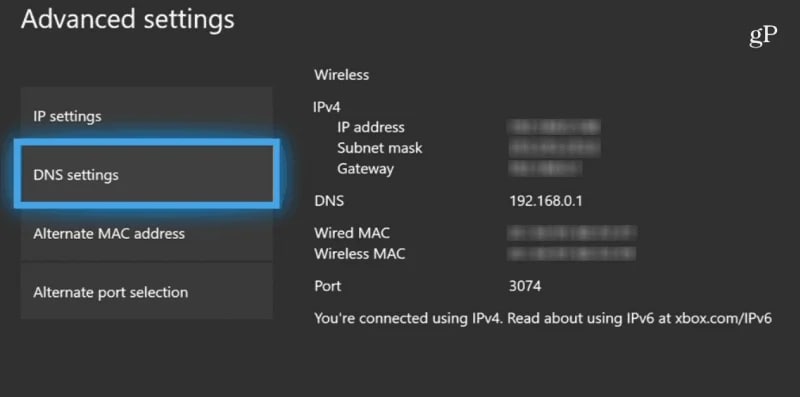
Use this fix if: Your connection is stable but still feels delayed.
- Go to Settings → General → Network settings → Advanced settings
- Select DNS settings → Manual
- Enter one of the following:
- Google DNS: 8.8.8.8 / 8.8.4.4
- Cloudflare DNS: 1.1.1.1 / 1.0.0.1
- Restart your Xbox
Note: This change is safe and reversible. You can switch back to “Automatic” at any time.
2. Console Performance Lag Fixes
If your Xbox Series X feels slow, menus lag, or inputs respond late, the issue is usually system performance rather than your internet connection. Follow these steps in order.
Use these fixes if you experience:
- Slow menus
- Delayed controller input
- Freezing across multiple games
If lag only happens online, return to Fix 1.
Fix 1. Power cycle the console
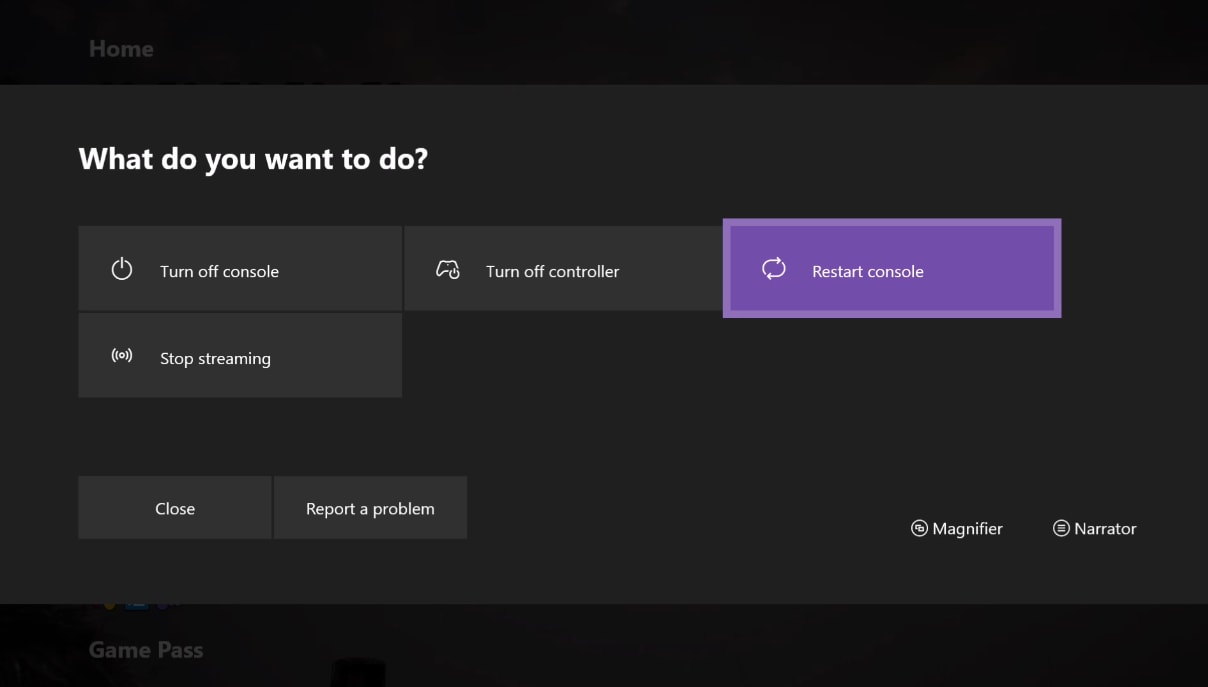
Step 1: Turn off your Xbox completely.
Step 2: Unplug the power cable from the back of the console.
Step 3: Wait at least 60 seconds, then plug it back in and turn it on.
Fix 2. Clear persistent storage
Step 1: Press the Xbox button on your controller.
Step 2: Go to Profile & system > Settings > Devices & connections > Blu-ray.
Step 3: Select Persistent storage, then choose Clear persistent storage.
Fix 3. Update Xbox system software
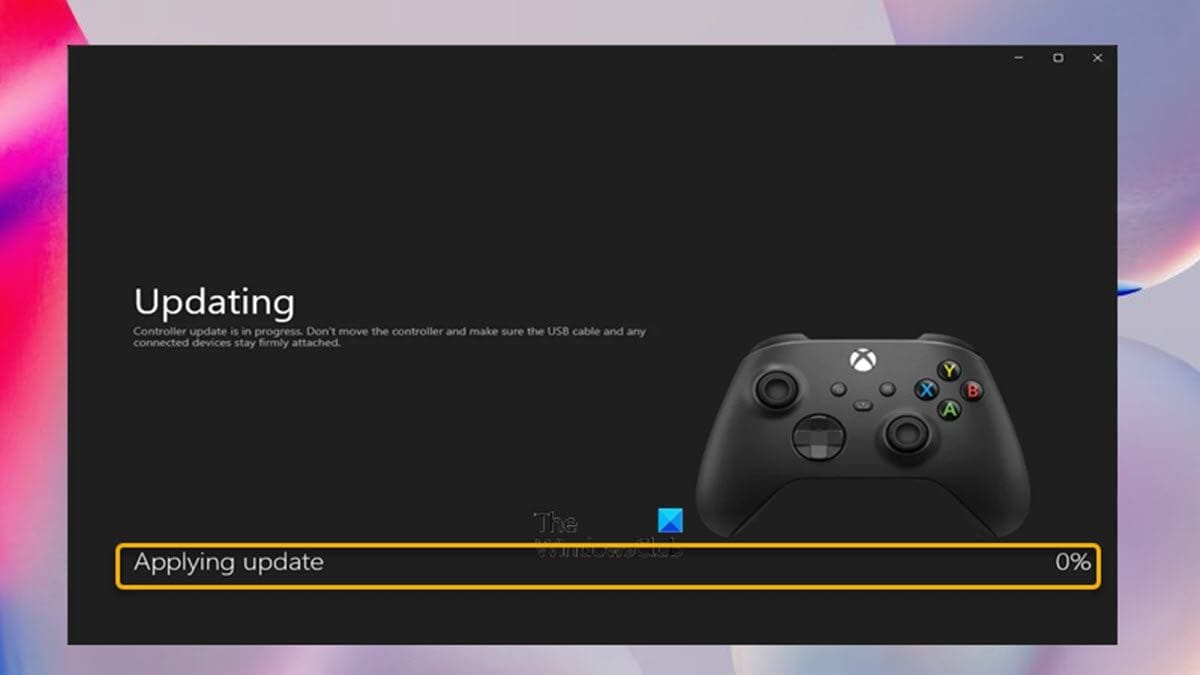
Step 1: Open Settings > System > Updates.
Step 2: Install any available updates.
Note: Do not turn off your Xbox or unplug it while an update is installing. Interrupting system updates can cause temporary software issues.
3. Game & Storage-Related Lag Fixes
If lag only happens in certain games while others run fine, the problem is usually related to where the game is stored or the game files themselves. Follow these steps to fix it.
Use these fixes if you experience:
- Lag in one game only
- Freezing during certain levels or scenes
- Crashes after game updates
If all games lag equally, return to Fix 2.
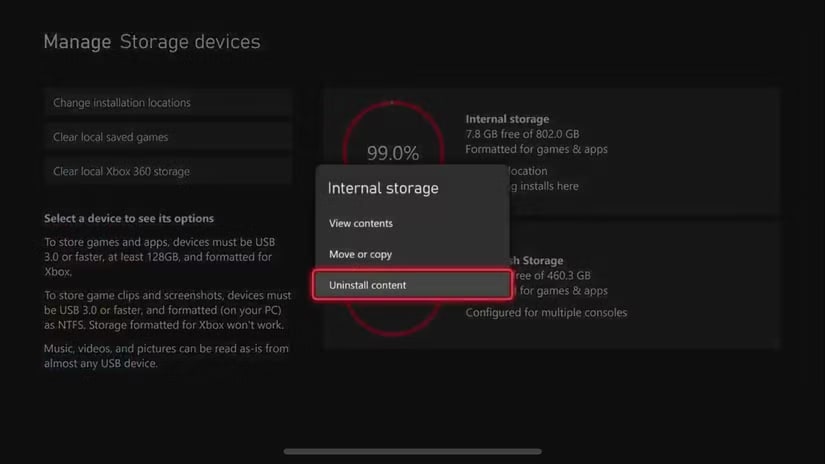
Fix 1. Move the game to internal storage
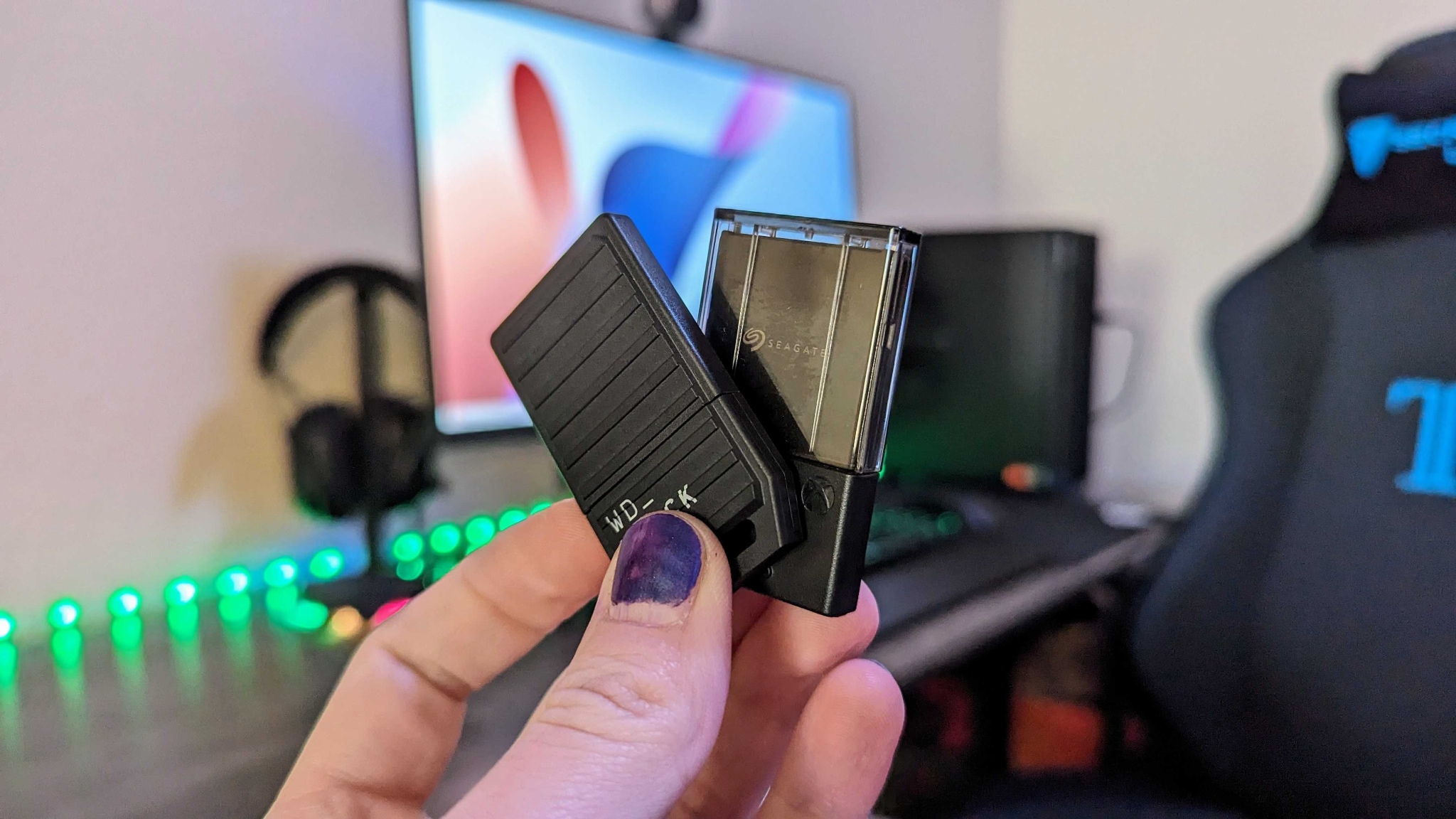
Step 1: Press the Xbox button and go to Profile & system > Settings.
Step 2: Select System > Storage devices.
Step 3: Choose the game that’s lagging, then select Move or copy.
Step 4: Move it to the Internal SSD or an official Seagate expansion card.
Fix 2. Reinstall the lagging game
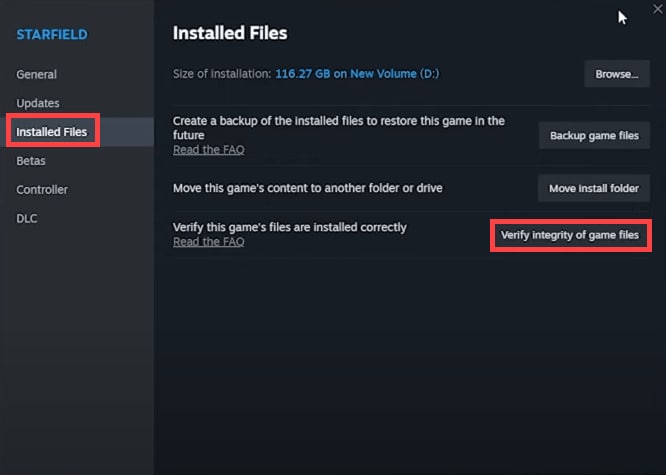
Step 1: Go to My games & apps > Games.
Step 2: Highlight the affected game, press the Menu button, and select Uninstall.
Step 3: Restart your Xbox, then reinstall the game from your library.
Risk note: Most modern games store progress in Xbox Cloud Saves, but it’s a good idea to confirm your saves are synced before uninstalling. Reinstalling a game removes the local game files but not your Xbox account data.
Fix 3. Avoid slow external USB drives for gameplay
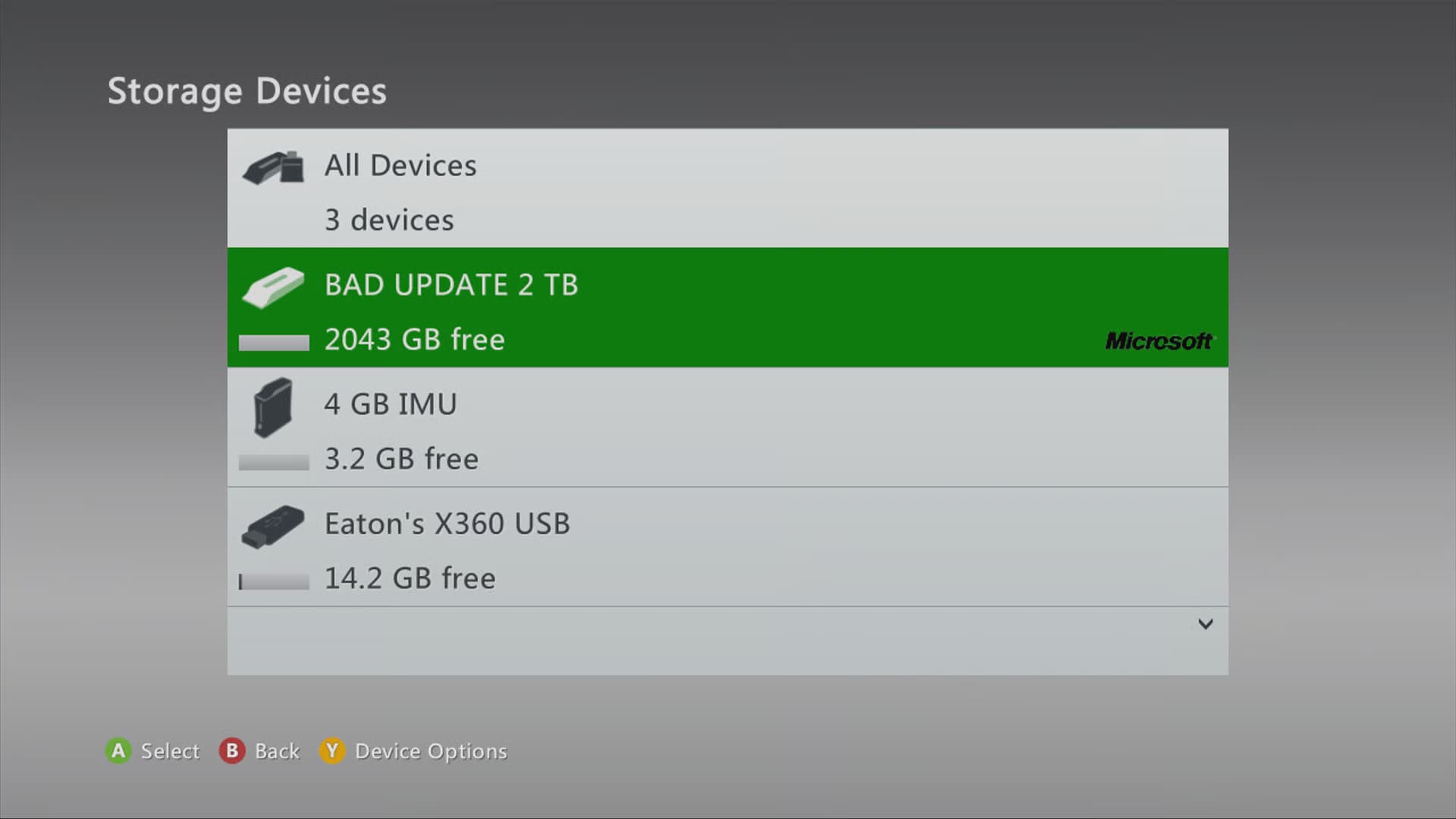
External USB hard drives are fine for storage, but they are too slow to run Series X-optimized games smoothly.
- Use USB drives only to store games.
- Move the game back to internal storage before playing.
4. Display and Visual Lag Fixes
If you notice visual stutter, frame drops, screen tearing, or lag during cutscenes or video playback, the issue is often caused by display settings or video features that don’t match your TV or monitor.
Use these fixes if you experience:
- Frame drops
- Screen tearing
- Choppy motion or stuttering cutscenes
If menus and controls feel responsive, this is likely display-related.
Fix 1. Match your refresh rate to your display
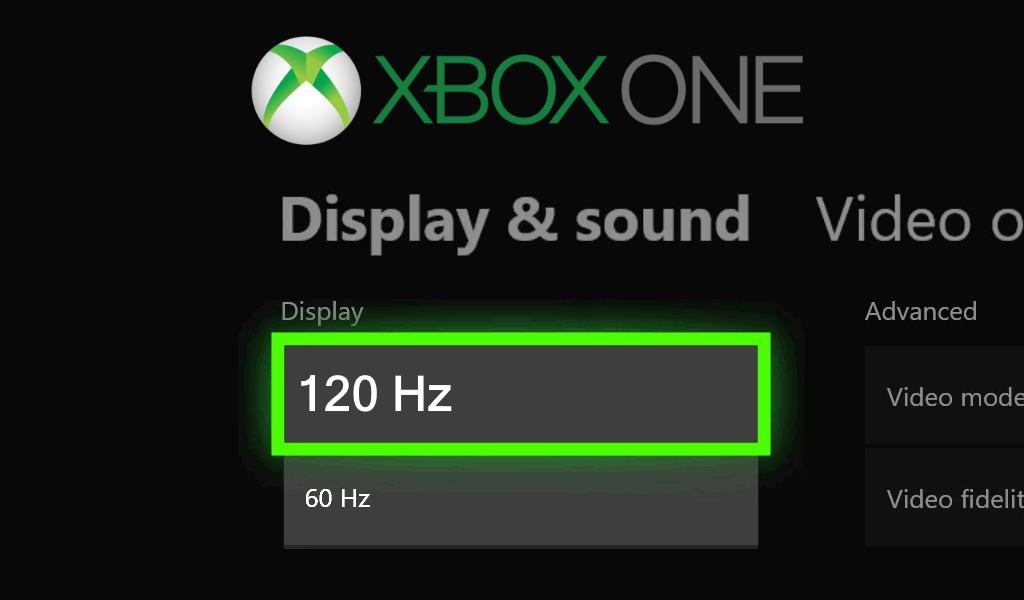
Step 1: Press the Xbox button and go to Profile & system > Settings.
Step 2: Select General > TV & display options.
Step 3: Set Refresh rate to 60Hz or 120Hz, depending on what your TV or monitor supports.
Note: Some TVs or monitors may briefly go black or resync when changing refresh rate settings. This is normal and should resolve within a few seconds.
Fix 2. Disable extra video features temporarily
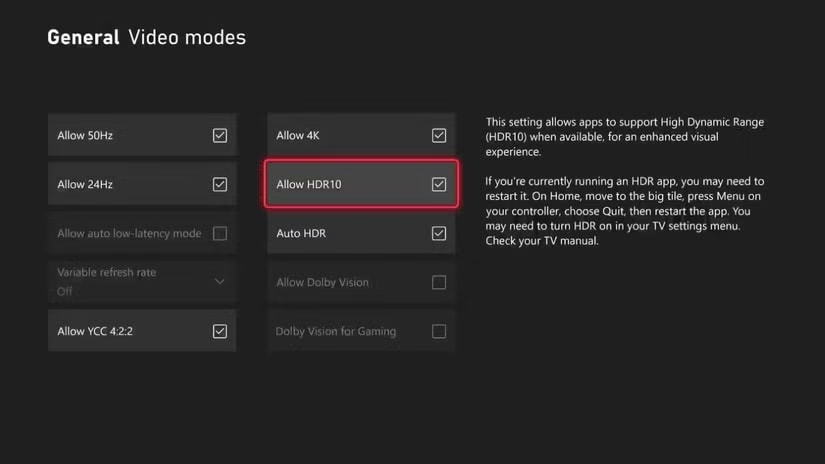
Step 1: Go to Settings > General > TV & display options > Video modes.
Step 2: Turn off features like Variable Refresh Rate (VRR), Auto HDR, or any experimental video options.
Risk note: Disabling VRR, Auto HDR, or other video features is meant for testing. These settings can be turned back on at any time and do not permanently reduce display quality.
Fix 3. Use High-speed HDMI cable

Step 1: Use a high-speed HDMI cable (HDMI 2.0 or HDMI 2.1).
Step 2: Connect the Xbox directly to the TV or monitor—avoid splitters or capture devices.
Step 3: Plug into the manufacturer-recommended HDMI port (often labeled HDMI 2.1, Game, or 120Hz).
More related articles to Xbox:
Xbox YouTube Not Working? Why and 9 Ways to Fix the Problem
Xbox Series X Overheating Fix: Causes, Signs, and Proven Solutions
Xbox Series X/S Black Screen Issues: Causes and Fixes That Work
Test and Confirm
After applying fixes in each category:
- Test the game or app to check if performance has improved.
- If lag persists, repeat the relevant steps or consider advanced file repair solutions.
- Only reset console settings as a last resort if all other fixes fail.
Risk warning: Resetting console settings can remove preferences and may require you to sign back into your Xbox account. Choose reset options carefully and avoid deleting games or data unless absolutely necessary.
Part 4: When Lag Persists Despite All Fixes
Sometimes, lag continues even after you’ve tried all the standard network, system, game, and display fixes. When this happens, the issue may be file-related rather than hardware or network-based.
Signs your lag could be caused by corrupted files:
- Lag occurs only in specific game scenes or areas.
- Video playback or cutscenes stutter despite smooth gameplay elsewhere.
- Games crash, freeze, or experience errors after updates.
If you notice any of these symptoms, it’s likely that corrupted or incomplete game or media files are causing the slowdown. In these cases, advanced repair solutions, such as reinstalling the affected game or using specialized file repair tools, may be necessary to restore smooth performance.
Part 5. Advanced Fix: Repairing Corrupted Game or Video Files
In most real-world cases, Xbox Series X lag is caused by network conditions, system performance limits, or display mismatches. File repair should only be considered if:
- Lag happens during specific videos or cutscenes
- Recorded gameplay clips stutter on multiple devices
- Reinstalling the game did not resolve the issue
Note: Most Xbox lag issues are not file-related. Only consider repairing corrupted files if all standard fixes fail and the lag occurs in specific games or videos.
Damaged or incomplete media files can overload the system during playback, leading to stuttering or crashes. Network or system tweaks will not fix corrupted data. If you confirm the issue is caused by corrupted video files, a video repair tool may help. These tools attempt to rebuild damaged media data but cannot fix Xbox system, hardware, or network lag.
One example is Repairit Video Repair, which supports repairing damaged gameplay recordings and video files.
Limitations:
- Cannot fix Xbox firmware or hardware issues
- Will not improve online latency or FPS drops
- Severely damaged files may only be partially recovered
Step-by-Step: Repairing Corrupted Files (Optional)
Step 1. Launch the software and click Add to select the files from your Xbox or external drive that are causing lag.

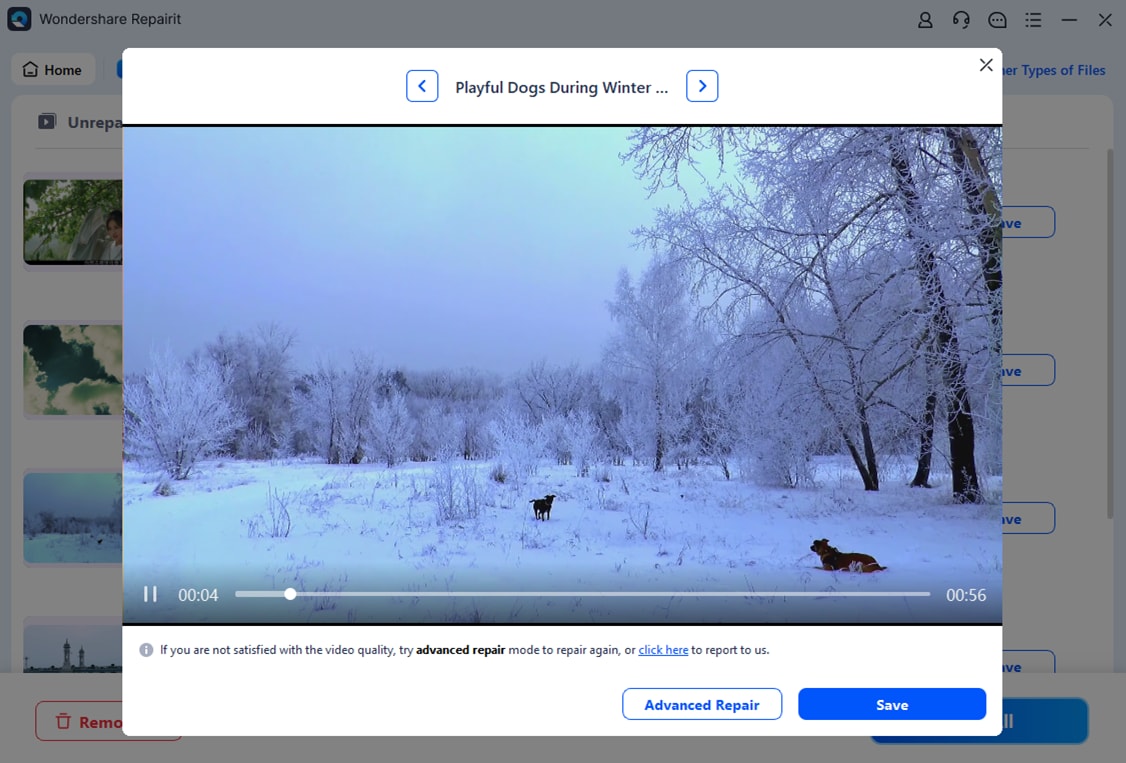
Step 2. Click Repair to begin scanning and fixing corrupted files. The software will attempt to reconstruct damaged data and restore proper playback.

Step 3. After the repair finishes, preview the fixed videos to ensure they play correctly. Save them to a safe location, preferably back onto your Xbox internal storage.
Important Note: Keep a backup of the original files before repair. Results depend on the level of corruption—minor damage is often fully repairable, while heavily corrupted files may only be partially restored.
What If Your Xbox Series X Still Lags?
If all steps above fail:
- Test with a minimal setup: Disconnect external storage and accessories to isolate the cause.
- Try a different network or location: Persistent lag across networks may indicate hardware issues.
- Factory Reset (Last Resort): Choose Reset and keep my games & apps.
- Contact Xbox Support: Ongoing lag after a reset often points to hardware faults or warranty issues.
⚠️ A full reset erases settings and preferences.
Conclusion
Xbox Series X lag can be frustrating, but most performance issues are fixable with a methodical approach. Start by identifying the type of lag—network, system, game, or display—then apply the corresponding fixes, from optimizing your connection and clearing console cache to reinstalling games or repairing corrupted files.
By diagnosing the root cause and troubleshooting step by step, you can restore smooth, responsive gameplay. Remember, patience and careful testing after each change are key, and even persistent lag often has a solution. With the strategies outlined in this guide, your Xbox Series X can run at peak performance once again.
FAQs
-
Q1. Why is my Xbox Series X lagging with good internet?
Lag can still occur due to system performance issues, corrupted game files, or mismatched display settings, even if your network is fast and stable. -
Q2. How do I reduce lag on Xbox Series X/S?
Optimize your network, clear console cache, free internal storage, update firmware, reinstall problem games, and check display/video settings. -
Q3. Does external storage cause lag?
Yes, running games directly from slow USB drives can cause stutter, frame drops, and long load times. Use internal SSD or approved expansion cards for gameplay. -
Q4. Can corrupted files cause performance issues?
Absolutely. Damaged game or video files can lead to stuttering, crashes, or lag during cutscenes and gameplay. Repair or reinstalling affected files can help.




