
“As soon as I open the Netflix app on my Samsung Smart TV and try to select a profile, it freezes.Does anyone have any ideas of how to fix this?” - Reddit user
Netflix freezing on a Samsung Smart TV usually shows up as the app getting stuck on the loading screen (often at 20%, 24%, or 99%), a spinning red circle, or an unresponsive profile screen. While similar issues can happen on other TV brands, this guide focuses on Samsung TVs and walks you through fixes from quick, low-risk steps to more advanced options.
Table of Contents
Part 1. What “Netflix Frozen on Samsung TV” Usually Looks Like
When Netflix freezes on your Samsung TV, it can appear in different ways:
- The app stalls while loading (stuck at 20%, 24%, 99%, or on the Netflix logo)
- The profile screen becomes unresponsive
- Playback freezes while the TV menu still works
- Only Netflix freezes, while other apps (YouTube/Hulu) work normally
These patterns help you decide whether the problem is the Netflix app, your network, or the TV system.
Part 2. Quick Self-Check: Identify Your Netflix Freezing Scenario
Before trying any fixes, it helps to understand exactly what’s going on. Ask yourself these questions:
- Does Netflix freeze only on one show or episode? If only one title freezes, the problem is likely with that video, not your TV or Netflix as a whole.
- Do other streaming apps work normally? If other apps are fine, the issue is usually Netflix app/cache/account session.
- Does the freeze happen at the same percentage every time (e.g., 24% or 99%)? That often points to network handshake issues, cache corruption, or outdated firmware.
- Does restarting the TV temporarily fix the issue? If yes, it may be a temporary memory/software glitch.
Answering these simple questions will provide a clearer picture of why Netflix is freezing and make it easier to find the right solution.
Part 3. Common Causes of Netflix Freezing on Samsung Smart TVs

If Netflix keeps freezing on your Samsung TV, it usually comes down to a few common issues:
- App cache corruption: Over time, Netflix stores temporary data (cache) to help it run faster. This data can get corrupted, which can make the app stall or freeze.
- Outdated Netflix app or TV firmware: Running an older version of Netflix or your TV’s system software can cause compatibility issues, leading to freezing or crashes.
- Network instability: A weak or unstable internet connection can interrupt streaming. It causes the video to pause or freeze while the audio continues.
- Temporary system glitches: Like any smart device, your TV can experience minor software hiccups. These temporary glitches can make Netflix unresponsive until you restart the app or TV.
- Corrupted downloaded videos (rare): If you’re watching offline content, the file itself might be damaged. This is less common but can cause Netflix to freeze on that specific video.
Part 4. Top 4 Methods to Fix Samsung TV Netflix Frozen Issue
Netflix freezing on your Samsung TV can be annoying, but the good news is it’s usually an easy fix. These four simple methods will help you run your Netflix seamlessly.
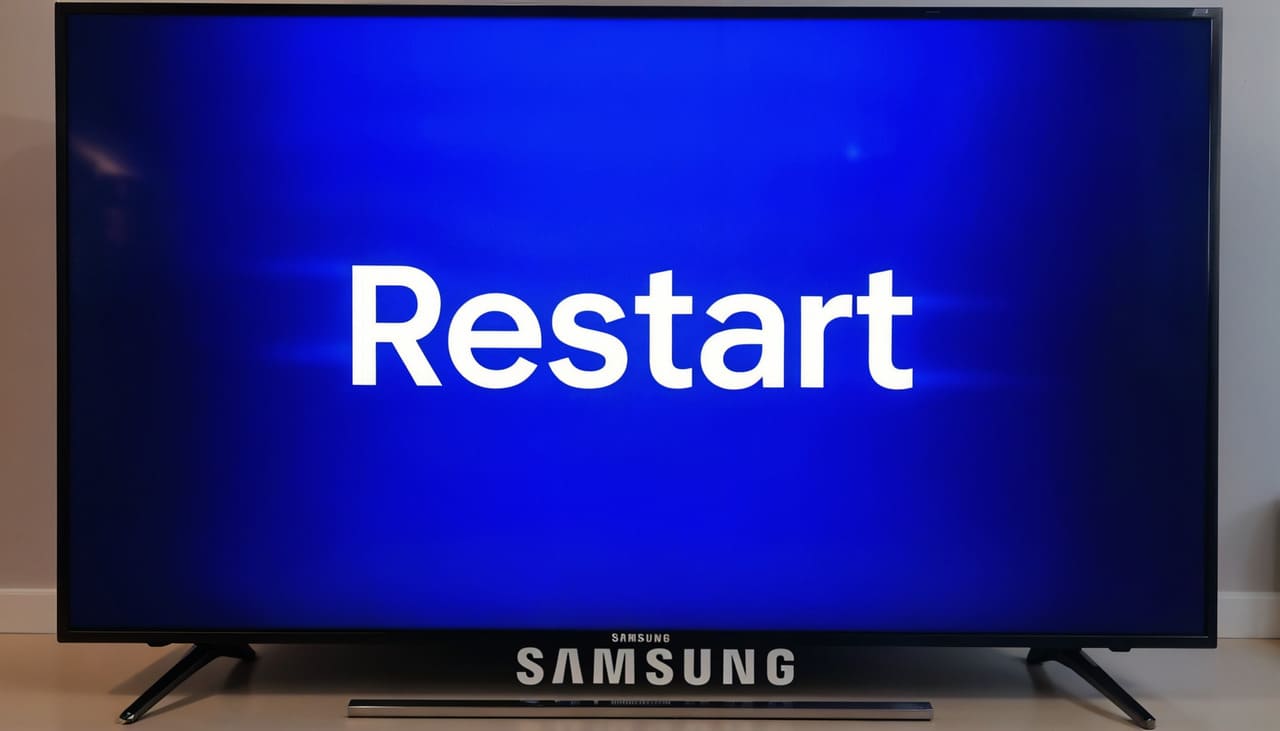
1. Restart the TV and Reconnect to the Network
Sometimes the simplest solution works best. Turning your TV off and on can clear temporary glitches in the system. While you’re at it, reconnecting to your Wi-Fi or wired network can solve minor connectivity issues that might be causing Netflix to freeze.
Here are the quick steps:
Step 1: Unplug your device from the power outlet. You can just leave it unplugged for 3 minutes.
Step 3: Plug the device back in.
Step 4: Reopen the Samsung TV and connect to the network to try Netflix again
2. Sign Out of Netflix and Sign Back In
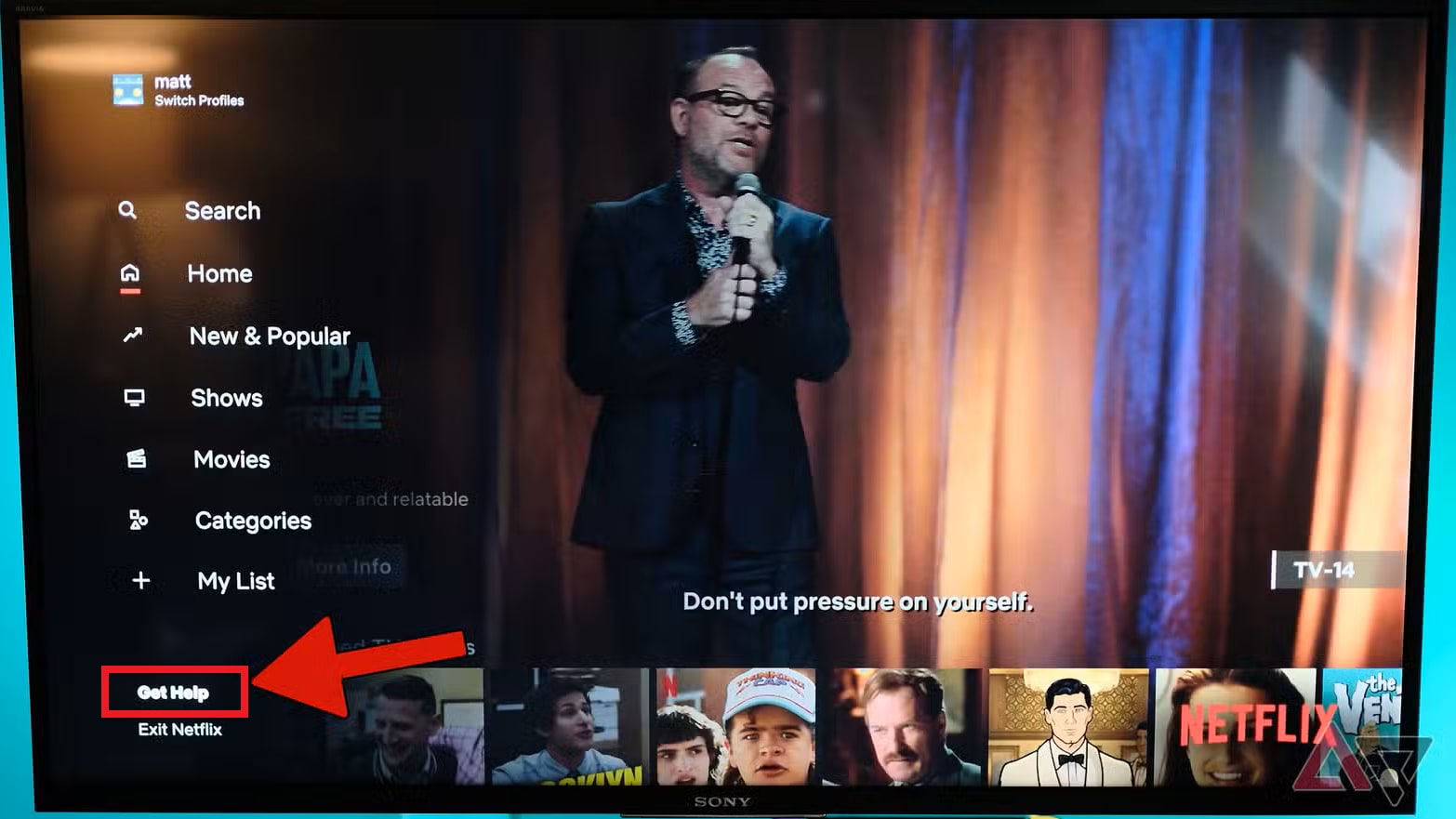
Logging out of Netflix and then signing back in can refresh your account connection. This helps reset any temporary bugs between the app and your TV. Here are the steps to sign out of Netflix and sign back in on a Samsung TV:
Step 1: Run the Netflix app on your Samsung TV.
Step 2: Using your remote, go to the left-side menu.
Step 3: Scroll down and select Get Help.
Step 4: Choose Sign Out and confirm.
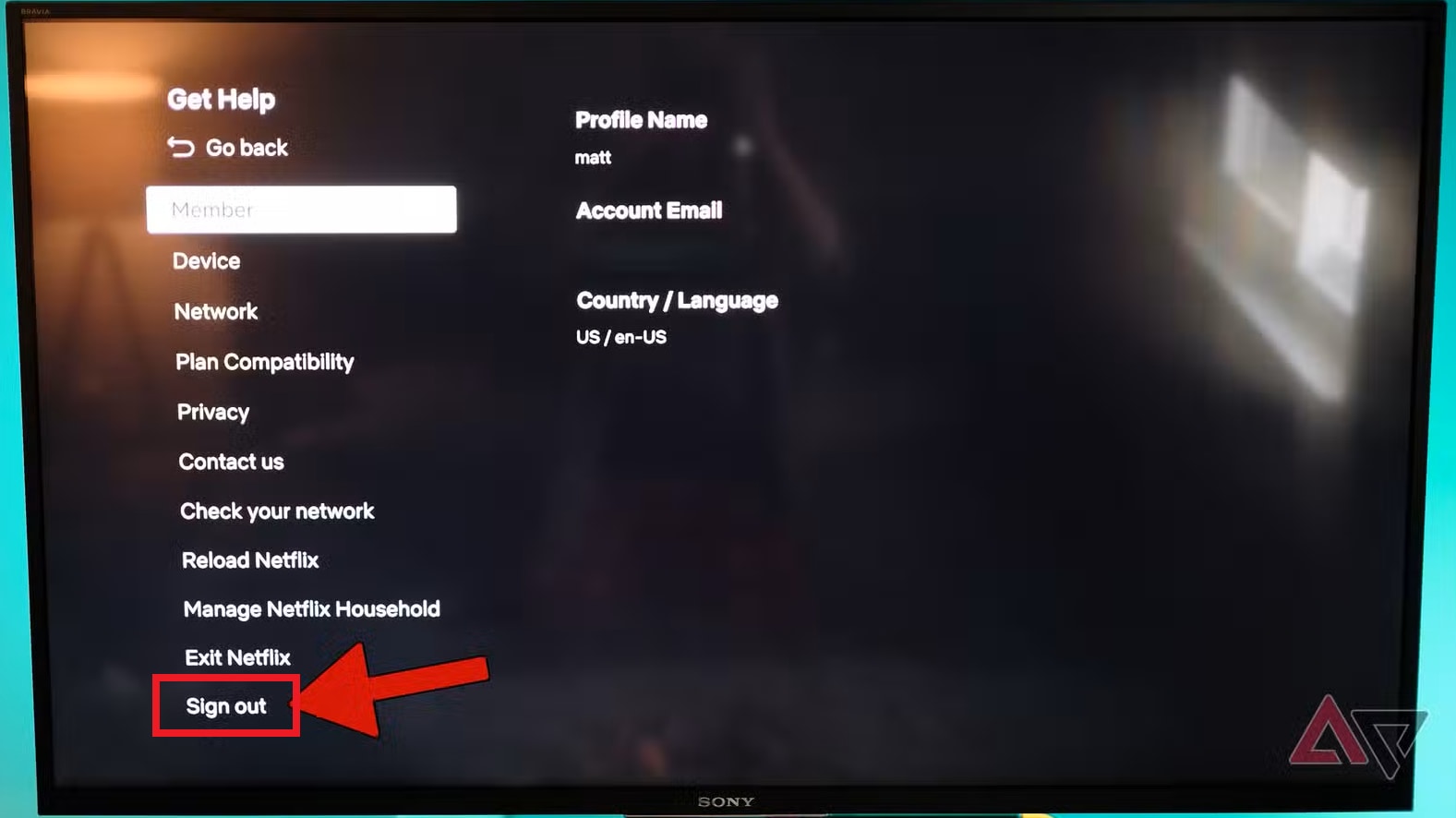
Step 5: Open Netflix again and sign back in. Play a video to check if the freezing issue is fixed.
If you don’t see Get Help or Sign Out, try this instead:
Step 1: Open the Netflix app.
Step 1: On your remote, press this sequence: Up, Up, Down, Down, Left, Right, Left, Right, Up, Up, Up, Up
Step 3: When a menu appears, select Sign Out, Reset, or Deactivate.
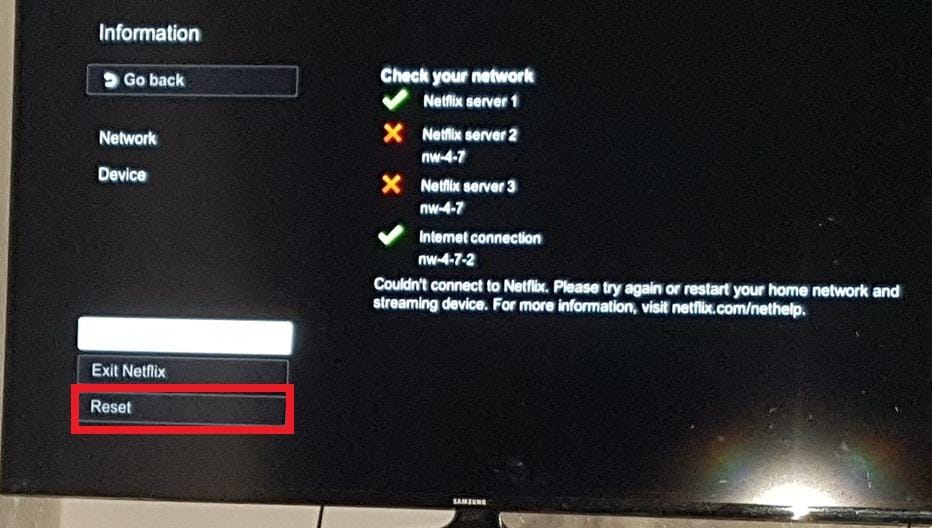
3. Delete the Netflix Cache and Cookies
Deleting the Netflix cache and cookies removes this old data and forces the app to load fresh files, which resolves performance issues. Here are the steps to remove Netflix cache on your Samsung TV:
Step 1: Go to Settings, then select All Settings.
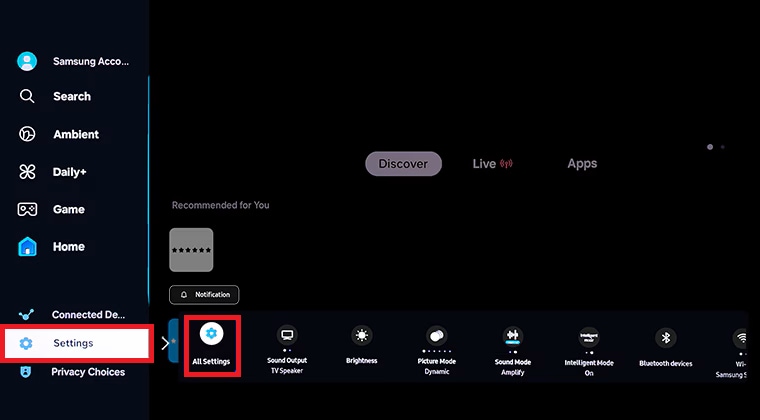
Step 2: Click Support and Device Care.
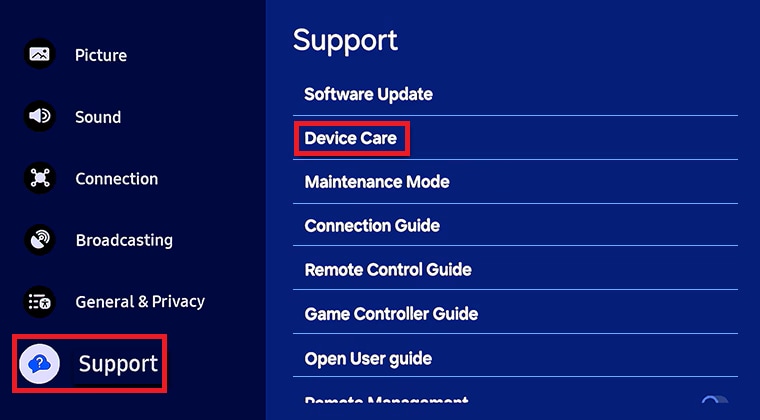
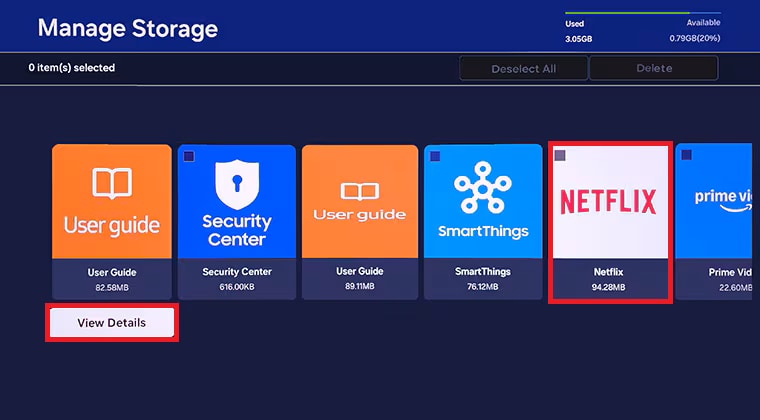
Step 3: Select Manage Storage.
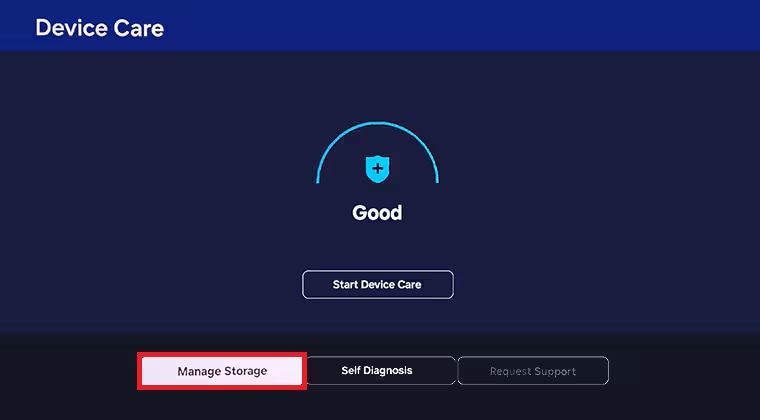
Step 4: Choose the app you want and select View Details.
Step 5: Select Clear Cache or Clear Data for the app.
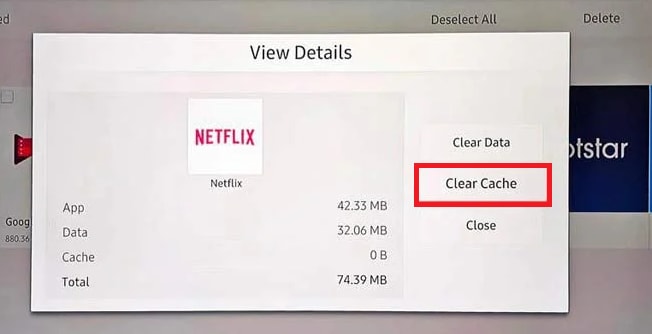
Note: Available options depend on the app and TV model. Some apps may not support cache or data clearing.
4. Update the Netflix App and Samsung TV Firmware
Updating both the app and your TV firmware often prevents freezes and keeps Netflix running without interruption.
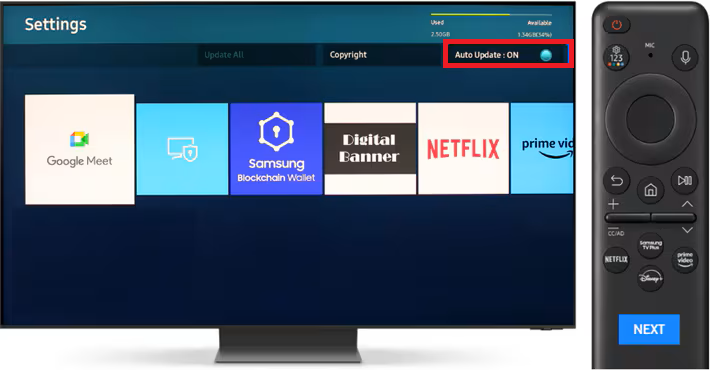
Note: To update apps automatically, make sure your TV is connected to the internet. Auto updates only work when the TV is online.
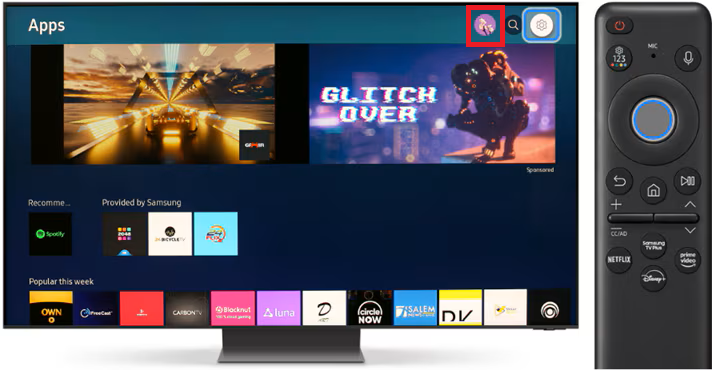
Step 1: Press your remote's Home button.
Step 2: Go to APPS.
Step 3: Access the Settings icon in the top right corner.
Step 4: Highlight Auto Update and press Enter to turn it on or off.
More related articles:
Top 6 Picks Netflix Movie Downloaders Just for You
8 Effective Fixes When Netflix Keep Buffering
Part 5. When Netflix Freezing Is Caused by Corrupted Video Files (Rare Case)
In most cases, Netflix freezing on a Samsung TV is caused by streaming, app, or device issues—not file corruption.
Important: If you’re streaming Netflix online and it freezes, video repair tools won’t help. Use the troubleshooting steps in Part 4 instead.
This section only applies if you’re dealing with a local video file (downloaded/recorded video from another source) that freezes because the file itself is damaged.
If a local video file is corrupted, a video repair tool may help restore playable data. In this example, Repairit Video Repair is used to demonstrate the process.
What it can help with:
- Fix damaged video files that freeze, stutter, or won’t play
- Repair timeline/encoding damage that causes playback to stop mid-video
What it can’t help with:
- Netflix streaming freezes
- DRM/protected streams
- Data that was never saved due to incomplete recording/download
Step-by-Step Guide:
Step 1: Open Repairit. Press Add video and start repairing or the Add button to input your corrupted video files due to Netflix freezing errors.

Step 2: Hit Repair to start fixing the corrupted video files due to Netflix freezing errors.

Step 3: If the preview is OK, hit Save and pick a new location on your computer.

Part 6. How to Prevent Netflix Freezing on Samsung TVs
- Freezing issues on Netflix can be frustrating, but many of them can be prevented with a few simple habits. Here’s how to keep your Samsung TV streaming smoothly:
- Keep your Netflix app and TV’s system software always up to date. Updates will have improved bug fixes that help prevent freezing.
- A slow or unstable connection can cause Netflix to freeze. Use a strong Wi-Fi signal or a wired connection whenever possible for smooth streaming.
- Like any smart device, your TV can develop temporary glitches over time. Restart the TV periodically to clear these minor issues before they cause problems.
- If you download shows or movies for offline viewing, make sure the download finishes completely. Interrupted or incomplete files can freeze when you try to play them.
- Over time, Netflix stores temporary files to help it run faster. Clearing the cache every so often prevents corrupted data from building up and causing freezes.
Conclusion
Netflix freezing on a Samsung TV is frustrating, but it’s most often caused by cache corruption, outdated firmware, or network instability. Start with low-risk fixes like restarting the TV and reconnecting the network, then sign out/in, clear cache, and update software. If nothing works, reinstall Netflix (if available) and consider contacting Samsung or Netflix support with your TV model and the freeze percentage/error screen.
FAQs
-
Why does Netflix freeze, but the TV menu works fine?
Netflix is an app separate from the TV system. If the TV menu works but Netflix freezes, it’s usually an app/cache/session issue rather than a TV hardware failure. -
Does unplugging the TV help?
Yes. A power cycle clears temporary memory glitches and often resolves app freezes. -
What if basic troubleshooting methods don't work?
Try reinstalling Netflix (if supported on your model), restart your router, and check for TV firmware updates. If the issue persists, contact Samsung or Netflix support and provide your model number, firmware version, and the percentage where Netflix freezes.




