
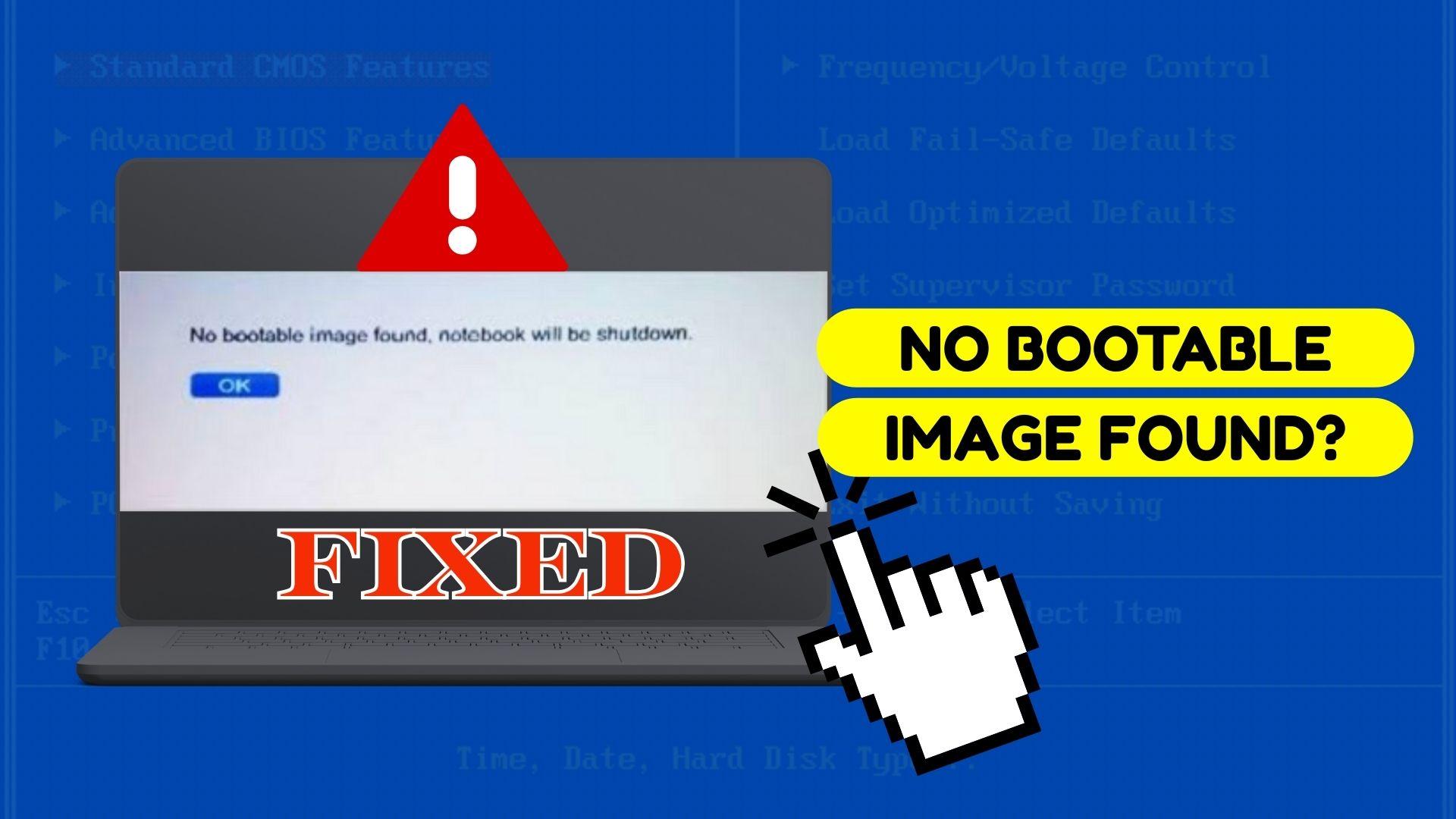
A common startup failure scenario occurs when a laptop or desktop PC powers on but fails to load the operating system. Instead of reaching Windows, macOS, or Linux, the screen displays messages such as “no bootable image found,” “no boot image found,” or “no bootable image found, notebook will be shut down.”
This error appears before the operating system loads, which means the system fails during the earliest stage of the boot process. It affects both notebooks and desktop PCs and is commonly reported across different manufacturers and firmware implementations.
Not all causes are serious. Some cases result from simple configuration issues, such as incorrect boot order or firmware mode mismatch, while others involve missing or corrupted boot-related files on the system drive.
Table of Contents
Part 1. What Does “No Bootable Image Found” Actually Mean?
The “no bootable image found” error means the system firmware (BIOS or UEFI) cannot locate a valid boot image required to start the operating system. During startup, the firmware searches connected storage devices for specific boot files. When those files are missing, unreadable, or incorrectly referenced, the boot process stops.
The wording of the error varies depending on the manufacturer and firmware implementation. Common variations include:
- “No bootable image found.”
- “No boot image found.”
- “No image found.”
Although the wording differs, all of these messages point to the same failure point in the boot sequence..
⚠️ Important Note: This error does not automatically mean the hard drive or SSD is physically damaged. In many cases, the drive is still functional but improperly configured or contains damaged boot data. Because the failure occurs before the operating system loads, recovery screens may not appear automatically.
Part 2. Quick Diagnosis: Is the Boot Drive Detected?
Before attempting fixes, it’s critical to identify which category your issue falls into. This determines which solutions are appropriate and prevents unnecessary risk.
Quick self-check: identify your scenario
- Boot drive is NOT detected in BIOS/UEFI: Likely a hardware connection issue, firmware detection problem, or, in severe cases, drive failure.
- Boot drive IS detected, but the system still won’t boot: Often caused by incorrect boot order, boot mode mismatch (UEFI vs Legacy), or corrupted boot files.
- The error appeared after an update, sudden shutdown, or power loss: Boot configuration data or file system structures may have been damaged during the interruption.
- Message includes “no boot file name received”: Message includes “no boot file name received”:
Identifying the correct scenario helps ensure the next steps address the real cause of the problem.
Part 3. Step-by-Step: Basic Fixes to No Bootable Image Found (Low Risk)
The steps below describe general troubleshooting methods commonly used on Windows laptops and desktop PCs. BIOS/UEFI menus, option names, and access keys may vary depending on the device manufacturer, model, and firmware version.
Fix 1. Restart the Device and Observe the Error
A simple restart can sometimes clear temporary firmware glitches. Pay attention to whether the error message changes, appears faster, or disappears briefly, as this can provide clues about the cause.
Fix 2. Enter BIOS/UEFI and Check Boot Order
If the system is attempting to boot from the wrong device, it will fail even if the OS is intact.
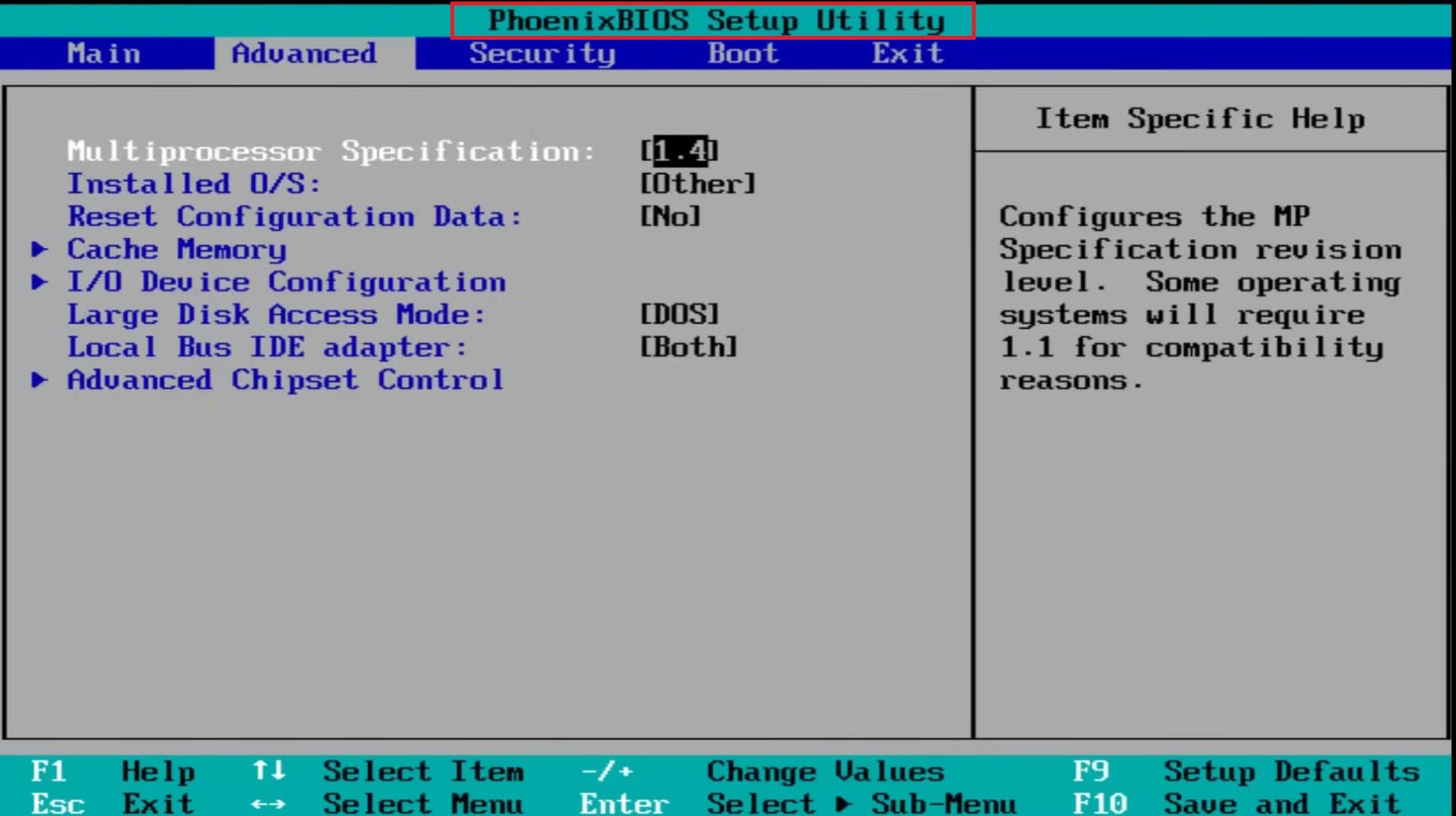
Step 1. Restart the computer. Press F2, F12, Delete, or ESC to enter BIOS/UEFI.
Step 2. Navigate to Boot or Boot Priority. Ensure the internal hard drive or SSD is listed first. Save changes and restart.
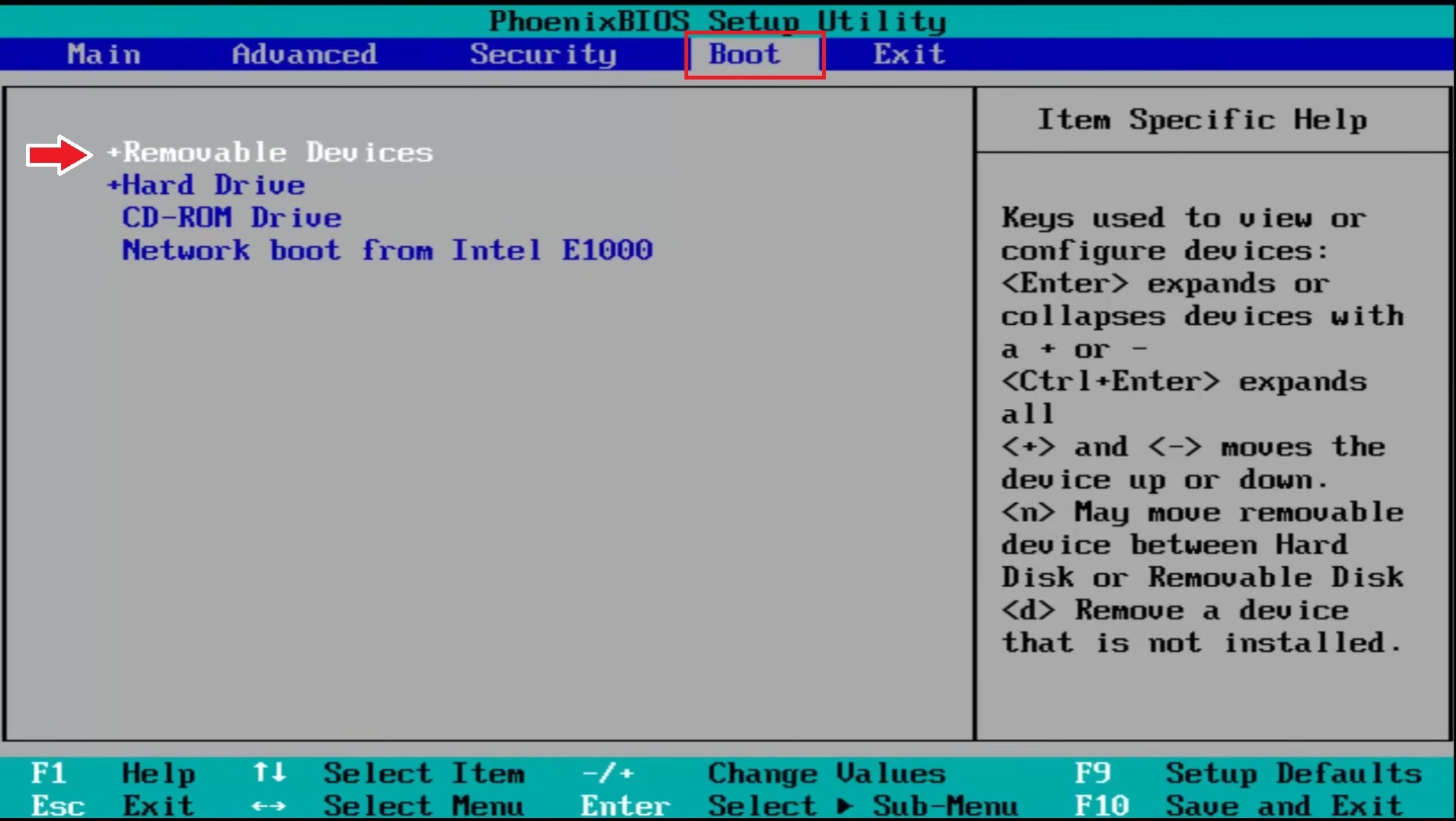
Fix 3. Confirm the Boot Drive Is Detected
Check whether the internal drive appears in the BIOS device list.
- If the drive is missing, the issue is likely hardware-related rather than software-based.
- If the BIOS reports “no boot file name received,” disable PXE/network boot and move the internal drive to the top of the boot list.
Fix 4. Verify Boot Mode (UEFI vs Legacy)
An incorrect boot mode can prevent the system from recognizing a valid OS installation.
Step 1. Enter BIOS/UEFI. Locate Boot or Boot Configuration.
Step 2. Check whether the system is set to UEFI or Legacy. Switch modes if necessary, save changes, and restart.
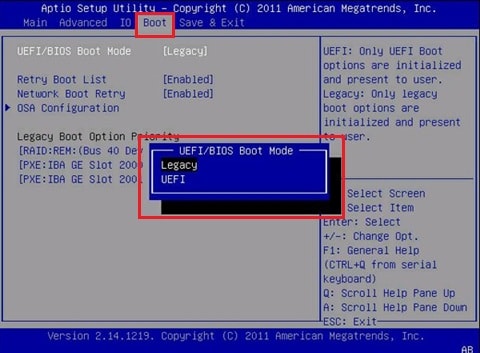
⚠️ Caution: If Windows was installed in UEFI (GPT), switching to Legacy mode can prevent the system from booting (and vice versa). Note the current setting before making changes.
Fix 5. Disconnect External Devices
USB drives, external hard disks, or memory cards can interfere with boot detection. Disconnect all external devices and try starting the system again.
Reset BIOS/UEFI to Default Settings
If the error started after changing BIOS settings or updating firmware, restoring defaults may resolve the issue.
Step 1. Enter BIOS/UEFI. Locate Load Setup Defaults or Restore Default Settings.
Step 2. Confirm the action. Save changes and restart.
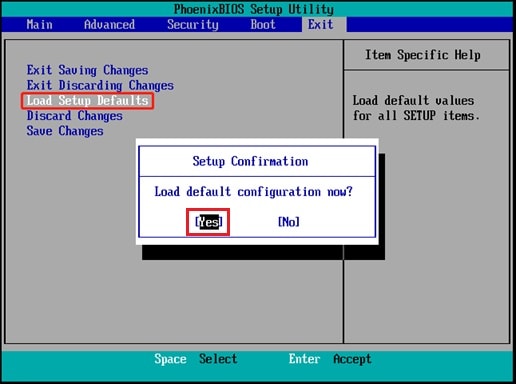
⚠️ Resetting BIOS may also change storage mode (AHCI/RAID) or Secure Boot settings. Record current values before proceeding.
Part 4. Why the Error Persists After Basic Fixes
If the boot drive is detected but the error continues, the issue lies within the boot files themselves.
Typical Causes
- Corrupted Boot Configuration Data (BCD) - The system cannot locate proper startup instructions because the boot configuration is damaged.
- Damaged File System Structures - The operating system cannot read essential data due to errors in the file system.
- Incomplete or failed OS updates - Interrupted updates leave boot files inconsistent or missing, preventing startup.
At this stage, BIOS adjustments will not resolve the problem. The system requires either boot file repair or operating system reinstallation. Users must decide whether their priority is restoring system functionality immediately or safeguarding existing data before proceeding.
Part 5. Protecting and Repairing Files Affected by Boot Failures (Optional)
This step does not fix the “no bootable image found” startup error itself. It applies only after data has been accessed or backed up and focuses on repairing existing but damaged personal files caused by crashes, sudden shutdowns, or interrupted write operations.
File repair may help if:
- The system drive is still detectable
- Files exist but cannot be opened or viewed correctly
- Damage occurred after sudden shutdowns or interrupted write operations
File repair tools can:
- Repair corrupted file structures (photos, videos, documents)
- Restore readability of damaged media files
They cannot:
- Recover files that no longer exist
- Repair boot configuration or operating system files
- Fix hardware or firmware problems
- Resolve errors like “no boot file name received”
If files are damaged but still present, Repairit File Repair is one example of a file-level repair solution designed to restore corrupted documents and media files without altering the operating system.

-
Repair damaged files with all levels of corruption, including blank files, files not opening, unrecognizable format, unreadable content, files layout changed, etc.
-
Support to repair all formats of PDF, Word, Excel, PowerPoint, Zip, and Adobe files.
-
Perfectly repair corrupted files with a very high success rate, without modifying the original file.
-
No limit to the number and size of the repairable files.
-
Support Windows 11/10/8/7/Vista, Windows Server 2003/2008/2012/2016/2019/2022, and macOS 10.12~macOS 14.
Step 1. Launch Repairit and select File Repair. Add the corrupted files.

Step 2. Click Repair to reconstruct damaged or missing data.

Step 3. Preview the repaired files and save them to a new location.

Conclusion
The “no bootable image found” error indicates the system cannot locate the files required to start the operating system. While the message may appear serious, many cases stem from simple misconfigurations such as incorrect boot order or mismatched boot mode.
When basic troubleshooting fails, corrupted boot files or file system damage become more likely. At that point, users should prioritize data protection before attempting boot repair or OS reinstallation. File repair tools can help restore damaged personal files but cannot resolve the startup error itself.
FAQs
-
What does “no bootable image found” mean?
It means the system firmware cannot locate the files required to load the operating system. -
Why does my laptop say it will shut down after this error?
Some manufacturers automatically power off devices when no boot image is found. -
Is this error related to a failing hard drive?
Not necessarily. BIOS misconfiguration or corrupted boot files are common causes. -
Can boot files be repaired without reinstalling the OS?
In some cases, yes, but severe corruption often requires reinstallation. -
How can I recover corrupted screenshots or images related to this error?
File repair tools can restore existing but corrupted files. They cannot recover deleted data or fix startup errors.




