
“I turn on my PC, then after a few minutes, the screen goes black, and the fans go really loud to 100%. There’s no display afterward. Any ideas on how to fix this?” - Reddit user
A black screen with “fan sounds” can mean two very different things:
- Normal behavior: some “white noise / fan sound” videos are designed to play audio while keeping the screen black.
- A real problem: your video player fails to render the image (black screen), or your device crashes (black screen + fans ramp up, no display).
Because the fixes are completely different, this guide starts with a quick self-check to help you pick the right troubleshooting path. Then we’ll go from safe, reversible fixes to advanced steps only if the basic methods don’t work.
Table of Contents
Part 1. What “Fan Sounds Black Screen” or “White Fan Noise Black Screen” Means
People use the phrase “fan sounds black screen” in different ways. In practice, it usually falls into one of these scenarios:
Scenario A — Normal audio-only playback (not a bug):
Some “fan/white noise” videos intentionally keep the screen black to reduce light at night and save power. If the audio plays normally and the timeline keeps moving, this is expected.
Scenario B — Playback problem (black screen, glitches, freezing):
The video should show a picture, but the player renders a black screen, freezes, stutters, or crashes. This is usually caused by player settings, cache issues, unsupported codecs, or a damaged file.
Scenario C — Device crash on startup (black screen + fans ramp up):
If your PC boots, then the screen goes black and fans jump to high speed with no display, this points to a system/graphics/heat/power issue—not a normal video playback situation.
Part 2. Why Freezing, Glitches, and Black Screen Playback Errors Happen
Playback problems aren’t random. They usually come from broken files, format problems, or software that needs a quick fix or update. Here are the most mentioned reasons:
- Corrupted or incomplete video files - If a video didn’t download or save properly, parts of it may be missing or damaged. This can cause freezing, glitches, or a black screen during playback.
- Interrupted downloads or transfers - Pausing a download, losing internet connection, or unplugging a device during file transfer can break the video. Even if the file opens, it may not play correctly.
- Encoding or container issues - Some videos use formats or codecs your device doesn’t fully support. When the player can’t read the video data correctly, playback may stutter, fail, or show only a black screen.
- Media player or app cache errors - Over time, cached data can become buggy. A corrupted cache may cause videos to freeze, lag, or refuse to play until the cache is cleared.
- Outdated video player or operating system - Old apps and systems may not support newer video formats. This can lead to glitches, crashes, or playback errors until updates are installed.
Part 3. Quick Self-Check: Is the Black Screen Normal or a Playback Problem?
Before assuming something is wrong, do a quick check. These quick questions can tell you a lot.
- Does the audio play smoothly without cutting out? If the sound is steady, the video may be working as intended for audio-only content.
- Does the timeline move forward while playing? A moving progress bar means the file is playing normally in the background.
- Does the same video fail in more than one player? If it won’t play anywhere, the file itself may be corrupted.
- Do other videos play fine on the same device? If yes, the problem is likely with that specific video, not your device.
Part 4. Quick Playback Troubleshooting Steps
Once you’ve identified that the black screen is not normal and understand what may be causing it, the next move is smart troubleshooting. Start with the easiest ones first before forwarding to more advanced solutions.
1. Restart the App or Device
Temporary system errors build up during normal use. Apps run for long hours, background processes pile up, and memory gets strained. Refresh the system to clear these hidden issues and restore stable playback.
Follow these steps:
Step 1: Close the video player completely
Step 2: To restart your computer:
For Windows, click Start, Power, and Restart.
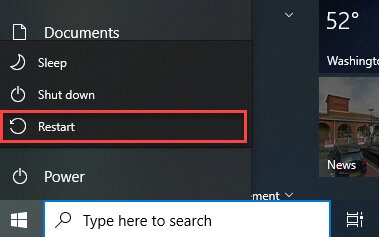
For Mac, click the Apple menu and Restart.
Step 3: After rebooting, try playing the video again. This eliminates temporary system errors that may cause black screens or audio issues.
2. Clear Cache or Temporary Files in Media Players
Media players rely on cached data to run seamlessly, but that data can become outdated or corrupted over time. When this happens, videos may freeze, glitch, or load to a black screen instead of playing properly.
Here are the steps to remove corrupted cache files that can cause white noise, playback errors, or freezing:
In VLC (Windows)
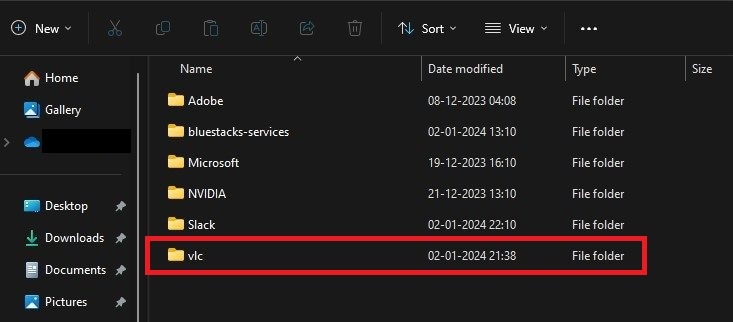
Step 1: Open File Explorer.
Step 2: Type %APPDATA% in the address bar and press Enter.

Step 3: Find the VLC folder and delete it.
Step 4: Empty the Recycle Bin.
Step 5: After this, your watch history should be completely removed.
In VLC (Mac)
Step 1: Open Launchpad and Terminal.
Step 2: Type:
defaults delete org.videolan.vlc
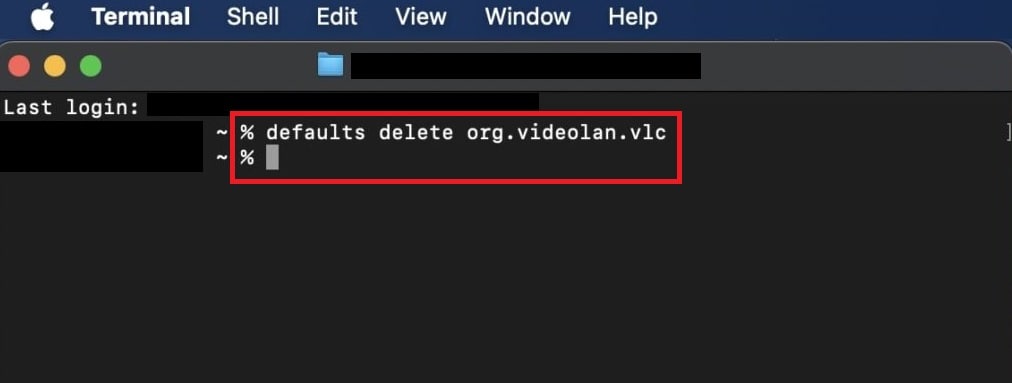
Step 3: Open Finder, Go and Go to Folder.
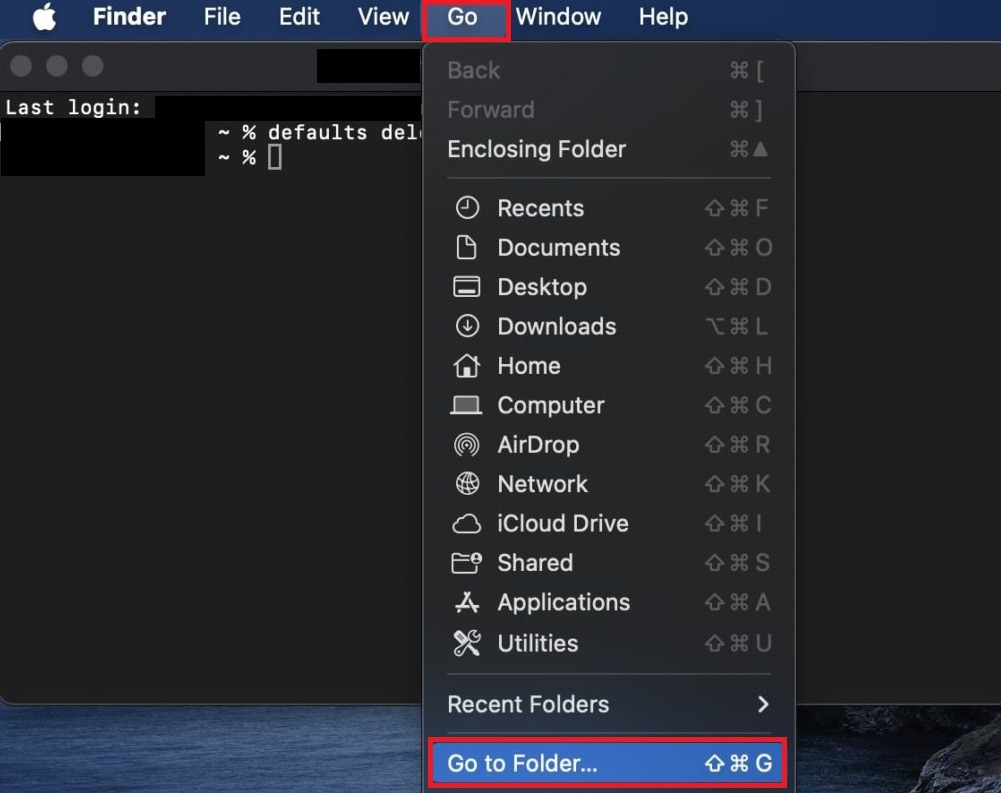
Step 4: Type:
~/Library/Preferences
Step 5: Move files named org.videolan.vlc to Trash.
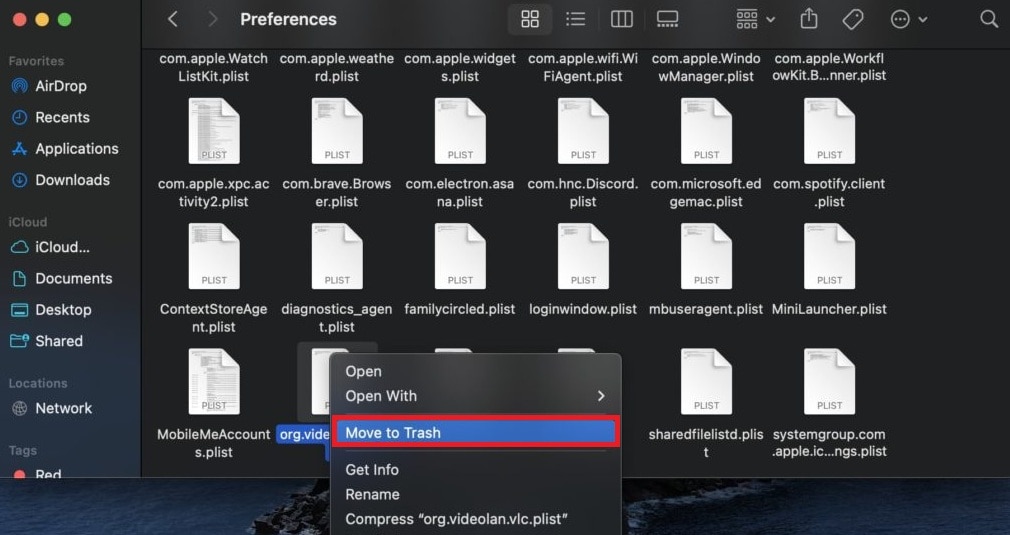
Step 6: Empty the Trash.
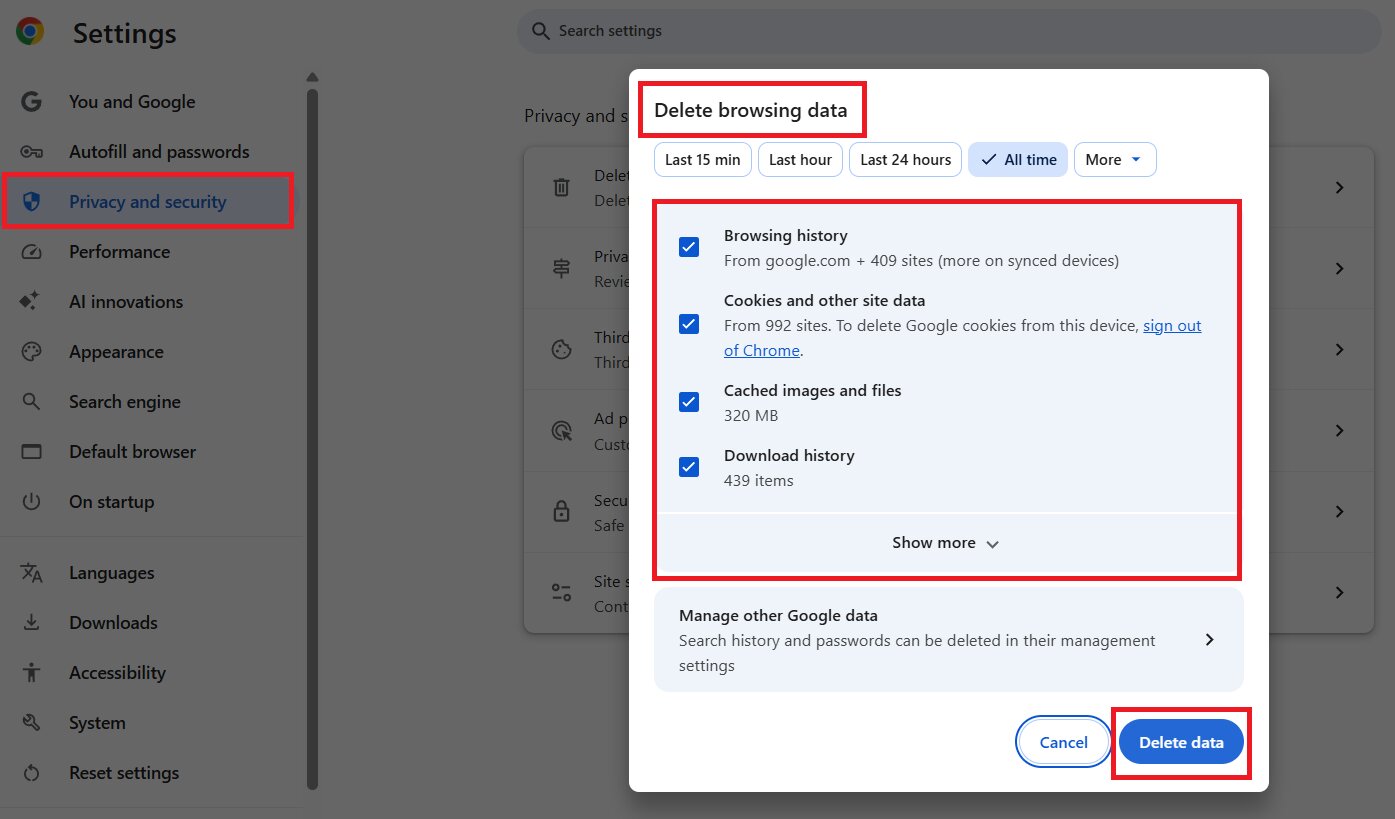
Browser Playback (Chrome/Edge)
Step 1: Go to Settings and Privacy & Security.
Step 2: Click Delete browsing data.
Step 3: Pick the cached images and files to be eliminated and hit Delete data. Then, restart the player and test again.
3. Update the Video Player or OS to the Latest Version
Video formats and codecs change constantly. If your software isn’t up to date, it may struggle to read newer files. Updates improve compatibility, fix known bugs, and reduce playback errors.
Update Video Player (VLC)
Step 1: Open VLC.
Step 2: Select Help and Check for Updates.
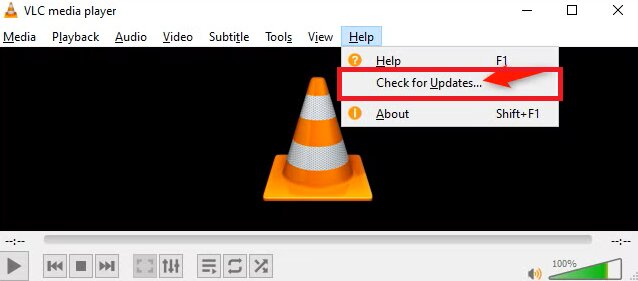
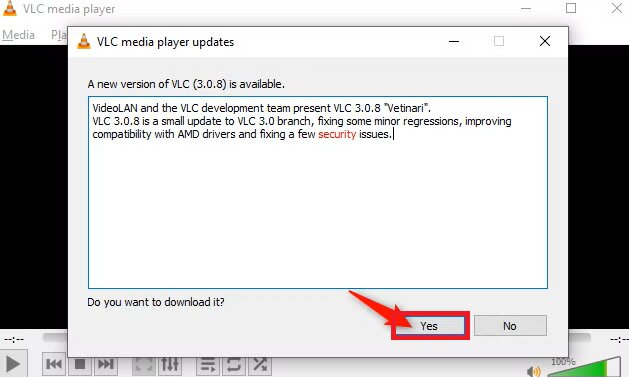
Step 3: If an update is available, click Yes to download it.
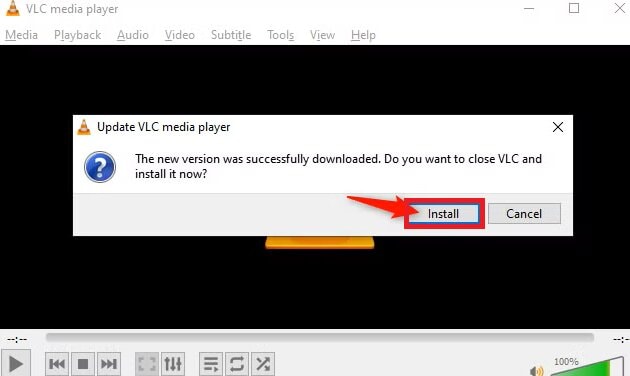
Step 4: After downloading, hit Install.
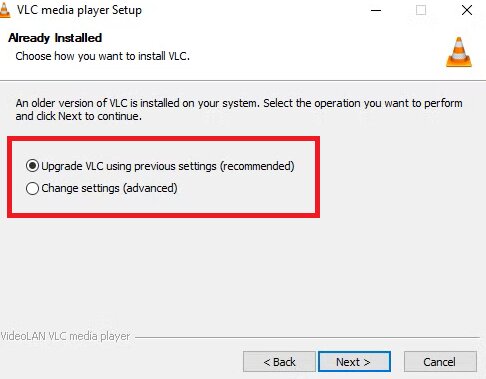
Step 5: Select Upgrade VLC using previous settings (recommended). Click through the installer steps.
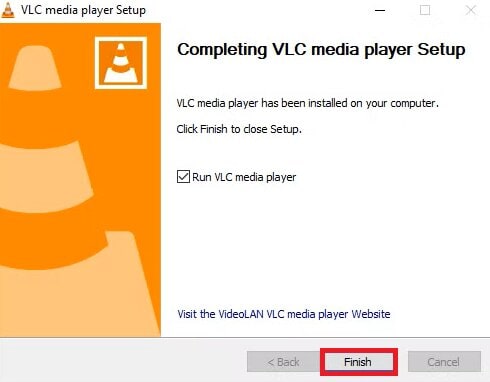
Step 6: Make sure the Run VLC media player is checked. Click Finish.
Update Windows
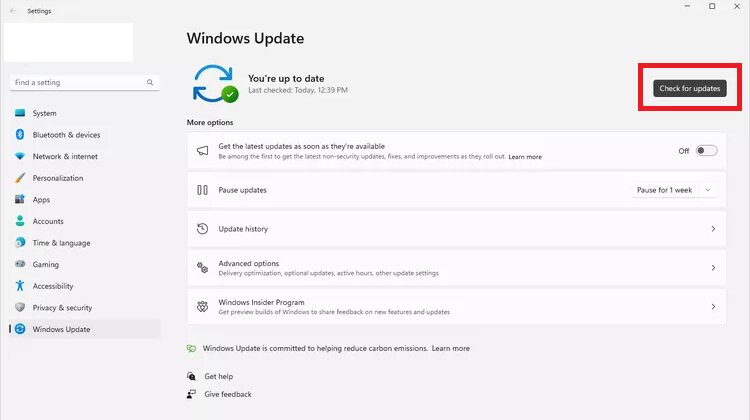
Step 1: Go to Settings and Windows Update.
Step 2: Find Check for updates and install all updates.
Update macOS
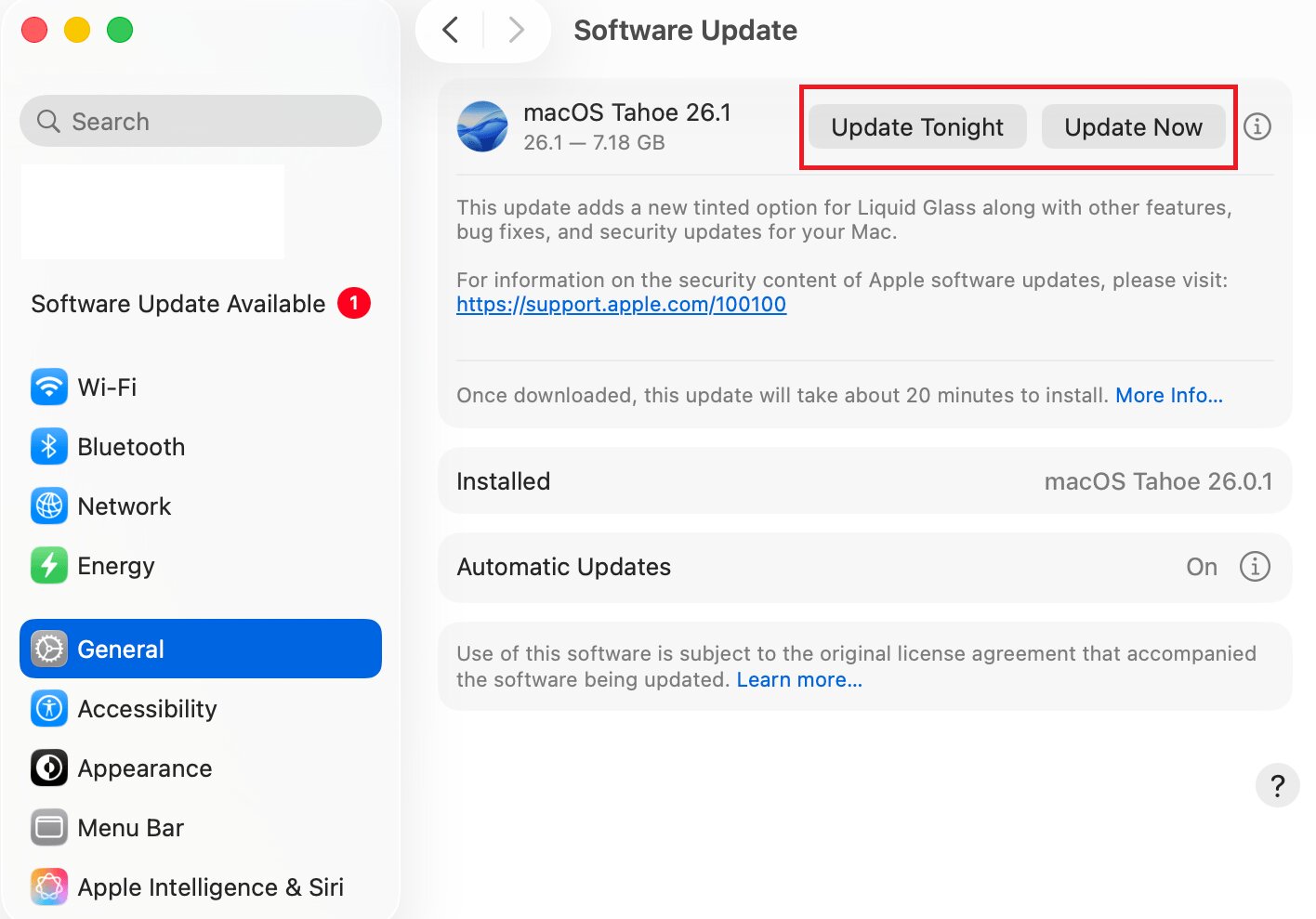
Step 1: Go to System Settings, General and Software Update.
Step 2: If a Mac update is available, click Update Now or Update Tonight.
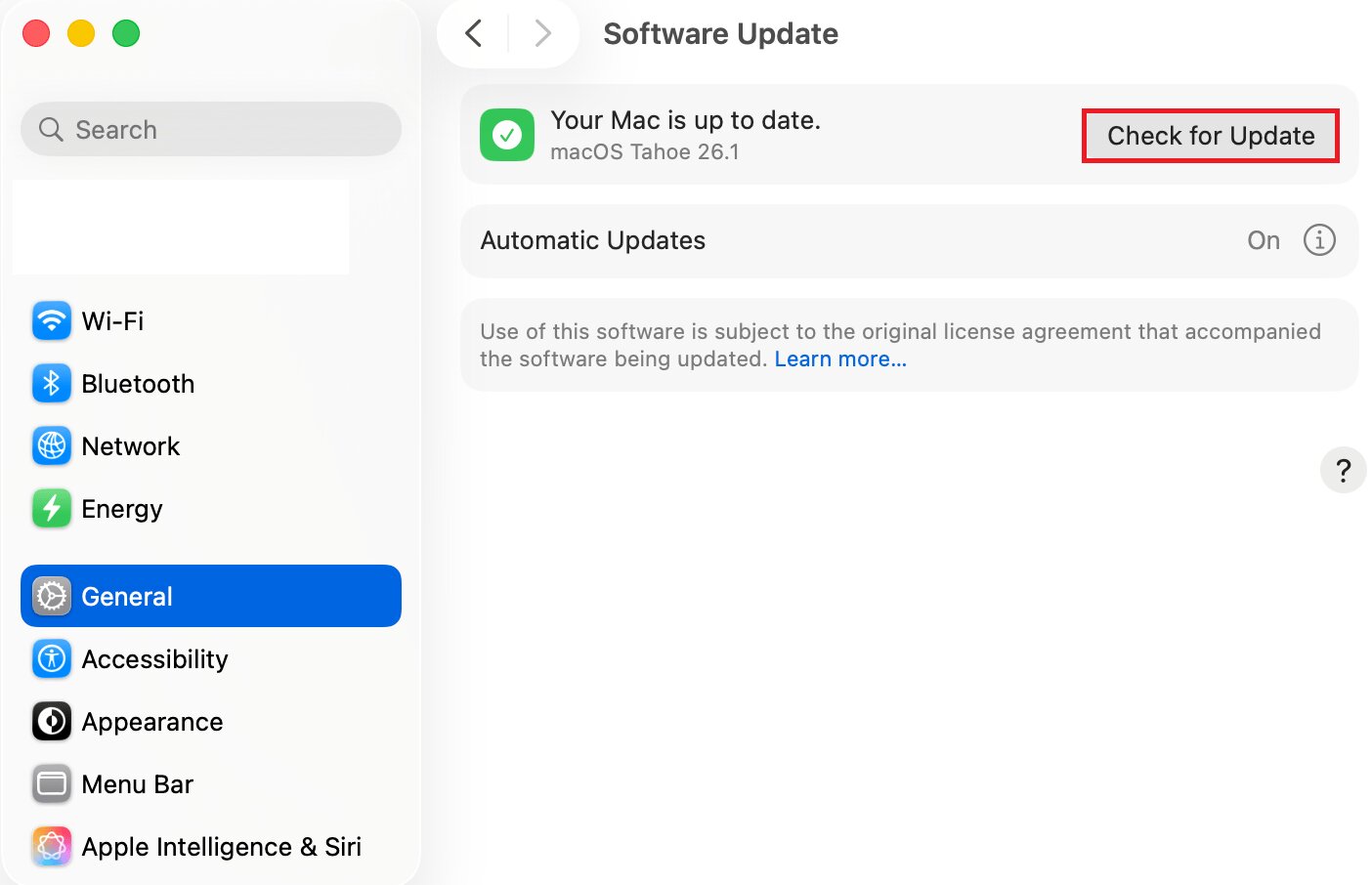
Step 3: If no updates are available, it will say your Mac is up to date. You can look for Check for Update to check again.
4. Try a Different Player (VLC, MPV, Etc.)
Each media player handles video files differently. Some are better at decoding certain formats or handling damaged files. Using another player helps determine whether the issue is with the video itself or the app you’re using.
Sometimes the issue is player-specific. So, download and install another trusted player like:
VLC Media Player: Best for playing almost any video or audio format easily without needing extra codecs.
MPV: Best for lightweight, high-performance playback with advanced customization options.
PotPlayer: Best for Windows users who want powerful features and detailed playback controls.
Note: Open the same video file in a different player. If it works normally, the original app is likely the problem.
Part 5. Rare Case: Fix Corrupted Video Files Causing Black Screen Playback
Most “black screen” playback issues are solved by player fixes. Use this section only if:
- The problem happens with specific files, and
- The file fails in multiple players, and
- Re-downloading or getting a clean copy isn’t possible.
Video repair tools can help when the file is corrupted, but they cannot fix:
- Live streams
- DRM-protected videos
- Files missing major data
- System/hardware causes of black screen
If you confirm the issue is file corruption, a tool like Repairit Video Repair is one option.
⚠️ Risk note: Always keep a copy of the original file. Repair results depend on how damaged the file is.
Step-by-Step Guide:
Step 1: Open Repairit. Press the Add video and start repairing or the Add button to input your corrupted video files caused by black screen problems.

Step 2: Hit Repair to start fixing the corrupted video files caused by black screen problems.

Step 3: If the preview is OK, hit Save and pick a new location on your computer.

Part 6. Tips to Avoid Fan Sounds Black Screen Problems
Most black screen problems happen because of small and avoidable mistakes. Follow these tips to keep your videos safe and enjoy smooth playback:
- Download videos fully first. Playing a video before it’s completely downloaded can cause freezing, glitches, or black screens.
- Use a stable internet connection. Slow or unstable connections can interrupt downloads or streaming, leading to errors.
- Keep your media players and OS updated. Updates fix bugs, improve compatibility, and make playback more reliable.
- Don’t force-close apps during downloads or transfers. Interrupting a video while saving or transferring can corrupt the file.
- Store videos on reliable devices. Faulty USB drives, SD cards, or hard drives can damage files and cause playback issues.
Conclusion
Fan sounds, white noise, and black screen issues can be alarming. But most of these issues are caused by fixable problems. Check your files, update your software, use reliable players, and follow safe playback habits to avoid errors and enjoy uninterrupted video and audio. For corrupted files that still show black screens, tools like Repairit Video Repair can restore your videos quickly and safely.
FAQs
-
Are fan or white noise black screen videos harmful to devices?
No. If the timeline moves and audio plays normally, this is usually intentional audio-only playback. -
Why does the screen stay black?
Many white-noise videos are designed with a black screen to reduce light and save power; it’s normal when audio plays smoothly. -
What if repairing the file doesn’t work?
If repair fails, the file may be too damaged or missing data; the best next step is to re-download from a reliable source or use another copy.




