
Have you tried opening a DAT file only to find that your media player won't play it? This is a common issue experienced by many because DAT files were widely used in older formats like Video CDs and can contain different types of data that many modern devices no longer support.
One simple solution for that is to convert the file to MP3. You can make it compatible with smartphones, media players, and audio editing software by extracting the audio from the DAT file. Depending on the file structure, this may involve converting an audio-only DAT file or extracting audio from a video-based DAT file.
In this article
Part 1. Understanding DAT Files and MP3 Compatibility
A DAT file is a generic container format that stores different types of digital data. In multimedia applications, DAT files commonly contain a combination of video streams, audio tracks, subtitles, and metadata packaged together in a single file.
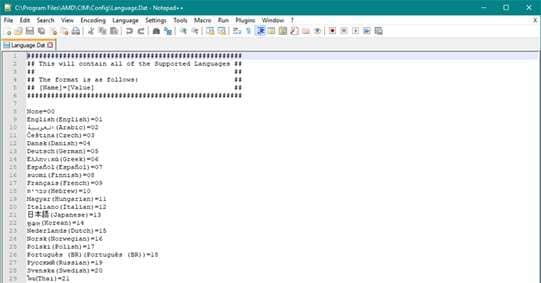
These files were frequently used in older formats such as Video CDs and early digital recording systems. Because DAT files were designed for specific playback environments, many modern media players may not automatically recognize their structure. This is one reason why DAT files sometimes fail to open or play incorrectly. Instead of relying on outdated playback formats, many users choose to extract the audio content and convert it to MP3.
MP3 is one of the most widely supported audio formats available today. Nearly every media player, smartphone, and editing application can open MP3 files without additional codecs or software.
How to Check If Your DAT File Contains Audio
Step 1. Open the file using a media player such as VLC.
Step 2. Listen to see whether the audio plays normally.
If both video and audio are present, the audio stream can usually be extracted during conversion. If the file does not open or produces errors, the issue may be related to corruption or unsupported codecs.
Why Convert DAT to MP3?
Converting DAT files to MP3 offers several advantages:
- Universal compatibility -- MP3 files can play on nearly any device or software.
- Reduced file size -- MP3 compression reduces storage requirements while maintaining reasonable sound quality.
- Easy editing and sharing -- MP3 files can be imported into most audio editors, music apps, and media players.
For these reasons, converting DAT files into MP3 is often the simplest way to access their audio content.
Part 2. Common Issues When Converting .DAT to MP3
While DAT-to-MP3 conversion is usually straightforward, several problems may appear depending on how the file was originally created. Some issues being encountered are:
- Conversion Software Cannot Open the DAT File - Some converters fail to recognize DAT files if the container uses unsupported codecs or proprietary encoding methods. In other cases, damaged file headers may prevent the software from reading the file structure.
- No Audio After Conversion - When a DAT file contains multiple streams, the converter may extract the wrong track. This can lead to a converted MP3 file that contains no audio.
- Distorted or Silent Output - Audio distortion or silence in the output file may occur if the original DAT file contains corrupted audio data. Incorrect bitrate settings or incomplete file transfers can also cause quality problems during conversion.
If these issues occur repeatedly, repairing the DAT file before converting it may improve the results..
Part 3. Using Desktop Software
VLC Media Player includes a built-in conversion feature that allows users to extract audio from container files. Because VLC supports many codecs and formats, it can often read DAT files that other programs cannot open.
This makes it a practical option for converting DAT files without installing additional conversion software.
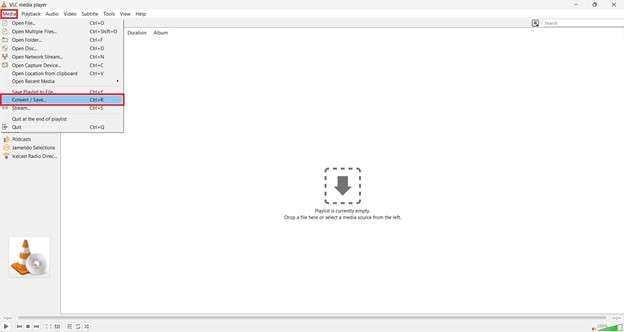
Step 1. Open VLC Media Player, click Media, then select Convert/Save.
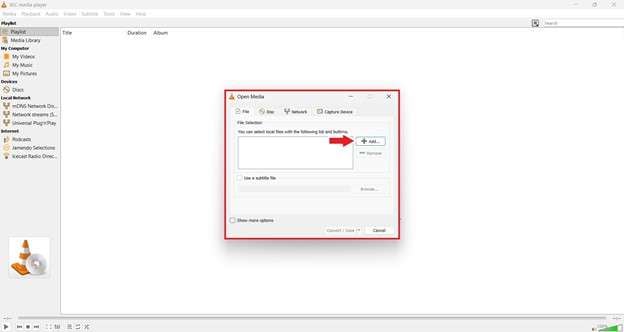
Step 2. Click Add and choose the DAT file you want to convert. Then select Convert and choose MP3 as the output format. Choose a destination folder and click Start to begin converting the DAT file to MP3.
Part 4. Using Online Converter
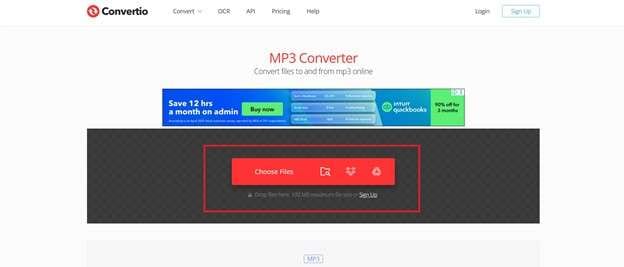
Online converters are another option for users who prefer not to install additional software. These tools work directly in a web browser and allow users to upload DAT files and convert them into MP3 format.
Many online converters support common audio and video formats and automatically extract the audio stream during conversion. Some widely used services include Convertio.
Step 1. Upload the DAT file. Click on Choose Files.
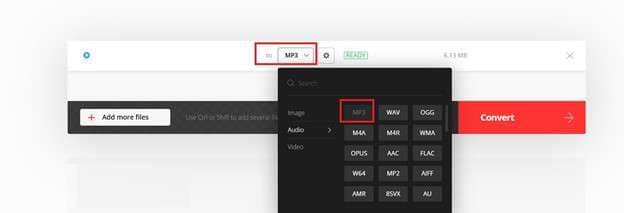
Step 2. Choose MP3. Download the converted file.
Part 5. Repair Corrupted DAT File Before Conversion [Rare Case]
In some situations, a DAT file cannot be converted because the file itself is damaged. This may occur if the file was partially downloaded, incorrectly transferred, or interrupted during recording.
When this happens, conversion tools may fail to read the internal structure of the file.
Repairit Video Repair is intended for cases where a video file has already been downloaded but cannot play because its internal structure is damaged. File repair should only be used if the video fails to open in multiple media players and the issue is not related to browser or network access problems.
It can rebuild damaged components of a video file, such as headers or index data, to restore playback. However, they cannot bypass 403 access errors, regain restricted content, or recover files that were never fully downloaded.
Why Repairing The File May Help
Corrupted DAT files may contain:
- Damaged container headers
- Broken index tables
- Missing references to audio streams
- Incomplete file metadata
Repairing these components can restore the internal structure of the file so conversion software can access the audio data.
Part 6. Tips for High-Quality MP3 Output
Maintaining audio quality during conversion depends on selecting the right settings and avoiding repeated compression. Consider the following recommendations when converting DAT files:
- Choose 192 kbps or 320 kbps bitrate to maintain better sound quality.
- Avoid converting the same file multiple times because repeated compression reduces clarity.
- Normalize audio levels if the volume varies significantly between sections.
- Keep the original DAT file as a backup in case you need to re-extract the audio later.
- Test the converted MP3 file in different players to confirm that the audio plays correctly.
Following these simple practices can help maintain better audio quality after conversion.
Conclusion
Converting a DAT file to MP3 is one of the simplest ways to make older media files compatible with modern devices. By extracting the audio stream and saving it in MP3 format, the file can be played on smartphones, computers, and most media players.
Tools such as VLC Media Player or online converters can usually complete the process within a few steps. If the file fails to convert or produces errors, the issue may be related to file corruption rather than format compatibility.
In those cases, repairing the DAT file first may restore its internal structure and allow the conversion process to complete successfully.
FAQs
-
What is a DAT file?
A DAT file is a generic container file that can store different types of digital data, including video streams, audio tracks, subtitles, or metadata. The content inside the file depends on the software or device that created it. -
Can VLC convert DAT to MP3?
Yes. VLC Media Player includes a built-in conversion tool that allows users to extract the audio stream from a DAT file and save it in MP3 format. -
Why won't my DAT file open?
A DAT file may fail to open if the media player does not support its internal codec or if the file structure is damaged. Corrupted headers or incomplete downloads can also prevent the file from playing properly -
How do I extract audio from a DAT video?
You can extract audio from a DAT video by opening the file in VLC or another converter and selecting MP3 as the output format. The software will isolate the audio track and save it as a separate MP3 file. -
Can corrupted DAT files be repaired?
Yes. Media repair software can rebuild damaged file structures such as headers and index tables. Once repaired, the file may become playable or convertible again. -
Is online conversion safe?
Online conversion tools are generally safe for basic file conversions. However, it is recommended to avoid uploading sensitive or confidential media files to third-party services.




