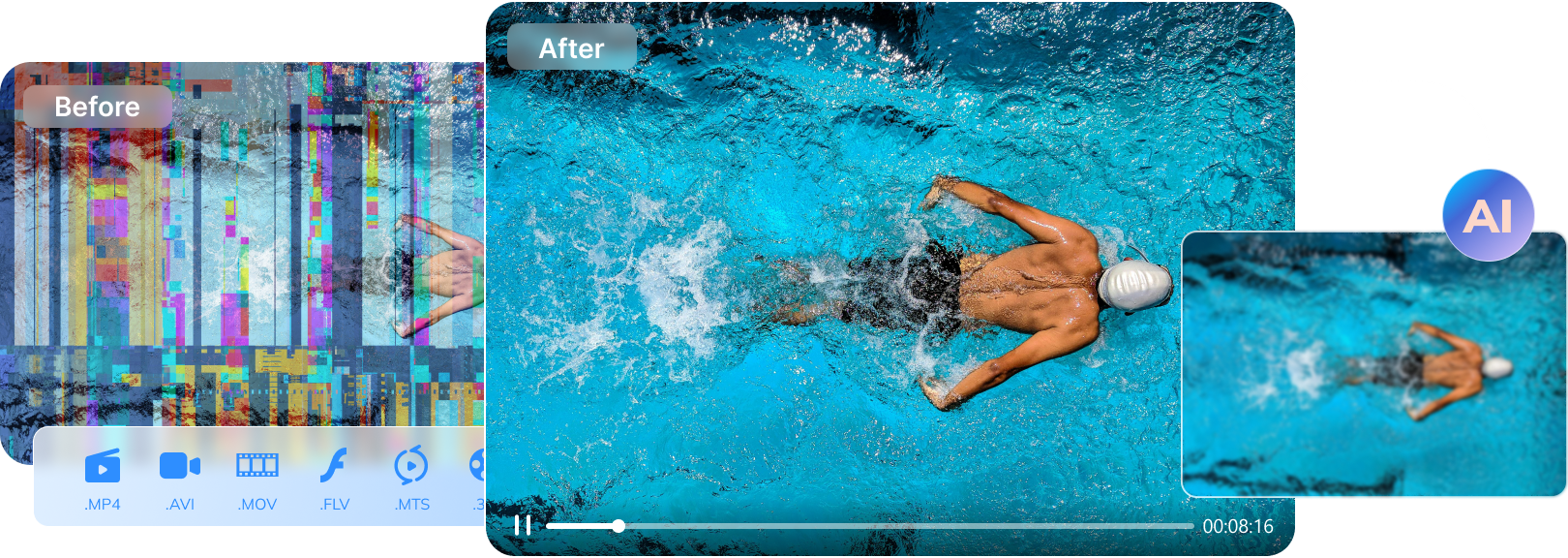

To repair a MOV file, keep the original unchanged, make a copy, and test the copy in a compatible player. If the file shows a black screen, freezes, has missing audio, or will not open, use a dedicated MOV repair workflow such as Repairit. If the MOV plays normally and only needs broader compatibility, convert it to MP4 instead of trying to repair it.
This guide covers how to fix damaged, broken, or corrupted MOV files on Windows and Mac, how to repair a MOV file online, and when VLC or QuickTime can help with playback or conversion. It also explains why MOV repair is not the same as data recovery: an existing file with usable data is required.
In this article
Part 1.Why Is My MOV File Not Playing?
A MOV file may fail because its container or index is damaged, the recording or transfer was interrupted, the file uses a codec the player cannot decode, or the player does not support the media. First identify the symptom, because a player-compatibility problem needs a different action from a corrupted file.
MOV Symptoms and Likely Causes
| Symptom | Possible cause | First action |
| MOV will not open or reports an error | Damaged header, index, codec metadata, or incomplete transfer | Copy the file and evaluate repair. |
| Black screen or frozen frames | Damaged video stream, missing keyframes, or unsupported codec | Test a compatible player, then repair a copy if multiple players fail. |
| Video plays with no audio | Damaged or unsupported audio stream | Check another player and repair a duplicate if the audio is missing everywhere. |
| Audio and video are out of sync | Timestamp or stream-structure damage | Preserve the original and try a dedicated repair workflow. |
| Only QuickTime rejects the file | Player or codec compatibility issue | Test VLC or another compatible player before repairing. |
| MOV plays normally but needs MP4 compatibility | Container or platform compatibility requirement | Convert the playable file; do not repair it. |
Repair vs Convert vs Playback Troubleshooting
| Situation | Recommended action |
| The MOV cannot open, is corrupted, or has a black screen | Repair a copy with a supported MOV repair workflow. |
| The MOV opens in one player but not another | Check the player, codec, and operating-system compatibility. |
| The MOV opens and you need a smaller or more compatible file | Convert or export it to MP4. |
| The MOV was deleted, overwritten, or never saved | Repair software may not have enough data; use an appropriate backup or data-recovery process. |
Part 2. What to Check Before Repairing a MOV File
Repair and conversion can create new output files, so protect the source first. These checks also prevent you from repairing a player or storage problem instead of the video file.
Protect and Test the Original
- Make a copy of the MOV file on a local drive with enough free space.
- Keep the original file and source storage device unchanged.
- Check whether the file size is plausible and whether the transfer or export completed.
- Try the copy in a compatible player such as VLC and, when appropriate, QuickTime on Mac.
- If several files from the same card or drive are damaged, stop recording to that storage and back up readable files before further testing.
Do not upload confidential footage to an online repair service unless you understand its current privacy, file-size, and retention terms.
Do Not Rename the File Extension
Changing `.mov` to `.mp4`, `.avi`, or another extension does not repair the container, codec, timestamps, or media streams. Use a real converter for a healthy file or a repair tool for a damaged file.
Part 3. How to Repair a MOV File on Windows and Mac
Wondershare Repairit - MOV Repair can attempt to repair supported corrupted MOV files with playback errors, black screens, missing audio, flickering, freezing, or synchronization problems. Results depend on the format, damage level, and data still present in the file.
Wondershare Repairit - MOV Repair
 Security Verified. Over 7,302,189 people have downloaded it.
-
Repair supported damaged videos with playback errors, no sound, out-of-sync audio or video, black screens, frozen frames, flickering, or missing codec information.
-
Support supported video formats and workflows including MOV, MP4, M2TS, MKV, MTS, 3GP, AVI, FLV, and other listed formats.
-
Preview the result before saving a separate repaired copy.
-
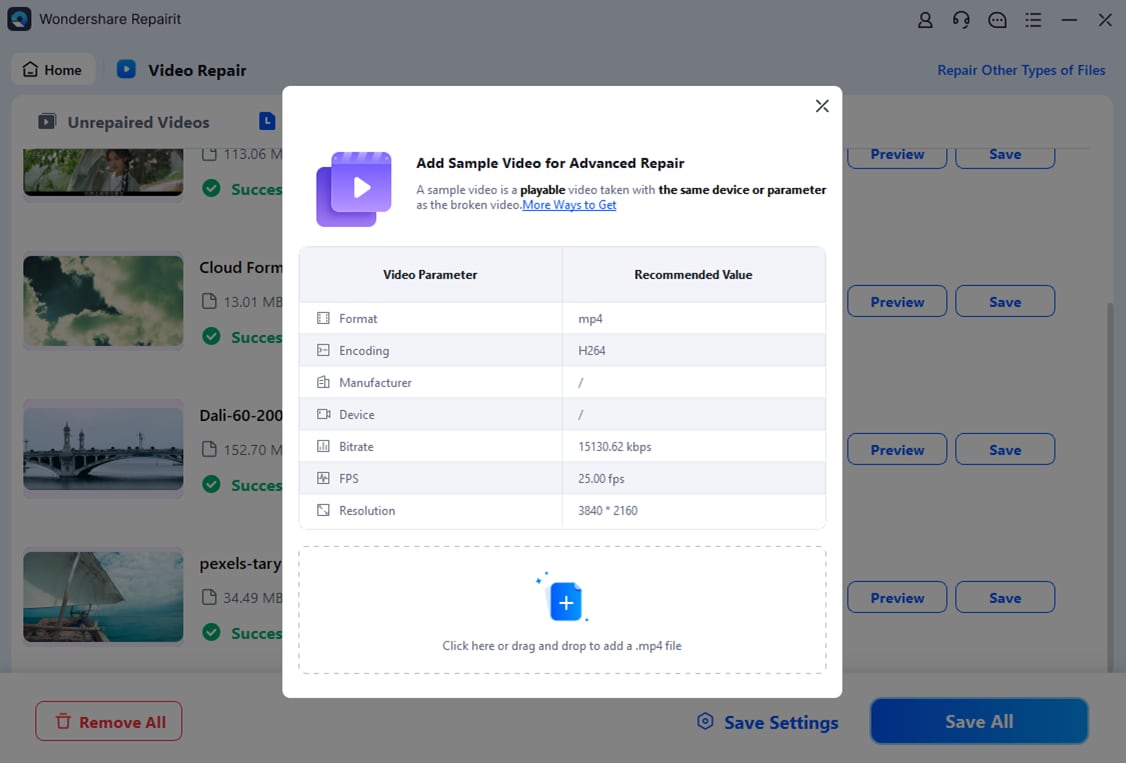
Advanced Repair may use a healthy sample from the same device and format.
Quick Repair with Repairit
Step 1: Open Repairit, select More Types Repair > Video Repair, choose + Add, and import a copy of the damaged MOV file.

Step 2: Review the file information and select Repair.

Step 3: Preview the repaired MOV and check its duration, image, audio, synchronization, and important scenes.
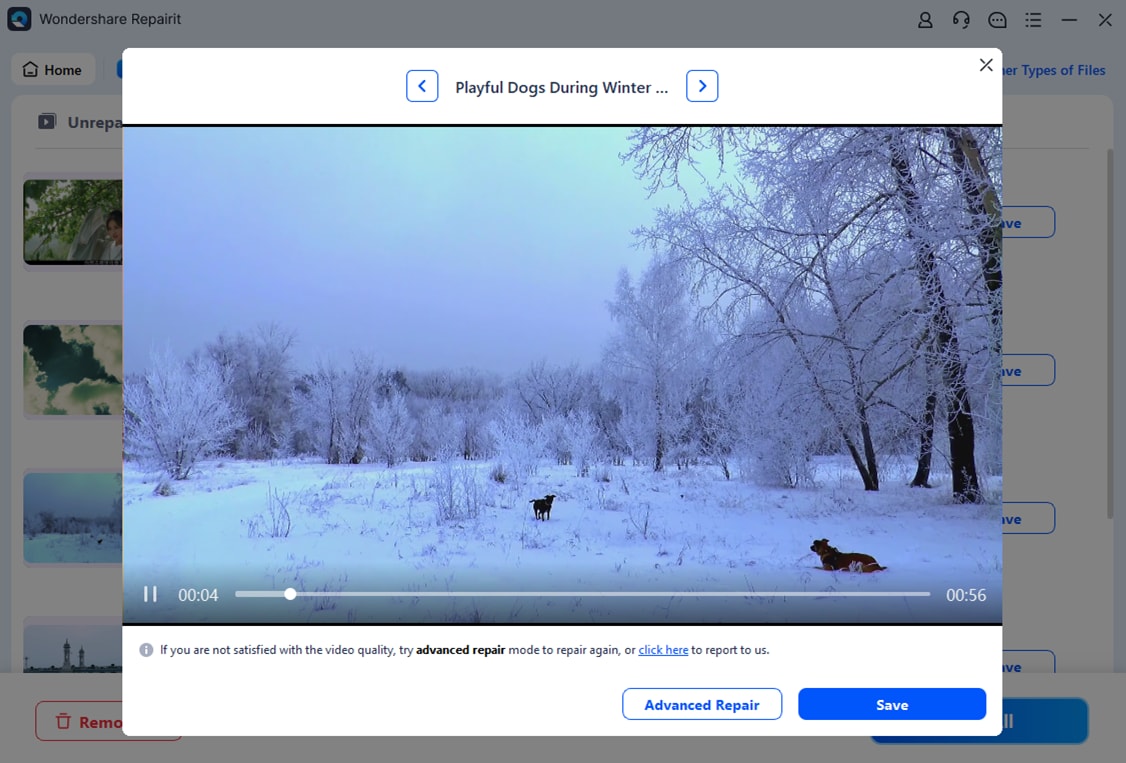
Advanced Repair with a Sample File
Use Advanced Repair when the MOV is severely damaged and Quick Repair does not produce a usable preview. Add a healthy sample recorded or exported by the same device or workflow with matching settings. A sample can help match the damaged file's structure, but it cannot recreate data that is missing or overwritten.
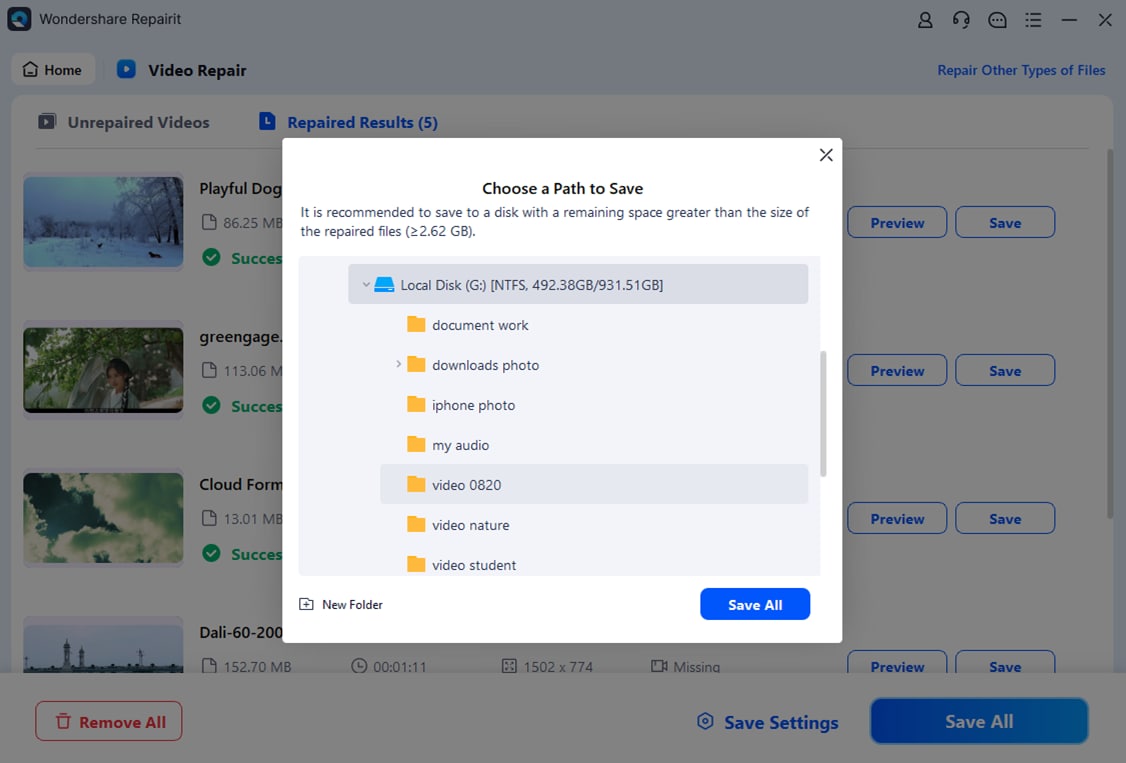
After the repair finishes, preview the result and save it to a new folder. Test the saved copy before editing, uploading, or replacing the original.

Repairit Video Repair can also help with QuickTime error 2048.
Part 4. How to Repair a MOV File Online
Repairit Video Repair Online may be convenient for a small, non-sensitive MOV when you do not want to install software. The current free tier, file-size limit, monthly count, supported formats, and advanced-repair options can change, so verify the live service terms before uploading.
| Option | Best for | Considerations |
| Online MOV repair | Small, non-sensitive files and quick browser access | Requires upload and depends on current service limits and privacy terms. |
| Desktop MOV repair | Large, private, multiple, or severely damaged files | Local workflow; Advanced Repair may need a matching sample. |
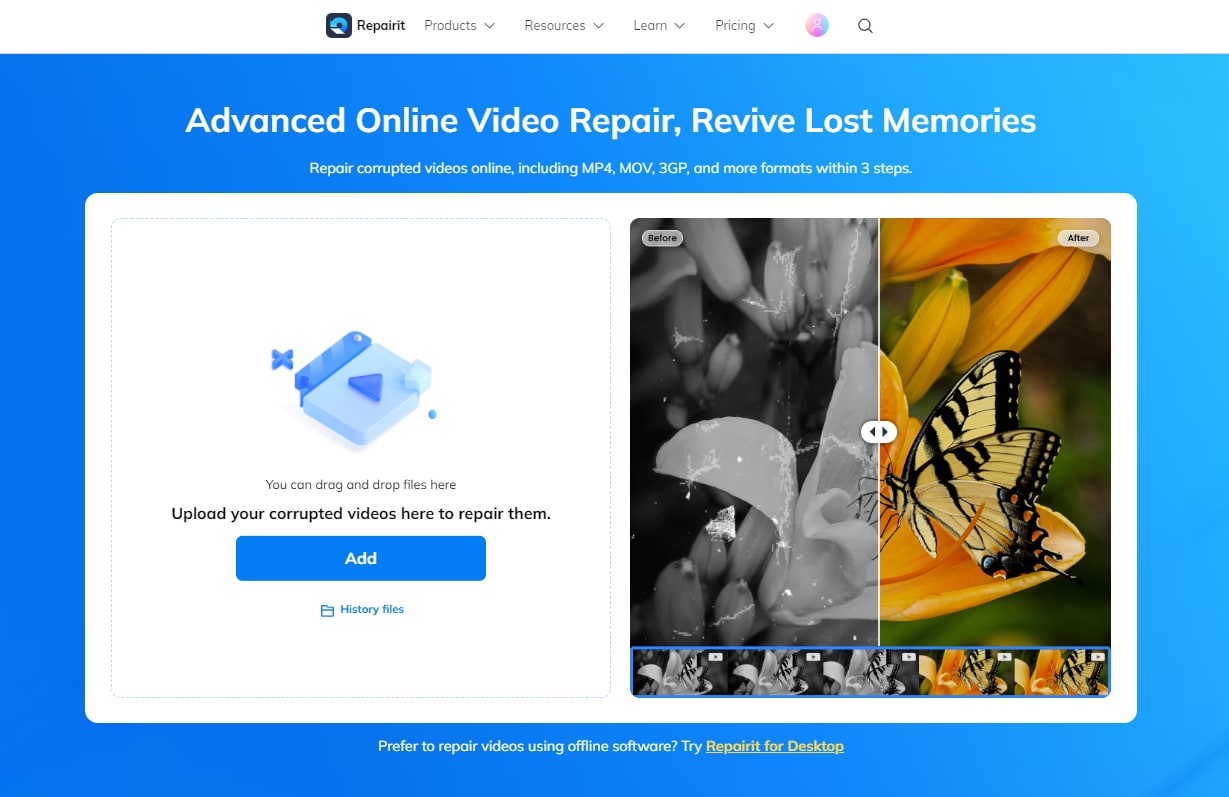
Step 1: Open the online repair page and upload a copy of the corrupted MOV file.
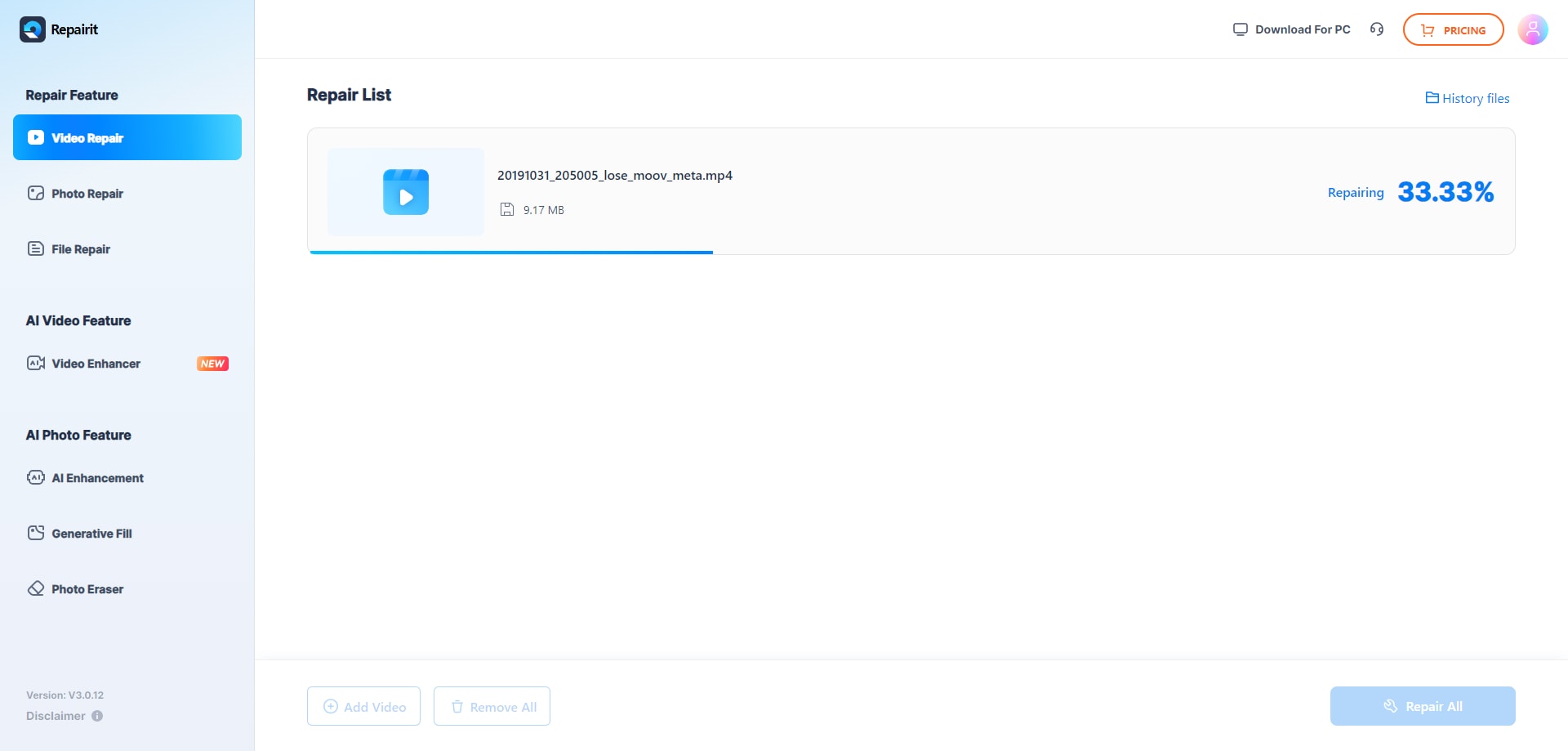
Step 2: Start the repair and provide a matching sample if the service requests one.
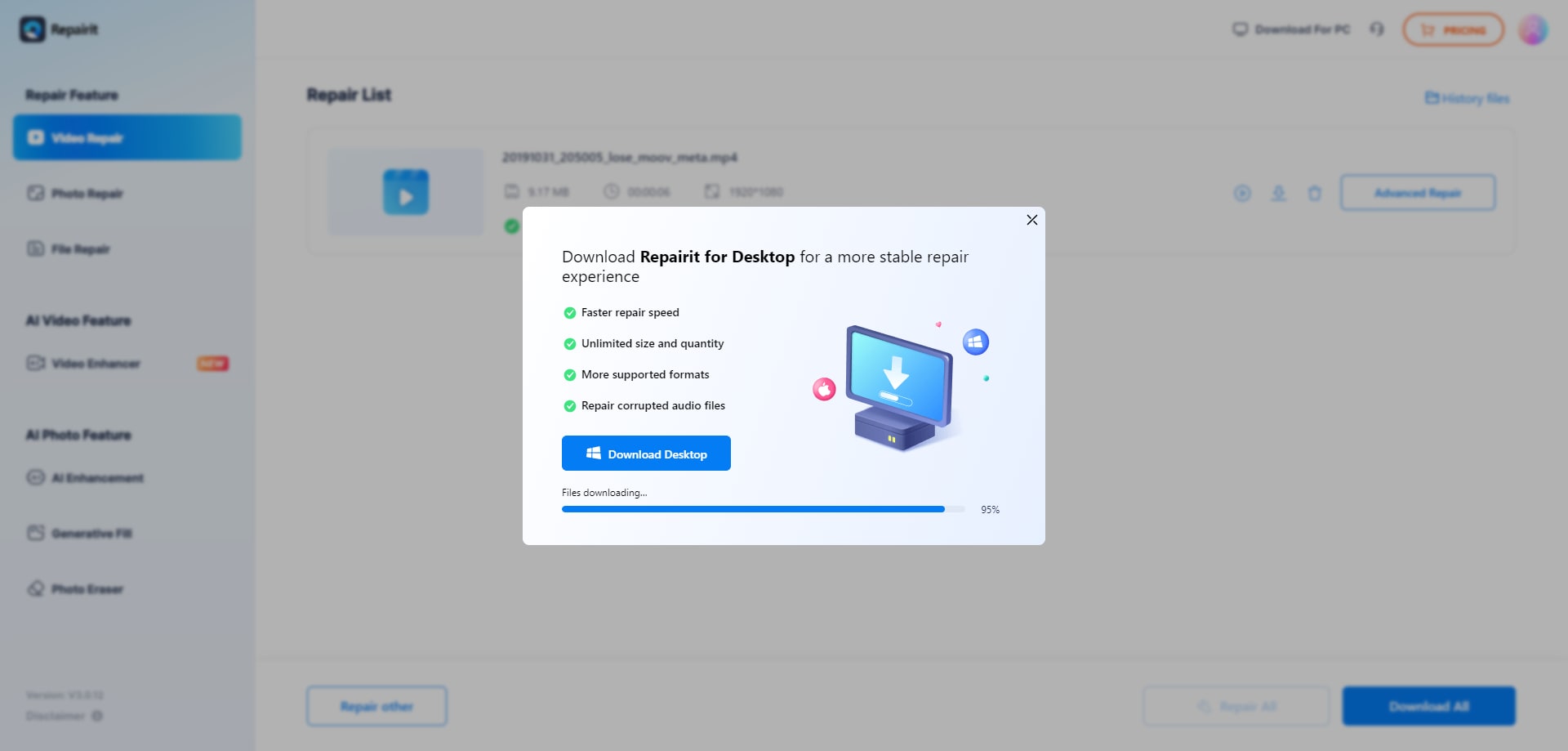
Step 3: Preview the result and download the repaired copy to a new location.
Part 5. Can VLC or QuickTime Repair a Damaged MOV File?
VLC and QuickTime can help diagnose playback and convert a healthy file, but they should not be presented as general MOV corruption-repair tools.
What VLC Can and Cannot Do
VLC can play many MOV files and convert a playable MOV to another container or codec. It may produce a usable output when the source is readable, but conversion is not the same as reconstructing a damaged header, missing index, or lost stream. Do not rename `.mov` to another extension and do not overwrite the original during conversion.
For another MOV playback issue, see 8 Solutions to Fix "MOV Files Not Playing" Error.
What QuickTime Can and Cannot Do
QuickTime Player can open compatible MOV files, display media information, and perform basic editing or export on supported files. If QuickTime rejects a file but another compatible player opens it, investigate compatibility first. QuickTime is not a dedicated repair tool for severely corrupted MOV files.
For related workflows, see How to Open SEC Format? and How to Import MOV Files to Davinci Resolve for Editing?.
Part 6. Repairing a MOV File vs Converting MOV to MP4
Repair and conversion solve different problems. Repair attempts to make a damaged file playable; conversion changes a readable file into another container or codec for compatibility.
- Repair first: choose repair when the MOV cannot open, has a black screen, missing audio, frozen frames, or playback errors.
- Convert second: after a repaired or healthy MOV plays correctly, convert it to MP4 if a phone, editor, browser, or platform requires MP4.
- Save separately: keep the original MOV and repaired output, then verify the converted MP4 before deleting anything.
Conclusion
Repair MOV file workflows should begin with a copy of the original and a symptom check. Use Repairit for an existing MOV that is damaged, broken, corrupted, or unplayable; use VLC or another converter when the file is healthy but needs MP4 compatibility; and use QuickTime mainly for compatible playback, media inspection, and basic editing. MOV repair is not the same as deleted-file recovery, so a zero-byte, overwritten, or never-created file may not contain enough data to repair.
FAQ
-
How do I repair a MOV file?
Keep the original, make a copy, import the copy into a supported MOV repair tool, run Quick Repair, preview the result, and save it to a new folder. Use Advanced Repair with a matching sample when the file is severely damaged. -
Can I repair a MOV file online for free?
An online MOV repair service may offer a free tier for eligible files, but file size, monthly count, supported formats, and advanced-repair access can change. Check the current service terms and avoid uploading sensitive footage unless you accept the privacy terms. -
How do I fix a corrupted MOV file on Mac?
Keep a copy, test it in QuickTime and VLC, and use a supported MOV repair workflow if both players fail. Repairit Desktop can be used on macOS for local files; save the output separately. -
Can VLC repair a broken MOV file?
VLC can play and convert many readable MOV files, but it is not a general corruption-repair tool. If the file is damaged, use a dedicated repair workflow instead of renaming its extension. -
Can QuickTime repair a damaged MOV file?
QuickTime can play compatible MOV files, show media information, and perform supported editing or export. It should not be treated as a dedicated tool for severe MOV corruption. -
Does renaming MOV to MP4 fix a corrupted file?
No. Renaming changes only the filename extension. It does not repair the container, codec, timestamps, index, or audio and video streams. -
Can Repairit recover a deleted MOV file?
No. Repairit can attempt to repair an existing supported corrupted MOV file, but it is not a data-recovery tool for deleted, formatted, overwritten, or never-created files. -
What is the difference between MOV repair and MOV conversion?
Repair attempts to reconstruct a playable result from a damaged file. Conversion changes a readable file to another container or codec, such as MP4, for compatibility.