
VP8 is an open, royalty-free video codec designed for efficient online delivery, best known as the core WebM codec for HTML5 video. It matters because it offers good visual quality at smaller file sizes without licensing fees, making it attractive for streaming platforms, browsers, and real-time communication tools. Whether you are publishing videos to the web, editing content, or just playing clips on different devices, understanding the VP8 codec helps you choose a format that balances quality, compatibility, and cost.
Repair Corrupted Files To Save Your Data
 Security Verified. Over 7,302,189 people have downloaded it.
In this article
How VP8 Works
The VP8 video format compresses video by breaking each frame into small blocks, predicting what each block should look like based on nearby pixels or previous frames, and then saving only the differences. This prediction plus transform and quantization greatly reduces file size while keeping most visible detail. Motion compensation tracks how objects move between frames so VP8 does not need to store full images each time. As a result, VP8 compression delivers efficient streaming-friendly files that balance video quality, bandwidth usage, and playback smoothness, especially at web-friendly bitrates.
Key Features, Pros, and Cons
Main features of VP8
The VP8 codec was designed as a modern, web-focused, open video technology. It includes several capabilities that make it suitable for streaming and browser playback.
- Open and royalty-free design, which removes licensing fees for most use cases.
- Block-based compression with intra-frame and inter-frame prediction to reduce redundancy.
- Support for variable bitrate and constant bitrate modes for flexible streaming configurations.
- Built-in error resilience tools that help maintain playback when network or data errors occur.
- Optimized for software decoding in web browsers and real-time applications like video calls.
Pros and cons of VP8
Pros
No per-device or per-stream licensing costs, unlike many proprietary codecs.
Generally comparable visual quality to H.264 at similar bitrates for HD web content.
Wide support in major desktop and mobile browsers through the WebM ecosystem.
Good performance on mid-range hardware thanks to mature software decoders.
Cons
Less efficient than next-generation codecs (H.265/HEVC, VP9, AV1) at the same quality level.
More limited hardware acceleration on TVs, set-top boxes, and older mobile devices.
In real-world use, VP8 typically delivers smooth streaming and acceptable quality for 720p and 1080p web video, especially at moderate bitrates. For high-end production or very low-bitrate scenarios, more advanced codecs may provide visibly better results, but they usually come with additional licensing or compatibility trade-offs.
VP8 vs Other Codecs
The most common comparison is VP8 vs H264. In many tests, both codecs produce similar quality at the same bitrate, though the exact winner depends on encoding settings and content type. H.264 has far broader support in hardware encoders and decoders (cameras, smartphones, TVs, and streaming boxes), which makes it easier to deploy across mixed device ecosystems. VP8, however, stands out by being open and royalty-free, which simplifies large-scale web streaming or products that need to avoid patent licensing fees.
Compared with newer codecs such as H.265/HEVC, VP9, and AV1, VP8 is generally less efficient. Those newer formats can often deliver the same quality with 30–50% smaller file sizes, which is attractive for 4K streaming and bandwidth-sensitive services. On the other hand, VP8 is simpler to decode, making it more forgiving on low-power CPUs and older systems. In terms of compatibility, AV1 and VP9 are gaining ground in modern browsers and devices, but VP8 remains a safe baseline for many WebM-based video workflows.
| Codec | Main strengths |
|---|---|
| VP8 | Open, royalty-free, good for web streaming and browser playback |
| H.264 | Very broad hardware and software support, solid quality at common bitrates |
| H.265 / HEVC | Higher compression efficiency, suitable for 4K and high dynamic range video |
| VP9 | Successor to VP8, better compression for high-resolution online video |
| AV1 | Next-generation open codec with excellent efficiency, growing browser support |
Compatibility and Practical Use
The VP8 video format is most commonly found inside the WebM container, which is natively supported in major browsers like Chrome, Firefox, Edge, and many Chromium-based applications. This makes VP8 a natural fit for HTML5 video tags, embedded players, and platforms that focus on open web standards. Media players such as VLC, MPC-HC, and other modern desktop players can also decode VP8 without extra plugins.
On the device side, some smart TVs, set-top boxes, and mobile devices support VP8 playback, especially when they are running up-to-date browser engines. However, hardware acceleration is not as universal as it is for H.264, so software decoding may be used more often, particularly on older or low-powered devices. Typical file containers that carry VP8 include WebM (most common), Matroska (MKV), and occasionally other custom or experimental containers in specific workflows.
How to Use Repairit to Fix a Corrupted VP8 File
What is Repairit
When a VP8 video format file becomes corrupted, the clip may stop playing, freeze at certain timestamps, or show errors in your media player. In these cases, a dedicated repair utility is more reliable than simply re-downloading or re-encoding the video. Wondershare Repairit is designed specifically to fix damaged media files, including videos that use the VP8 codec. You can download it from the Repairit official website and install it on your computer to start recovering problematic clips.
Key features of Repairit
- Repairs multiple corrupted videos from various formats in one go, including files that use VP8 compression inside WebM or other containers.
- Fixes playback issues like freezing, stuttering, visual artifacts, and out-of-sync audio that commonly appear in damaged VP8 recordings.
- Offers an advanced repair mode that analyzes severely damaged video structures to maximize the chance of a successful recovery.
Steps to repair VP8 files
The workflow in Repairit is straightforward: add the corrupted file, let the software process it, then save the fixed version to a safe location. The following steps mirror a practical, real-world repair process.
- Add corrupted video
After installing Wondershare Repairit, open the program and select the Video Repair module from the main dashboard. Click the button to add files and browse to the folder that stores your damaged VP8 or WebM videos. You can select one or several clips at the same time, then confirm so they appear in the file list with basic information such as name, size, and format.

- Repair video codecs
Once your corrupted clips are listed, check that the formats correspond to the files you want to fix and click the Repair button. Repairit will analyze the internal structure of each file, including the VP8 codec stream and container metadata, then attempt to correct errors that cause playback issues. During this stage you can monitor progress and, when the status indicates completion, use the Preview function to quickly watch the repaired version and confirm that artifacts, freezing, or audio sync problems are resolved.

- Save the repaired videos
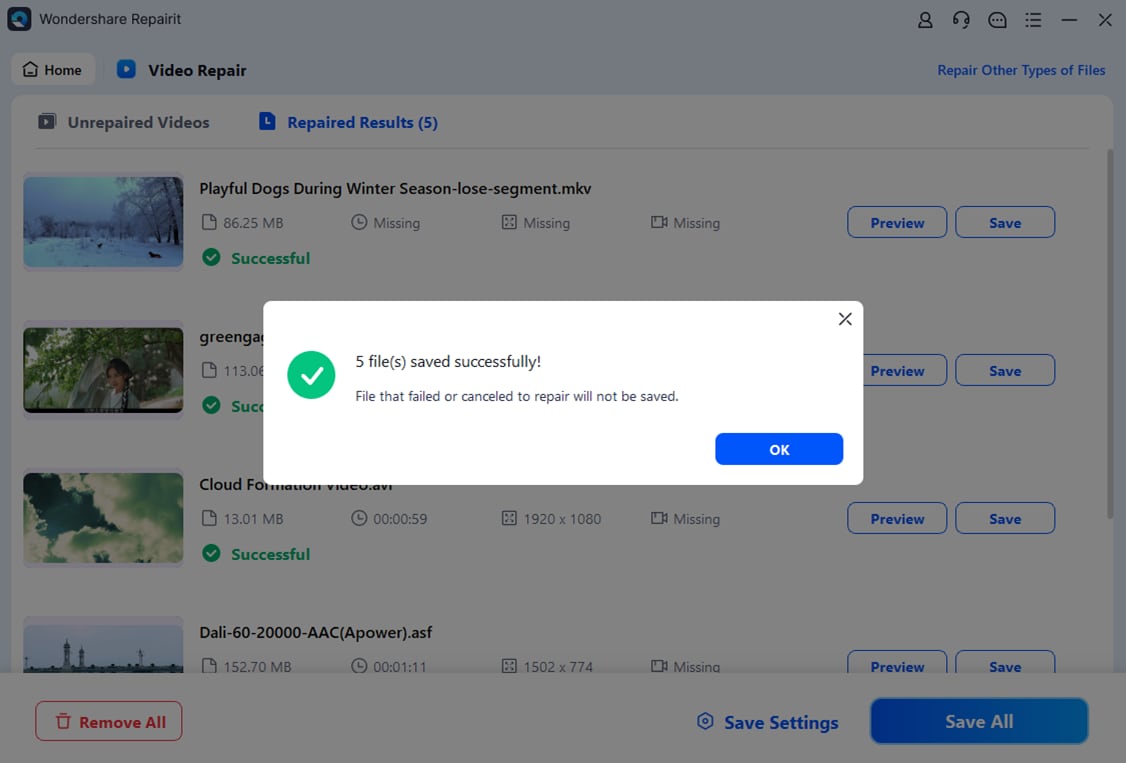
If the preview looks correct, choose the Save option and pick a destination folder on a reliable drive that is different from where the corrupted file was stored. This avoids overwriting and helps you keep a backup if needed. Repairit will export the cleaned, playable video and preserve the original VP8 video format as far as possible, so you can open, edit, or share the clip in your usual software without encountering the previous errors.
Conclusion
VP8 is an open, royalty-free codec that helped shape modern web video by delivering efficient, browser-friendly compression without licensing barriers. It remains a solid choice for WebM streaming, browser playback, and many online platforms that value openness and predictable costs over the absolute highest compression efficiency.
However, like any digital format, VP8 videos can become corrupted due to storage issues, interrupted transfers, or software problems. When that happens, a specialized repair tool such as Wondershare Repairit can often restore the damaged VP8 video format and recover your footage. By following a simple add, repair, and save process, you can quickly bring broken VP8 clips back into your editing or playback workflow without needing deep technical expertise.
Next: What is Mpeg-2 Codec?
FAQ
-
1. What is VP8 used for?
VP8 is mainly used for web video in WebM containers, browser-based playback, online streaming, and some video calling platforms that prefer open, royalty-free codecs. It is also used in web conferencing tools and services that prioritize compatibility with modern browsers.
-
2. Is VP8 better than H.264?
In many scenarios, VP8 vs H264 delivers comparable visual quality at similar bitrates. H.264 usually wins in hardware support and universal compatibility, while VP8 stands out for being open and royalty-free. The better choice depends on your licensing requirements and the devices you need to support.
-
3. Can I play VP8 videos on any device?
Most modern browsers and many media players can decode the VP8 codec, especially when it is wrapped in a WebM container. However, some older TVs, set-top boxes, and legacy hardware players may lack support. Installing a versatile player like VLC typically improves your chances of smooth playback.
-
4. Why will my VP8 video not play?
A VP8 video format file may fail to play if it is corrupted, only partially downloaded, stored in an unsupported container, or opened with outdated software. Trying another media player, updating your codecs, or scanning the file with a repair tool like Wondershare Repairit can help diagnose and fix the issue.
-
5. How do I fix a corrupted VP8 file?
First, create a backup of the damaged file. Then open Wondershare Repairit, go to the Video Repair section, and add your corrupted VP8 clip. Start the repair process, review the preview of the fixed video, and finally save the repaired version to a new, safe location.




