
Steam allows games to launch only after your account verifies ownership (license) and the client successfully checks required data. The Steam “No Licenses” error usually appears when Steam can’t validate that the game is authorized for the account currently signed in—even if the game still shows in your Library.
The good news: in most cases, this is not a Windows/hardware failure. It’s typically a mismatch between your account/session data and Steam’s license verification. Follow the quick diagnosis below, then try the fixes in order (low-risk first).
Table of Contents
Part 1. What the Steam “No Licenses” Error Means
The Steam “No Licenses” error appears when the Steam client cannot confirm that a game is authorized for the currently logged-in account. Steam performs license validation when launching a game to verify ownership and permissions.
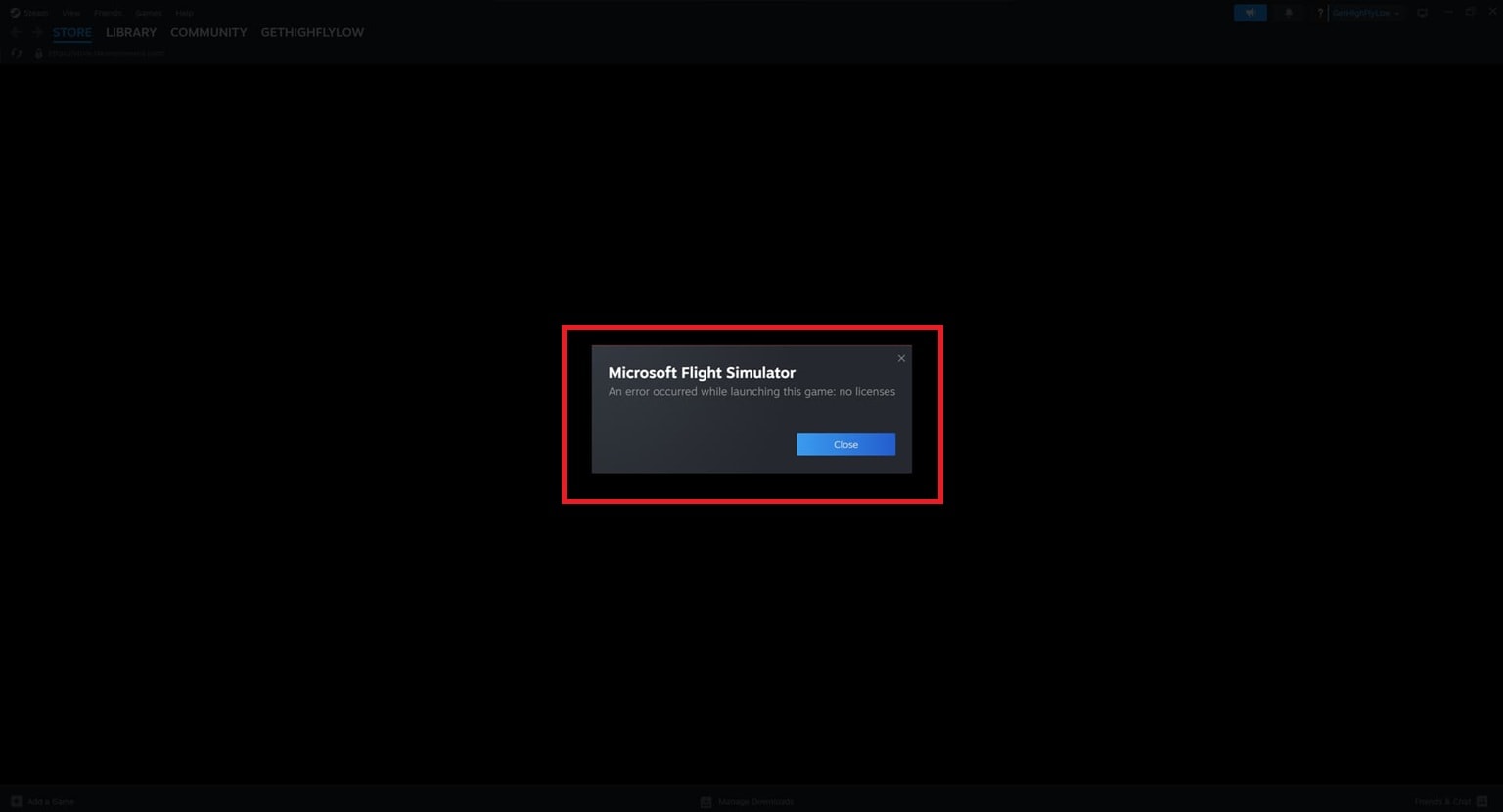
This validation can fail even if the game is legitimately purchased. Most cases involve account/session sync or client-server verification issues, such as:
- Steam cannot verify ownership: The client cannot confirm that the logged-in account has permission to launch the game.
- Local license data is out of sync: Cached license or session data stored on the device may not match Steam’s server records.
- Account access or sharing limitations exist: The game may be linked to another account, expired Family Sharing access, or an unaccepted gift.
- Game files or updates are incomplete: Missing or corrupted files may prevent Steam from completing license validation during launch.
- Connectivity or security software is blocking verification: Network instability, firewall settings, or antivirus programs may interrupt communication with Steam servers.
Unlike installation errors or system crashes, this problem is mainly related to license authentication and client-server communication. Because of this, troubleshooting usually focuses on restoring license verification rather than repairing hardware or reinstalling Windows.
Part 2: Common Situations Where the No Licenses Error Appears
License verification problems usually happen when Steam fails to sync ownership data or validate game files correctly. Here are common scenarios that can trigger the issue.
Scenario 1: The Game Was Gifted, Shared, or Played on Another Account
Games accessed through Steam family sharing, gift purchases, or secondary accounts may occasionally trigger license conflicts. The error may occur if:
- The gift was not accepted or expired
- Family Sharing permissions were removed
- You are logged into a different Steam account than the one that owns the game
- The original account owner is currently playing or revoked sharing access
Note: Steam limits how shared licenses are used, and access can change without warning if account settings are modified.
Scenario 2: The Game Files Are Present, but Steam Can’t Verify Them
Sometimes the game remains installed, but Steam cannot validate it properly. This can happen when:
- Game files become corrupted or incomplete
- Downloads or updates were interrupted
- Installation files were modified by external software
- Local license data becomes mismatched with server records
Note: Even minor file inconsistencies can prevent Steam from confirming ownership during launch.
Scenario 3: Steam Client Fails to Sync License Data
Steam regularly syncs license data with its servers, and client-side issues can disrupt this process. Common triggers include:
- Corrupted Steam download cache
- Bugs introduced after Steam updates
- Client configuration errors
- Damaged temporary license files
Note: When synchronization fails, Steam may incorrectly assume that your account does not own the game.
Scenario 4: Network or Security Software Blocks License Validation
Steam requires stable internet connectivity to verify licenses. Validation failures may occur when:
- DNS or network connectivity is unstable
- Firewalls block Steam communication
- Antivirus software interferes with Steam services
- VPN connections disrupt server authentication
Note: If Steam cannot reach its licensing servers, the client may display ownership errors.
Part 3: Quick Self-Check: Which Category Does Your Error Fall Into?
Before trying any fixes, it helps to know what’s causing the issue. Here are some common patterns that can point you to the right solution.
- Only ONE game shows “No Licenses”: This usually points to corrupted local game files or a license problem tied specifically to that title. Verifying files or checking ownership often resolves this case.
- MULTIPLE games show “No Licenses”: When several games show the error, the issue is likely related to the Steam client, account sync, or cached license data. Clearing the cache or refreshing the client is often required.
- The error appeared after switching accounts or reinstalling SteamSteam may not have properly synced your licenses after login or installation changes. Logging out and back in usually forces a license refresh.
- The error occurs when playing offline or on unstable networks: Steam sometimes needs to verify ownership through online validation. Poor connectivity or DNS issues can prevent the client from confirming licenses.
Part 4. 8 Quick & Easy Fixes for Steam No Licenses Error
Follow these solutions in order. Most users resolve the issue using the first few methods.
1) Sign in to the Correct Steam Account
Steam no licenses error often occurs if the game is tied to a different account than the one currently logged in. Always ensure you’re using the account that actually owns or has access to the game.
Risk/Note: Launching games from the wrong account may make it seem like the game is missing or unlicensed, but this is not a client issue.
Step 1. Open Steam. Right-click on the upper left corner. Select Change Account.
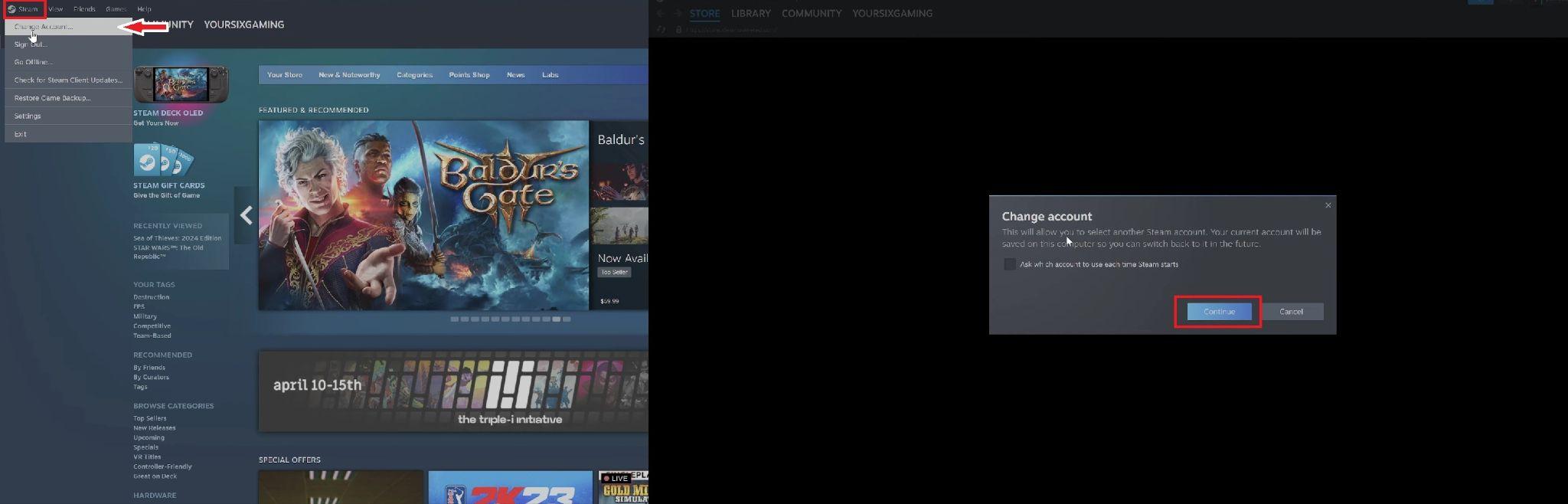
Step 2. Log in using the account that owns the game. Restart Steam and try launching the game again.
2) Verify the Game License in Your Library
Games installed via gifts, shared accounts, or previous Steam Family Sharing setups may trigger the no licenses error. Confirming that the game is officially licensed under your account usually resolves the issue.
Note: Using the wrong account can create confusion; ensure you are checking the intended Steam account.
Step 1. Log in to Steam using the account you believe owns the game.
Step 2. Open your Library and look for the game in question. For gifted games, confirm that the gift was accepted properly and shows as owned under your account.
3) Verify Integrity of Game Files
Corrupted or incomplete game files can prevent Steam from recognizing the license correctly. Running the integrity check will repair missing or broken files without deleting your save data.
Risk/Note: Avoid interrupting the process, as stopping the verification mid-way could leave files partially updated.
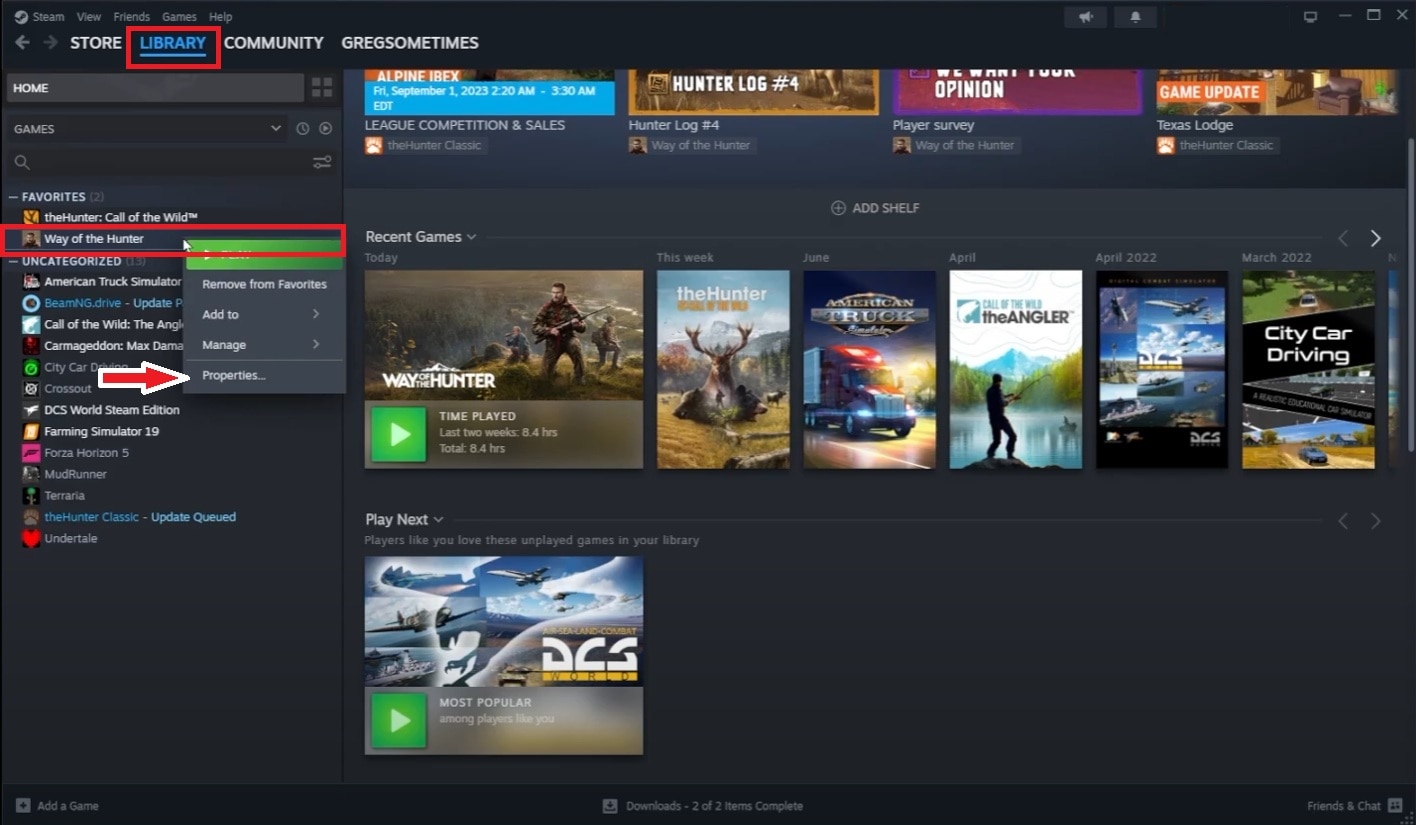
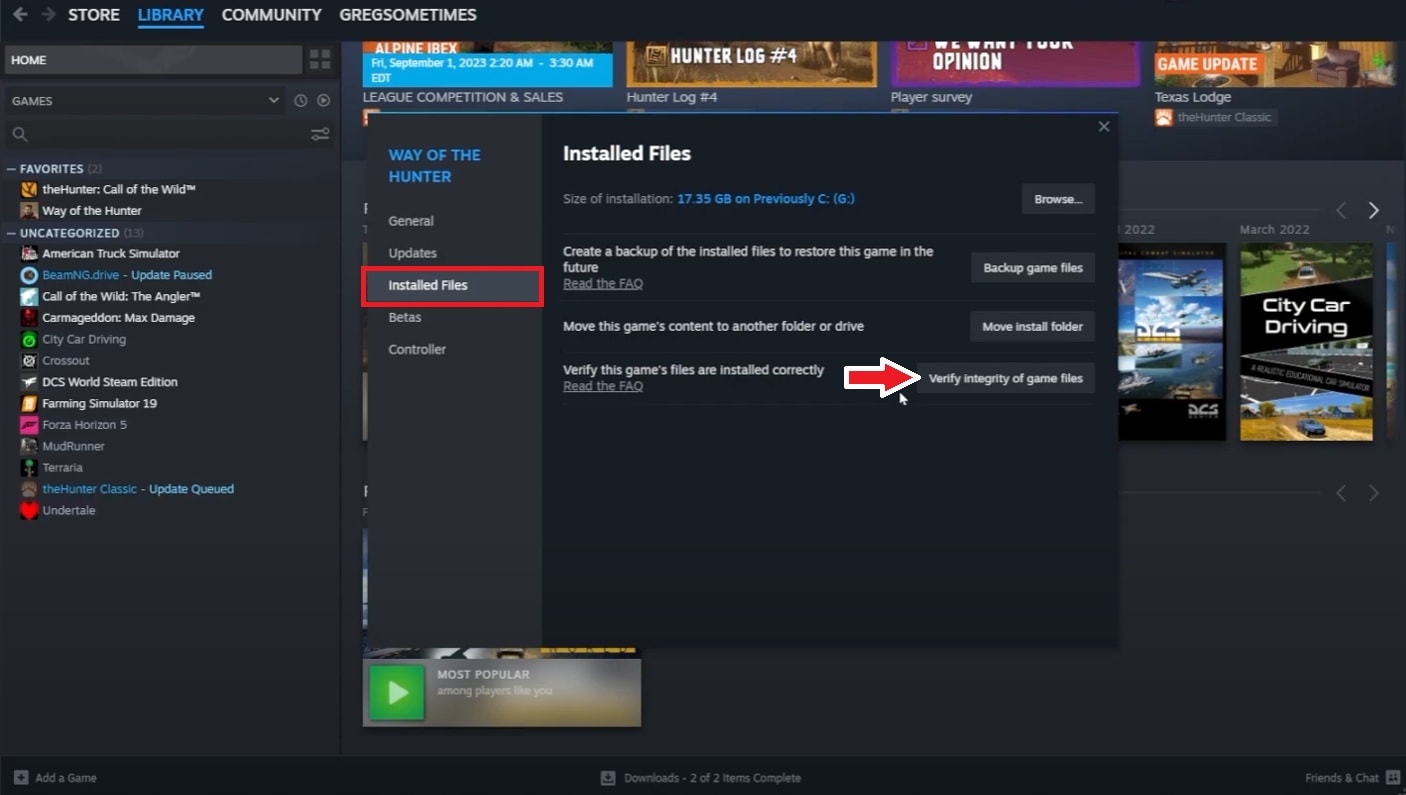
Step 1. Under Library, choose a game, right-click on it, and select Properties.
Step 2. Navigate to Installed Files and click Verify Integrity of Game Files. Wait until the check completes.
4) Clear Steam Download Cache
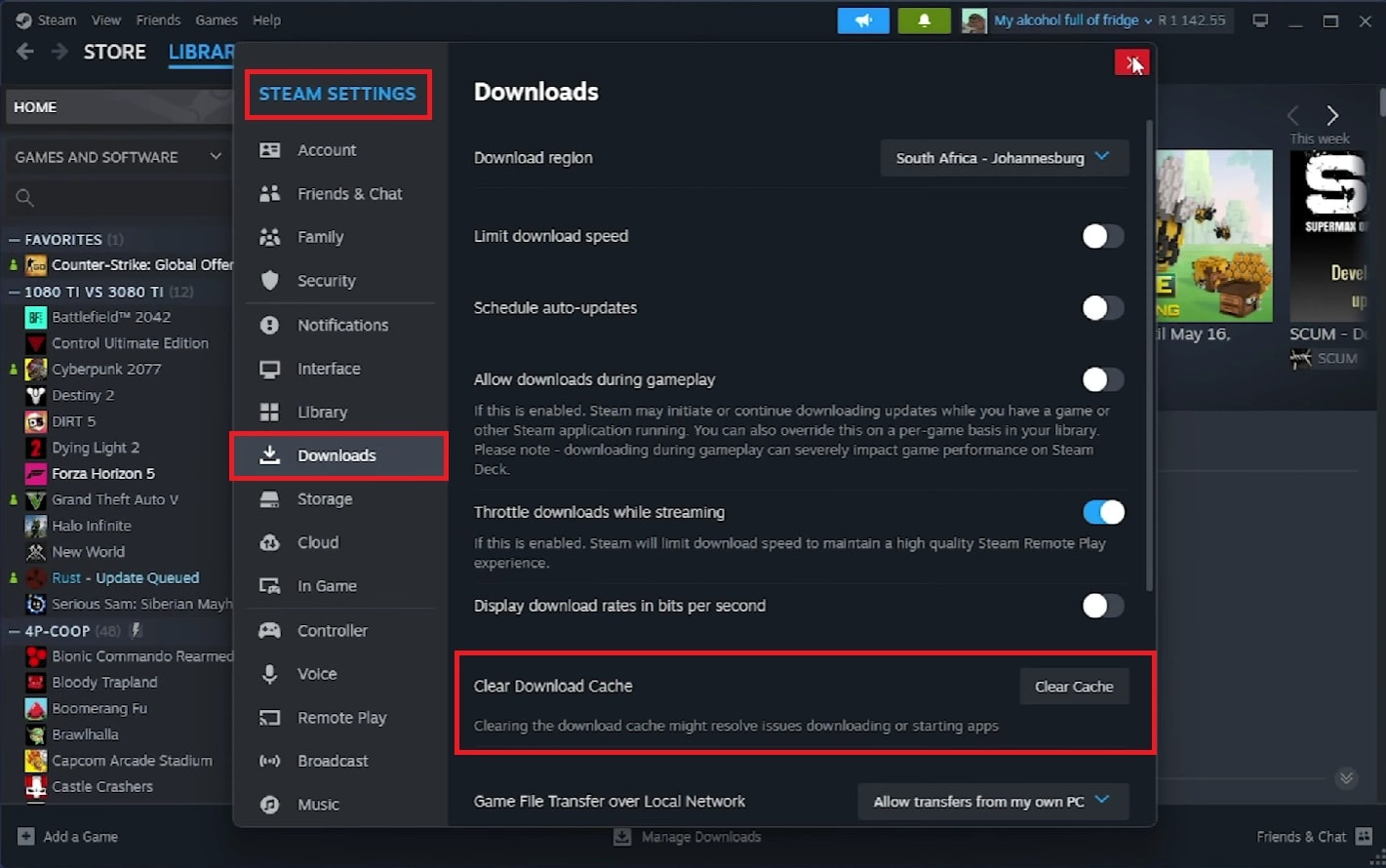
A corrupted cache can prevent Steam from properly syncing license data. Clearing it refreshes client-side validation without affecting installed games.
Note: You will need to log back into Steam after clearing the cache.
Step 1. Click Steam on the top left, then go to Settings.
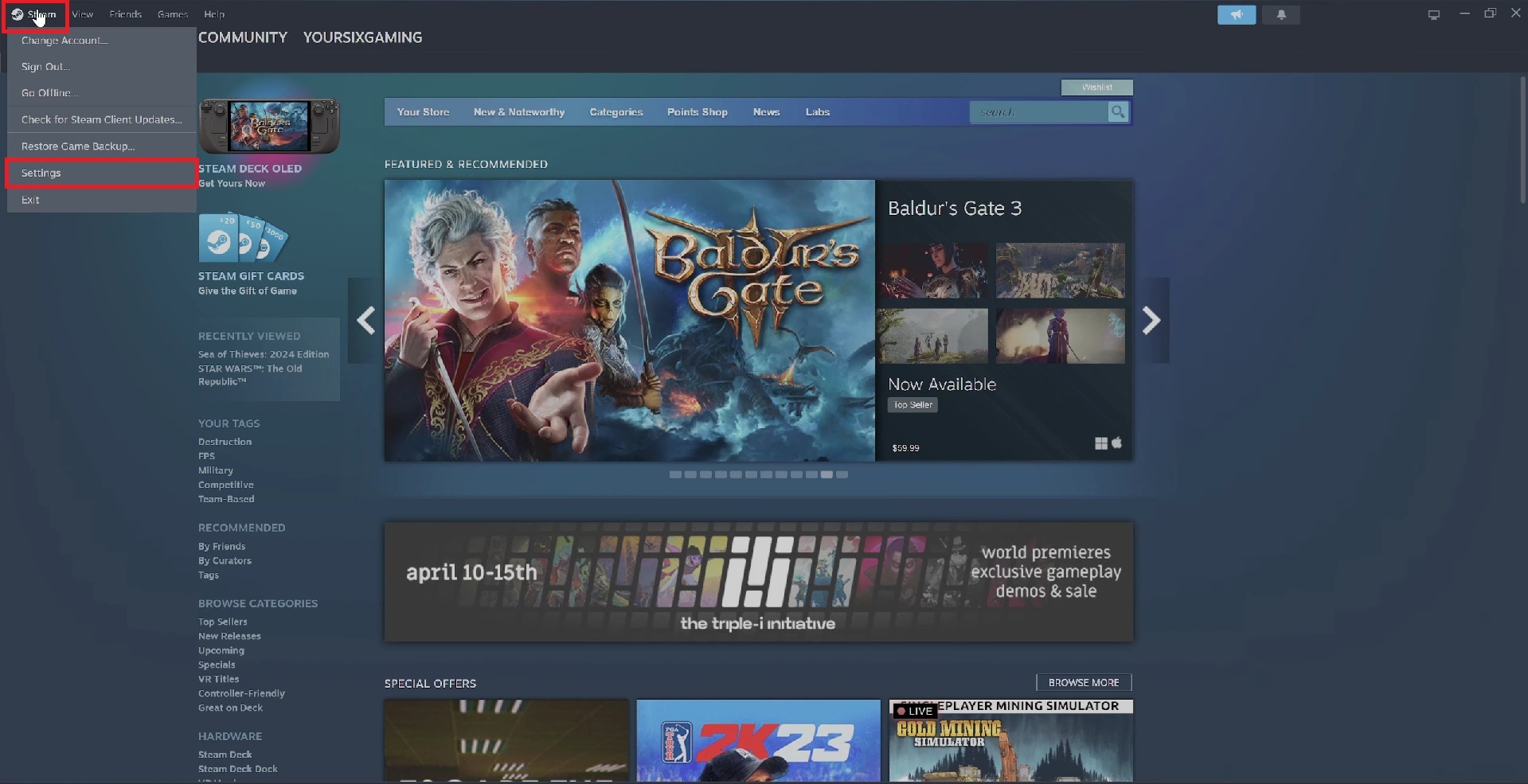
Step 2. Click on Downloads. Select Clear Download Cache. Confirm the action and restart Steam.
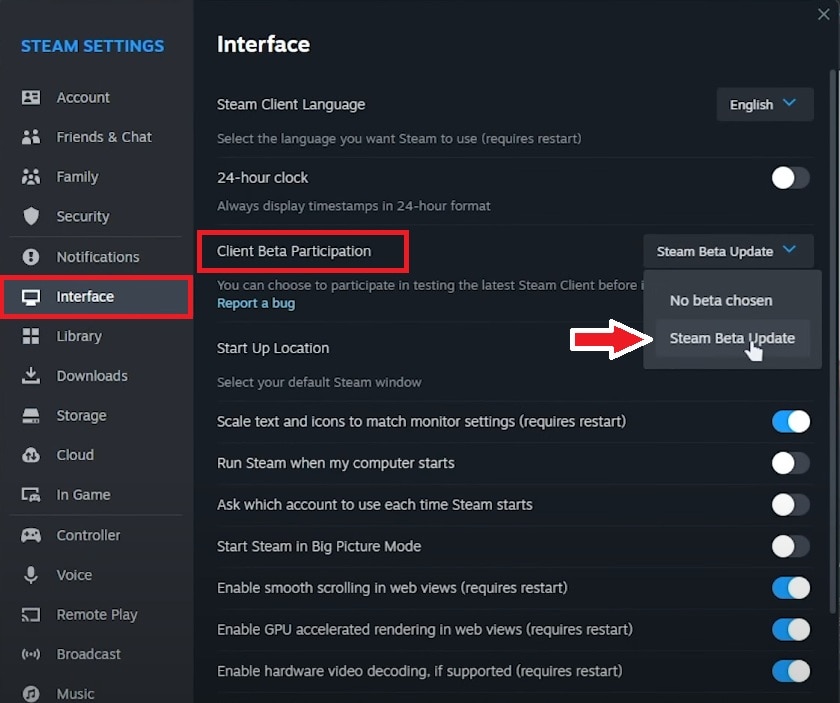
5) Switch to Steam Beta or Families Beta
Some license sync errors are caused by client-side bugs that are often fixed in beta versions. Using the Beta channel can help Steam validate licenses correctly.
Risk: Beta clients may have minor bugs; use only if you are comfortable with occasional instability.
Step 1. Go to Settings. Click on Interface. You’ll see the Client Beta Participation. It has two options.
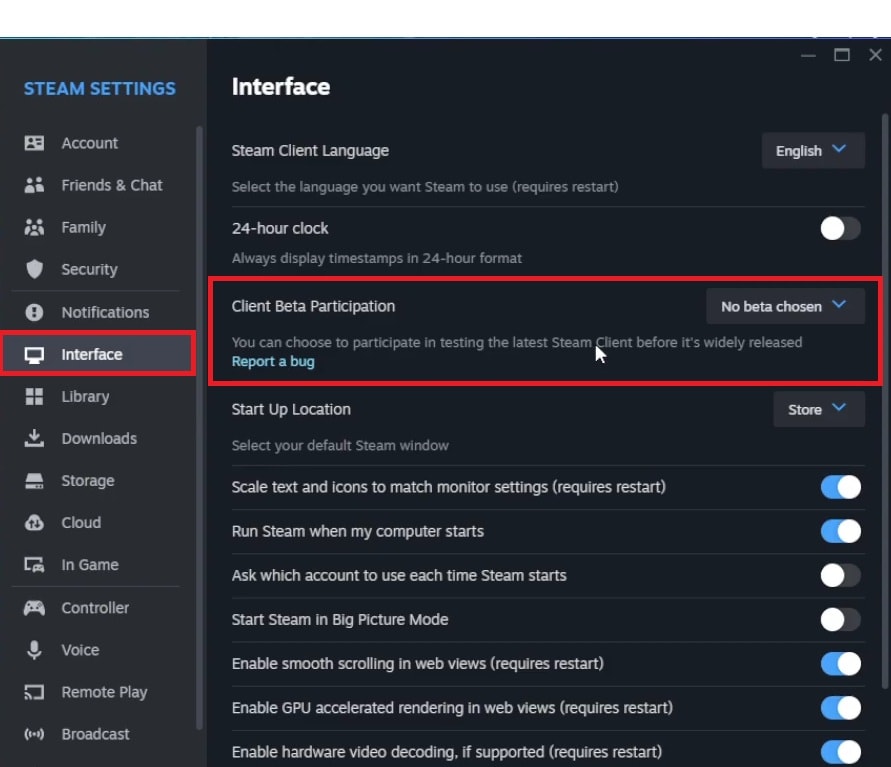
Step 2. Select Steam Beta Update, apply changes, and restart the client.
6) Update Graphics Drivers & Steam Client
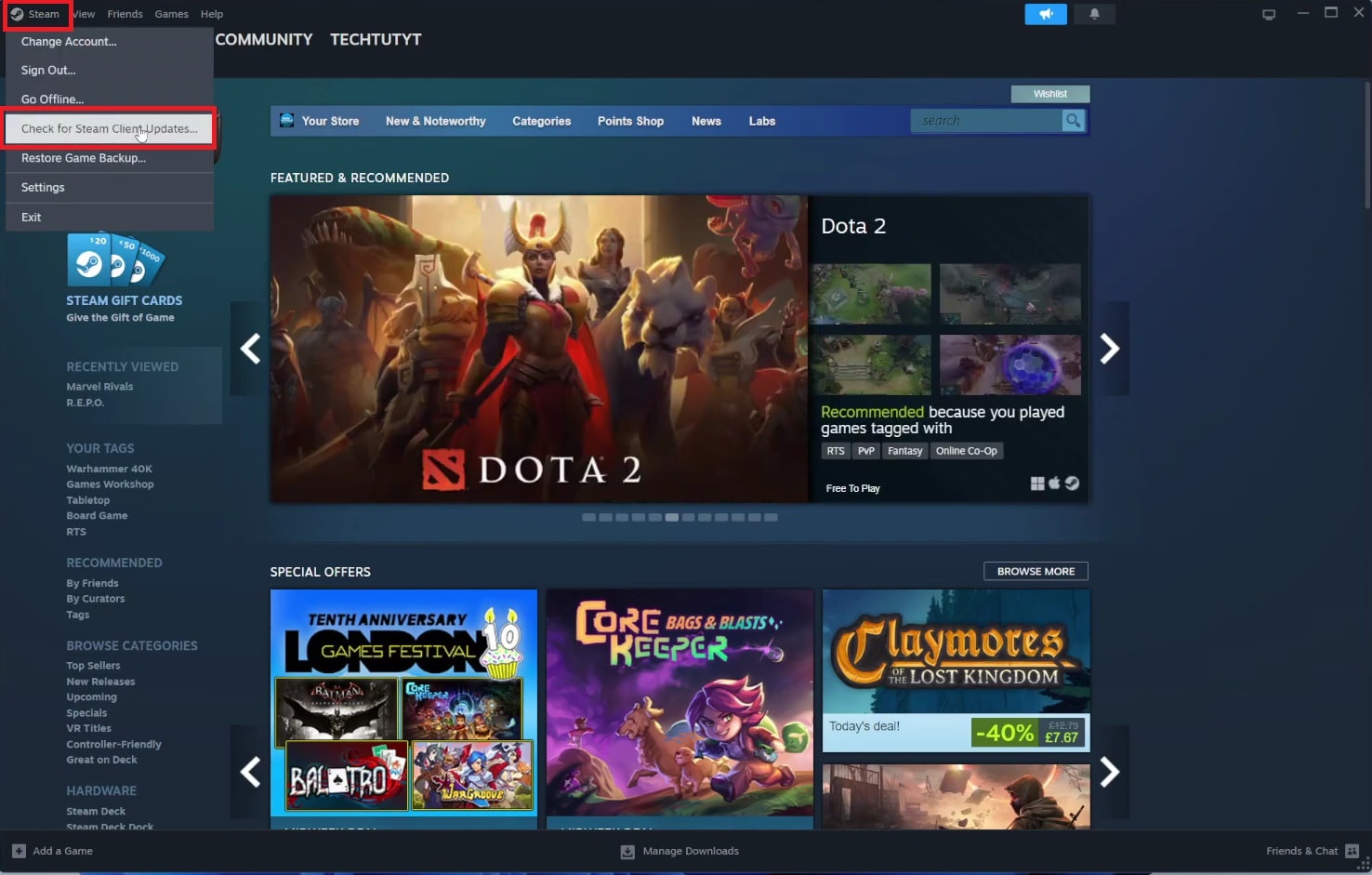
Outdated Steam clients or GPU drivers can indirectly interfere with game launches. Updating ensures compatibility with Steam’s license validation system.
Note: Always download drivers from official sources to avoid system instability.
Step 1. Update your graphics drivers via the official NVIDIA, AMD, or Intel website.
Step 2. Open Steam, click on Steam in the upper left corner. Choose Check for Steam Client Updates, and install any available updates.
7) Restart or Refresh Your Network & DNS Settings
Network problems, DNS issues, or firewall interference can prevent Steam from verifying licenses. Restarting your connection or switching to a reliable DNS can resolve validation errors.
Note: Ensure that firewall and antivirus rules allow Steam to communicate freely; temporary network changes may be required.
Step 1. Restart your router and computer.
Step 2. Optionally, set DNS to Google DNS (8.8.8.8 / 8.8.4.4) or Cloudflare DNS (1.1.1.1). Launch Steam and check if the game can now start.
8) Reinstall the Game
If all else fails, reinstalling the game resets local files and license metadata. This is usually a last resort when file corruption or a misconfigured installation prevents Steam from validating ownership.
Risk: Reinstallation may take time and consume bandwidth; ensure your save files are backed up.
Step 1. Click the game in your Library. Go to the Settings icon. Click on Manage. Select Uninstall.
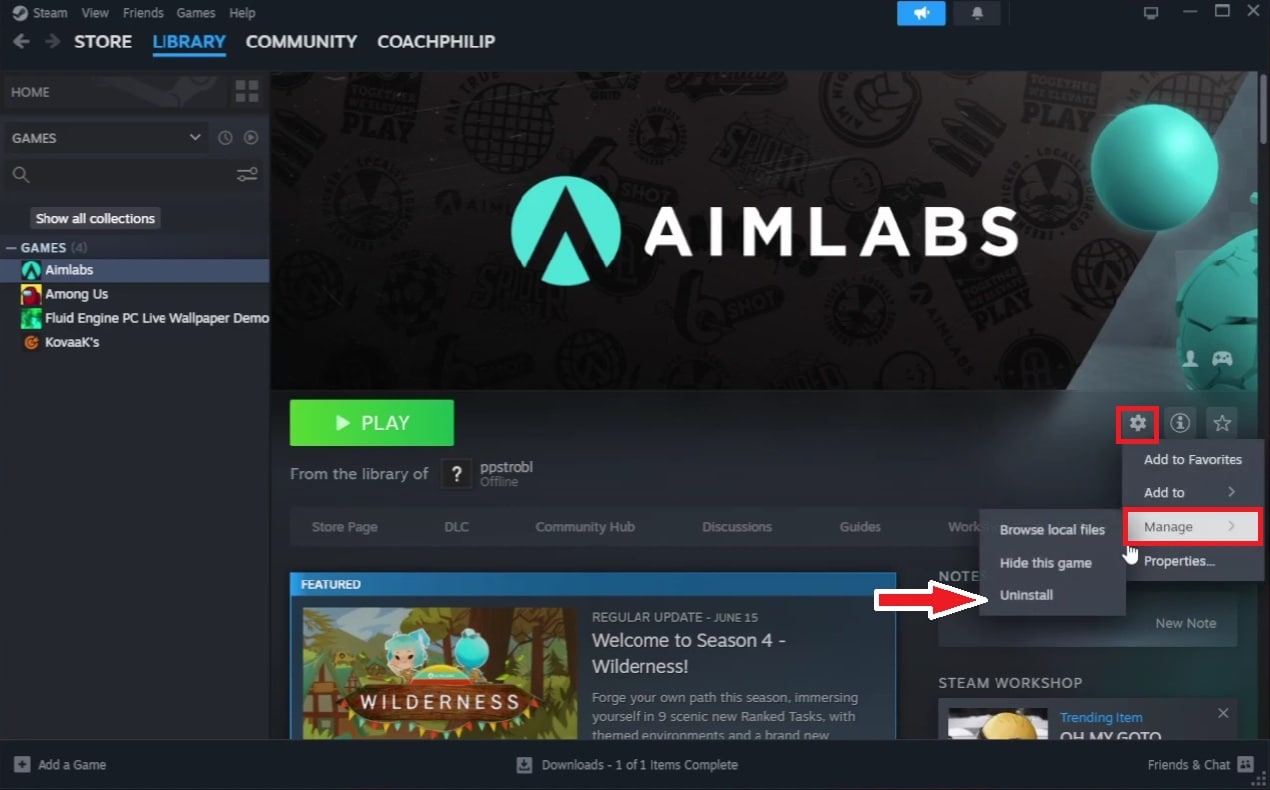
Step 2. After removal, reinstall the game and attempt to launch it.
Part 5. Rare Case: When Game Media Files Affect Launch (Optional)
In rare cases, a game fails during startup because internal media assets (intro videos/cutscenes) are corrupted. This can look like a license error because the launch process never completes.
Important: This is NOT a fix for real Steam ownership/authentication problems. Only consider this if:
- The error happens only for one title, and
- File verification/reinstall didn’t help, and
- The game crashes during intros or cutscenes.
5.1 Optional: Repairing Game Media Files (Situational Support)
Sometimes, repairing the corrupted video files used by the game can resolve crashes that prevent launch. This is not a replacement for proper license fixes and should only be used if all account and client troubleshooting fail.
5.2 Repairing Game Videos with Repairit Video Repair
Before attempting, remember: Repairit Video Repair can repair damaged game video files, restore playback, and support formats like MP4, MOV, MKV, and AVI. Always keep a backup of the original file, and consider this option only if media-related crashes are confirmed.
⚠️ Limitations (must state clearly):
- It can’t fix Steam account ownership, Family Sharing restrictions, server outages, or true license validation failures.
- It only helps if the media files themselves are corrupted.
⚠️ Risk Note: These steps will not fix Steam account issues, server errors, or actual license validation problems. Only corrupted media files are addressed.
Step 1. Select and load the video files that are corrupted or failing to play.

Step 2. Click the repair option to let the software analyze and fix the video files.

Step 3. Check the repaired videos and save them to a new folder or location.

Part 6. Preventive Tips to Avoid Steam License Problems
A few simple habits can help prevent license errors and reduce game launch problems in the future.
- Keep the Steam client updated - Updates often fix bugs and improve how Steam verifies game ownership.
- Avoid interrupting downloads or updates - Stopping installs midway can damage game data and lead to launch or validation issues later.
- Use a stable internet connection - Steam needs a reliable connection to confirm your game licenses with its servers.
- Log out and sign back in when switching accounts - This refreshes your account session and helps Steam reload the correct license information.
- Back up important game files and settings - Having backups makes it easier to recover data if files become corrupted or need reinstalling.
Conclusion
The Steam no licenses error usually appears when Steam cannot properly confirm game ownership or sync license data with your account. Although it may stop games from launching, it is typically caused by client, network, or file verification issues rather than system damage.
Most players resolve the problem by checking account access, refreshing Steam data, or repairing game files when necessary. If the issue is related to damaged game media, repair tools can help in rare cases where crashes occur during startup.
FAQs
-
Why does Steam say “no licenses” when I own the game?
Because Steam can’t validate ownership for the signed-in account due to session sync issues, Offline Mode, sharing restrictions, or connectivity blocks. -
Can Steam Family Sharing cause a no licenses error?
Yes. If sharing is revoked, the owner is playing, or permissions change, Steam may block access and show license errors. -
Does clearing the Steam cache remove installed games?
No. It clears temporary download/license sync data. You’ll usually need to sign in again afterward. -
Can antivirus software block Steam license verification?
Yes. If security software blocks Steam services or network verification, Steam may fail license checks. Try allowing Steam temporarily and retesting. -
Can corrupted game files cause Steam launch errors?
Yes. Incomplete updates or corrupted files can break launch validation. Verify integrity or reinstall the game for that title.




