

A What is CR2 File query usually comes up when you transfer photos from a Canon camera and see unfamiliar .cr2 images on your computer. CR2 is a Canon RAW photo format that captures everything the camera sensor records, giving you maximum flexibility for editing but less convenience for quick viewing and sharing. This guide walks you through what a CR2 file is, how to open and convert it, and what to do if these files become corrupted or unreadable.
Repair Corrupted Files To Save Your Data
 Security Verified. Over 7,302,189 people have downloaded it.
In this article
What Is CR2 File
A CR2 file is a Canon RAW version 2 image file produced by many Canon DSLRs and mirrorless cameras. It stores minimally processed data straight from the camera sensor, similar to a digital negative.
Unlike compressed formats such as JPG, a CR2 file preserves a wide dynamic range, fine color detail, and extensive metadata about your shot. This gives you far greater control when adjusting exposure, white balance, contrast, and sharpness in post-processing, with less risk of visible quality loss.
However, the Canon RAW file format has trade-offs. CR2 images are noticeably larger than JPGs, they are not universally supported by basic photo apps, and they usually require dedicated RAW-processing software. Many photographers therefore, keep the RAW CR2 for editing and archive purposes, while exporting a lighter JPG copy for sharing or printing.
| Format | Main characteristics |
|---|---|
| CR2 (Canon RAW) | Uncompressed, highest quality, best for editing, larger file size, needs compatible software. |
| JPG (JPEG) | Compressed, smaller files, easy to share and view almost anywhere, some quality is lost. |
How to Open CR2 Files
Because a Canon RAW file is not a standard image format, you need software that understands CR2 data. Below are reliable ways to open and work with these photos on Windows and macOS.
Open CR2 with desktop photo editors
Professional and enthusiast photo editors offer the best experience for handling CR2 files, giving you full control over exposure and color.
- Adobe Lightroom Classic / Lightroom – Import your CR2 files into a catalog, then use the Develop module for non-destructive editing and batch processing.
- Adobe Photoshop with Camera Raw – Opening a CR2 launches Adobe Camera Raw first, where you can refine exposure, color, and lens corrections before final editing in Photoshop.
- Canon Digital Photo Professional (DPP) – Canon's own editor is free for Canon users and supports camera-specific picture styles and lens profiles.
- Other RAW editors – Apps such as Capture One, Darktable, and Affinity Photo also support CR2 file workflows on both Windows and Mac.
If a CR2 will not open, check for software updates. New Canon camera models sometimes need the latest versions of RAW engines to be recognized correctly.
Open CR2 with viewers and converters
If you only need to preview or quickly export your CR2 photos, a lightweight viewer or converter may be enough.
- Windows and macOS built-in tools – Recent versions of Windows Photos and macOS Preview can display some Canon RAW formats, especially if camera codec packs or system updates are installed.
- Free CR2 viewers – Third-party tools such as IrfanView (with plugins) or FastStone Image Viewer can show CR2 thumbnails and full-size previews.
- Dedicated CR2 converter tools – Standalone converters allow you to batch turn a CR2 file into JPG, PNG, or TIFF when you do not need full editing controls.
When a CR2 viewer fails to open an image that other apps can handle, the viewer may be outdated. If no program can open it, the file itself may be damaged, and you will need to attempt repair.
How to Convert CR2 to JPG
Converting a CR2 file to JPG makes it much easier to share, upload, or use in everyday documents. Be aware that JPG is a lossy format, so you should keep the original CR2 for future editing whenever possible.
Convert CR2 to JPG on a computer
Desktop applications give you precise control over output quality, color space, and resolution when you convert CR2 to JPG.
- Using Adobe Lightroom
- Import your CR2 images into Lightroom.
- Adjust exposure, colors, and cropping as needed.
- Select the photos, right-click, and choose Export.
- Set File Settings to JPG with high quality (e.g., 80–100) and your preferred resolution, then export.
- Using Canon Digital Photo Professional
- Open your CR2 photos in DPP.
- Apply any picture style or corrections.
- Use the Convert and save or Batch process option.
- Choose JPG as the output format and confirm your quality settings.
- Using a standalone CR2 converter
- Install a trusted CR2 converter on your PC or Mac.
- Add one or more CR2 files, select JPG as the target format, and set your desired quality.
- Start the conversion and wait for the JPG images to be saved to your chosen folder.
Even though every conversion from CR2 to JPG discards some data, exporting at high quality usually retains excellent visible detail for screen viewing and standard prints.
Convert CR2 to JPG online
Online converters are helpful when you only have a few images to process and do not want to install software.
- Visit a reputable online image converter platform.
- Upload your Canon RAW file from your computer or cloud storage.
- Select JPG as the output format and adjust basic quality options if available.
- Start the conversion, then download the resulting JPGs.
Because RAW photos can contain sensitive information and high detail, avoid uploading them to untrusted services. For larger batches or private work, desktop software is usually safer and more efficient.
How to Use Repairit to Fix a Corrupted CR2 File
Sometimes a CR2 file refuses to open because it is partially damaged by card errors, interrupted transfers, or storage issues. In these cases, a dedicated repair tool like Wondershare Repairit can often restore the image so you do not lose your shot.
Wondershare Repairit is built specifically to repair broken photos, videos, and documents from cameras, memory cards, and computers. You can learn more and download it from the Repairit official website. Its guided workflow scans your storage, repairs corrupted CR2 data where possible, and lets you preview results before saving.
Key features of Repairit
- Repairs corrupted photos, videos, and documents from various storage devices, including memory cards and external drives.
- Supports many camera RAW formats such as Canon CR2 file images alongside other popular photo types.
- Provides an intuitive interface with file preview so you can confirm that your repaired images look correct before recovery.
Step-by-step: repair corrupted CR2 files
Follow these steps to repair damaged CR2 file photos with Repairit.
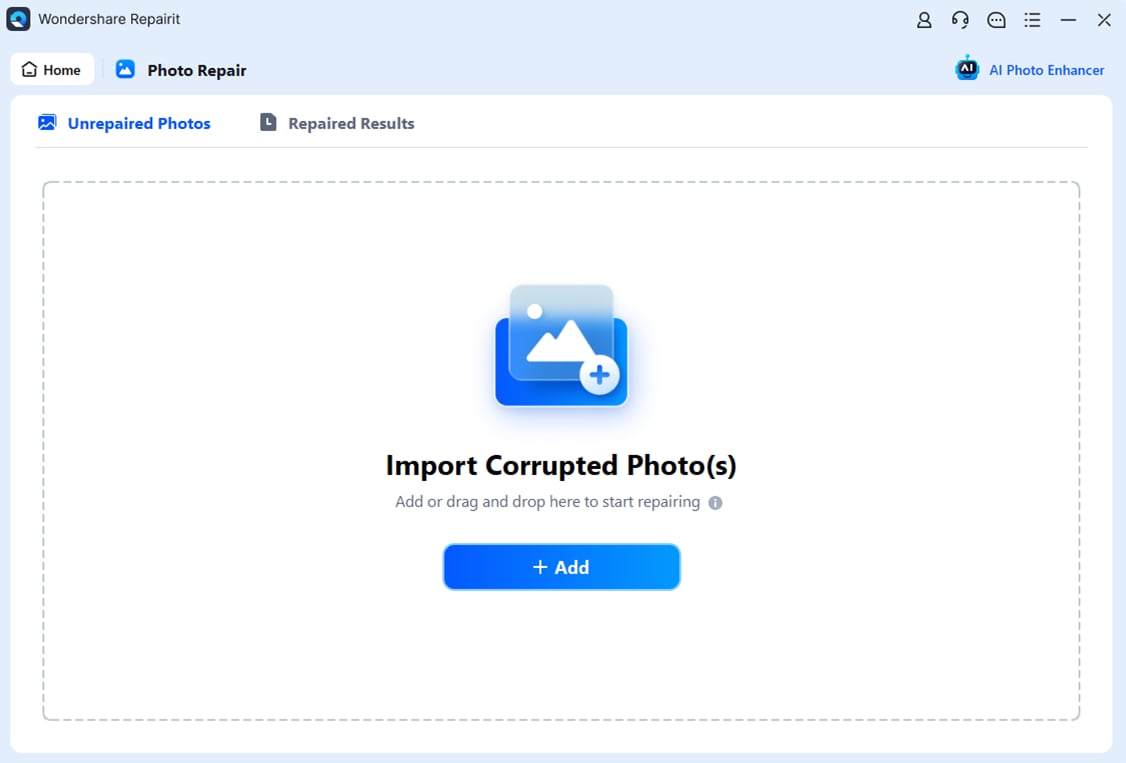
- Choose a Location to Repair Data
Install and launch Repairit on your computer. On the main interface, point the program to the drive, memory card, or specific folder where your problematic CR2 images are stored. Selecting the exact location helps Repairit quickly find all damaged and inaccessible files that might still be recoverable.
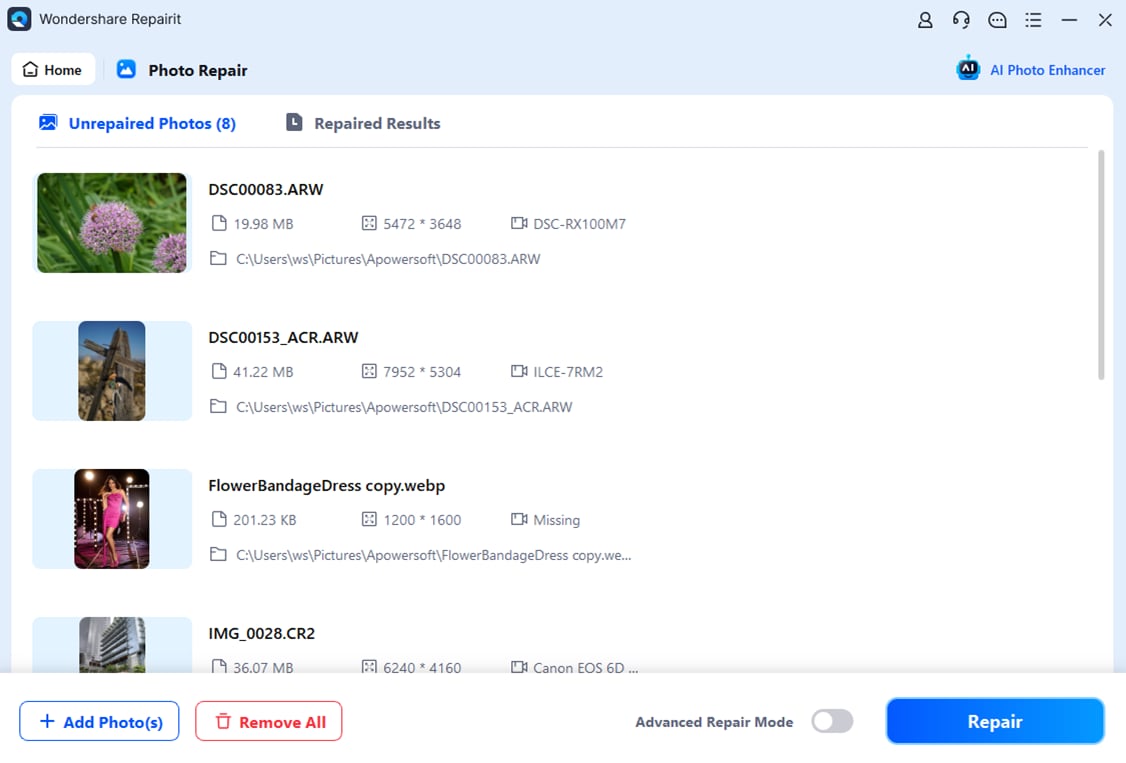
- Deep Scan the Location
Start the scan so Repairit can thoroughly analyze the selected source. The software inspects each CR2 file for structural issues and decoding errors. As the deep scan progresses, you will see a list of detected photos and other files that can potentially be fixed. You can pause or stop the scan if you have already found the items you care about most.
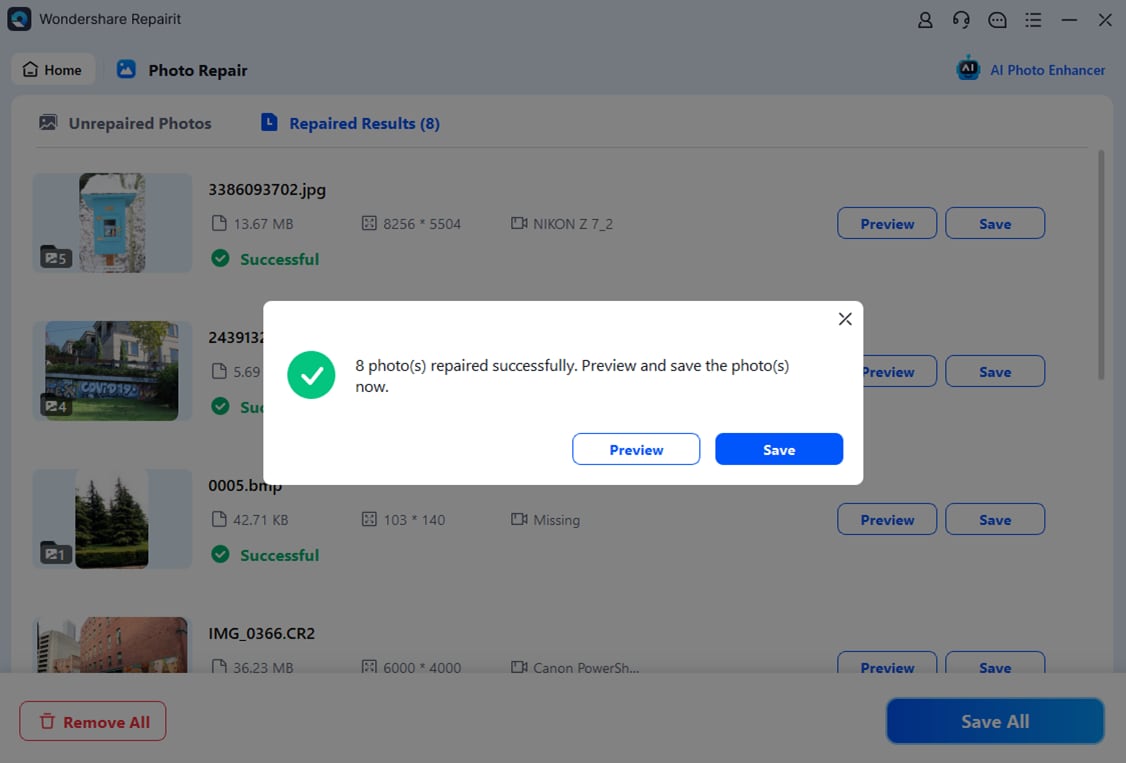
- Preview and Repair Your Desired Data
When scanning completes, browse the results and click on individual CR2 thumbnails to open a larger preview. This lets you confirm that details, colors, and framing look acceptable after repair. Finally, select the photos you want to keep and click the Recover or Save button. Choose a different, healthy destination drive to store your repaired CR2 images or their exported versions, ensuring your data stays safe.
Using Repairit on your Canon RAW collection can be the difference between permanently losing an important shot and restoring it to a usable state.
Conclusion
CR2 files are Canon RAW images that store uncompressed sensor data for maximum editing flexibility and image quality. While they are not as convenient to view and share as standard JPGs, understanding how a CR2 file works helps you decide when to keep the RAW version and when to convert it for everyday use.
With compatible software, you can easily open, tweak, and convert CR2 to JPG for sharing. If some Canon RAW photos become corrupted or refuse to open, a professional repair solution like Wondershare Repairit gives you a practical way to scan, fix, and recover precious images so your work remains accessible and safe over time.
Next: What Is Crw File
FAQ
-
1. What is a CR2 file format?
A CR2 file is a Canon RAW version 2 image created by many Canon digital cameras. It stores uncompressed or minimally processed sensor data, offering greater dynamic range, color information, and editing flexibility compared with standard JPG files. -
2. How do I open CR2 files on Windows or Mac?
You can open CR2 files with programs such as Adobe Lightroom, Adobe Photoshop (via Camera Raw), Canon Digital Photo Professional, Capture One, or other RAW-capable viewers. On updated systems, Windows Photos and macOS Preview may also display some CR2 images directly. -
3. Can I convert CR2 to JPG without losing quality?
No. Converting from CR2 to JPG is always lossy because JPG compresses and discards some image data. However, exporting at high quality and full resolution usually makes the visible difference very small while producing much smaller files. -
4. Why will my CR2 file not open?
A CR2 file might not open if your software is outdated or does not support that particular Canon camera model, if the file was only partially copied, or if it has become corrupted because of card errors, bad sectors, or interrupted transfers. -
5. How can I repair a corrupted CR2 file?
First, copy the problematic CR2 to a safe drive and try opening it in multiple RAW editors. If it still fails, use a professional repair utility like Wondershare Repairit to scan the storage location, repair the damaged CR2 structure, and recover the image so it can be viewed and exported again.




