TL;DR:
⚡ Quick Fix: Repair Corrupt DJI Video Files
● Use Specialized AI Repair Tools: Leverage Wondershare Repairit to automatically rebuild damaged video data sectors, fix 8K footage, and restore drone gyroscope metadata.
● Run Open-Source Terminal Scripts: Execute the Djifix command-line utility directly alongside your corrupted MP4 files to safely reconstruct broken file headers.
● Convert and Force VLC Auto-Fix: Transcode damaged footage into the AVI format, then play it via VLC with the native "Always Fix" damaged file setting enabled.
● Prevent Future Recording Errors: Use recommended high-speed SD cards, format storage directly inside the drone, and avoid sudden mid-recording power losses.
Ask AI for a summary
 ChatGPT
 Perplexity
 Gemini
 Claude
 Grok
DJI video repair searches are usually solution-driven: the file is already corrupted, unplayable, or incomplete and the user wants a repair tool that can act on it. If your DJI MP4 or MOV still exists but will not open, freezes, shows a black screen, or fails after an interrupted recording, work from a copy and choose a method based on the damage.
For the fastest path, start with Repairit dedicated DJI video repair tool for supported corrupted footage. Djifix is a useful command-line option for certain interrupted DJI recordings, while VLC's AVI setting is only a limited playback workaround. The guide below starts with the repair options first, then explains how to confirm corruption and prevent the same problem from happening again.
In this article
Part 1. 3 Ways to Repair Corrupted DJI Video Files
If you are looking for a DJI video repair tool or DJI repair software, choose the method by file condition rather than trying random conversions. Repairit provides the simplest guided workflow for supported corrupted DJI footage; Djifix is especially relevant to certain interrupted DJI recordings; VLC's damaged-file option is limited to AVI playback and is not a general MP4/MOV repair engine.
| Method | Best For | Difficulty | Main Limitation |
| Repairit | Corrupted or unplayable DJI footage in supported formats | Easy | Repair success depends on file condition and available video data |
| Djifix | Certain interrupted DJI MP4/MOV recordings with recoverable video data | Advanced | Command-line workflow; not every damaged file can be reconstructed |
| VLC AVI workaround | Damaged or incomplete AVI playback | Moderate | Not a native repair method for DJI MP4/MOV files |
Method 1. Repair Corrupted DJI Videos with Repairit
If the DJI file is present but remains unplayable across compatible players, Wondershare Repairit Drone Video Repair is designed for supported corrupted drone footage. The broader Wondershare Repairit product family also covers video repair on Windows and macOS. Repairit supports MP4, MOV, MTS, MKV, M2TS, MXF and other current video formats, and its Advanced Repair workflow can use a healthy sample video from the same device and format when severe structural damage requires more reference data.
Repairit is appropriate for file-level corruption such as unplayable footage, damaged video structure, interrupted recordings, black-screen playback, or video/audio problems caused by corruption. It does not repair a physically damaged drone, SD card, camera slot, or storage chip.
Key Features
Wondershare Repairit - Drone Video Repair
1,010,994 people have downloaded it.
-
Online Availability: Other than its software, you can use its online version to repair your videos in different formats.
-
Results Previewing: The tool lets you preview the repaired videos before saving them on your device.
-
AI Enhancement: Once the videos are repaired, you can enhance their quality to use them for professional purposes.
-
Gyroscope Repair: To stabilize your DJI drone videos, you can use Repairit’s advanced algorithms and give them a smooth feel.
-
Compatibility: Repaired videos are more compatible with professional editing software such as DaVinci, Composer, Final Cut Pro, and Premiere Pro.
-
Support Windows 11/10/8/7/Vista, Windows Server 2003/2008/2012/2016/2019/2022, and macOS 10.13–27.
How to repair a corrupted DJI video with Repairit
Use a copied DJI file for the repair workflow and keep the original source unchanged.
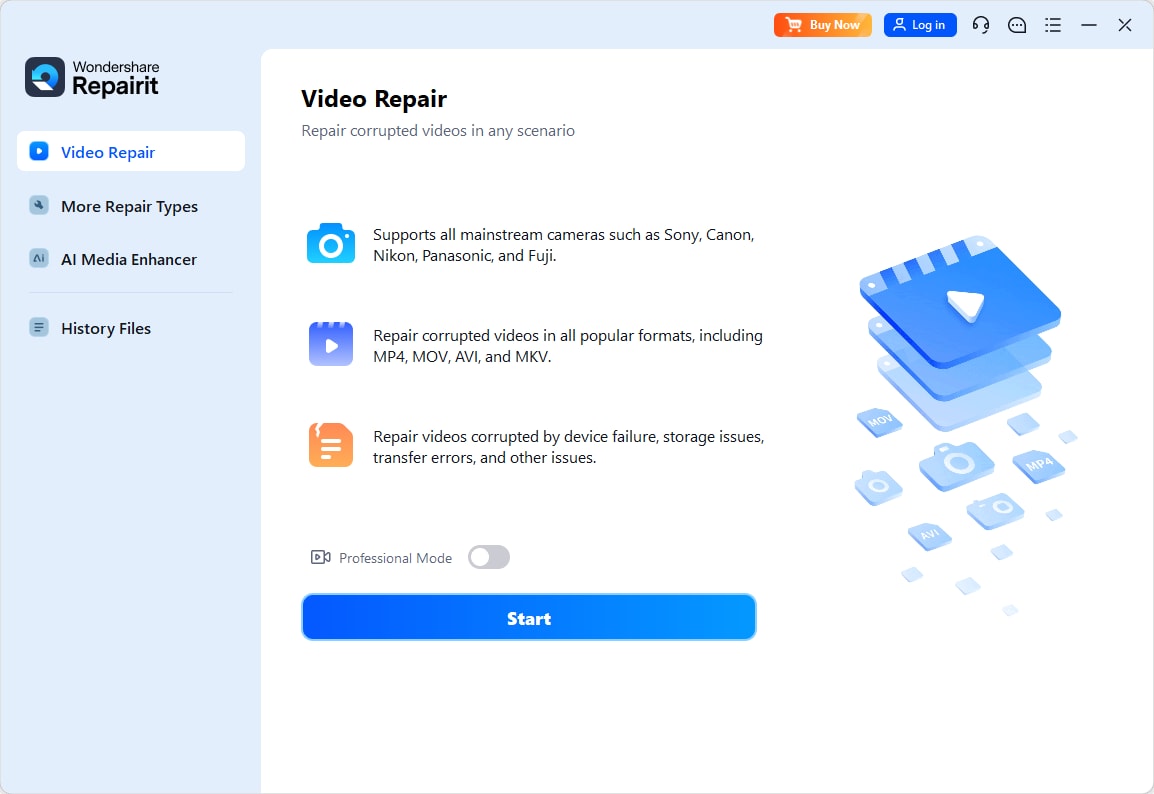
Step 1. Add the corrupted DJI video.
Open Repairit Video Repair and add the damaged DJI MP4, MOV, or other supported video file copied from readable storage.
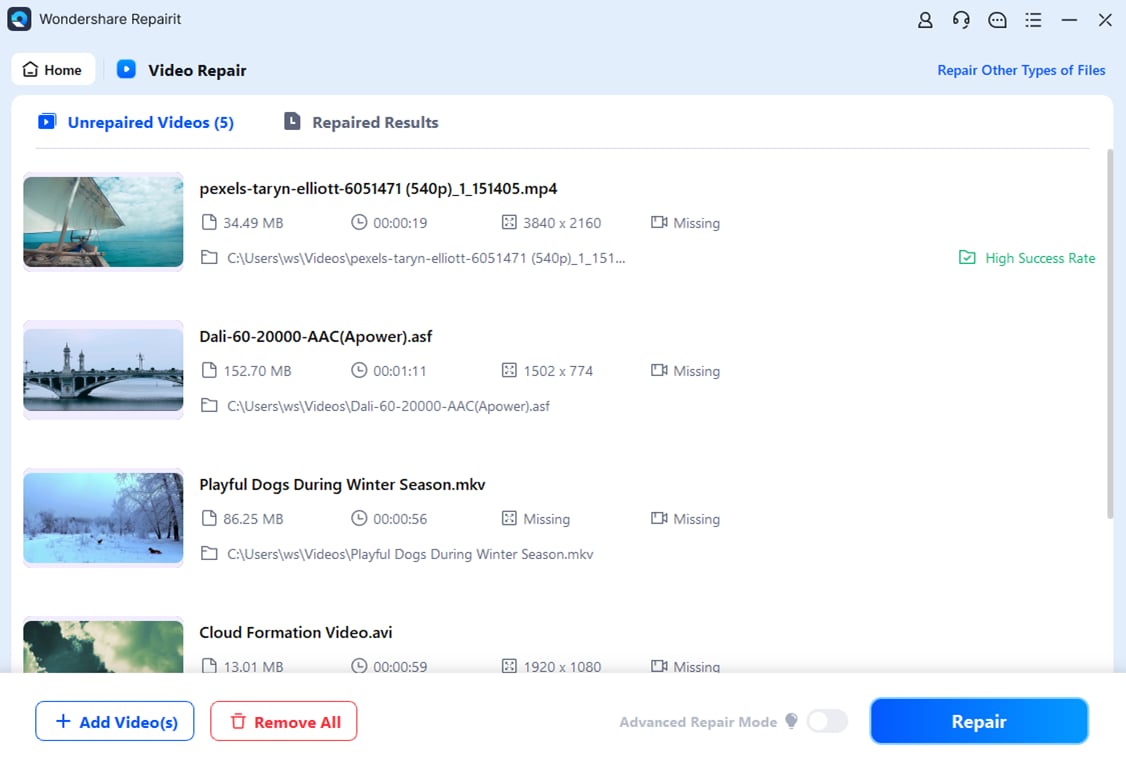
Step 2. Start the repair and use Advanced Repair only when needed.
Click Repair to process the damaged footage. If standard repair cannot produce a usable preview and the file is severely corrupted, Advanced Repair can use a healthy sample recorded by the same device and in the same format.
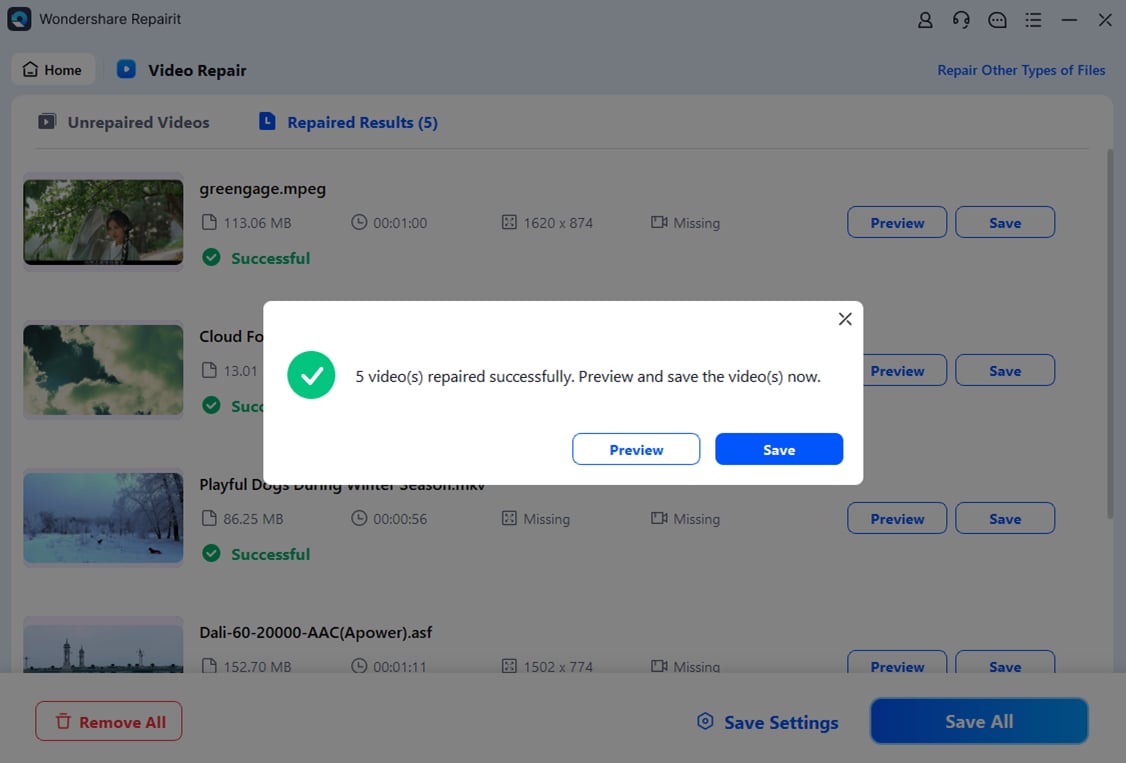
Step 3. Preview before saving.
Check the repaired preview. If the footage plays correctly, save the output to a different folder so the damaged source is not overwritten.
Method 2. Repair Interrupted DJI Recordings with Djifix
Djifix is an open-source command-line utility built for certain corrupted DJI recordings. It is most relevant when recording stopped unexpectedly and valid video data remains inside an MP4 or MOV file whose normal container structure was not completed correctly.
Djifix is actively maintained, but it requires Terminal or command-line work and cannot reconstruct data that was never written to the file. Always run it against a copy of the damaged recording.
Step 1. Save the Djifix executable and a copy of the corrupted DJI video in an accessible folder.
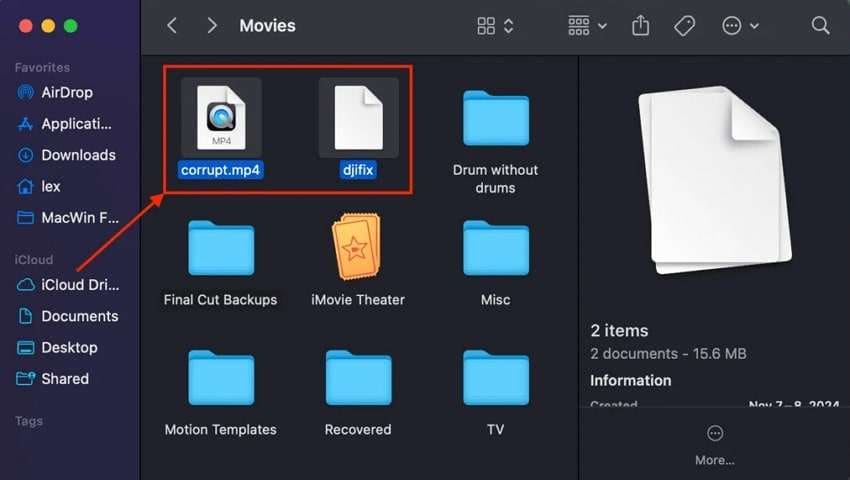
Step 2. Open Terminal on Mac and navigate to the folder containing Djifix and your video. For example:
cd Movies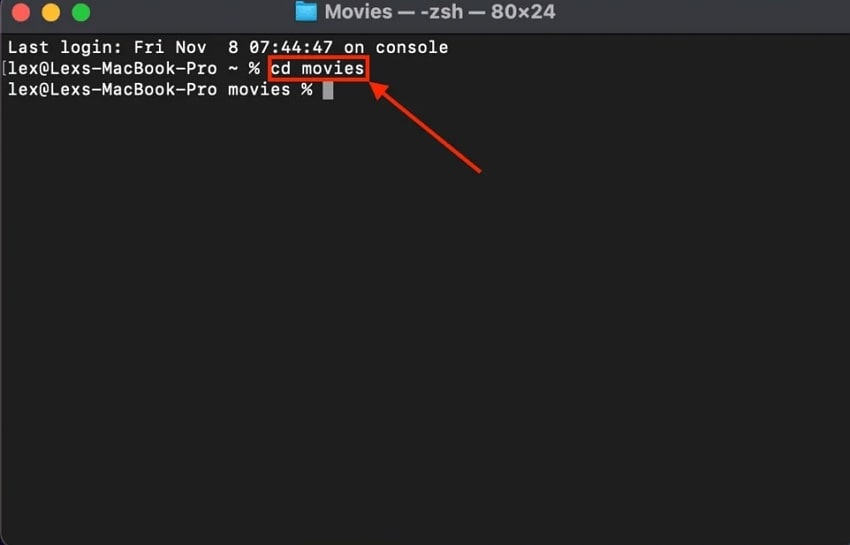
Step 3. Make the downloaded Djifix file executable:
chmod +x djifix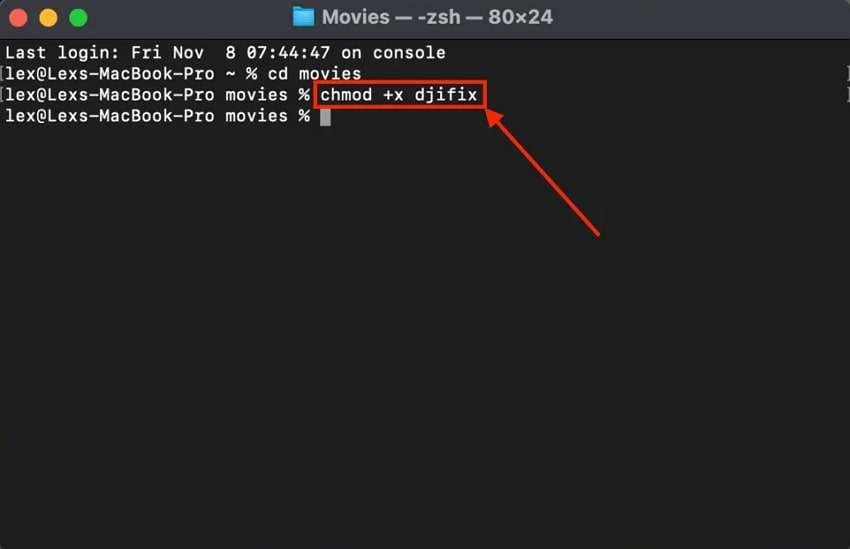
Step 4. Run Djifix against the copied DJI video:
./djifix your-video.mp4Replace your-video.mp4 with the real filename, including the `.MP4` or `.MOV` extension.
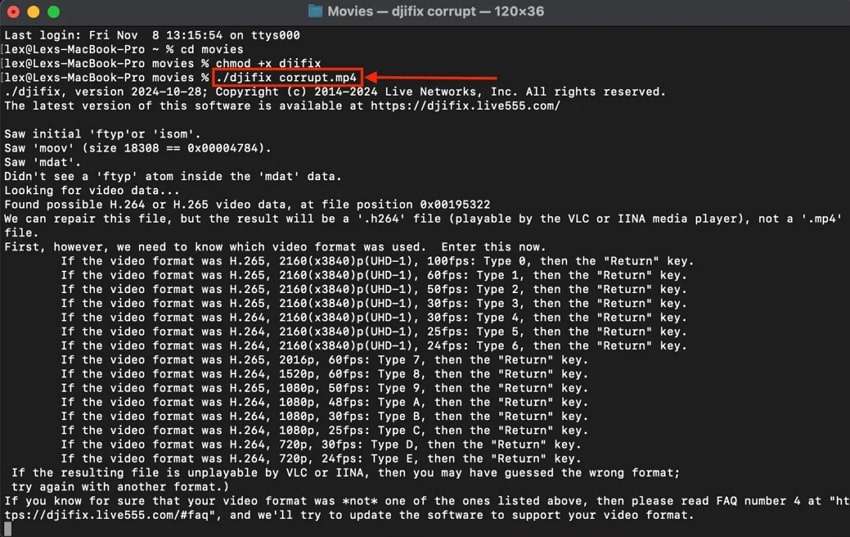
Step 5. Follow the options shown by Djifix and inspect the resulting output file.
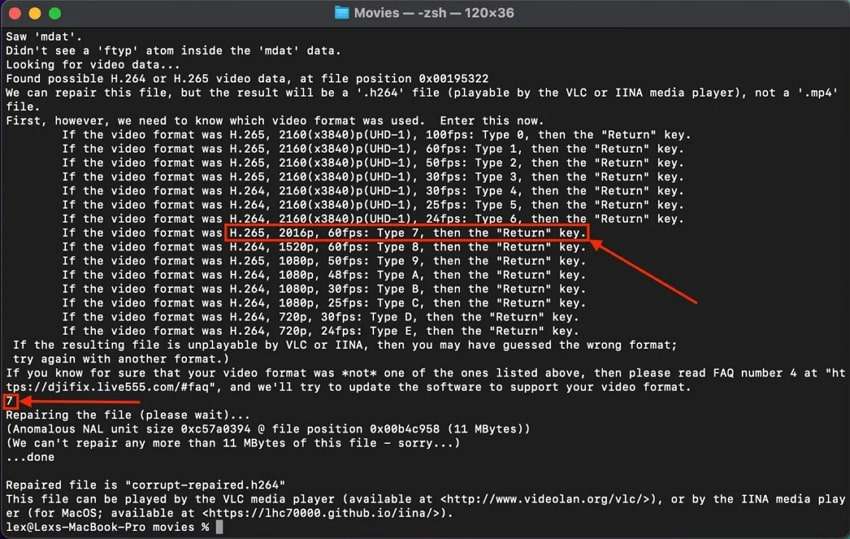

Method 3. Use VLC Only for Damaged AVI Playback
VLC includes a Damaged or incomplete AVI file option, but that setting is specifically for AVI playback. DJI footage is commonly stored in MP4 or MOV containers, so VLC's AVI repair setting should not be presented as a general DJI video repair method.
If you already have a damaged AVI copy, open VLC and go to Tools > Preferences > Input / Codecs. Under Damaged or incomplete AVI file, choose Always Fix, save the preference, and test the AVI file.
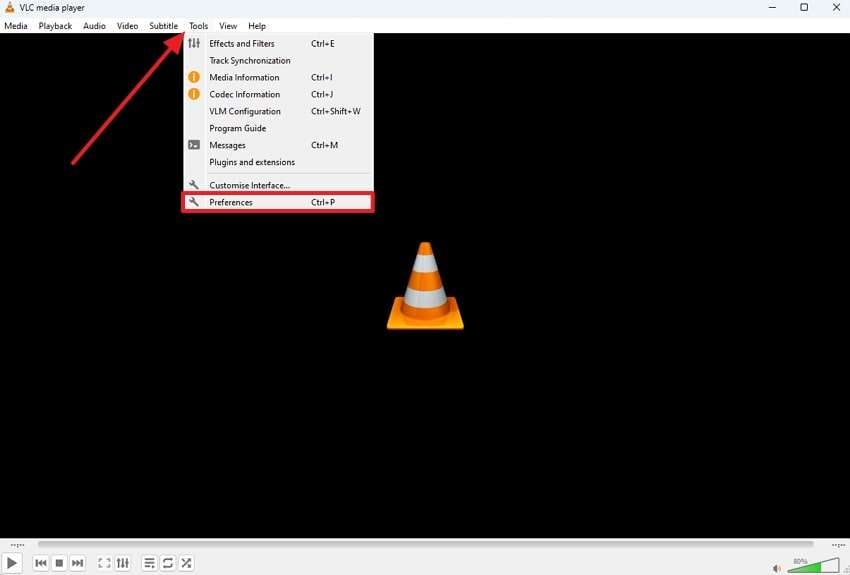
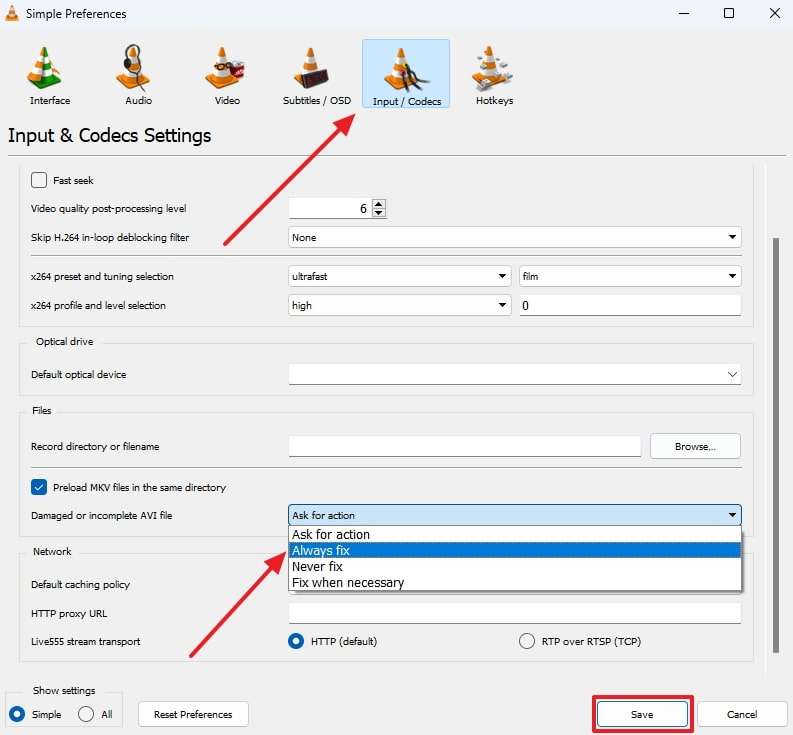
Avoid converting your only corrupted DJI MP4/MOV to AVI just to use this setting. If the source file cannot be decoded, conversion may fail or create another unusable copy; it does not restore missing frames or video data.
Part 2. Is Your DJI Video Actually Corrupted?
A DJI video that does not play is not automatically corrupted. Before running a repair tool, use the symptoms below to separate a damaged file from a player, codec, transfer, or storage problem.
| What You See | What It Usually Suggests | What to Try First |
| The video plays on the drone or another device but not on one computer | Playback, codec, or software compatibility problem | Test another compatible player before repairing the file |
| The copied file is smaller than the original on the SD card | Incomplete transfer | Copy the file again from the original storage if it is still readable |
| The MP4 or MOV has a normal-looking file size but fails on multiple players | Possible container or video-structure corruption | Use a video repair method designed for damaged footage |
| The recording stopped after a crash, battery loss, or forced shutdown | The file may not have been finalized correctly | Preserve the original and try a repair workflow on a copy |
| The SD card is unreadable, disconnects, or reports hardware/file-system errors | Storage problem rather than only a video-file problem | Avoid writing to the card; resolve the storage issue before repeated repair attempts |
If the original DJI video is still readable from the card, copy it to a healthy drive before converting, editing, or repairing it. Do not save repaired output over the damaged source file.
Part 3. Why DJI Video Files Become Corrupted
DJI footage can become unplayable when recording is interrupted before the video container is finalized, when data is damaged during transfer, or when the storage media cannot write reliably. The most common scenarios are:
| Cause | How It Can Affect DJI Footage |
| Power Loss During Recording | A sudden battery drain, forced shutdown, or power interruption can stop the recording before the MP4 or MOV file is finalized. |
| Drone Crash or Recording Interruption | A collision or system interruption can stop the write process abruptly, leaving a visible file that cannot be decoded normally. |
| Interrupted File Transfer | Removing the card, disconnecting a reader, or interrupting a copy can leave the destination file incomplete. |
| SD Card or Storage Errors | A failing, incompatible, corrupted, or too-slow card can cause recording errors or unreadable footage. Video repair software cannot fix physical storage damage. |
| Firmware or Software Interruption | A crash or recording fault can interfere with finalization, but updating firmware does not repair an already corrupted video file. |
Repairit currently lists DJI among its supported camera/device brands and supports common video containers including MP4 and MOV. The exact codec, model, damage pattern, and remaining video data still affect whether a particular file can be repaired.
Part 4. How to Reduce DJI Video Corruption Risk
Not every recording failure can be prevented, but good recording and storage habits reduce avoidable corruption and preserve more options when something goes wrong.
| Tip | Why It Helps |
| Use storage that meets your DJI model's requirements | High-resolution and high-frame-rate recording needs sustained write performance. Check the specifications for the exact drone or camera model rather than relying on a generic card rating. |
| Stop recording before powering off | This gives the camera time to finish writing and finalize the current video file. |
| Keep enough battery reserve | Avoiding sudden power loss reduces the chance of an interrupted recording and incomplete container structure. |
| Copy footage before editing or converting | A separate working copy protects the original if an edit, conversion, or repair attempt fails. |
| Eject cards and readers safely | Removing storage during a write or transfer can damage the destination file or file system. |
| Keep firmware appropriate for the exact DJI model | Current firmware can include stability fixes, but firmware updates should be treated as prevention/troubleshooting rather than a repair for an already corrupted video. |
Conclusion
The safest DJI video repair workflow starts with diagnosis, not conversion. Copy the original footage to healthy storage, rule out simple playback or transfer problems, and then use a repair method that matches the damage. Repairit provides the most guided route for supported corrupted DJI footage, while Djifix remains a useful technical option for certain interrupted recordings. VLC's AVI setting is only a limited playback workaround and should not replace a true MP4/MOV repair workflow.
If the storage device itself is unstable or physically damaged, stop repeated write attempts. Video repair software can address supported file corruption, but it cannot repair damaged drone hardware or failing storage media.
FAQ
-
What is the best way to repair a corrupted DJI video file?
First copy the damaged video to healthy storage and keep the original unchanged. If the file still fails across compatible players, use a repair tool that supports the file format. Advanced users can also try Djifix for certain interrupted DJI recordings. -
Why is my DJI video file visible but not playable?
A recording may remain visible on the card even when a crash, battery loss, forced shutdown, or storage error prevented the MP4/MOV container from being finalized correctly. The same symptom can also come from an incomplete transfer or playback/codec issue, so test a copied file before assuming corruption. -
What video formats does Repairit support for DJI footage?
Repairit's current technical specifications list formats including MP4, MOV, AVI, MTS, MKV, M2TS, 3GP, MXF, FLV, WMV, INSV, M4V, MPEG, TS and others. Actual repair results depend on the file's format, codec, damage severity, and remaining valid video data. -
Can Djifix repair a corrupted DJI MP4 or MOV file?
Djifix is designed for certain corrupted DJI recordings and can work with MP4 or MOV filenames. Whether it succeeds depends on how the recording was interrupted and how much valid video data remains. -
Can VLC repair a corrupted DJI MP4 or MOV file?
VLC's built-in damaged-file option is intended for damaged or incomplete AVI files. It is not a general MP4/MOV repair feature, and converting a corrupted DJI source to AVI does not restore missing video data. -
Can video repair software fix a damaged DJI SD card or drone?
No. Video repair software works on supported video files. It cannot repair physical damage to a drone, SD card, card slot, storage chip, or other hardware.