
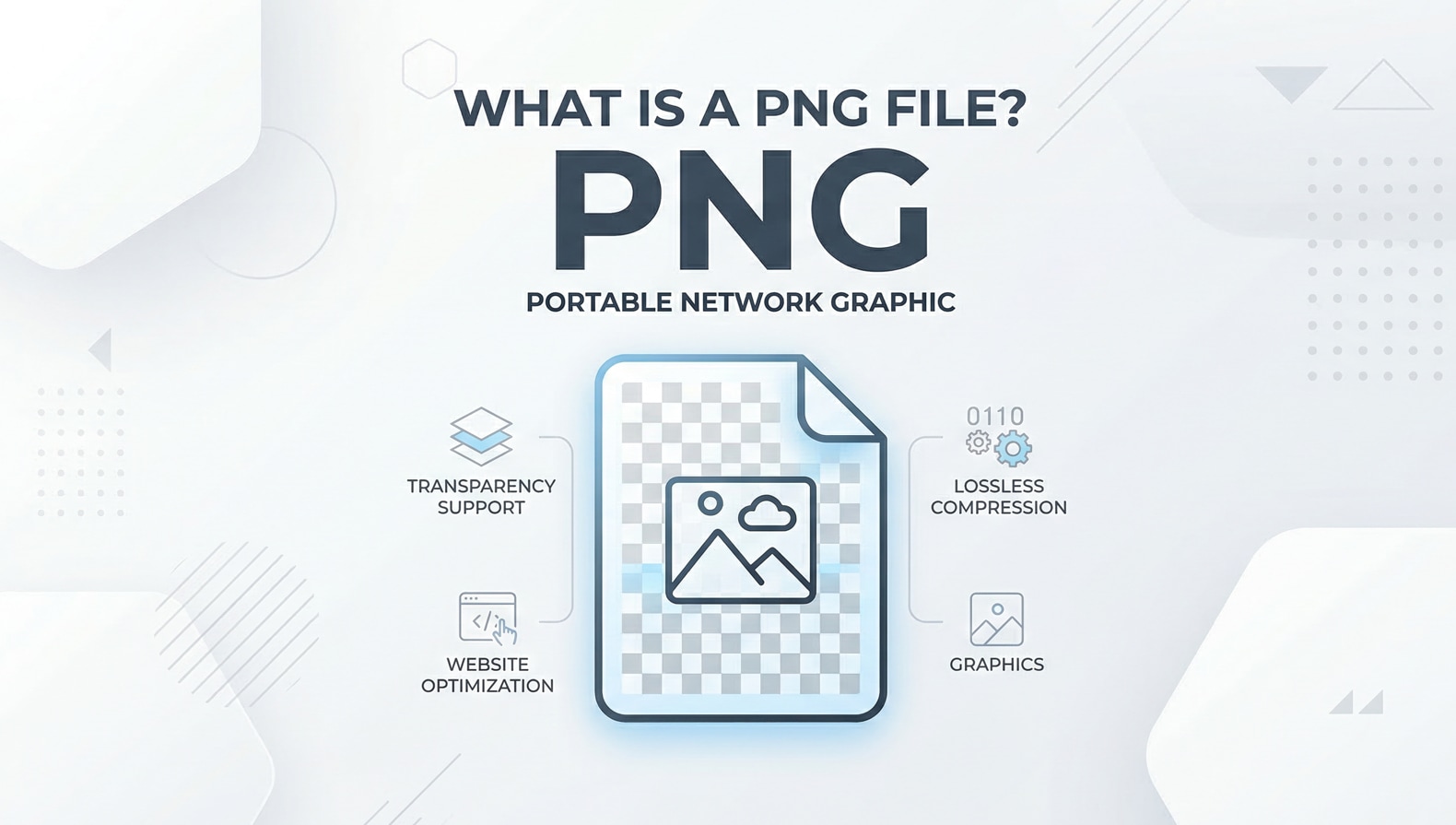
A What is PNG File question often appears when you see images with a .png extension used for logos, screenshots, and transparent graphics. PNG is a popular lossless image format that keeps details crisp while supporting see-through backgrounds. Understanding how it works, how to open and convert it, and what to do if a PNG breaks helps you manage images more confidently across web, design, and everyday use.
Repair Corrupted Files To Save Your Data
 Security Verified. Over 7,302,189 people have downloaded it.
In this article
What Is PNG File
A PNG file (Portable Network Graphics file) is a bitmap image format that stores visual data using lossless compression. Unlike formats that discard information to reduce size, PNG keeps the original pixel data intact, which is why it is preferred for web graphics, UI elements, and digital artwork.
The PNG format was created as an open, patent-free alternative to GIF. It supports millions of colors, advanced transparency, and efficient compression algorithms. Because it does not lose quality each time you save it, PNG is a reliable choice when you need consistency between editing sessions.
Key characteristics of PNG
Several core characteristics define how a PNG file behaves and where it works best:
- Lossless compression: PNG uses algorithms that compress data without dropping image details, preserving exact pixel information.
- Transparency support: PNG can store alpha transparency, allowing soft edges and semi-transparent pixels for smooth overlays on any background.
- Wide color support: From grayscale to true color with alpha, PNG handles simple icons and complex artwork reliably.
- No animation (standard PNG): Unlike GIF, standard PNG does not support animation, though APNG is an extended variant used in some browsers.
- Metadata and gamma: PNG can embed metadata and gamma correction information so images look consistent across different displays.
| Feature | PNG Format Benefit |
|---|---|
| Compression type | Lossless, no generational quality loss when re-saving |
| Transparency | Full alpha channel for soft shadows and cutout objects |
| Typical use cases | Logos, icons, screenshots, UI elements, diagrams |
PNG vs JPG comparison
Choosing between PNG vs JPG depends on what matters more for your project: sharp quality or smaller file size.
- PNG for graphics: PNG keeps edges crystal clear, making it ideal for logos, infographics, text-heavy images, and screenshots where every pixel counts.
- JPG for photos: JPG uses lossy compression, which reduces file size significantly but may add artifacts, especially around sharp lines or repeated saves.
- Transparency: PNG supports transparent backgrounds; JPG does not, which limits how photos can overlay on colored or patterned layouts.
- File size: For the same dimensions, PNG is usually larger than JPG, especially for complex photos or gradients.
In short, use a PNG file when you need fidelity and transparency; choose JPG when you prioritize smaller files for photo-heavy content.
How to Open PNG File
Because the PNG format is so common, nearly every modern device and operating system supports it out of the box. Still, it helps to know your options if a particular PNG refuses to open or you want more control over editing.
How to open PNG files on different devices
Here is how you can open a PNG file across popular platforms.
On Windows
- Double-click the PNG to open it in the default Photos app or Windows Photo Viewer.
- Right-click the PNG, select "Open with," and choose Paint, Paint 3D, or another installed editor such as GIMP or Photoshop.
- Drag and drop the PNG into a web browser window (Chrome, Edge, Firefox) to view it instantly.
On macOS
- Double-click the file to open it in Preview, which supports basic annotations and exports.
- Right-click, choose "Open With," and select apps like Photos, Affinity Photo, or Adobe Photoshop for advanced work.
- Drop the PNG file into Safari or another browser if you only need to view it.
On Android and iOS
- Tap the PNG in your gallery or file manager; the built-in photo viewer will display it.
- Open PNG images from messaging apps or cloud storage with the system viewer or installed image editors.
- Use drawing or design apps to open and markup or layer PNG graphics.
In web browsers
- Drag a PNG directly into any modern browser tab.
- Use online editors such as Photopea or Pixlr to work on PNGs without installing software.
If a PNG will not open in any viewer, the file may be incomplete or damaged, in which case repair steps are needed (covered later in this guide).
How to Convert PNG File to JPG
Converting a PNG file to JPG is useful when you want a smaller file for email, websites, or social media, especially for photo-like images that do not require transparency.
Convert PNG to JPG on desktop
Most desktop editors can convert PNG to JPG with a few clicks.
- Using Windows Photos: Open the PNG, click the three-dot menu, choose "Save as," and pick JPG as the output format.
- Using Paint: Open your PNG in Paint, go to "File" > "Save as," and select "JPEG picture," then choose a destination.
- Using macOS Preview: Open the PNG, go to "File" > "Export," choose "JPEG," and adjust quality before saving.
- Using professional editors: In apps like Photoshop, use "File" > "Save As" or "Export As" and select JPG, then fine-tune quality settings.
Convert PNG to JPG online
If you do not want to install software, online converters are convenient.
- Upload your PNG to a site such as CloudConvert or Convertio.
- Choose JPG as the output format and adjust quality if available.
- Download the converted JPG and verify it displays correctly.
Remember that converting PNG to JPG always introduces some compression loss. For graphics with text or sharp lines, keep a PNG master copy and only export JPGs for final sharing.
How to Use Repairit to Fix a Corrupted PNG File
When a PNG file becomes corrupted, it may fail to open, display error messages, or show distorted colors and missing areas. Rather than giving up on valuable images, you can use dedicated repair software to reconstruct damaged data and recover viewable files.
Repairit introduction
Wondershare Repairit is a purpose-built data and file repair tool that focuses on bringing back photos, videos, documents, and more from a range of corruption scenarios. Whether your PNG images were affected by a failed transfer, storage issues, or software crashes, Repairit walks you through a guided repair workflow. You can download it from the Repairit official website and quickly start scanning affected drives or folders for damaged media.
Key features of Repairit for PNG and other files
- Repairs multiple file types, including images, videos, and documents, in one streamlined interface.
- Provides a simple, click-through workflow that suits both beginners and experienced users.
- Lets you preview repaired files before saving them to a safe location, so you keep only what you actually need.
Step-by-step: Use Repairit to fix corrupted PNG files
- Choose a Location to Repair Data
Install and launch Wondershare Repairit, then decide where your damaged PNG files are stored. This might be a local drive, a specific folder such as your Pictures directory, or an external device like a USB stick or memory card.

- Deep Scan the Location
After confirming the target location, start the deep scan. Repairit will automatically look for corrupted, unreadable, or otherwise broken PNGs and additional file types it supports. As the scan progresses, you can watch the file list populate with items the program identifies as recoverable.

- Preview and Repair Your Desired Data
When the scan completes, browse through the results and focus on your PNG images. Use the preview feature to see how each repaired file looks before committing to recovery. Once you are satisfied with the quality, select the PNGs and any other files you want to keep, then click to save them.

Conclusion
The PNG format is a versatile, lossless image standard that excels at preserving quality, supporting transparency, and keeping text and line art sharp. Understanding what is PNG file is and how it behaves compared to JPG, and which tools open it best helps you choose the right format for everything from websites to design projects.
When a PNG file stops opening or appears corrupted, you are not necessarily out of options. With a solid workflow that includes checking different viewers, keeping backups, and using repair solutions like Wondershare Repairit, you can often restore damaged images and safeguard your visual content for the long term.
Next: What Is Orf File
FAQ
-
1. What is a PNG file mainly used for?
A PNG file is primarily used for web graphics, logos, UI icons, screenshots, and diagrams because it preserves sharp edges and supports transparent or semi-transparent backgrounds. -
2. Is PNG better than JPG for all images?
No. PNG is better for graphics, text, and transparency, while JPG is usually better for photographs where smaller file sizes are more important than pixel-perfect detail. -
3. How can I open a PNG file if my default viewer fails?
Try another program such as a different image viewer, a web browser, or an editor like GIMP or Photoshop. If the PNG still will not open, the file might be corrupted and may need repair. -
4. Will converting PNG to JPG reduce quality?
Yes. JPG uses lossy compression, so fine details may soften and artifacts can appear, especially on text and sharp lines. To minimize this, use higher quality settings and keep an original PNG backup. -
5. How do I fix a corrupted PNG file safely?
First, try opening the image in different viewers and restore from any backup you have. If that fails, use professional repair software like Wondershare Repairit to scan the storage location, repair damaged PNG files, and save the recovered images to a safe destination.




