
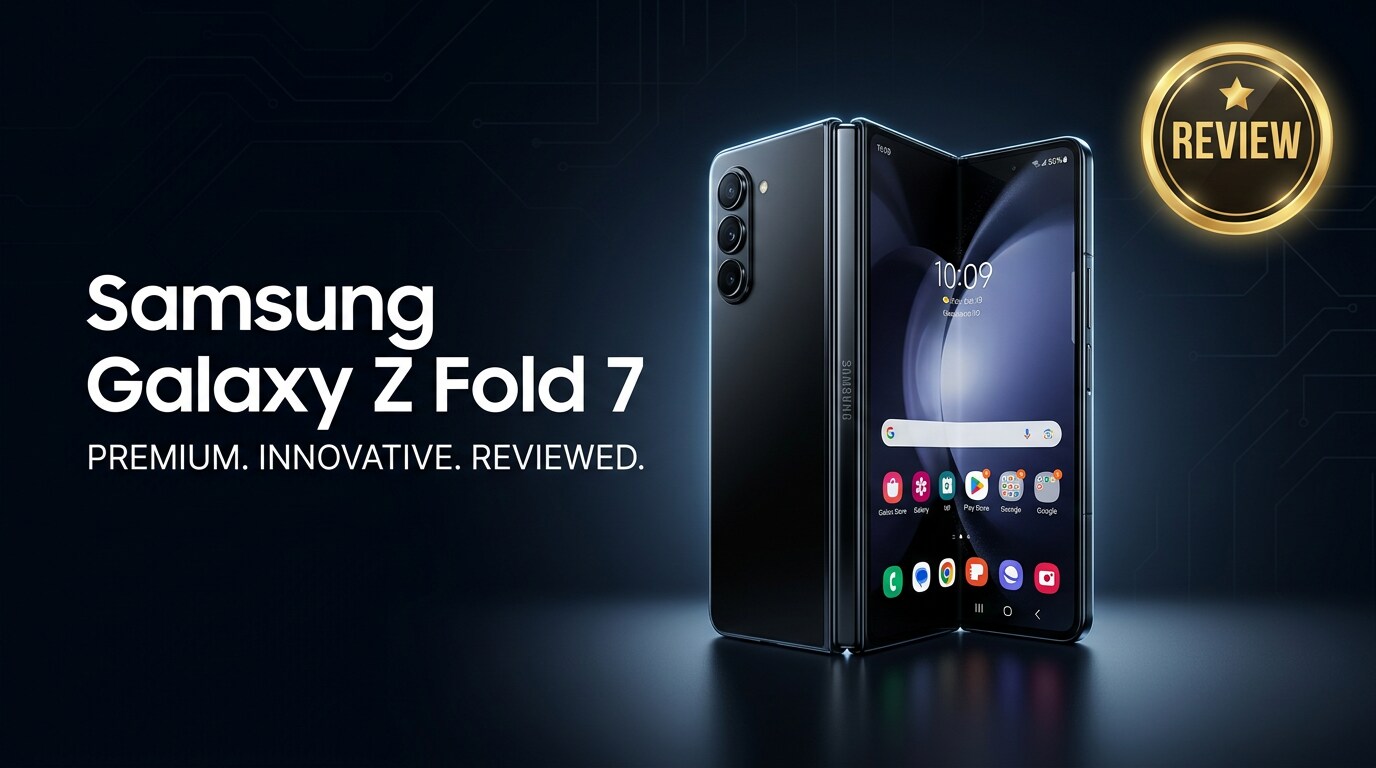
The Samsung Galaxy Z Fold 7 is Samsung's latest flagship foldable that aims to replace both your phone and tablet. With a book-style fold, powerful hardware, and refined software for multitasking, it is built for users who want big-screen productivity in a pocketable form. This review looks at its design, specs, daily performance, camera, battery life, and what to do if your Fold 7 files become corrupted.
Repair Corrupted Files To Save Your Data
 Security Verified. Over 7,302,189 people have downloaded it.
In this article
What is New About Samsung Galaxy Z Fold 7
The Galaxy Z Fold 7 review starts with what has changed over earlier generations. Samsung focuses on subtle but meaningful upgrades rather than a full redesign. You get a stiffer, slimmer hinge, better crease management, a brighter inner display, and a more efficient next‑gen processor that runs cooler while delivering stronger performance.
Software-wise, Samsung tweaks One UI to make better use of the large display. The taskbar feels more desktop-like, app continuity between outer and inner screens is smoother, and more apps now support multi-window layouts. Together, these refinements make the Fold 7 feel like a more polished foldable phone in 2025 rather than a tech experiment.
Price, Storage, and Design
Samsung Galaxy Z Fold 7 price and storage options
As a premium foldable phone 2025, the Samsung Galaxy Z Fold 7 is priced at the very top of the smartphone market. Exact pricing varies by region and carrier, but it typically launches in the ultra-flagship tier, comparable to or slightly above Samsung's S-series Ultra model.
| Model | Expected configuration |
|---|---|
| Galaxy Z Fold 7 (base) | 256 GB storage, 12 GB RAM |
| Galaxy Z Fold 7 (mid) | 512 GB storage, 12–16 GB RAM |
| Galaxy Z Fold 7 (top) | 1 TB storage, 16 GB RAM |
If you shoot a lot of 4K video or use the Fold 7 as a productivity and media hub, the 512 GB configuration is the practical sweet spot. Heavy creators or gamers who rarely offload files may want to invest in the 1 TB variant.
Design, hinge, and durability
The Fold 7 keeps the book-style foldable design but trims the body slightly, making it more comfortable to hold closed and more balanced when open. The hinge now feels smoother, with less wobble and a more consistent resistance across the folding range.
Samsung continues to improve durability: reinforced armor aluminum frame, tougher ultra-thin glass, and better dust and splash resistance. While it is still more delicate than a traditional slab phone, the gap between generations is shrinking, making the Fold 7 more viable as a true daily driver.
Display, Performance, and Daily Use
The Z Fold 7 specs center around its dual displays and upgraded chipset. The outer screen is tall and narrow, ideal for one-handed use, quick replies, and phone-like tasks. The inner display opens into a tablet-sized canvas with a high refresh rate for smooth scrolling, gaming, and stylus-supported note-taking (where available).
Under the hood, the next-generation flagship processor combined with ample RAM means the Samsung Galaxy Z Fold 7 handles everything from heavy multitasking to console-level gaming. You can run three apps side by side, float windows, and drag-and-drop content without noticeable lag, although long gaming sessions may still warm up the device.
In everyday use, the Fold 7 shines when you take advantage of its large screen: editing documents, annotating PDFs, split-screen browsing, and watching videos while chatting. If you mainly use your phone for quick messaging and casual scrolling, you may not fully exploit its potential, but power users will appreciate the extra space.
Camera Review
The Z Fold 7 camera system leans on Samsung's proven high-end sensors and computational photography. The rear module typically includes a wide, ultra-wide, and telephoto setup, enabling versatile stills and video shooting in most scenarios.
Daylight photos are crisp and vivid with Samsung's signature punchy colors, while low-light performance benefits from improved processing and better noise handling. Portrait mode offers accurate edge detection and pleasing background blur, and the telephoto lens lets you capture distant subjects with reasonable detail.
For video, the Fold 7 records up to 4K (and in some modes 8K) with strong stabilization, making it suitable for casual vlogging and family footage. The inner and outer selfie cameras cover video calls and quick snaps, though the under-display camera on the inner screen is more about convenience than absolute quality.
Battery, Charging, and Software Experience
The Z Fold 7 battery capacity aims to balance thinness and endurance. Thanks to a more efficient processor and software optimization, battery life is generally solid for a full workday of mixed use, though heavy inner-screen usage, gaming, or 5G streaming will drain it faster.
Fast wired charging and wireless charging are supported, though not always at industry-leading speeds. Still, a quick top-up during the day can easily carry you through evening activities. Reverse wireless charging remains handy for accessories like earbuds and watches.
On the software side, Samsung's One UI continues to refine foldable-specific features. Flex Mode lets you prop the phone partially open for hands-free video calls or media, while enhanced gesture navigation and taskbar improvements make switching between apps feel natural. Long-time Samsung users will find the learning curve gentle, while newcomers may need a short adjustment period.
Pros and Cons of Samsung Galaxy Z Fold 7
- Pros
- Large inner display that excels for productivity, reading, and media.
- Smoother, more durable hinge and improved overall build quality.
- Flagship-level performance for gaming and multitasking.
- Versatile camera system with strong photo and video quality.
- Mature foldable software with multi-window and taskbar refinements.
- Cons
- High price compared to traditional flagships.
- Still thicker and heavier than standard phones.
- Hinge and inner display require more careful handling.
- Battery life can dip with intensive inner-screen or gaming use.
- Some third-party apps still not fully optimized for the large display.
What to Do If Your Samsung Galaxy Z Fold 7 Files Get Corrupted
Why files get corrupted on foldable phones
Because the Samsung Galaxy Z Fold 7 is often used as both a phone and mini-tablet, it tends to hold a lot of important data: 4K videos, high-resolution photos, work documents, and app data. File corruption can happen for many reasons: interrupted file transfers, sudden reboots, app crashes, storage errors, or a full device storage scenario.
When this happens, you may see videos that will not play, images that refuse to open, or documents marked as unreadable. Before you assume the data is gone forever, you can try specialized repair software on a computer to fix the damaged structures inside those files.
How to repair corrupted Fold 7 files with Repairit
Repairit introduction
If you notice that videos or photos from your Samsung Galaxy Z Fold 7 are corrupted, a dedicated repair tool can save you a lot of frustration. Repairit by Wondershare is designed specifically to fix broken or unplayable videos, photos, and documents from phones, cameras, and computers. It guides you through a simple workflow and lets you preview repaired files before saving them. To get started, visit the Repairit official website and download the desktop version that matches your system.
Key features of Repairit
- Repairs corrupted or unplayable videos, photos, and documents from devices like the Samsung Galaxy Z Fold 7, cameras, and computers.
- Handles common corruption causes such as interrupted transfers, system crashes, memory card issues, and sudden power loss.
- Offers a straightforward workflow with quick scanning, automatic repair, and preview options before you export the recovered files.
Step-by-step guide: fix corrupted Samsung Galaxy Z Fold 7 files
- Launch Repairit and add your corrupted Fold 7 files

Install Repairit on your Windows PC or Mac and open the program. On the home screen, choose the type of content you want to fix, such as Video, Photo, or File. Connect your Samsung Galaxy Z Fold 7 via USB or insert its memory card using a card reader. Click the add button, then browse to the folder containing the corrupted videos, photos, or documents and load them into Repairit.
- Start the repair and let Repairit analyze the corruption

After your damaged files appear in the list, click the Repair button to begin. Repairit will quickly scan each file, detect structural issues, and apply the most suitable repair method for that format. You can watch the progress bar as it moves through your queue; larger or more damaged files may take a bit longer, so avoid disconnecting your Fold 7 or closing the program during this stage.
- Preview and save the repaired Samsung Galaxy Z Fold 7 data

When the repair finishes, select each item to preview it within Repairit. Check that your videos play smoothly, your photos display correctly, and your documents open without errors. If you are satisfied, click Save, choose a secure folder on your computer or an external drive, and confirm. Once saved, you can safely copy the repaired files back to your Samsung Galaxy Z Fold 7 or keep them as part of your backup archive.
Conclusion — When Should You Buy?
The Samsung Galaxy Z Fold 7 review shows a device that refines rather than reinvents Samsung's foldable vision. You get a more durable hinge, stronger performance, improved displays, and increasingly polished software to match. It is still a premium device with a premium price, but now feels better prepared for everyday life than earlier generations.
You should consider the Fold 7 if you value multitasking, big-screen entertainment, and future-forward design, and you can comfortably afford the cost or spread it across several years. Regular backups are essential, and if something goes wrong with your data, tools like Repairit can help you repair corrupted videos and recover damaged photos so your memories and work are not lost.
FAQ
-
1. Is the Samsung Galaxy Z Fold 7 worth upgrading from the Z Fold 5 or Z Fold 6?
It is most worthwhile if you want the improved hinge durability, smoother performance, and refinements to the displays and battery. If you own a Z Fold 6 and are satisfied, the upgrade is more incremental than essential, while Z Fold 5 users will notice a more meaningful jump. -
2. Is the Samsung Galaxy Z Fold 7 good for gaming and multitasking?
Yes. The high-end processor, generous RAM, and large inner display make the Fold 7 excellent for demanding games and split-screen multitasking. Just keep in mind that extended heavy gaming sessions may generate additional heat and reduce battery life. -
3. How durable is the Galaxy Z Fold 7 screen and hinge?
The inner display and hinge are more robust than earlier generations thanks to better materials and enhanced hinge engineering. However, it is still more delicate than a typical glass slab phone, so a quality case, screen protector, and careful handling are strongly recommended. -
4. What should I do if videos on my Samsung Galaxy Z Fold 7 will not play?
Restart the phone first, then try a different video app or transfer the file to another device. If the videos remain unplayable, copy them to a computer and run a repair tool like Repairit to scan and fix the corruption before the data becomes unrecoverable. -
5. Can I recover corrupted photos from my Samsung Galaxy Z Fold 7 after a crash?
In many cases, yes. If the photos are still detectable by the system or visible in storage, move them to a computer and use Repairit to attempt photo repair. For the best results, avoid using the phone heavily after the crash to prevent overwriting potentially recoverable data.




