
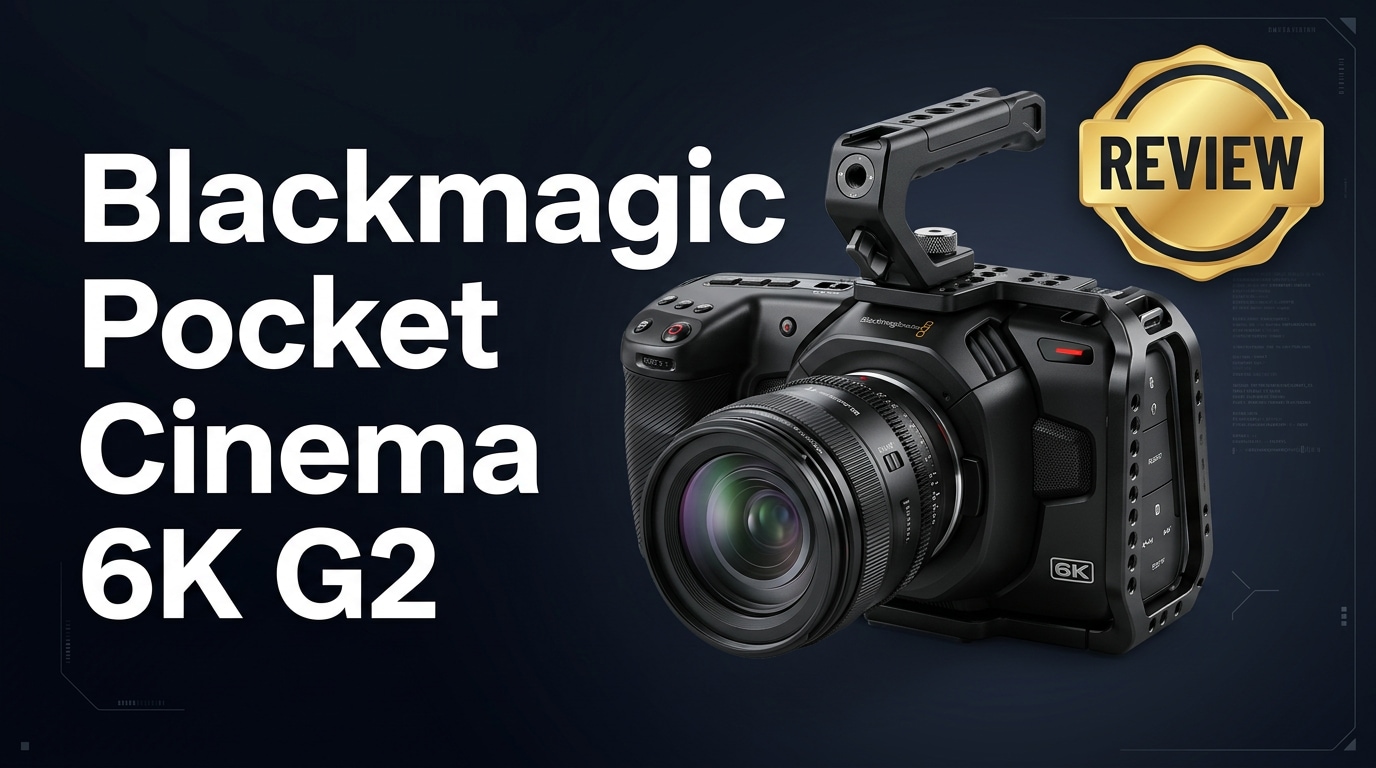
The Blackmagic Pocket Cinema 6K G2 is a compact Super 35 digital cinema camera aimed at filmmakers who want cinematic images without a huge rig or price tag. It offers 6K Blackmagic RAW recording, Canon EF lens support, familiar Pocket Cinema ergonomics, and a tilt screen that makes it easier to operate on solo shoots, gimbals, and small productions.
Repair Corrupted Files To Save Your Data
 Security Verified. Over 7,302,189 people have downloaded it.
In this article
Introduction
The Blackmagic Pocket Cinema 6K G2 continues the Pocket Cinema tradition of delivering cinema-grade images in a body that still feels familiar to mirrorless users. With its Super 35 sensor, 6K resolution, and Blackmagic RAW workflow, it targets independent filmmakers, content creators, and production teams who want a true cinema camera that remains affordable and easy to integrate into DaVinci Resolve.
What's New About Blackmagic Pocket Cinema 6K G2
The G2 refresh brings several key upgrades over earlier Pocket 6K models, focusing on handling, power, and monitoring more than headline resolution.
- Redesigned grip and body layout that are closer to the 6K Pro, improving comfort on longer handheld shoots.
- Tilt-adjustable 5-inch touchscreen that makes low-angle, high-angle, and gimbal work easier.
- NP-F570 style battery system for better runtime and compatibility with common, affordable batteries.
- Support for the optional Blackmagic Pocket Camera Battery Pro Grip for extended shooting sessions.
- Updated internal processing and firmware features such as improved focus aids, LUT handling, and monitoring tools.
- Retains the EF mount and 6K Super 35 sensor, so existing Pocket 6K users can transition smoothly.
In short, the Blackmagic Pocket Cinema 6K G2 is less about raw specs jumps and more about making the camera more ergonomic and production-friendly.
Full Specs at a Glance
Below is a quick overview of the core specifications that matter most in day-to-day production.
| Feature | Blackmagic Pocket Cinema 6K G2 |
|---|---|
| Sensor & Resolution | Super 35 sensor, up to 6144 x 3456 6K recording |
| Lens Mount | Canon EF mount, compatible with a wide range of photo and cinema lenses |
| Dynamic Range | Approx. 13 stops for cinematic highlight and shadow retention |
| Recording Codecs | Blackmagic RAW (BRAW), ProRes 422 HQ / 422 / 422 LT / Proxy in multiple resolutions |
| Media | CFast 2.0, SD UHS-II cards, and external USB-C SSD recording |
| Frame Rates | Up to 50/60 fps in 6K (windowed options), higher frame rates in lower resolutions |
| Screen | 5-inch touchscreen LCD, tilt-adjustable |
| Power | NP-F570 battery support, optional battery grip, DC input for continuous power |
| Audio | Mini XLR with phantom power, 3.5 mm mic input, built-in microphones |
| Connectivity | Full-size HDMI, USB-C, 3.5 mm headphone jack, power input |
Sensor and Image Pipeline
The Super 35 sensor is at the heart of the Blackmagic Pocket Cinema 6K G2. It offers a 6K resolution of 6144 x 3456, giving you plenty of detail for reframing, stabilizing, and delivering to 4K or 1080p while maintaining sharpness.
- Approximate 13 stops of dynamic range for cinematic highlight roll-off.
- Dual native ISO design suited for both controlled lighting and run-and-gun conditions.
- Blackmagic Generation 5 color science that produces pleasing skin tones and robust color grading latitude.
When paired with Blackmagic RAW, the sensor delivers footage that is flexible in post and integrates smoothly with DaVinci Resolve.
Recording Formats and Media
Recording flexibility is one of the strongest points of the Pocket Cinema series.
- Blackmagic RAW (BRAW): Ideal for narrative and commercial work where you will heavily grade and need metadata control.
- ProRes: Great for faster turnarounds, broadcast, and projects that need quick edit-ready files.
- Media options: CFast 2.0 for reliable high bitrates, SD UHS-II for lighter codecs, or external USB-C SSDs for long takes and high data rates.
This combination lets you tailor your Blackmagic Pocket Cinema 6K G2 workflow to everything from web spots to indie features.
Real-World Performance
In practice, the Blackmagic Pocket Cinema 6K G2 delivers images that feel closer to higher-end cinema cameras than to typical mirrorless hybrids.
- Image quality: 6K capture provides detailed, crisp frames, while the color science gives skin tones a natural, filmic look.
- Dynamic range: Retains highlights and shadows well, especially when shooting BRAW with careful exposure.
- Low light: Usable at higher ISOs with some noise, particularly if you plan to denoise in post.
- Handling: The tilt screen and improved grip make shoulder-rig and handheld work more comfortable, though it still benefits from rigging for serious productions.
- Battery life: NP-F570 batteries are a noticeable improvement but you should still plan on multiple batteries or external power for full shooting days.
- Workflow: BRAW clips drop directly into DaVinci Resolve with access to ISO, white balance, and other parameters in post, making the 6K RAW workflow much smoother.
Pros & Cons
| Pros | Cons |
|---|---|
| Excellent 6K Super 35 image with pleasing color and strong dynamic range | No in-body image stabilization, so handheld work can be challenging without support |
| Flexible Blackmagic Pocket Cinema 6K G2 recording options in BRAW and ProRes | Battery life is better than older models but still limited for long days |
| Ergonomic improvements, including tilt screen and better grip | Screen is bright but not ideal for direct sunlight without a shade or external monitor |
| EF mount supports a huge ecosystem of photo and cinema lenses | No built-in ND filters, so you need lens NDs or a matte box |
| Tight integration with DaVinci Resolve for grading and finishing | Large 6K files demand fast media, strong storage, and backup discipline |
Who Is This Camera For?
The Blackmagic Pocket Cinema 6K G2 is built for creators who prioritize cinematic control and grading flexibility over convenience features like autofocus-heavy photo modes or in-body stabilization.
- Indie filmmakers and narrative teams: Ideal for short films, features, and web series where you want a filmic look on a budget.
- Corporate and commercial shooters: Great for branded content, interviews, and promos when paired with proper lighting and sound.
- Documentary filmmakers: Works well on small crews who can manage rigging and power, especially when image latitude is more important than ultra-light setups.
- Content creators and YouTubers: Best suited for those comfortable with color grading and a more cinema-style workflow.
If you need a hybrid stills/video camera or rely heavily on autofocus for solo work, a mirrorless body may be a better match. But if your priority is cinematic motion images, the 6K G2 is compelling.
What to Do If Your Blackmagic Pocket Cinema 6K G2 Files Get Corrupted
Shooting 6K RAW means you are dealing with large, data-heavy files. Card issues, sudden power loss, or disconnecting a USB-C SSD at the wrong time can leave key clips unplayable. When that happens, a dedicated repair tool can be the difference between losing a scene and salvaging it.
Why Use Repairit for Blackmagic Footage
Wondershare Repairit is designed for creators who cannot afford to reshoot or lose client projects. It handles corrupted camera clips, damaged headers, and playback issues with a guided, non-destructive workflow. You can learn more and download it from the Repairit official website for both Windows and macOS.
Key Features of Repairit
- Repairs corrupted or unplayable video files from many cameras and formats, including high-resolution cinema footage.
- Uses an intuitive, step-based interface that helps beginners and professionals repair files without complex settings.
- Lets you preview repaired clips before saving them, so you confirm that your recovered 6K shots look and play as expected.
Step-by-Step: Repair Corrupted 6K Clips
Follow these steps to attempt recovery of damaged Blackmagic Pocket Cinema 6K G2 clips with Repairit.
-
Choose a Location to Repair Data
Open Repairit and select the Video Repair module. Add the folders, memory cards, or external SSDs that contain your Pocket Cinema 6K G2 footage. Pointing the tool to the exact location makes it easier for Repairit to detect any broken or partially recorded 6K files.

-
Deep Scan the Location
Start the scan so Repairit can analyze your media thoroughly. It will look for structural errors in video files, such as damaged headers, missing metadata, or timeline inconsistencies. During this deep scan, the software automatically applies its repair algorithms in the background, so you do not need to tweak codecs or technical settings.

-
Preview and Repair Your Desired Data
When the repair process completes, Repairit lists the recovered clips. Use the built-in player to preview each video and confirm that image, sound, and playback are acceptable. Then select the files you want to keep and export them to a new, safe location on your drive or backup disk, avoiding overwriting the original media in case you need to try additional recovery later.

Conclusion — Should You Buy?
The Blackmagic Pocket Cinema 6K G2 delivers impressive 6K Super 35 images, flexible codecs, and practical handling upgrades in a relatively compact package. For filmmakers who value cinematic control, a RAW-first workflow, and tight DaVinci Resolve integration, it offers tremendous creative headroom without reaching into high-end cinema camera pricing.
Its lack of in-body stabilization, modest battery life, and file size demands mean it is best suited to shooters comfortable with rigs, backup strategies, and color grading. Paired with a reliable repair solution like Wondershare Repairit, you can protect your investment in each shoot, knowing that even if a card or SSD misbehaves, you have a realistic path to getting crucial 6K footage back.
FAQ
-
1. What recording formats does the Blackmagic Pocket Cinema 6K G2 support?
The Blackmagic Pocket Cinema 6K G2 records primarily in Blackmagic RAW and ProRes at various resolutions and frame rates. This gives you options for high-end grading workflows as well as faster, edit-ready deliveries. -
2. Is the Blackmagic Pocket Cinema 6K G2 good for solo shooters?
Yes, if you are comfortable with manual focus and basic rigging. Its compact body, intuitive menu system, and tilting screen help solo operators, but the lack of in-body stabilization means you will get the best results on a tripod, gimbal, or shoulder rig. -
3. How can I avoid corrupting footage on the Blackmagic Pocket Cinema 6K G2?
Use high-quality, approved media; format cards in the camera; avoid removing cards or unplugging SSDs while recording; keep batteries charged; and always stop recording before powering the camera off. Regularly back up your 6K files to at least two separate drives. -
4. Can corrupted 6K G2 clips be repaired?
In many cases, yes. Tools like Wondershare Repairit can scan damaged video files, attempt to rebuild their structure, and restore clips to a playable state, especially when the issue is with headers or metadata rather than fully missing data. -
5. Do I need DaVinci Resolve to work with Blackmagic Pocket Cinema 6K G2 footage?
You do not have to use DaVinci Resolve, but it offers the smoothest experience for Blackmagic RAW, including full control over color, exposure, and metadata in both the free and Studio versions. Other NLEs are better suited to ProRes files from the camera.




