How to Make a Fuzzy Picture Clear Online




Make Fuzzy Phone Pictures Look Clearer
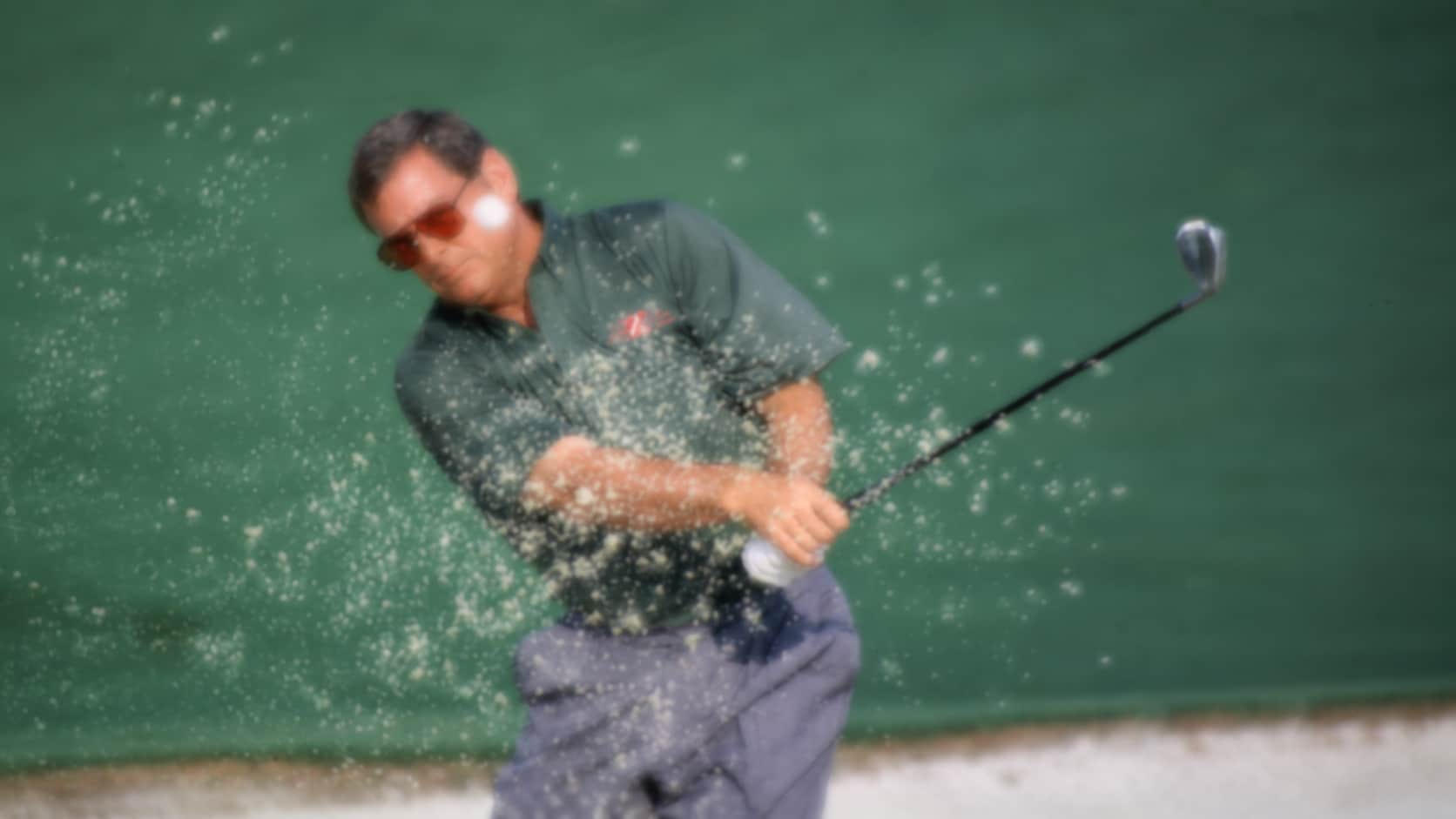
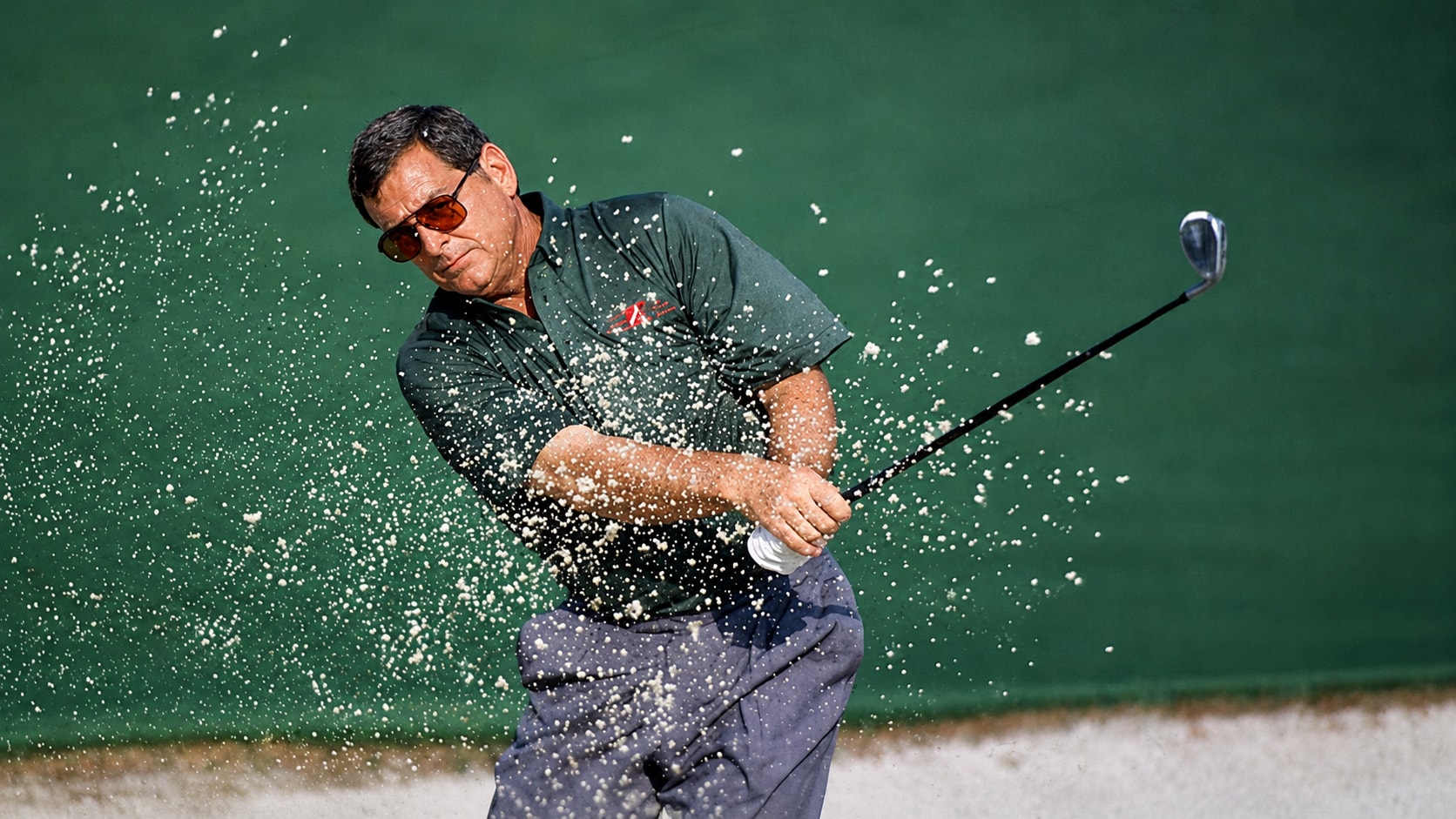
Phone pictures can look fuzzy when they are taken quickly, saved in low quality, zoomed in, or captured in poor lighting. The photo may not be obviously blurred, but faces, hair, clothing, and background details can look soft. Repairit helps make fuzzy pictures clear by improving edge sharpness, facial detail, and overall clarity.


Sharpen Fuzzy Old Photos and Scanned Images
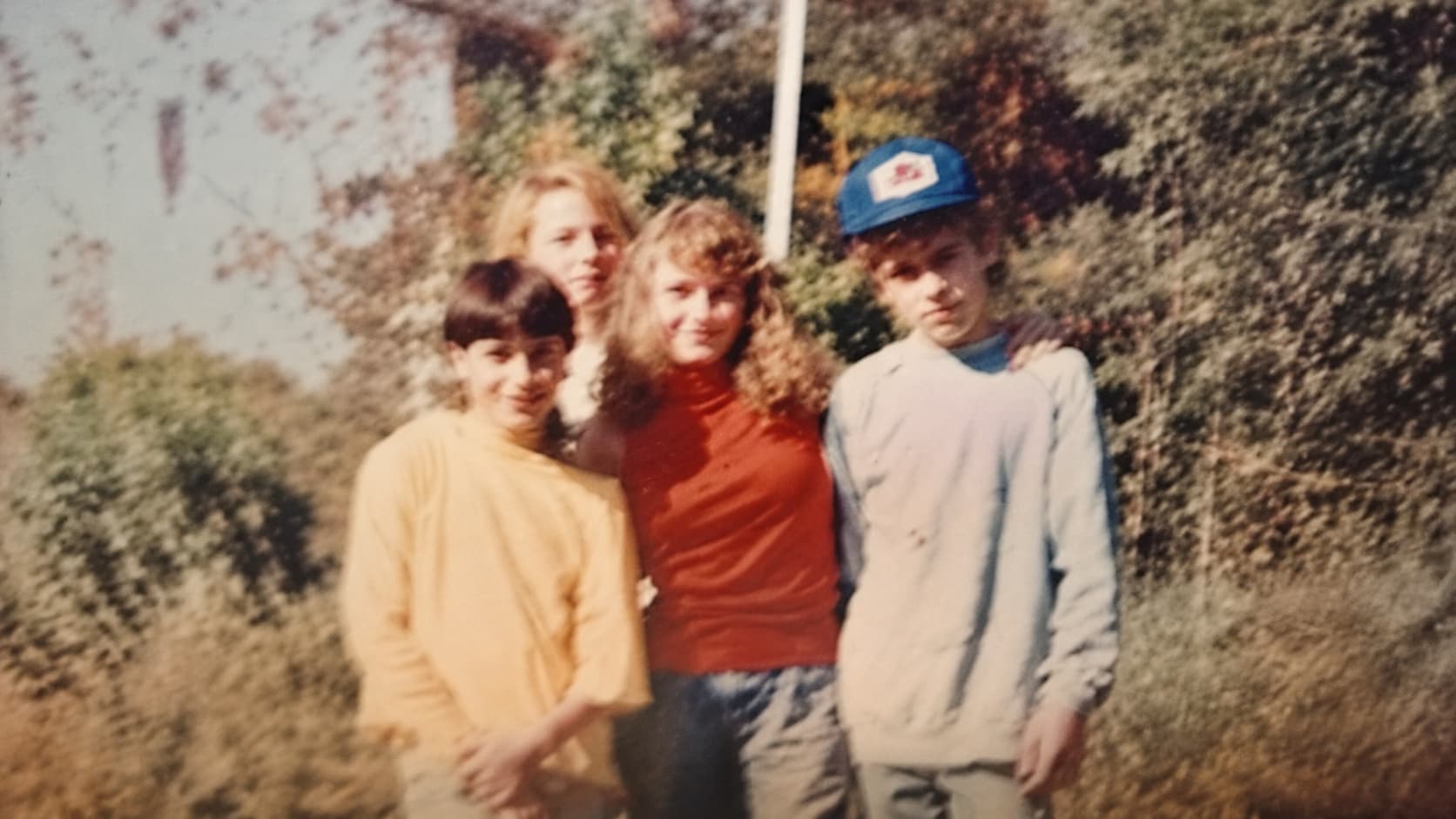
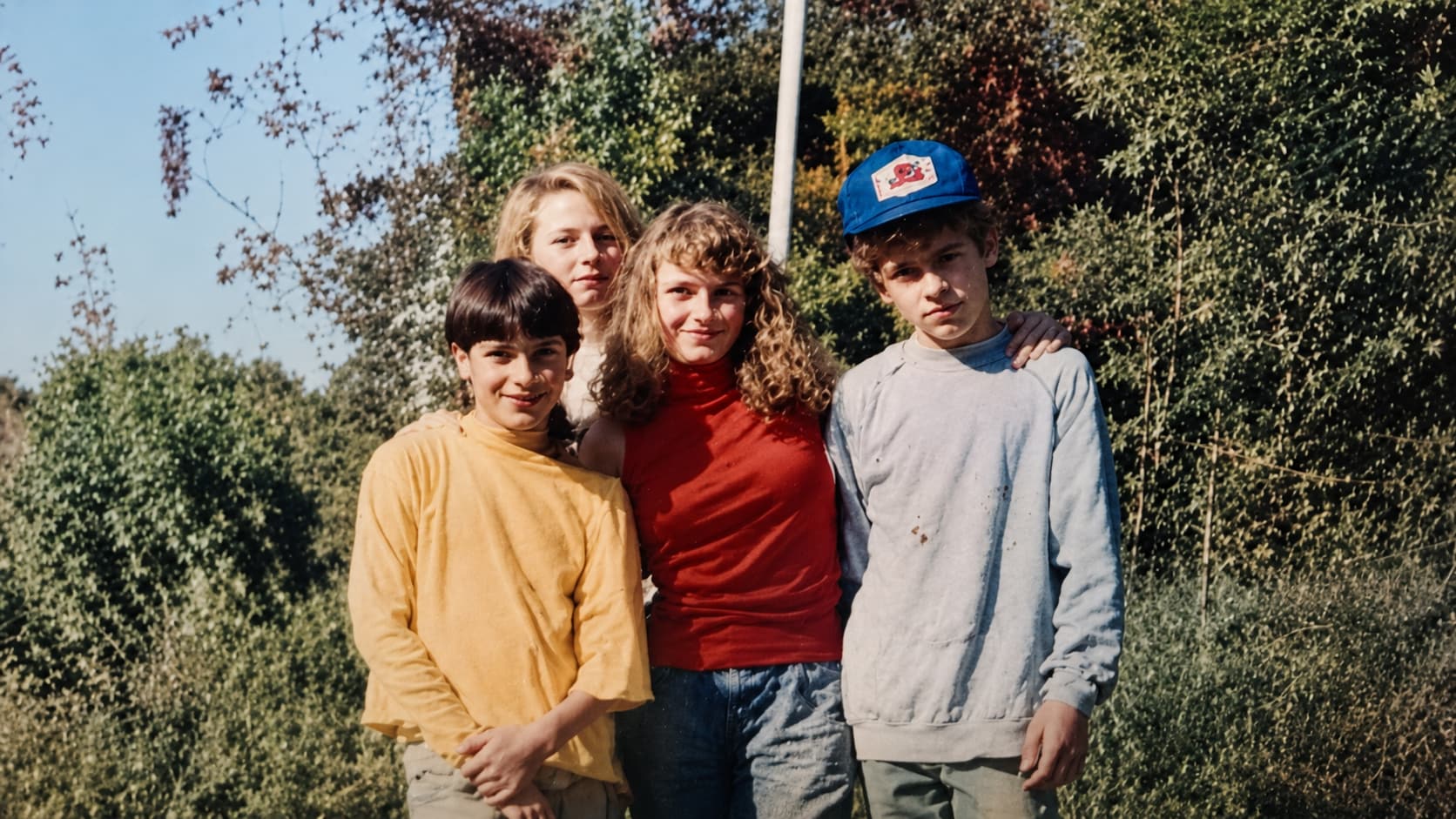
Old photos and scanned images often look fuzzy even when they are not badly damaged. The print may be soft, the scan may be low quality, or the original camera may not have captured fine detail clearly. Repairit can help users who search for how to sharpen fuzzy photos by improving visible detail and making old memories easier to view, share, or archive.
Clear Fuzzy Portraits Without Making Faces Look Fake
A portrait can be meaningful but still look fuzzy around the eyes, hair, skin, or facial features. Basic sharpening can create harsh edges or make skin look unnatural. Repairit supports portrait focused enhancement with Accurate Face Focus and Facial Features Recognition, helping fuzzy portraits look clearer while keeping the person recognizable.


Improve Fuzzy Shared or Downloaded Pictures
Images often become fuzzy after being sent through messaging apps, downloaded from social media, saved from previews, or compressed repeatedly. The photo is still usable, but it no longer looks sharp enough for a post, document, profile, or print. Repairit helps clear up fuzzy pictures by enhancing details and reducing the soft look caused by compression or low quality copies.


How to Make a Fuzzy Picture Clear with Repairit

Step 1
Upload Your Fuzzy Picture
Open Repairit Photo Enhancer and upload the photo that looks soft, fuzzy, hazy, or low detail. You can use common formats such as JPG, JPEG, PNG, BMP, and WEBP.

Step 2
Start AI Photo Enhancement
Let Repairit analyze the image and improve fuzzy edges, facial detail, visible texture, noise, color balance, and overall clarity.

Step 3
Preview and Save the Clearer Picture
Preview the enhanced result, compare the before and after version, and save the picture when it looks clearer and more natural.
Why Choose Repairit to Make Fuzzy Pictures Clear?
✨ Built for Soft and Fuzzy Photo Quality
Repairit is useful when your picture opens normally but looks soft, fuzzy, hazy, or not crisp enough for posting, printing, or saving.
📷 AI Detail and Edge Enhancement
Repairit Photo Enhancer can sharpen blurry edges, uncover hidden details, reduce noise, and improve photo quality with AI.
⚡ Helpful for Phones, Old Photos, Portraits, and Shared Images
Repairit supports common fuzzy picture scenarios, including phone shots, old scanned photos, portraits, screenshots, and compressed images shared through apps.
❤️ Easier Than Manual Sharpening
No Photoshop, layer masks, sharpening sliders, or advanced editing knowledge are required. Upload the picture, start AI enhancement, preview, and save.
Explore More Clear Photo Enhancer Features
Make fuzzy pictures clear, sharpen blurred details, improve clarity, and enhance overall photo quality with AI.
Frequently Asked Questions
A fuzzy picture looks soft, hazy, low detail, or not crisp. The subject may still be visible, but edges, faces, text, or textures do not look clear enough.
Upload your picture to Repairit Photo Enhancer, start AI enhancement, preview the clearer result, and save the version that looks more usable.
Repairit Photo Enhancer is free to try, so you can upload a fuzzy picture and preview how AI improves edge detail, clarity, and overall image quality.
Use AI enhancement instead of only increasing sharpness. Repairit helps improve visible detail, edges, and noise balance so the picture can look clearer without a heavy sharpened look.
Not exactly. A fuzzy picture is usually soft or low detail but still visible. A blurry image is broader and may include motion blur, hand shake, low light blur, lens blur, or strong overall blur.
Not always. An out of focus photo usually means the camera focused on the wrong area. A fuzzy picture can also come from compression, old scans, phone quality, noise, or mild softness.
AI can improve many fuzzy pictures, especially when some detail is still visible. If the image is extremely low quality or missing important detail, results may be limited.
Hot Topics
Comprehensive How-to Guides
Want to enhance your photo? Click to enter the Photo Enhancer Workbench and make it clearer in just a few clicks!