
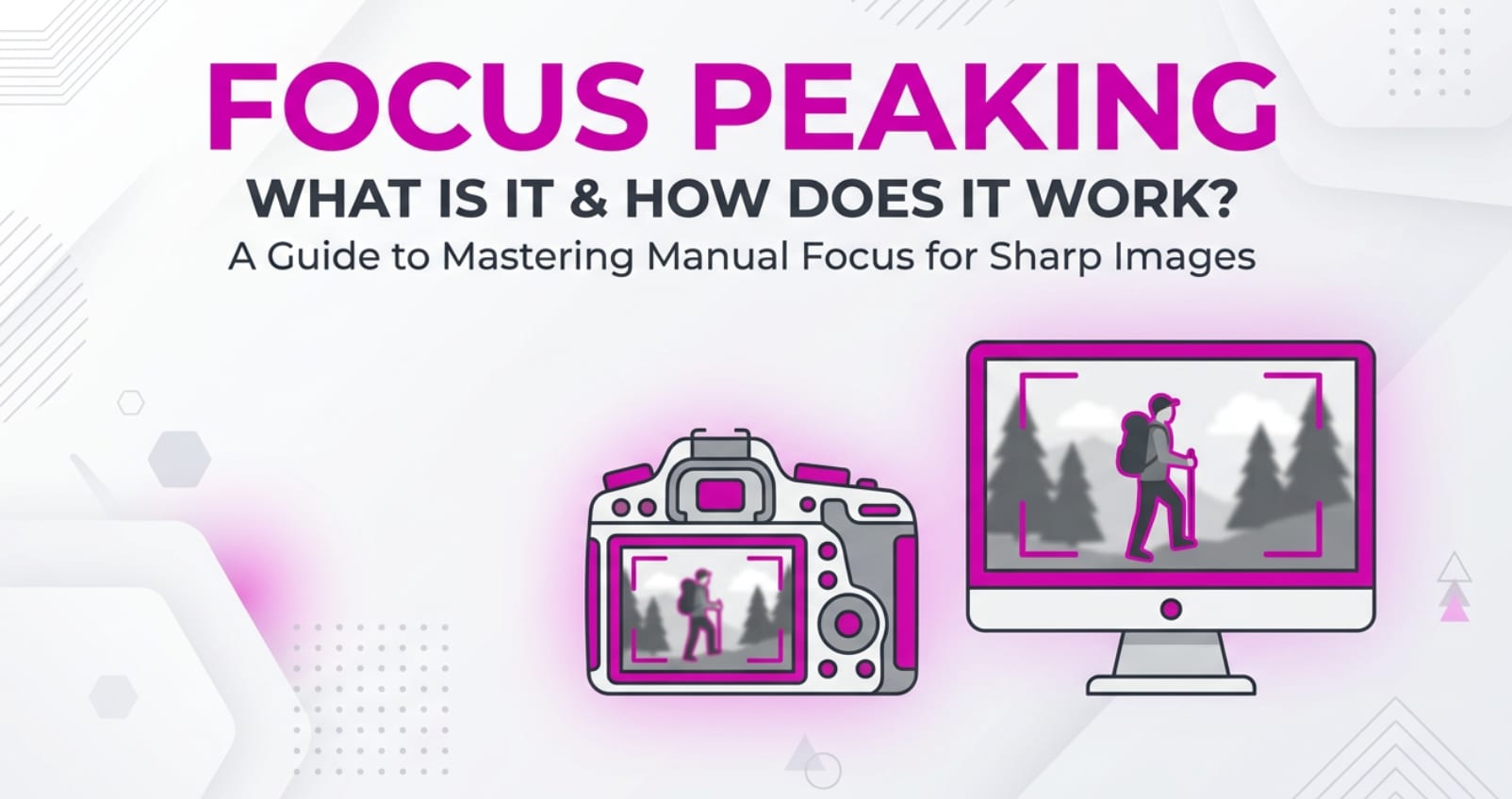
Focus peaking is a term you will see on modern mirrorless cameras, cinema cameras, and external field monitors when shooting photos or video. It adds a colored outline to in-focus edges in your live view, making manual focus easier and more precise. Understanding how it works helps you capture sharper footage, especially with fast lenses, 4K video, or when pulling focus for streaming, editing, and delivery on different platforms.
Repair Corrupted Files To Save Your Data
 Security Verified. Over 7,302,189 people have downloaded it.
In this article
What Is Focus Peaking?
Focus peaking is a digital focus assist tool built into many mirrorless cameras, cinema cameras, DSLRs with live view, and external video monitors. It analyzes the live image, detects areas with the highest contrast (where details are sharp), and overlays a colored "glow" or outline on those edges.
In everyday use, it is mainly a manual focus aid for both stills and video. When you rotate the focus ring, you see the colored peaking highlights move through the scene, showing which subject plane is currently sharp. This is especially useful when shooting:
- Shallow depth of field portraits and product shots
- Run-and-gun or documentary-style video
- Manual-focus cinema lenses with focus pulls
- Macro photography where focus is extremely precise
Unlike autofocus, focus peaking does not set focus for you; it simply gives a fast visual guide so you can lock focus manually with more confidence.
How Does Focus Peaking Affect Your Image or Footage?
Sharpness, detail, and viewing on different screens
Focus peaking itself does not change the captured image; it only affects what you see while composing. However, it has a big indirect impact on sharpness and detail:
- Sharper subjects at the right distance: Peaking highlights help you place critical focus exactly on a subject's eyes, product details, or text, which is crucial for crisp results in high-resolution stills and 4K/8K video.
- Better control of depth of field: With very wide apertures, depth of field can be razor-thin. Peaking outlines show how much of the subject is actually in focus versus softly blurred.
- Consistent sharpness across platforms: When your focus is nailed using peaking, your footage stays clear whether viewers watch on phones, laptops, TVs, or streaming platforms that compress video.
Most cameras let you set the peaking level (low/medium/high). If it is set too high, it may highlight areas that are not truly tack sharp, which can lead to slightly soft images when you zoom in during editing or color grading.
Impact on video recording, editing, and playback
In video production, video focus accuracy affects how professional your footage looks when edited, exported, and streamed:
- Cleaner footage in post: Clips that are in perfect focus hold up better to stabilization, color correction, cropping, or upscaling. Bad focus is almost impossible to fix later, even with sharpening filters.
- Smoother focus pulls: With manual focus, focus peaking lets you see the plane of focus travel smoothly from foreground to background during a pull, helping you hit marks reliably for cinematic shots.
- Reliable playback at high resolutions: Viewers can see softness very easily in 4K or when watching on large screens. Using focus peaking during recording keeps your footage sharp enough for detailed playback and future-proof distribution.
For photographers, the benefit shows up when you zoom into RAW files in editing apps: images focused with peaking tend to have more usable fine detail for printing, cropping, and retouching.
How Does Focus Peaking Work in Real Shooting?
In real workflows, focus peaking appears in your camera or monitor menus as a display overlay that you can toggle on or off while using live view or video mode.
Where you control focus peaking
- Mirrorless and DSLR cameras: In the menu or quick settings, you will find options like "Peaking Display," "Focus Assist," or "Peaking Level/Color." It usually works in stills live view and movie mode.
- Cinema and video cameras: Dedicated peaking controls are often on a function button, letting focus pullers turn it on/off instantly.
- External monitors/recorders: Field monitors used on rigs and gimbals usually include advanced peaking with adjustable color and thickness, independent of the camera.
Practical shooting examples
- Portrait photography: With a fast prime lens at f/1.4, you turn on peaking and see colored edges appear over the subject's eyes. You fine-tune the focus ring until both eyes show the strongest peaking, then shoot, knowing the face is sharp.
- Street shooting with manual lenses: Using an old manual lens on a mirrorless body, you rely on peaking outlines on faces or signs when zone-focusing quickly, even in low light.
- Gimbal video work: On a gimbal, you may not trust autofocus. With peaking enabled on an external monitor, you keep the talent's face highlighted as you move, adjusting focus smoothly while walking.
- Macro work: At close distances, focus is extremely critical. Peaking shows exactly which part of a flower or product surface is sharp, making micro-adjustments much easier.
In all these scenarios, camera focus tools like peaking, magnification, and sometimes focus guides work together to give you real-time visual feedback so you are not guessing where the sensor is focused.
Best Uses, Common Mistakes, and Quick Tips
When focus peaking matters most
- Shooting wide open with shallow depth of field
- Using manual-focus lenses or cinema lenses
- Recording interviews, documentaries, or events where refocusing is constant
- Macro, product, and detail shots where every millimeter of focus counts
- Low-light scenes where it is hard to judge sharpness on the screen alone
Common mistakes and misunderstandings
- Peaking level too high: Overly aggressive peaking paints large areas, making you think more is sharp than really is. This often leads to slightly soft results.
- Wrong peaking color: Using red peaking over a mostly red scene or green over foliage makes the outline hard to see, causing misjudged focus.
- Relying on peaking alone: Peaking is an approximation. If you never use magnification or check critical points, you may still miss focus on small details like eyelashes.
- Assuming it affects the file: Focus peaking does not record into the photo or video. It is only a live overlay; the final file is clean.
Quick tips for sharper results
- Set peaking to low or medium for more accurate, "stricter" feedback.
- Pick a contrasting color (red, yellow, or blue) that clearly stands out from your subject.
- Combine peaking with focus magnification when you have time, especially for stills.
- Practice on stationary subjects to learn how your camera's peaking responds at different apertures.
- For sharp footage in video, rehearse focus pulls using peaking to see exactly where focus transitions.
The takeaway: treat focus peaking as a smart assistant, not a guarantee. Use it carefully and you will dramatically reduce soft shots and missed focus in both photos and video.
How to Use Repairit to Fix a Corrupted Photo File
If a memory card error, sudden power loss, or transfer issue leaves you with broken or unviewable photos, a repair tool can save your work. Wondershare Repairit is designed specifically to fix corrupted photos and videos, and you can access it from the Repairit official website. Instead of giving up on damaged files from important shoots, you can run them through Repairit's repair engine and recover usable images in a few guided steps.
Key features of Repairit
- Repair corrupted video and photo files in batches so you can process many damaged clips or images from a single shoot at once.
- Support for popular camera, smartphone, and storage formats, keeping your video focus work and stills safe across multiple devices.
- A preview-and-save workflow that lets you check repaired results and keep only the files that look correct.
Step-by-step: Repair a corrupted photo file
- Add corrupted photo files

Launch Repairit and open the Photo Repair module. Click the add button or drag and drop your corrupted images from a camera card, local drive, or backup folder into the window. All selected photos will appear in a list, ready to be processed together.
- Repair photo files

Start the repair task so Repairit can scan each image and apply its automatic repair algorithms. Let the process complete, then use the built-in preview option to check that key details, colors, and framing look normal before moving on.
- Save the repaired photo files

Select the photos that have been successfully restored and choose a secure destination folder, ideally on a different drive than the damaged originals. Save your repaired images, then return them to your editing, sharing, or archiving workflow as needed.
Conclusion
Focus peaking is a powerful visual guide that makes manual focus faster and more reliable for both photography and video. By outlining in-focus edges, it helps you place critical sharpness exactly where you want it, so your images hold up in editing, exporting, and playback across different devices and platforms.
Even with careful use of focus assist tools and good technique, technical issues like card corruption or crashes can still damage your files. Pairing smart capture tools such as focus peaking with a dedicated repair solution like Wondershare Repairit gives you a safety net to protect your work from recording all the way through delivery.
Next: Field Of View (Fov)
FAQ
-
1. Is focus peaking available on all cameras?
No. Focus peaking is common on mirrorless cameras, some DSLRs, many cinema cameras, and external monitors, but older or entry-level bodies may not offer it. Check your camera manual or menu under display or focus assist settings to see if it is supported. -
2. Does focus peaking work in both stills and video modes?
On most modern cameras, yes. Focus peaking is usually available in live view for still photography and during video recording, although some models restrict it at certain frame rates or resolutions such as high-speed modes. -
3. Can focus peaking make my images out of focus?
Focus peaking does not change focus itself, but if the peaking sensitivity is set too high, it can highlight areas that are not perfectly sharp. For the best accuracy, keep the level on low or medium and combine peaking with focus magnification when possible. -
4. What is the best color to choose for focus peaking?
Use a color that clearly contrasts with your scene. For example, red or yellow often works well against greenery, while blue or white can stand out on skin tones or interiors. Many shooters change colors from scene to scene for maximum visibility. -
5. How can I fix video or photo files if my card becomes corrupted?
Stop using the card immediately to avoid overwriting data, then recover files with data recovery software if needed. After that, open the damaged photos or clips in Wondershare Repairit to repair corruption and export clean, playable versions you can edit and share.




