
False color is a monitoring tool you will see on cinema cameras, external recorders, editing software, and even some streaming encoders. It converts brightness into clear color bands so you can judge exposure at a glance rather than relying on a small screen or your eyes alone. If you want cleaner skin tones, protected highlights, and consistent results across cameras and platforms, understanding false color is worth your time.
Repair Corrupted Files To Save Your Data
 Security Verified. Over 7,302,189 people have downloaded it.
In this article
What Is False Color?
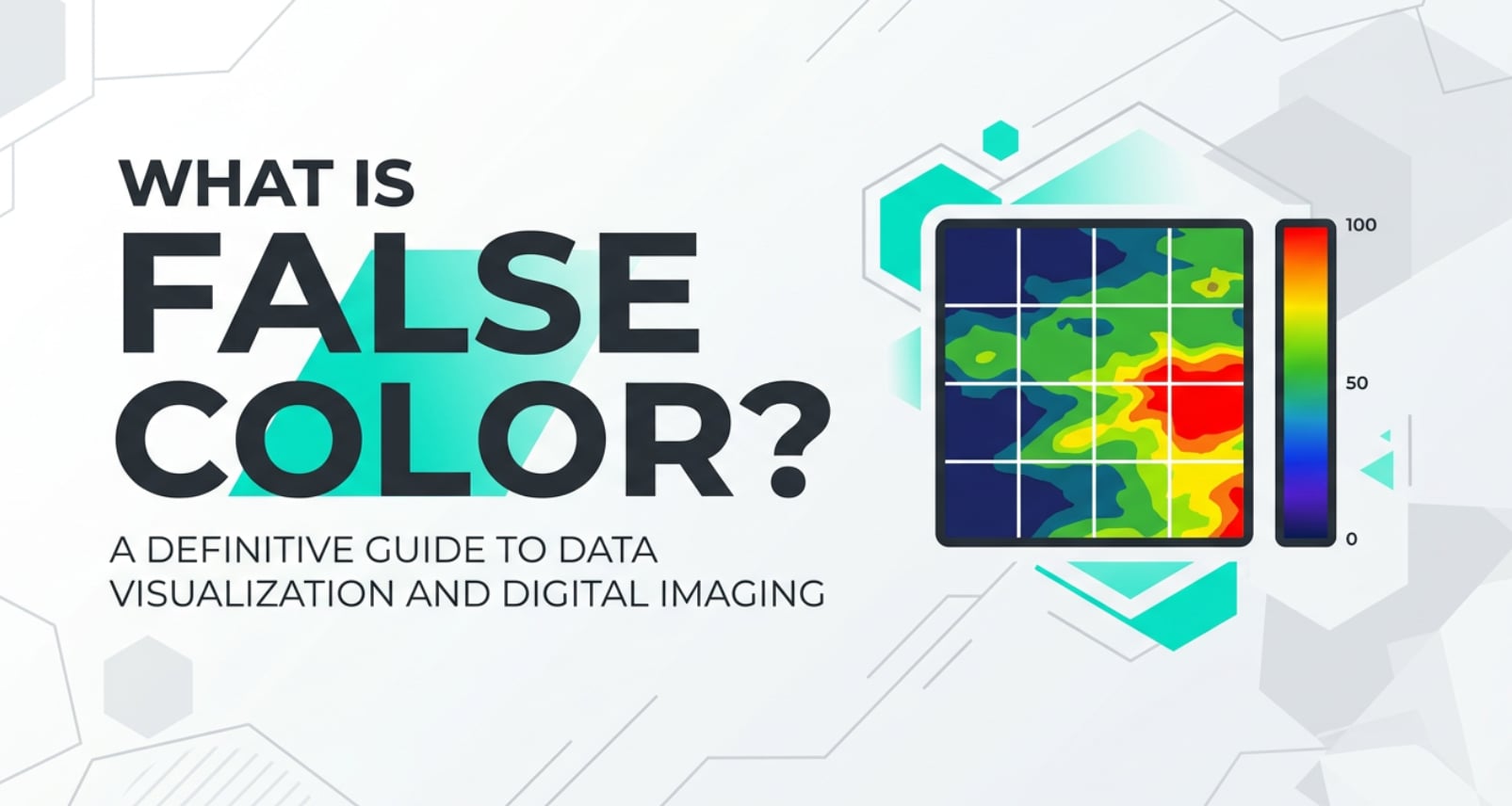
What is false color in filmmaking and photography? In simple terms, it is an exposure visualization tool built into many cinema cameras, external monitors, and software scopes. Instead of showing you a normal-looking image, false color replaces the real tones with a color map where each brightness level (IRE or luma value) is represented by a distinct color.
Technically, that makes false color an exposure and monitoring aid rather than an effect or filter. It belongs in the same family as histograms, zebras, and waveform monitors. On set, you use it to judge whether key areas like faces, skies, and backgrounds sit in the right exposure range, regardless of how the shot looks on a possibly uncalibrated screen.
Because it is based on measurable brightness values, false color is especially useful when recording log or RAW video, high dynamic range scenes, or footage that will later be graded for streaming, theatrical, or social media delivery.
How Does False Color Affect Your Image or Footage?
False color itself does not change the recorded image; it changes how you see and control exposure while shooting, which then affects the final look.
False color and exposure accuracy
Most false color scales map a specific color to each exposure band. For example, very bright values near clipping might show as red, deep shadows as blue, and healthy skin tones as gray, green, or pink, depending on the monitor.
- It highlights blown highlights: If the brightest parts of the frame turn solid red or white, you know detail is being lost and may not be recoverable in grading.
- It reveals crushed shadows: Areas that appear dark blue or purple might be underexposed to the point that noise will dominate when the image is brightened later.
- It guides skin tones: Because skin tone exposure is critical for natural-looking faces, many filmmakers watch for a specific false color band (often around 40–60 IRE) to keep complexions in a flattering range.
By seeing exposure as color, you can set aperture, ISO, shutter angle, ND filters, or lighting precisely without guessing from the small camera display. That leads to better brightness balance, fewer noisy shadows, and less risk of clipped highlights.
Impact on consistency and post-production
False color is also a powerful tool for maintaining consistency across shots, scenes, and even cameras.
- Matching cameras and angles: On multi-camera shoots, you can dial key regions (such as faces) into the same false color band on every camera, making color grading and matching in post much easier.
- Faster grading: If you exposed log footage by referencing the same false color marks every time, your clips will land in a predictable place on the waveform during editing. That speeds up basic corrections before export or streaming.
- Platform-ready footage: When footage is exposed consistently, it withstands compression for YouTube, broadcast, or live streaming better, with fewer banding or noise issues.
In practice, using exposure tools like false color means you spend less time rescuing problematic shots and more time refining the creative grade.
How Does False Color Work in Real Shooting?
On set, you will usually access false color through your camera's monitoring menu or on an external monitor/recorder. Once enabled, the live view (or playback) switches to a colored overlay where brightness is encoded as colors according to a legend or scale.
Where you see or control it
- Cinema cameras: Brands like ARRI, RED, Blackmagic, and others offer built-in false color modes directly in their viewfinders and LCDs.
- External monitors: Many on-camera monitors and recorders include false color as part of their scope suite, alongside waveform and histogram.
- Software scopes: In post-production tools like DaVinci Resolve or other NLEs, you can enable false color to check exposure when grading or preparing exports.
Example workflow when shooting a dialogue scene
- 1. Frame the shot with normal monitoring to get composition right.
- 2. Turn on false color and place the camera on your subject's face.
- 3. Adjust aperture, ISO, ND, or lighting until the face falls into the monitor's marked "skin tone" band (for example, a gray or light green range around 50 IRE).
- 4. Check highlights like windows or practical lights; if they show as clipped colors, decide whether to lower exposure, add diffusion, or accept the blowout as a creative choice.
- 5. Toggle false color off to confirm the image still feels right visually and for your intended grade.
Using false color with log or RAW
When recording log or RAW, the live image often looks flat and low contrast. False color lets you expose technically correctly even when the preview appears washed out. You may also use a monitoring LUT plus false color so that the exposure bands align with how the final graded image will behave.
Best Uses, Common Mistakes, and Quick Tips
False color is most valuable whenever exposure is critical and difficult to judge by eye, such as high-contrast interiors, bright exteriors, HDR delivery, and green screen work.
- Best uses
- Locking in consistent skin tone exposure across scenes and shooting days.
- Protecting highlight detail in backlit or outdoor situations.
- Ensuring key background elements (logos, screens, sky detail) are in a usable range for compositing or color grading.
- Common mistakes
- Assuming all false color scales are identical: Different monitors or cameras may map colors to slightly different IRE values. Always check the legend.
- Watching only faces: Ignoring background and shadow exposure can lead to noisy or flat-looking images, even if skin looks perfect.
- Forgetting about creative intent: Technically "correct" exposure is not always the most cinematic look; sometimes you may choose to let parts of the frame fall into near-black or bright highlight bands.
- Quick tips
- Learn your specific scale: Spend a few minutes with your monitor's false color chart so you know exactly which color band equals middle gray and skin tones.
- Use it with other camera monitoring tools: Combine false color with waveform or histogram for a fuller picture of what is happening in your frame.
- Create a reference: Shoot a gray card or skin tone reference while watching false color so you have a baseline when editing or matching cameras later.
Takeaway: use false color guide overlays as a precise, objective reference, but always balance that with your creative goals and how the footage will be graded, exported, and viewed.
How to Use Repairit to Fix a Corrupted Photo File
If a camera crash, card error, or transfer issue corrupts your images, even perfectly exposed shots can become unviewable. Wondershare Repairit offers a straightforward way to bring those damaged files back to life. You can visit the Repairit official website to download the tool and follow a guided repair process without needing advanced technical knowledge.
Key features of Repairit Photo Repair
- Repair video files and photos that are corrupted, unreadable, or fail to open correctly from a wide range of cameras and storage devices.
- Batch processing support so you can restore many broken images in one repair task instead of handling each file individually.
- Simple interface with built-in preview, helping you verify the repaired result before exporting it to a safe location.
Step-by-step: Repair corrupted photo files
- Add corrupted photo files
Launch Repairit on your computer and switch to the Photo Repair module. Click the add button, then browse to the folder, memory card, or external drive where your damaged images are stored. Select the corrupted files you want to fix and confirm to load them into the repair list.

- Repair photo files
After the files are listed, check that all the images you need are selected. Start the repair process, and Repairit will scan each file, rebuild broken headers and data structures, and generate recoverable versions. You can monitor the progress on screen while the software analyzes and repairs the photos.

- Save the repaired photo files
When the repair completes, preview the recovered images directly in Repairit to confirm that the details and colors look correct. Finally, choose a secure destination folder, preferably on a different drive than the corrupted source, and save the repaired photo files there to keep them safe for editing, sharing, or archiving.

Conclusion
False color turns invisible exposure information into clear, readable color bands. By learning what each color means on your camera or monitor, you can protect highlights, avoid noisy shadows, and keep skin tones in a flattering, repeatable range across different lighting conditions and camera systems.
Even when you nail exposure with false color and other exposure tools, file corruption can still threaten your work. Using a dedicated repair solution like Wondershare Repairit helps you rescue damaged photos and videos so that carefully shot material remains usable from capture through editing, encoding, and final playback on any platform.
Next: Waveform Monitor
FAQ
-
1. What is false color in filmmaking?
False color is a monitoring mode that assigns different colors to different brightness levels in your image. Instead of seeing natural tones, you see a color-coded overlay that reveals which areas are underexposed, correctly exposed, or overexposed, making it easier to protect detail than by eye alone. -
2. Is false color better than using a histogram?
Neither tool is strictly better; they complement each other. A histogram shows the overall distribution of tones in your image, while false color shows exactly where in the frame those tones appear. Many cinematographers rely on both to fine-tune exposure, especially with log or RAW recording. -
3. How do I read skin tones with false color?
Check your monitor's false color scale to see which band is recommended for midtones or skin (often around 40–60 IRE). When you enable false color, adjust exposure until faces fall mainly within that color band, which usually results in natural, flattering skin tones after grading. -
4. Do all cameras have a false color option?
No. Many cinema and higher-end mirrorless cameras offer false color, but many consumer models do not. If your camera lacks it, you can still use false color through an external monitor/recorder or in post-production software when reviewing and grading footage. -
5. Can I use false color for photography as well as video?
Yes. Although false color is more common in video and cinematography, you can use it while shooting stills via compatible monitors or tethered software. It helps you keep exposures consistent across a series, reduce clipping, and prepare images that will grade and export cleanly for web or print.




