
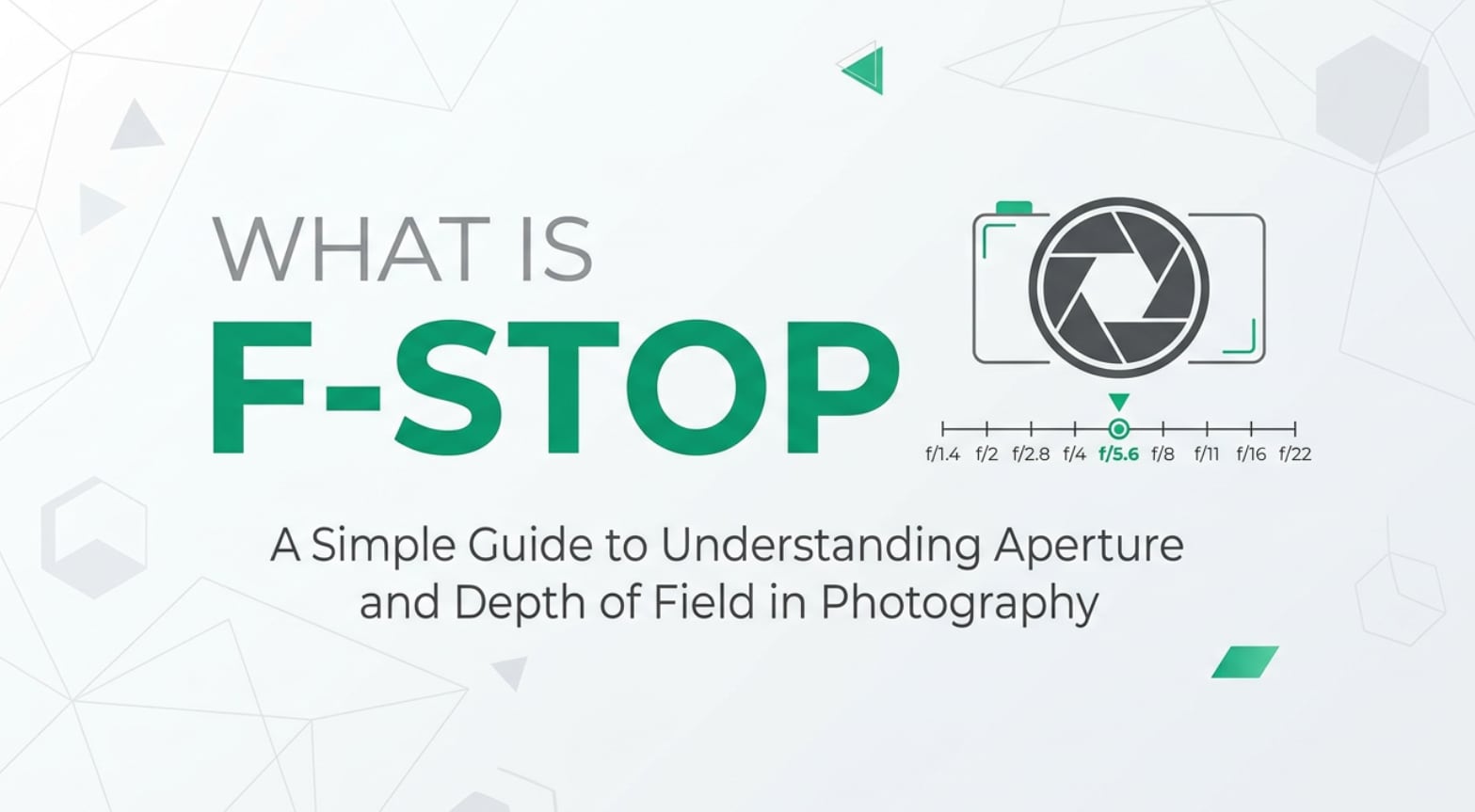
You will see the term F-stop on camera dials, in photo apps, and in video tutorials about exposure. It describes how wide your lens opens when capturing a frame, which affects brightness and what appears sharp. Understanding what is F-stop helps you choose the right settings when recording, editing, exporting, and even streaming, so your photos and videos look consistent across devices and platforms.
Repair Corrupted Files To Save Your Data
 Security Verified. Over 7,302,189 people have downloaded it.
In this article
What Is F-Stop?
F-stop (often written as f stop or f/number) is a way of measuring the aperture, the adjustable opening inside a lens that lets light reach the camera sensor or film. In photography and videography, F-stop is a core exposure setting, just like shutter speed and ISO.
The F-stop value is written as f/1.8, f/2.8, f/4, f/5.6, and so on. A lower F-stop number means a wider aperture; a higher F-stop number means a narrower aperture. When you record photos or video, this setting decides how much light comes in and how much of the scene appears in focus from front to back.
You will set F-stop any time you shoot in Aperture Priority (A/Av), Manual (M), or in many cinema and mirrorless video modes. It influences how your footage looks before it ever reaches your editing software, affects how easily you can balance exposure in post, and helps you keep consistent appearance when exporting for web or streaming platforms.
How Does F-Stop Affect Your Image or Footage?
The F-stop value directly changes how bright your image is and how much of it looks sharp. It also influences noise levels, motion blur decisions, and the final aesthetic of your photos and clips during playback on different screens.
Exposure and image brightness
Because F-stop is tied to aperture size, it controls how much light reaches the sensor during recording:
- Low F-stop (for example f/1.4, f/1.8, f/2.8): Wide aperture, more light, brighter image.
- High F-stop (for example f/8, f/11, f/16): Narrow aperture, less light, darker image.
Each full step (like going from f/2.8 to f/4) halves the amount of light; moving in the opposite direction doubles it. This matters for:
- Low-light shooting: A low F-stop lets you avoid overly high ISO, which would add noise and make grading or encoding for streaming more difficult.
- Highlight control: In bright daylight, a higher F-stop helps prevent blown-out skies and faces, giving you better detail to work with in editing.
- Consistent exposure between shots: Keeping a steady F-stop across takes makes color correction and exposure matching much easier in post-production.
Depth of field and overall look
What is F-stop best known for? Shaping depth of field, which is the zone of acceptable sharpness in front of and behind your focus point:
- Low F-stop (f/1.4–f/2.8): Shallow depth of field. Backgrounds blur, foreground subjects pop. This is common in portraits, product shots, interviews, and cinematic B-roll.
- Mid F-stop (around f/4–f/8): Balanced depth of field. Enough of the scene is sharp for group photos, walk-and-talk interviews, or run-and-gun video.
- High F-stop (f/11–f/16+): Deep depth of field. Most of the frame, from near foreground to distant background, appears sharp. Ideal for landscapes, architecture, and some documentary work.
This aesthetic choice carries through the whole workflow: from the look you preview on your monitor, to editing and color grading, to how the final exported file appears on phones, TVs, and streaming sites. A low F-stop creates that familiar "cinematic" blurred background even after compression on platforms like YouTube or TikTok.
Extremely high F-stop values can introduce softness from diffraction, which may show up as slightly mushy details when you zoom in during editing or when your video is encoded at lower bitrates.
How Does F-Stop Work in Real Shooting?
In practice, you control F-stop directly on your camera, lens, or within your recording menu, and it works together with shutter speed, ISO, and frame rate.
- On DSLR and mirrorless cameras: You adjust F-stop with a control dial or menu while in Aperture Priority or Manual mode. The value is shown in the viewfinder, LCD, or on-screen display.
- On cinema cameras: You may work with a de-clicked aperture ring or T-stops (which account for light transmission) but the creative control is similar to F-stops.
- On some lenses: There is a physical aperture ring with markings like 1.4, 2, 2.8, 4, 5.6, etc. Turning it changes the F-stop and the live view brightness.
- On phones and apps: Many "pro" or "manual" camera apps simulate F-stop by controlling digital processing and, on some phones with variable aperture, an actual physical opening.
During a shoot, you will often balance F-stop with shutter speed and ISO:
- Portrait example: You pick f/1.8 for a soft background, then set shutter speed (for example 1/200 s) and ISO to get the right exposure.
- Landscape example: You choose f/11 to keep the whole scene sharp, then use a tripod to allow a slower shutter speed in low light.
- Video example: Shooting 24 fps, you keep shutter around 1/50 for natural motion blur, adjust F-stop for the desired brightness and depth of field, and fine-tune exposure with ISO or ND filters.
These choices affect the files you bring into editing. Underexposed footage from a very high F-stop may need more brightening, which can reveal noise. Overexposed clips from a too-low F-stop may have clipped highlights that are difficult to fix even before you export or stream.
Best Uses, Common Mistakes, and Quick Tips
When F-stop matters most
- Portraits, weddings, and lifestyle shoots where subject separation and flattering backgrounds are key.
- Interviews and talking-head videos that need a clean, soft background for a professional, cinematic feel.
- Landscapes, cityscapes, and architecture requiring edge-to-edge sharpness.
- Mixed-light or low-light environments where you must control brightness without ruining motion blur or adding too much noise.
Common F-stop mistakes
- Choosing the lowest F-stop "just because" and ending up with eyes in focus but ears or multiple faces out of focus.
- Stopping down to very high values (f/18, f/22) and getting unexpectedly soft images from diffraction, especially noticeable in high-resolution sensors and 4K/8K exports.
- Changing F-stop between shots in the same sequence, causing inconsistent exposure and look that is harder to match when editing.
- For video, riding the aperture up and down mid-take without smoothing tools, which can cause visible brightness jumps in the final playback.
Quick tips for using F-stop correctly
- Start portraits around f/2–f/2.8 for single subjects and f/4–f/5.6 for small groups to keep everyone reasonably sharp.
- Use f/8–f/11 as a general-purpose range for landscapes and travel scenes to balance sharpness and diffraction.
- In video, lock F-stop and use ND filters to control exposure when you want to keep a specific depth of field at a fixed shutter speed and frame rate.
- Check your focus at 100% zoom during playback; shallow F-stops punish small focusing errors, which can become obvious on large 4K TVs or projectors.
The key takeaway: treat F-stop as both a technical and creative control. It shapes how your scene looks in-camera and how flexible your files are in editing, encoding, and final playback.
How to Use Repairit to Fix a Corrupted Photo File
Even when you choose the perfect F-stop, technical problems like power loss, card removal, or file system errors can leave you with corrupted photos. In these cases, Wondershare Repairit is a dedicated repair tool that can help you recover damaged visuals before you back them up, edit them, or export them again. You can learn more and get the latest version from the Repairit official website.
Key features of Repairit
- Repairs corrupted photos and videos from cameras, phones, and memory cards.
- Supports multiple file formats and batch repair for faster workflows.
- Offers a simple preview-and-save process so you keep only successful repairs.
Step-by-step: Repair corrupted photos
- Add corrupted photo files
Open Wondershare Repairit on your computer and choose the Photo Repair option on the main screen. Click the button to add files, browse to the folder or memory card where your damaged images are stored, and select the photos you want to repair. Confirm to load them into the list so Repairit can analyze them.

- Repair photo files
Once your corrupted pictures are in the queue, start the repair process with a single click. Repairit scans each file for structural errors and broken data, then attempts to reconstruct a viewable image. When the process is complete, use the built-in preview window to check whether the photos now look normal before saving them.

- Save the repaired photo files
After confirming the results in preview, tick the images you want to keep and choose a destination folder that is different from the original source location. Click Save to export clean copies of your fixed photos. You can then move on to editing, retouching, or archiving them with confidence that the corruption has been resolved.

Conclusion
F-stop is the bridge between exposure and depth of field. By understanding how it relates to aperture size, brightness, and focus, you can move beyond automatic modes and make intentional choices about how your photos and videos look, from soft-background portraits to crisp, detailed landscapes.
Once you master F-stop, it becomes easier to record consistent footage, simplify color correction and editing, and achieve reliable results across exporting, streaming, and playback. And if technical issues ever leave your files corrupted, tools like Wondershare Repairit give you a second chance to save important shots and projects.
Next: Anamorphic Lens
FAQ
-
1. What is F-stop in simple terms?
F-stop is the number that describes how wide the lens aperture is. A low value like f/1.8 means a wide opening that lets in a lot of light and creates a blurry background, while a high value like f/16 means a small opening that lets in less light and keeps more of the scene in focus. -
2. How does F-stop affect exposure and brightness?
F-stop controls how much light reaches the sensor. Each full step up (for example from f/2.8 to f/4) halves the light, making the image darker. Each full step down doubles the light, making the image brighter. This choice affects how clean your files look when you edit and export them. -
3. Which F-stop is best for portraits and landscapes?
For portraits, many photographers use low F-stops such as f/1.8–f/4 to blur the background and highlight the subject. For landscapes, mid to high F-stops like f/8–f/11 are common to keep most of the scene sharp without too much diffraction softness. -
4. Does F-stop matter for video as much as for photos?
Yes. In video, F-stop shapes the overall look by controlling background blur and brightness while you keep shutter speed tied to frame rate. It also affects how easy it is to color grade your footage and maintain consistent exposure across clips when exporting or streaming. -
5. Can wrong F-stop settings corrupt my video files?
No. Incorrect F-stop settings might give you overexposed or underexposed footage, but they do not damage files. Corruption is usually caused by problems like power loss, full or failing memory cards, or interrupted writing. If this happens, you can try a repair tool such as Wondershare Repairit to recover the corrupted video files.




