
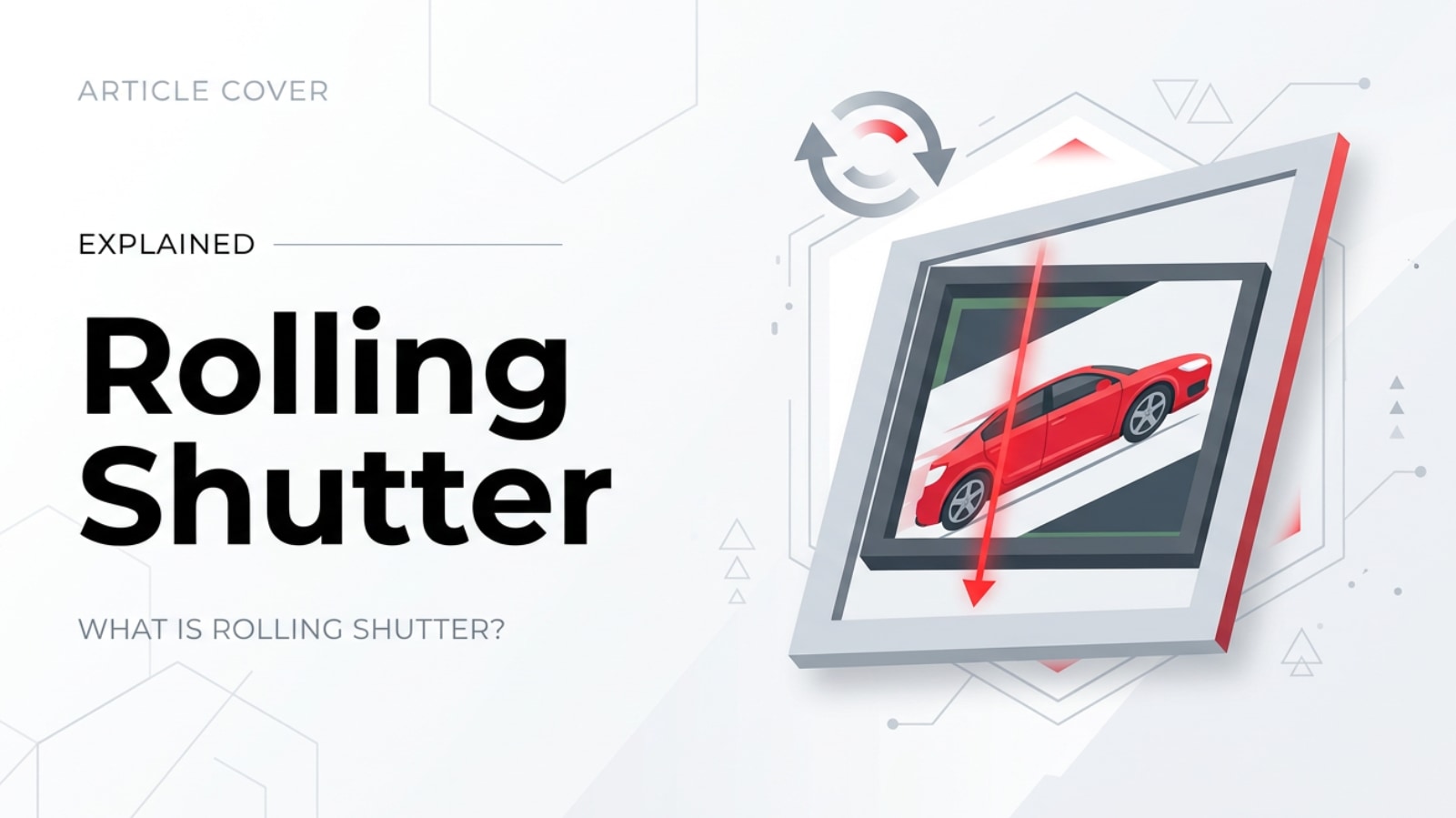
If you have ever filmed a fast-moving subject with a phone, mirrorless camera, or action cam and noticed wobbling or leaning buildings in the footage, you have already met rolling shutter. This sensor behavior affects how photos, videos, livestreams, and even exported clips look on different platforms. Knowing what it is and how to control it helps you capture cleaner, more professional-looking results in real-world shoots.
Repair Corrupted Files To Save Your Data
 Security Verified. Over 7,302,189 people have downloaded it.
In this article
What Is Rolling Shutter?
Rolling shutter is a way a digital camera sensor reads and records an image, line by line, instead of capturing the entire frame at exactly the same moment. It is closely associated with modern CMOS sensor designs used in most phones, mirrorless cameras, DSLRs, drones, and action cameras.
In photography and videography, rolling shutter is a capture or readout concept. During each frame, the sensor scans from top to bottom (or side to side) over a short period of time. This is different from a global shutter, which exposes and reads the whole frame simultaneously. Rolling shutter plays a direct role in how motion, pans, and vibrations appear in your images and footage.
Because different parts of the frame are recorded at slightly different times, fast-moving subjects, quick camera moves, or heavy vibrations can create visible distortions. This behavior shows up in still photos, continuous video recording, live streaming, encoded clips, and even in the way different platforms display your footage.
How Does Rolling Shutter Affect Your Image or Footage?
Typical rolling shutter artifacts
The most noticeable impact of the rolling shutter effect is distortion in motion. Instead of clean, straight lines and solid shapes, you may see:
- Skewed vertical lines – Buildings, poles, or door frames tilt or lean when you pan quickly across them.
- Jello or wobble effect – The entire frame looks rubbery or wavy during handheld shots, especially with long lenses or on shaky mounts.
- Partial exposure – When a very fast object (like a propeller or car) moves across the scene, different parts may appear misaligned, stretched, or chopped.
- Weird shapes on fast-spinning objects – Helicopter blades or fan blades may look bent, curved, or frozen in unnatural positions.
These distortions do not usually change brightness or color directly, but they strongly affect perceived sharpness, stability, and realism in moving scenes. In still photos taken with electronic shutters, rolling shutter can bend moving subjects, giving them a slanted or stretched look.
Impact on recording, editing, and playback
Rolling shutter behavior influences the entire imaging workflow, from capture to final playback:
- Recording – During capture, sensor readout speed, frame rate, resolution, and shutter speed all affect how strong the video distortion appears. Higher-resolution modes or slow sensors often show more severe wobble and skew.
- Encoding and exporting – Compression does not create rolling shutter, but it can make artifacts more obvious, especially when you transcode or export to lower bitrates for social media or streaming.
- Stabilization – In-camera or software stabilization can sometimes stretch or warp edges more when heavy rolling shutter is present, because the algorithms are trying to correct motion on already distorted frames.
- Editing and plugins – Some NLEs and plugins offer tools to "fix rolling shutter" by warping or re-timing parts of the frame. They can reduce skew and jello, but strong artifacts are difficult to remove completely.
- Streaming and playback – On phones, TVs, or web players, rolling shutter distortion can be amplified by additional post-processing (like motion smoothing) or by resampling when platforms convert your upload to different frame rates.
Overall, rolling shutter mainly affects motion rendering and geometric accuracy, changing how natural or stable your footage looks across devices and platforms.
How Does Rolling Shutter Work in Real Shooting?
In practical shooting, rolling shutter shows up anytime your subject or camera moves during the sensor’s readout time. Because the sensor scans line by line, the top of the frame is captured slightly earlier than the bottom. If something moves in between, the recorded shape no longer matches reality.
You will encounter it in many everyday setups:
- Smartphones and mirrorless cameras – Most photo and video modes rely on a CMOS sensor with rolling shutter. Settings like 4K60, 8K, or high-speed slow motion often push the sensor harder, sometimes increasing artifacts.
- Electronic shutter (silent shooting) – When using electronic shutter instead of mechanical shutter for stills, fast action (sports, birds, cars) may appear stretched or tilted because the sensor is read out over time.
- Drones and gimbals – Vibration from motors and wind, combined with rolling shutter, can create noticeable jello effect in drone footage if stabilization or mounting is not solid.
- Live streaming and webcams – Many streaming cameras use rolling shutter sensors. Quick head movements, shaky tripod setups, or rapid panning in a game stream can produce wobble that viewers notice in real time.
You generally do not see a menu item named "rolling shutter" on your camera, but its influence is tied to options like:
- Resolution and frame rate choices (for example, 4K30 vs 1080p60).
- Electronic shutter vs mechanical shutter for stills.
- High-speed readout or "fast scan" modes in some cinema cameras.
- Image stabilization settings that may interact with rolling shutter artifacts.
During editing, you may use tools labeled "rolling shutter correction" or "skew correction" to reduce some of these effects before exporting and sharing your final video.
Best Uses, Common Mistakes, and Quick Tips
Rolling shutter is not always a problem; it is simply how most modern sensors work. It matters most when you are:
- Shooting fast motion (sports, racing, wildlife, dance).
- Panning quickly across detailed scenes (cityscapes, forests, stadiums).
- Using long focal lengths where small shakes are magnified.
- Mounting cameras on vehicles, drones, or unstable rigs.
Common mistakes and misunderstandings include:
- Confusing rolling shutter with motion blur – Blur comes from long exposure time, while rolling shutter distortion comes from sensor readout over time.
- Assuming stabilization will always fix wobble – Excessive rolling shutter can actually confuse stabilization tools and create worse warping at the edges.
- Ignoring shutter speed – Very slow shutter speeds make jello and skew more obvious because subjects move more during the exposure.
- Blaming only the lens – Rolling shutter is a sensor readout issue, not a lens defect.
Quick tips to manage rolling shutter:
- Use a faster shutter speed when filming quick movement.
- Avoid sudden whip-pans; move the camera more smoothly.
- Stabilize your rig with tripods, gimbals, or solid mounts to reduce vibration.
- Choose modes with faster readout if available, or consider cameras with global shutter for critical high-speed work.
- Apply rolling shutter correction tools gently during editing instead of relying on them as a full cure.
The key takeaway: understand when rolling shutter will be visible and plan your camera settings and movement so the effect stays subtle instead of distracting.
How to Use Repairit to Fix a Corrupted Photo File
Repairit introduction
Even when you manage the rolling shutter effect carefully, files themselves can become damaged during shooting, transfer, or storage. To rescue important images and footage, you can use Wondershare Repairit, a dedicated media repair solution for photos, videos, and audio. It guides you through a simple workflow to restore corrupted files without deep technical knowledge. You can learn more and download the latest version on the Repairit official website.
Key features
- Corrupted video repair and photo repair for multiple formats damaged by transfer errors, card issues, or unexpected power loss.
- Batch processing to fix many corrupted media files at once, saving time after large shoots.
- Built-in preview so you can check repaired results before exporting and archiving them safely.
Step-by-step: repair corrupted photo files
- Add corrupted photo files
Install and launch Repairit, then choose the Photo Repair module on the main screen. Click the add button to open your file browser and navigate to the folder where your problematic images are stored. Select one or multiple corrupted photos from memory cards, SSDs, or local drives and confirm to import them into the repair queue.

- Repair photo files
After your files are listed in the interface, start the repair process with a single click. Repairit automatically scans each image, analyzes the damaged structure, and attempts to rebuild missing or broken data. When the process finishes, you can click on individual thumbnails to open a larger preview window and verify that key details, colors, and framing look correct.

- Save the repaired photo files
Once you are satisfied with the preview results, select the photos you want to keep and click the save button. Choose a secure output location that is different from the original damaged source, such as a new folder on your computer or backup drive. Repairit then exports the repaired images to that destination, ready for further editing, export, or sharing without corruption issues.

Conclusion
Rolling shutter is a fundamental behavior of most digital camera sensors, shaping how motion, pans, and vibrations appear in your photos and videos. By understanding how line-by-line readout works and how it interacts with shutter speed, stabilization, and editing, you can reduce skew, wobble, and other distortions in real shoots and final exports.
When your challenges go beyond visual artifacts and files themselves become corrupted or unplayable, tools like Wondershare Repairit help you recover valuable images and clips. Combining smart shooting practices with reliable repair software keeps your media usable, shareable, and ready for any platform.
Next: Global Shutter
FAQ
-
1. What is rolling shutter in simple terms?
Rolling shutter is a way a camera sensor captures an image line by line instead of recording the entire frame at once. Because different rows are exposed at slightly different times, fast movement can make straight objects look bent, leaning, or wobbly in photos and videos. -
2. Why does rolling shutter cause the jello or wobble effect?
The sensor scans from top to bottom over a short period. If the camera shakes or the subject moves quickly during that scan, each part of the frame is captured in a slightly different position. When combined into a single image, these differences look like rubbery, jello-like wobble. -
3. How can I reduce rolling shutter distortion when filming?
Use a faster shutter speed, stabilize your camera with a tripod or gimbal, and avoid sudden whip-pans. If your camera offers modes with faster readout or a global shutter option, choose those for high-speed action. Gentle moves and solid mounting greatly reduce visible skew and wobble. -
4. Is rolling shutter worse on some cameras than others?
Yes. Cameras with slower sensor readout, often older or budget models, typically show stronger rolling shutter artifacts, especially at high resolutions like 4K or 8K. More advanced or cinema-oriented cameras generally have faster readout and better control of the rolling shutter effect. -
5. Can software completely fix rolling shutter problems?
Editing software and plugins can reduce skew and jello by warping or re-timing parts of the image, but they cannot always remove severe distortion, especially with extreme motion or vibrations. The best approach is to minimize rolling shutter at capture and use correction tools only as a final polish.




