
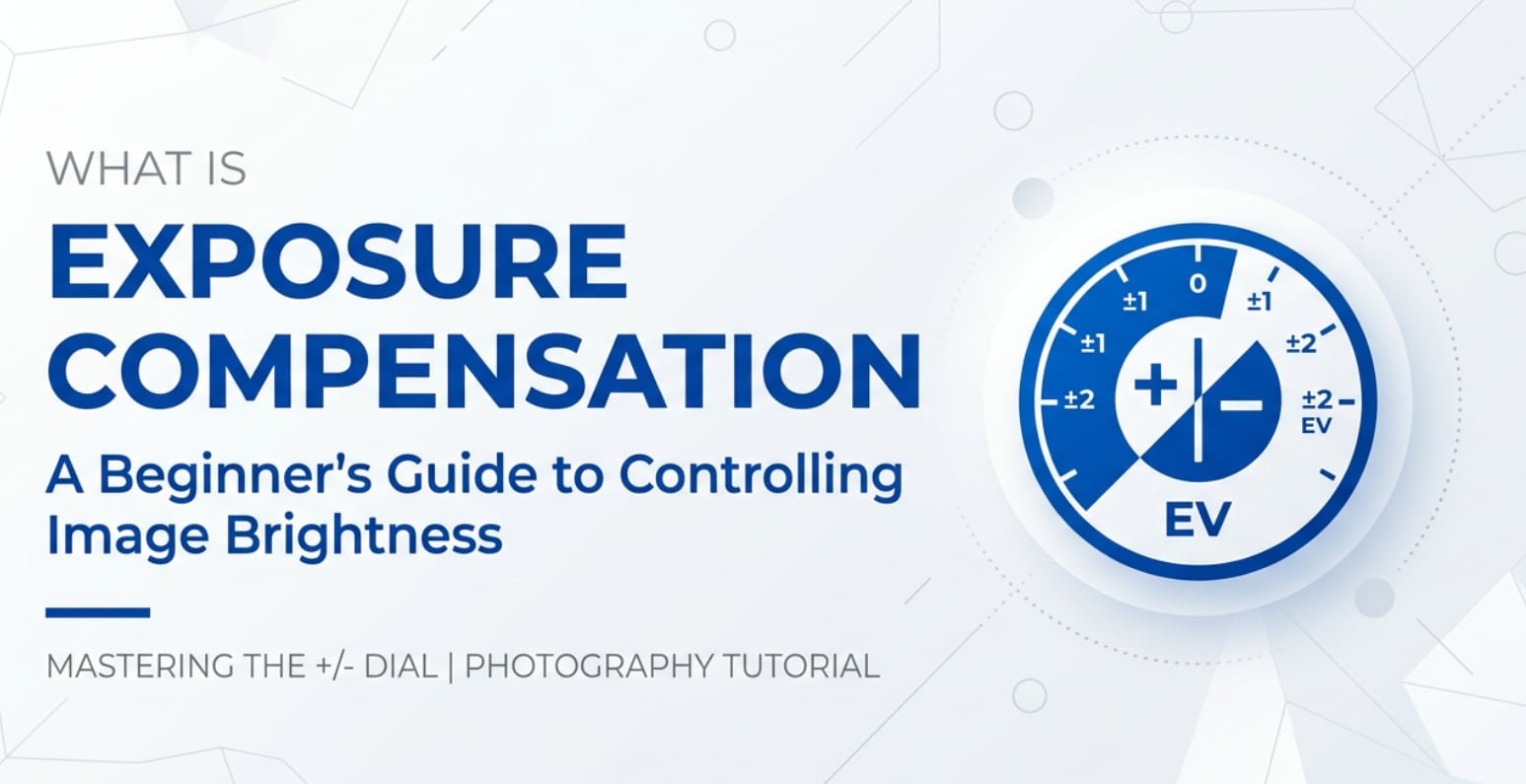
Exposure compensation is a control you will see on almost every modern camera, from smartphone apps to mirrorless and cinema bodies. You will also encounter it when adjusting photo brightness after shooting, checking video exposure while streaming, or exporting clips for YouTube, TikTok, or client delivery. Understanding this setting helps you quickly brighten or darken your shots so faces, details, and colors look natural on any screen or platform.
Repair Corrupted Files To Save Your Data
 Security Verified. Over 7,302,189 people have downloaded it.
In this article
What Is Exposure Compensation?
Exposure compensation (often shown as EV compensation or an exposure value scale like -3...0...+3) is a camera control that lets you tell the meter, "make this scene brighter or darker than you think it should be." It is a core camera exposure setting used in still photography, video recording, and even some live streaming apps.
Instead of fully switching to manual mode, you stay in auto, aperture priority, shutter priority, or program mode. Then you dial a plus value to brighten image output or a minus value to darken image output. The camera automatically adjusts shutter speed, ISO, or both to follow your instruction while you keep shooting.
How Does Exposure Compensation Affect Your Image or Footage?
Brightness and highlight detail
The main impact of exposure compensation is overall brightness. Positive compensation (+EV) makes photos and videos brighter, pulling more detail from shadows and making skin tones more visible in backlit scenes. Negative compensation (-EV) does the opposite, darkening frames to protect bright skies, stage lights, or white clothing from blowing out.
Because exposure is tightly linked to motion blur and depth of field, your choice of mode matters. In aperture priority, the camera usually changes shutter speed when you adjust EV compensation, which can add or reduce motion blur. In shutter priority, it often shifts aperture or ISO, affecting depth of field or noise. For video, many cameras primarily change ISO when exposure compensation is enabled during recording.
Noise, color, and consistency across devices
Brightening with camera settings may push ISO higher, which can increase noise, especially in dim interiors or night scenes. Darkening the image with negative compensation generally reduces noise but can crush shadow detail if pushed too far. Both directions influence how colors render after encoding and exporting, especially when your footage is compressed for social platforms.
When your base exposure is well balanced using exposure compensation, your files often grade more cleanly in editing apps and survive video compression better. Highlights hold, shadows remain usable, and the final playback looks more natural on mobile screens, TVs, and web players without needing aggressive correction in post.
How Does Exposure Compensation Work in Real Shooting?
In real-world shooting, you encounter exposure compensation as a dedicated button marked "+/-", a dial, a touchscreen slider, or a simple brightness control in mobile camera apps. On many cameras, you can see a scale in the viewfinder or on-screen, which moves left or right as you set negative or positive values.
Imagine filming an interview indoors near a bright window. Auto exposure may darken the subject to avoid overexposing the window. Dialing in +0.7 or +1.0 EV brightens the subject's face, making the clip easier to grade later. In a snowy landscape, the camera often underexposes because it tries to turn bright snow into mid-gray. Adding positive exposure compensation restores the correct, bright look without manually juggling shutter speed, aperture, and ISO.
For live streaming or webcam use, software often provides a basic exposure or brightness slider based on similar logic. You are still effectively telling the system to shift its chosen meter reading so your subject does not look too dark or washed out under mixed lighting or low-quality room lights.
Best Uses, Common Mistakes, and Quick Tips
Exposure compensation matters any time the camera's meter is easily fooled: backlit portraits, concerts, stage shows, sunrise and sunset, night cityscapes, snow, beaches, and scenes with large bright or dark areas. Videographers use it to maintain consistent skin tones when moving between lighting zones, and photographers rely on it when shooting events quickly without time for full manual adjustments.
Common mistakes include forgetting to reset compensation back to 0 EV, which can leave a whole set of clips unexpectedly too bright or dark; pushing compensation so far that highlights clip irreversibly; or assuming it works in full manual mode, where the camera no longer adjusts anything for you.
Practical tips:
- Use small steps like +/-0.3 or +/-0.7 EV and review your results on the screen or histogram.
- Watch for blinking highlight warnings to avoid blown-out areas in critical parts of the frame.
- Lock exposure or use manual mode once you have dialed in a look you like and need consistency for editing and stitching clips.
- For fast-paced video, test how your camera balances shutter speed and ISO with exposure compensation so you know when noise or motion blur might appear.
The key takeaway: use EV compensation as a quick, precise way to guide the camera's meter rather than fighting it, especially when you need speed and consistency across many shots or clips.
How to Use Repairit to Fix a Corrupted Photo File
Repairit introduction
If an important photo from a carefully exposed shoot becomes unreadable, distorted, or refuses to open, specialized repair software can often save it. Wondershare Repairit is designed exactly for this kind of situation, helping you diagnose and fix corrupted visual files through a friendly interface. You can explore all functions, download installers, and check supported formats from the Repairit official website.
Key features
- Repairs corrupted, distorted, or unplayable photo files created by many camera brands and devices.
- Offers a quick automated repair mode plus an advanced, sample-based option for more severely damaged images.
- Lets you preview repaired photos so you can verify quality before saving them back to safe storage.
Step-by-step guide
- Add corrupted photo files

Start by opening Wondershare Repairit and switching to the Photo Repair module. Click the button to add files, then browse to the folder where your problematic images are stored. Select one or more corrupted photos that fail to open or display artifacts, and confirm to load them into the list for repair.
- Repair photo files

Once the photos appear in the panel with their basic details, click the Repair button to launch an automatic scan. Repairit analyzes each file structure, locates common corruption issues, and attempts to reconstruct the image data. When the process completes, use the built-in preview to inspect the repaired versions and ensure important areas such as faces or textures look correct.
- Save the repaired photo files

If the previews look good, choose a safe output folder that is different from the original storage location to avoid overwriting damaged data. Click Save to export all repaired files. After the progress bar finishes, open a few images in your usual viewer or editor to confirm they work properly and are ready for editing, sharing, or archiving.
Conclusion
Exposure compensation gives you fast, intuitive control over brightness while staying in auto or semi-auto modes. By nudging the meter with positive or negative values, you can protect highlights, reveal shadow detail, and get more consistent, natural-looking photos and videos, whether you are shooting stills, recording for social media, or capturing client projects.
Practice in challenging lighting situations, review results on your camera and editing software, and learn how your device balances shutter speed, aperture, and ISO when you adjust EV compensation. If technical glitches, card issues, or system errors ever corrupt your carefully exposed photos, Wondershare Repairit can help you restore damaged files and keep your work usable.
Next: T-Stop
FAQ
-
1. What does exposure compensation actually change?
Exposure compensation tells the camera to shift its chosen exposure brighter or darker. In aperture or shutter priority, it usually adjusts shutter speed, ISO, or both, while keeping your chosen aperture or shutter speed fixed, so the overall image or video becomes lighter or darker.
-
2. When should I use positive exposure compensation?
Use positive EV compensation when your images look too dark: snowy scenes, bright beaches, backlit portraits, or subjects in front of windows. A small boost like +0.3 to +1.0 EV often restores natural skin tones and visible detail.
-
3. When should I use negative exposure compensation?
Dial in negative exposure compensation when your photos or videos look washed out or highlights are close to clipping: bright skies, stage performances, reflective metal, or white clothing under strong light. Values like -0.3 to -1.0 EV can protect highlight detail.
-
4. Is exposure compensation the same as changing ISO?
No. Exposure compensation is an instruction to the camera's metering system, not a direct ISO change. Depending on the mode and settings, the camera may respond by changing ISO, shutter speed, aperture, or a combination to achieve the brighter or darker result you requested.
-
5. Can I use exposure compensation in manual mode?
On most cameras, exposure compensation only works in auto or semi-auto modes. In full manual mode you control aperture, shutter speed, and ISO directly, so the camera does not automatically adjust exposure when you change EV compensation.




