Black Screen in YouTube Videos Fix
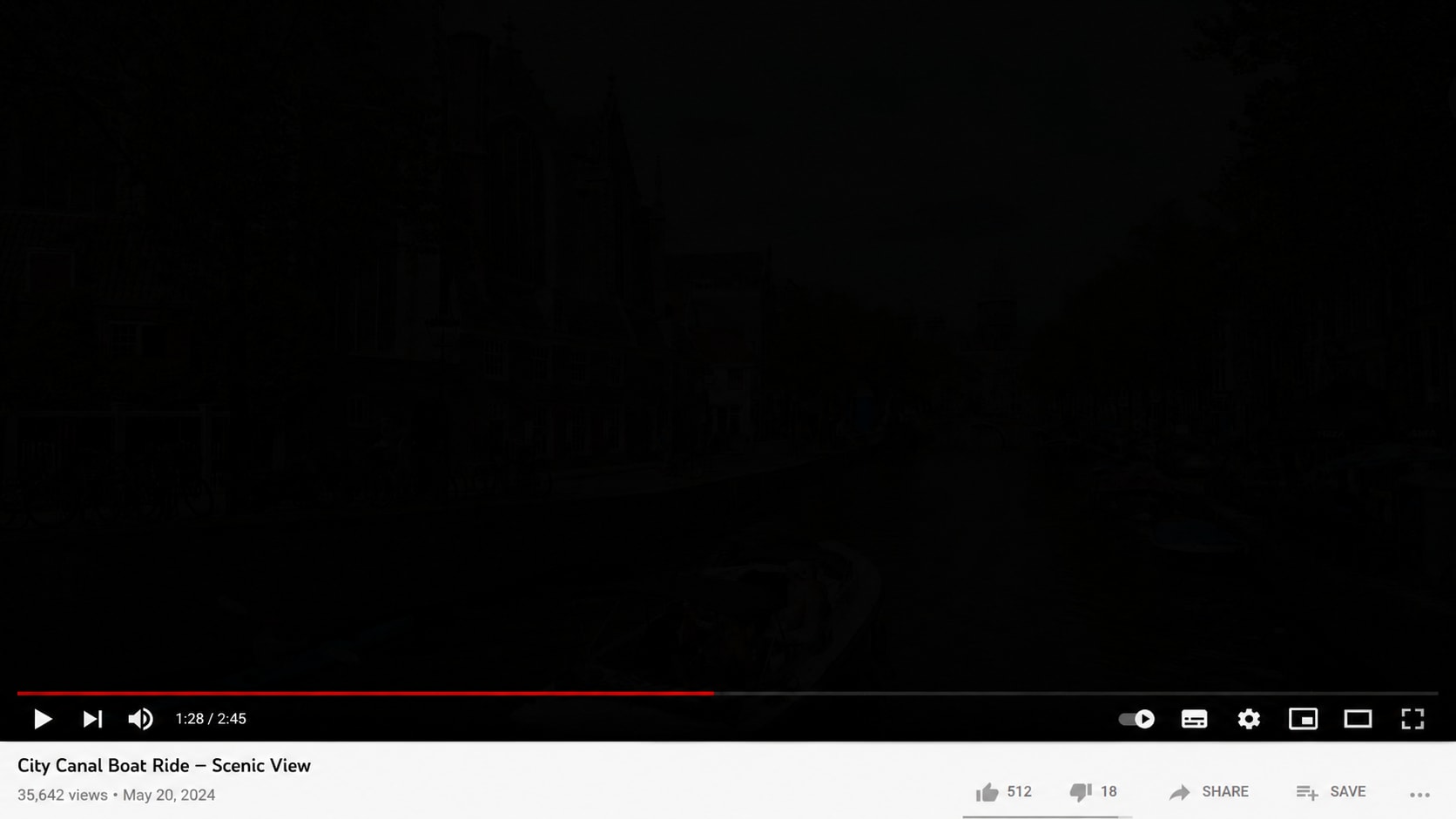





Fix Black Screen YouTube Uploads Before Reuploading
A YouTube upload can show a black screen if the source file was already damaged, encoded incorrectly, exported incompletely, or corrupted during transfer. The title, file size, and audio may look normal, but the visual track may fail.
Repairit helps fix black screen for YouTube videos by repairing the local video file before you upload it again.
Repair YouTube Shorts and Social Clips That Export Black
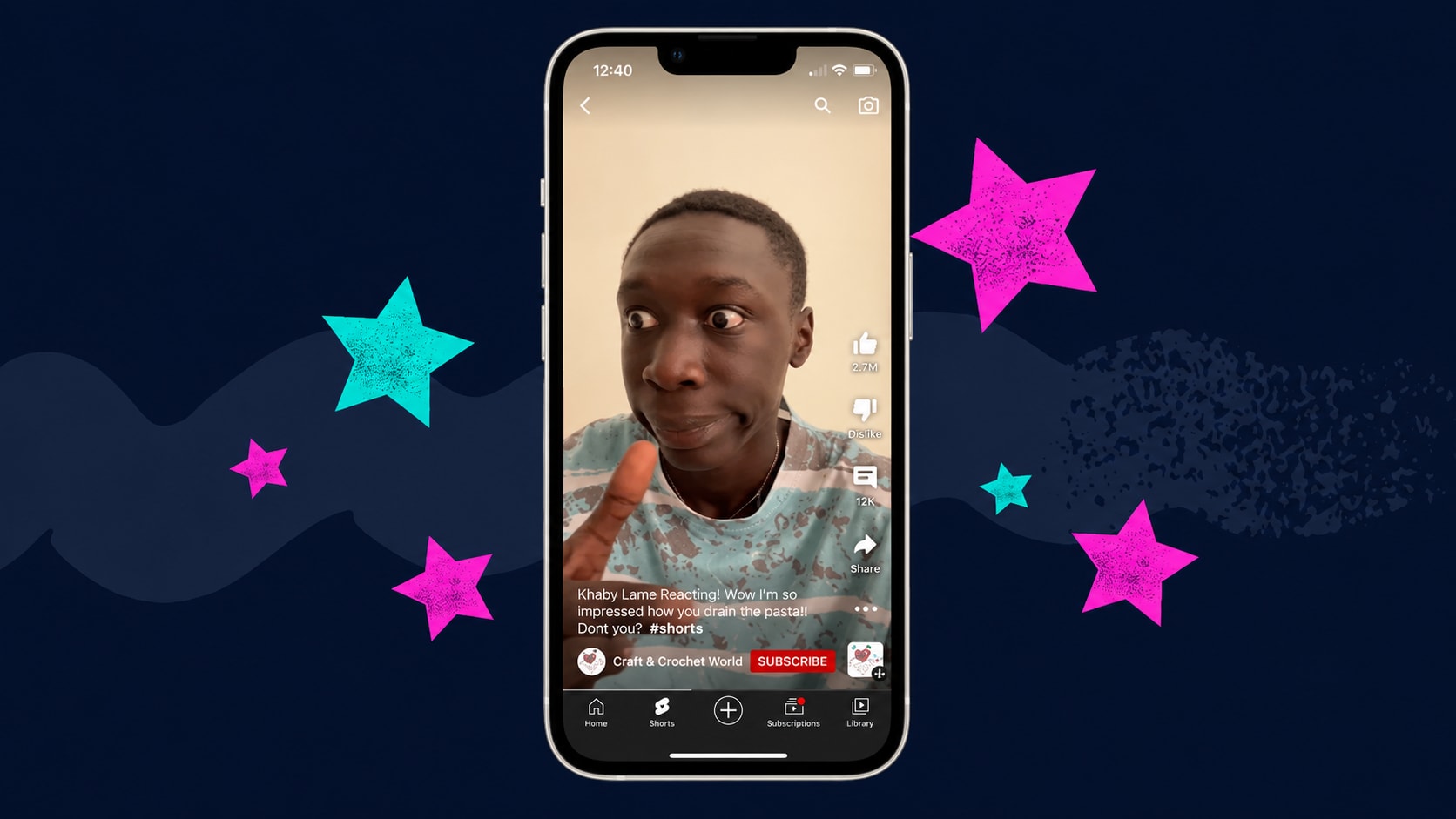
Short videos often go through several apps before upload. A clip may be edited on a phone, exported from a short video app, saved from a draft, transferred to a computer, then uploaded to YouTube Shorts. Any failed export or encoding problem can leave the final file black.
Repairit can help repair YouTube video black problems when the saved short video file is blank, damaged, or visually corrupted.
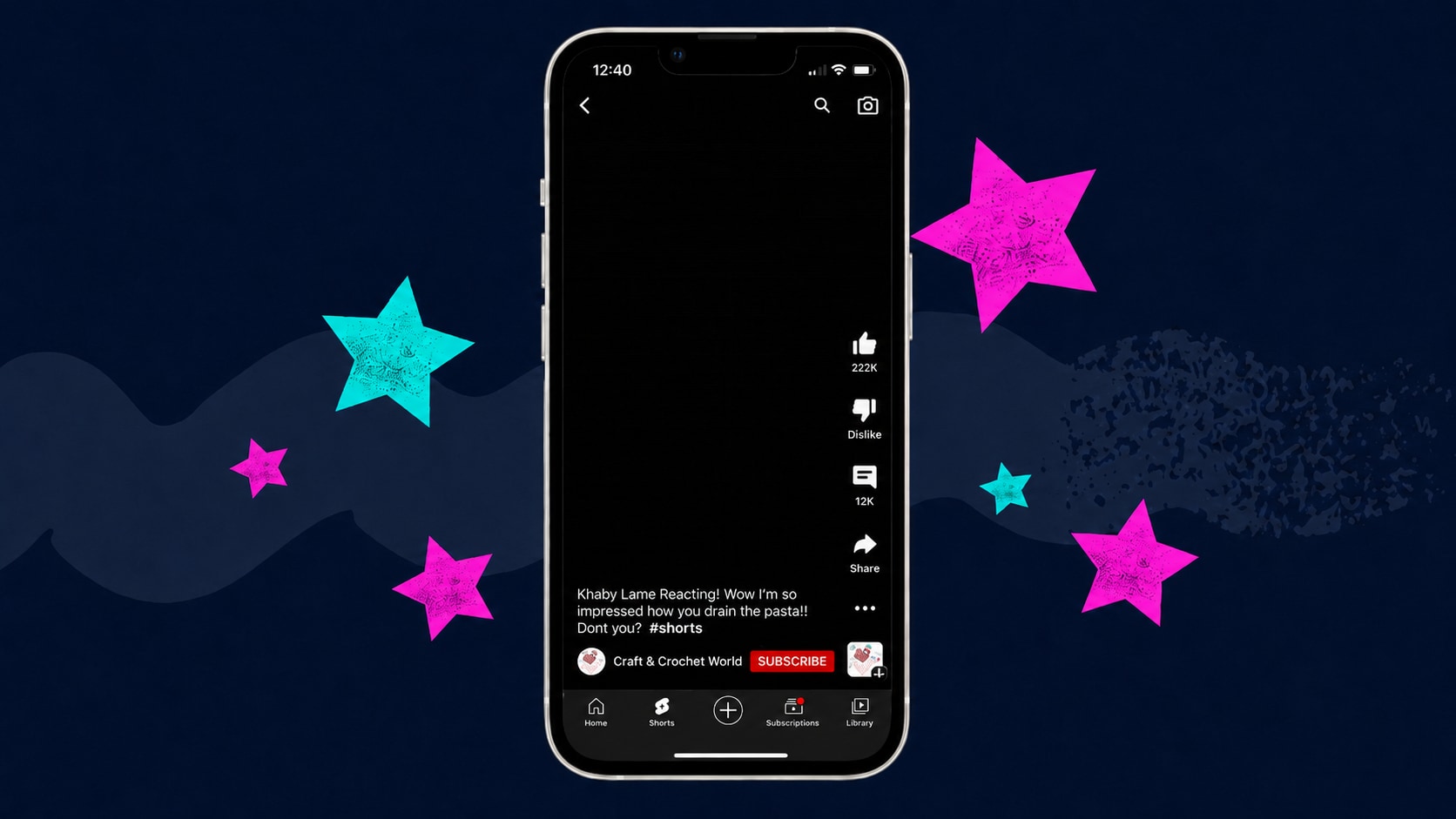
Fix YouTube Tutorial Videos That Export as a Black Screen
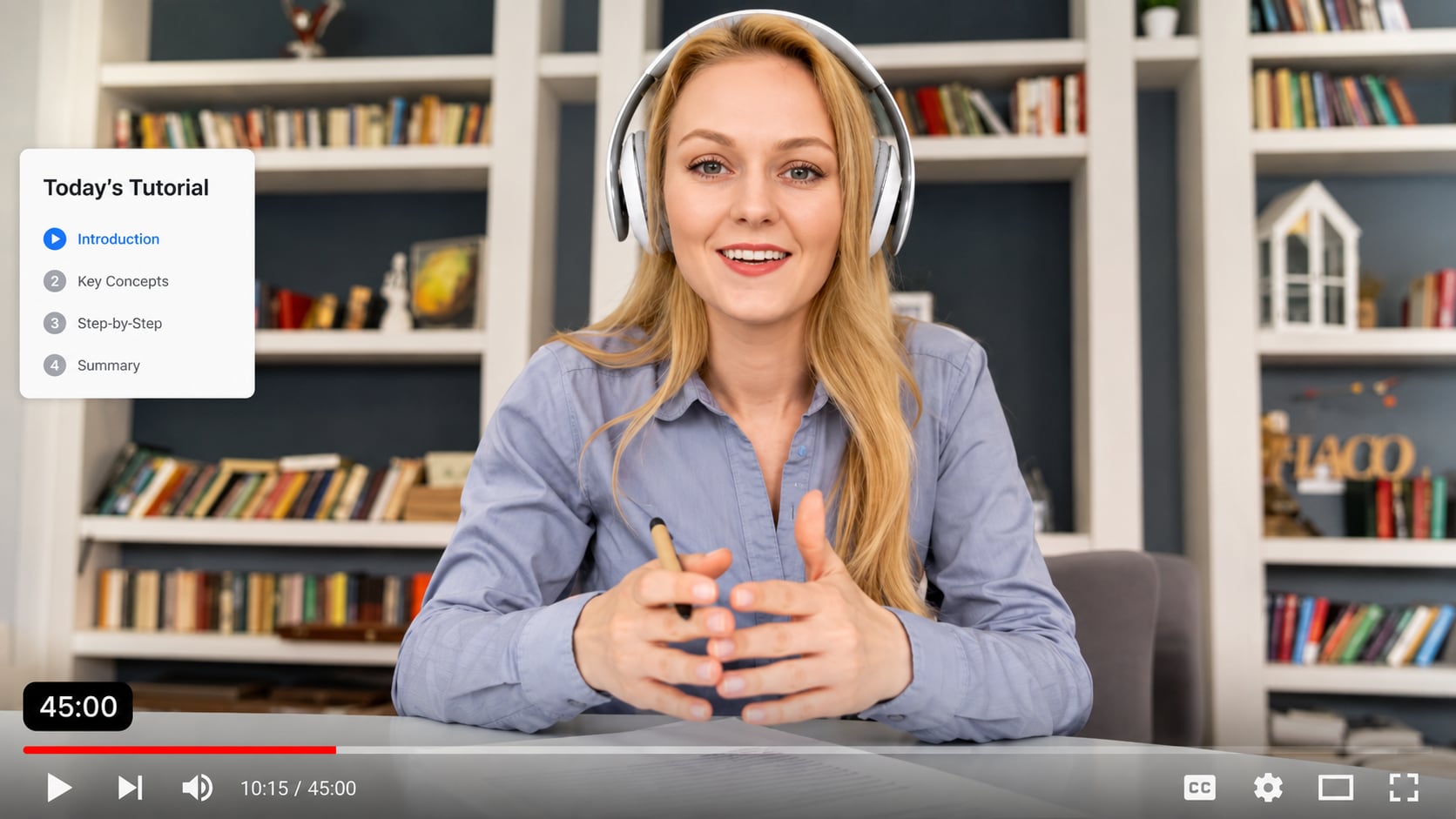
Tutorial videos often include screen capture, webcam overlays, cursor movements, text callouts, and edited voiceover tracks. After editing or exporting, the audio may still play, but the visual tutorial turns into a black screen. For creators, this is especially painful because the video may explain steps that are hard to record again.
Repairit can help repair black screen YouTube tutorial files when the exported MP4, screen capture clip, or edited tutorial video becomes blank because of rendering failure, damaged visual data, or encoding problems.
Repair YouTube Videos After Editing or Rendering Failure
A video may look fine inside the editor but become a black screen after export. This can happen because of rendering failure, codec mismatch, editing software crash, transcoding failure, or metadata loss.
Repairit helps repair black screen files before you upload them to YouTube again, so you do not have to rebuild the project from scratch.
How to Fix Black Screen in YouTube Videos with Repairit

Step 1
Add Your Black Screen Video
Open Repairit Video Repair and add the YouTube video file that shows a black screen, blank screen, or audio only playback.

Step 2
Start Video Repair
Click Repair and let Repairit analyze the damaged video data, frames, visual stream, codec information, and metadata.

Step 3
Preview and Save the Repaired Video
Preview the repaired file to check whether the picture returns. Save the playable version, then upload it to YouTube again if the result looks correct.
Why Choose Repairit for YouTube Black Screen Video Repair?
✨ Built for Black Screen Video Files
Repairit is useful when the YouTube related video file opens but shows a black or blank screen, especially when audio continues or the timeline still moves.
📷 Supports YouTube Friendly Video Formats
Repairit supports mainstream and pro grade formats such as MP4, MOV, AVI, MTS, MKV, FLV, M4V, WMV, RSV, and many others, which makes it suitable for common YouTube upload and editing workflows.
⚡ Works for Recording, Transfer, and Export Damage
Repairit can help when black screen problems come from recording interruption, power failure, storage failure, file transfer interruption, editing software crash, rendering failure, encoding issues, or metadata loss.
❤️ Preview Before You Reupload
You can preview repaired clips before saving, so you can check whether the black screen problem is fixed before uploading the video to YouTube again.
Explore More Video Repair Features
Fix common video playback issues, black screen errors, buffering problems, lag, flicker, and damaged video files with easy repair solutions.
Frequently Asked Questions
It depends on the situation. If every YouTube video shows black, the issue may be browser, app, device, network, or playback related. If only your own uploaded or exported video is black, the source file may be corrupted or encoded incorrectly.
Yes, if the problem comes from the video file itself. Repairit Video Repair can help repair black screen videos caused by missing visual data, decoding failure, damaged frames, export errors, transfer issues, or file corruption.
It usually means the audio track can still be read, but the visual track is damaged, missing, or cannot be decoded. This often happens when the file has missing visual data, damaged frames, or a decoding problem.
Only if the saved video file you want to upload or play is damaged. If the YouTube Android app shows black screen for many videos, try app and device troubleshooting first.
Only if your actual video file is damaged. If YouTube on TV shows black screen across multiple videos, check the TV app, device firmware, network, HDMI, or playback settings first.
Yes. If your YouTube Shorts file exports or plays as a black screen because of corruption, failed mobile export, or damaged MP4 data, Repairit can help repair the saved video file before upload.
No. YouTube showing black screen can be caused by browser, app, device, network, or hardware acceleration issues. A corrupted video file is more likely when one specific video file stays black across different players or devices.
Not always. Repair works best when the file still contains usable visual data. If the visual stream is completely missing, no tool can perfectly recreate the original footage.
Hot Topics
Comprehensive How-to Guides
Want to repair your videos? Click to enter the Video Repair Workbench and make it useful in just a few clicks!