Grainy Video Fix Online
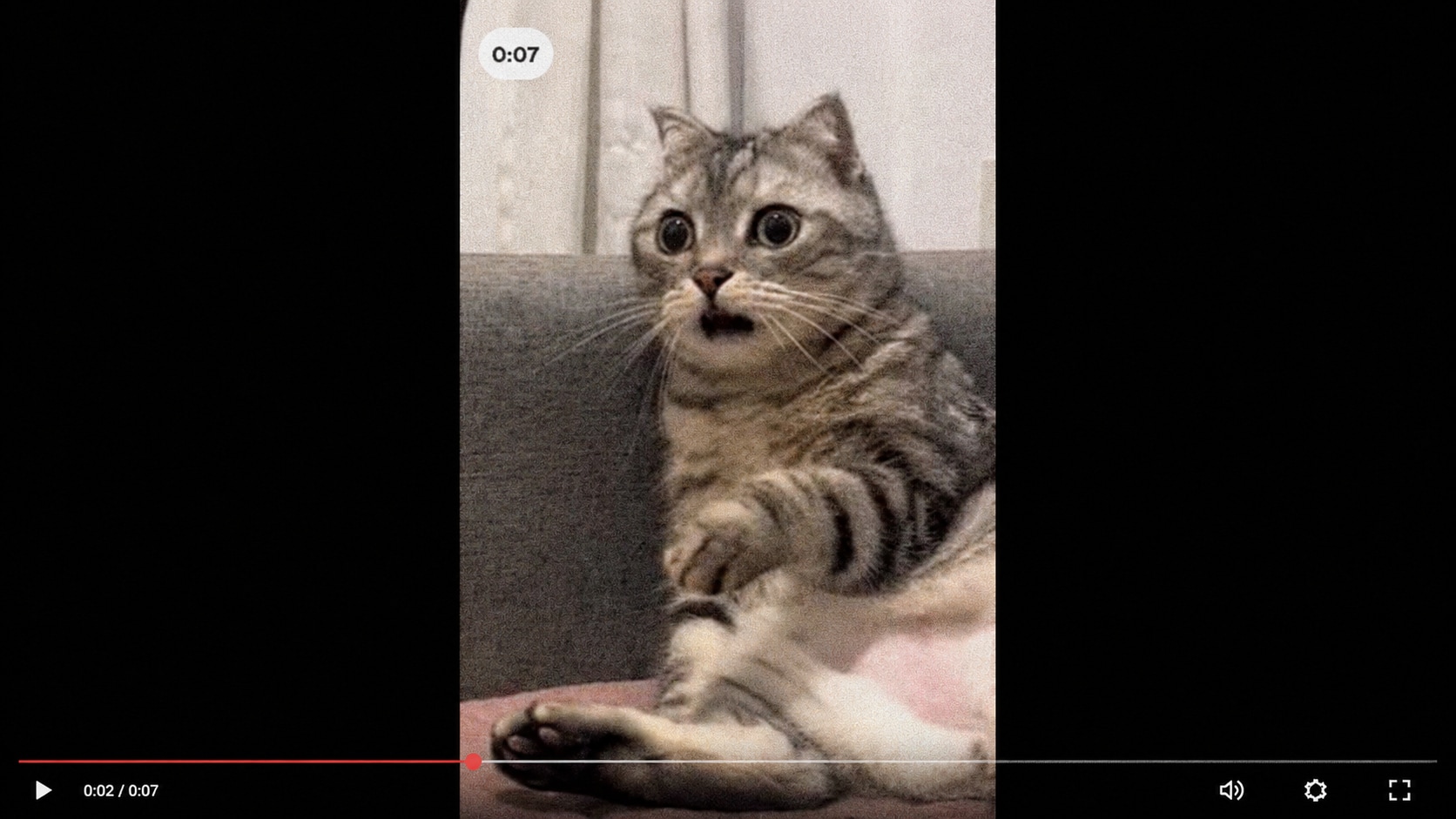
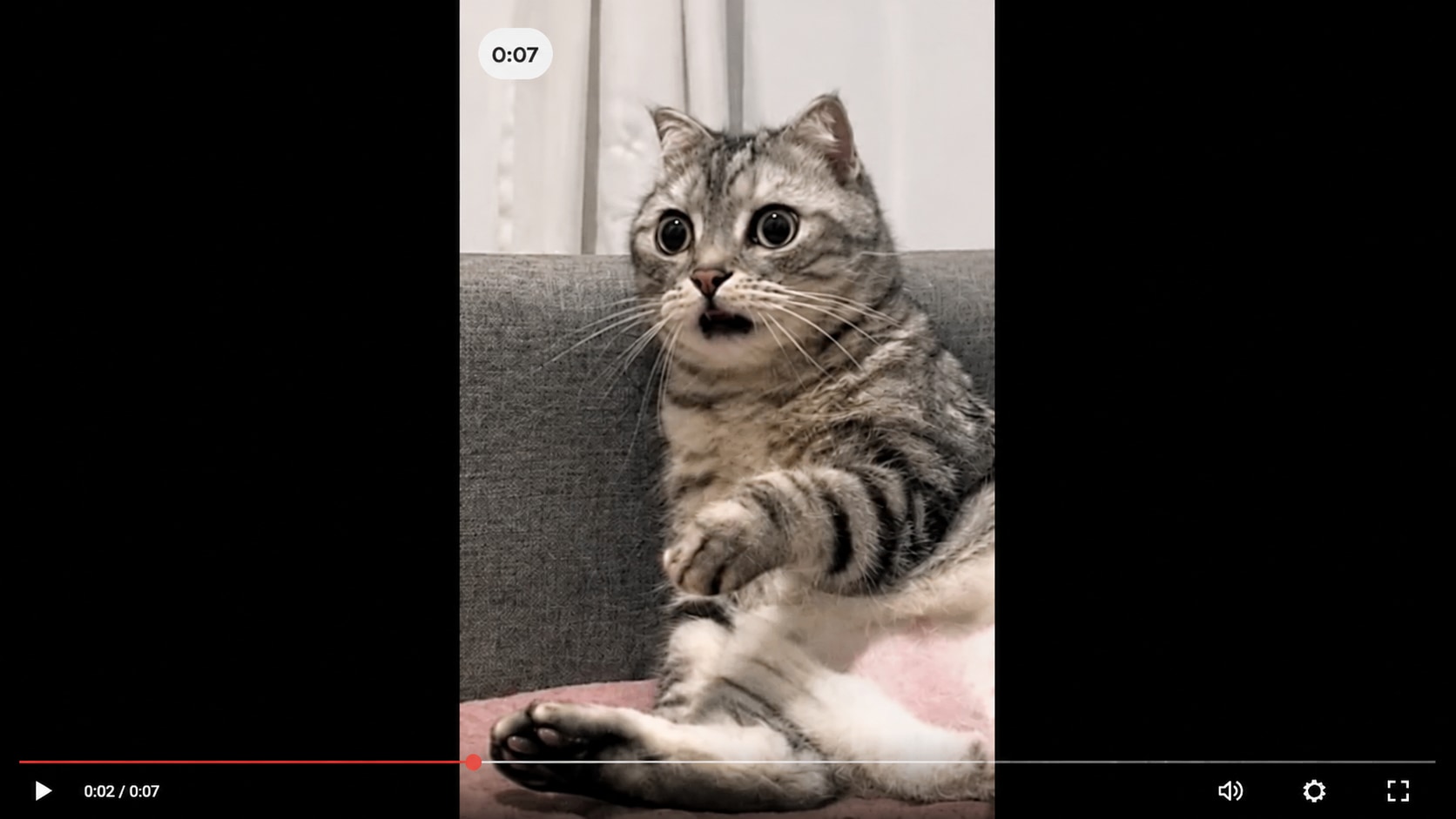




Fix Grainy Videos After Low Light Recording
Low light videos often look rough because cameras raise ISO, compress shadow areas, or fail to capture enough clean detail. The result may show dancing noise, muddy shadows, and grain across faces or backgrounds.
Repairit can help repair grainy video files when low light footage also suffers from damaged frames, compression artifacts, or playback instability.


Repair Pixelated Videos After Compression or Upload
A video may become grainy or pixelated after being compressed, shared through chat, uploaded to a platform, downloaded again, or saved from a preview. Instead of fine detail, the image may show blocks, broken texture, or rough edges.
Repairit helps users who search for fix pixelated video or depixelate video when the file itself has visual damage from compression or transfer.


Unpixelate Videos Damaged After Transfer or Recovery
Videos can become grainy, pixelated, or visually broken after being moved from an SD card, USB drive, phone, external drive, or recovered storage. If the file looked fine before but now shows blocks, noise, or strange pixels, the transfer or recovery process may have damaged the video data.
Repairit can help when users want to unpixelate video files that became visually degraded after storage or transfer problems.


Fix Grainy or Pixelated Videos After Editing and Export
A video can look acceptable in an editor but become grainy, blocky, or pixelated after export. This can happen because of wrong bitrate, codec issues, rendering failure, repeated compression, or corrupted output metadata.
Repairit helps repair exported files when users search for how to unpixelate a video after editing, rendering, or converting.


How to Fix Grainy Video with Repairit

Step 1
Add Your Grainy Video
Open Repairit Video Repair and add the video file that looks grainy, noisy, pixelated, blocky, or visually damaged.

Step 2
Start Video Repair
Click Repair and let Repairit analyze the video frames, file structure, codec information, metadata, and possible corruption.

Step 3
Preview and Save the Repaired Video
Preview the repaired result to check whether the video looks cleaner and plays more smoothly. Save the repaired version when the result looks usable.
Why Choose Repairit for Grainy Video Repair?
✨ Built for Damaged Visual Quality Issues
Repairit is useful when a video file plays but looks grainy, pixelated, blocky, noisy, or visually damaged because of file corruption, compression errors, or broken frames.
📷 Supports Common Video Formats
Repairit supports common video formats used in everyday and professional workflows, including MP4, MOV, AVI, MTS, MKV, FLV, M4V, WMV, RSV, and more.
⚡ Works for Transfer, Recovery, and Export Damage
Repairit can help when grainy or pixelated playback appears after file transfer, storage failure, recording interruption, video recovery, editing export, transcoding, or compression problems.
❤️ Preview Before Saving
You can preview repaired videos before saving, so you can check whether the grain, pixelation, or visual damage has improved before exporting the final file.
Explore More Video Repair Features
Fix grainy videos, flickering footage, black screen, buffering, freezing, lag, playback errors, and damaged video files with practical repair solutions.
Frequently Asked Questions
A grainy video looks rough, noisy, or full of visible texture, especially in shadows or low light areas. It may also look low quality after compression, transfer, or export.
Common causes include low light recording, high ISO, heavy compression, poor export settings, repeated uploads, transfer errors, damaged frames, or corrupted video data.
Yes, if the grainy look is related to video damage, corrupted frames, compression errors, failed exports, metadata issues, or transfer problems. Results depend on the quality and condition of the original file.
Upload the pixelated or damaged video to Repairit Video Repair, start the repair process, preview the result, and save the repaired version when the video looks better.
Not exactly. Grainy video looks noisy or rough, while pixelated video shows visible blocks or square artifacts. Some damaged videos can have both grain and pixelation.
It depends on the source. Repairit can help repair pixelated or damaged videos where usable data remains, but if the file is extremely low resolution or heavily compressed, full restoration may be limited.
Export pixelation may happen because of low bitrate, repeated compression, codec mismatch, failed rendering, damaged metadata, or corrupted output data.
Not always. Repair works best when the file still contains usable video data. If the video was recorded with very little detail or heavily compressed, the improvement may be limited.
Hot Topics
Comprehensive How-to Guides
Want to repair your videos? Click to enter the Video Repair Workbench and make it usable in just a few clicks!