
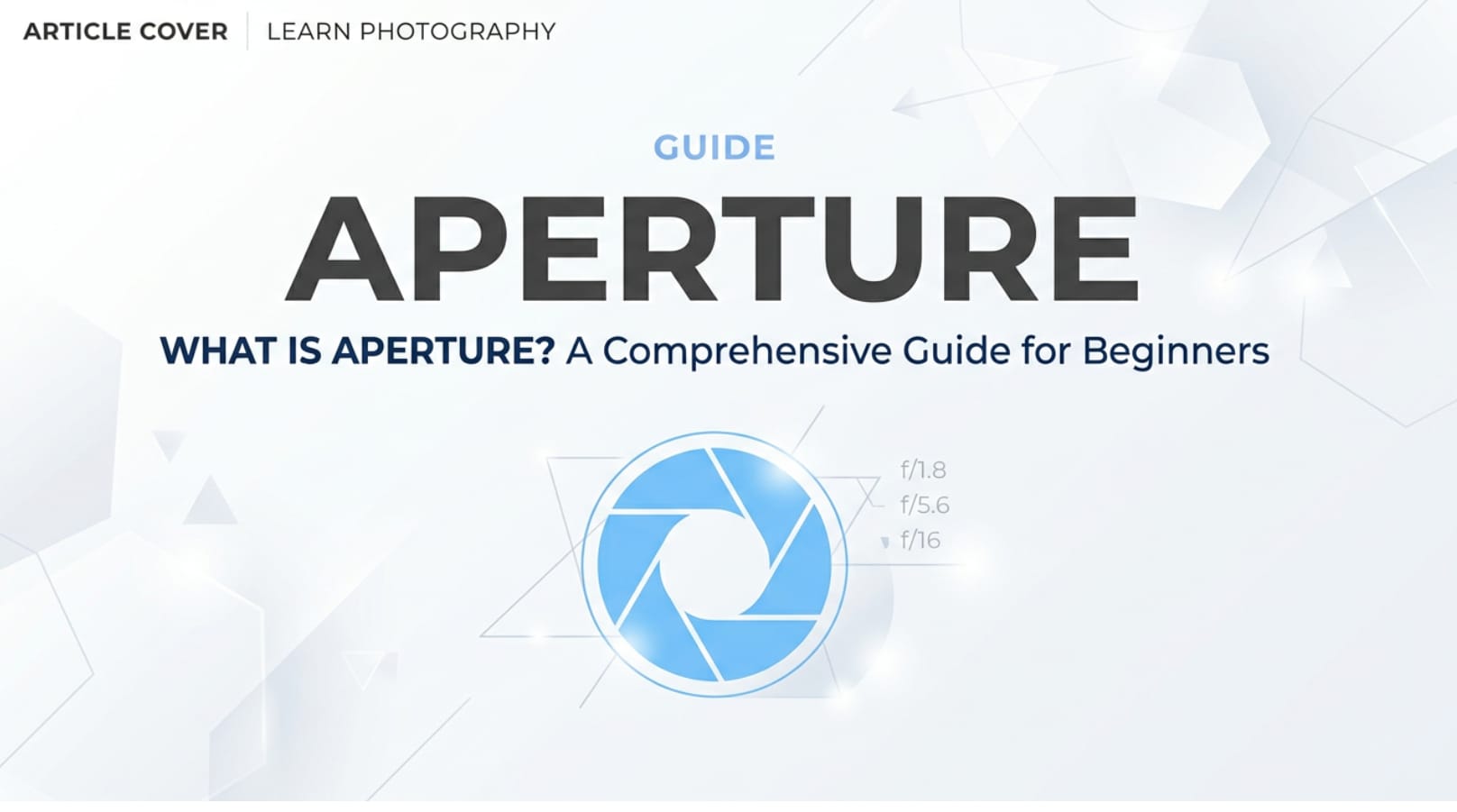
If you have ever switched your camera to Portrait mode, noticed blurry backgrounds in movie scenes, or tried to brighten a dark shot, you have already dealt with aperture. This simple lens setting controls how much light reaches the sensor and how much of your scene looks sharp. Understanding what is aperture helps you take control of exposure, depth of field, and the overall style of your photos and videos, whether you shoot on a DSLR, mirrorless camera, or smartphone.
Repair Corrupted Files To Save Your Data
 Security Verified. Over 7,302,189 people have downloaded it.
In this article
What Is Aperture?
Camera aperture is the adjustable opening inside a lens that lets light pass through to the sensor or film. It is one of the three pillars of the exposure triangle, alongside shutter speed and ISO. In technical terms, aperture is expressed as an f-stop, such as f/1.8, f/4, or f/11.
In photography and videography, aperture is a core exposure and creative control setting. A wide aperture (a low f-stop number) opens the lens more, while a narrow aperture (a high f-stop number) closes it down. During shooting, aperture works together with shutter speed and ISO to determine how bright the image will be and how much of the scene appears in focus.
Whether you are capturing stills, shooting 4K video, recording for streaming platforms, or preparing content for editing and exporting, aperture directly influences the raw look of your footage before any color grading or sharpening is applied.
How Does Aperture Affect Your Image or Footage?
Aperture has two major visible effects: brightness (exposure) and depth of field (how much appears sharp). It also indirectly affects noise, lens sharpness, and bokeh style, which matter for final playback quality on TVs, phones, and online platforms like YouTube or Instagram.
Aperture and Exposure
The wider the aperture, the more light reaches the sensor in a given amount of time. This is why low-light photographers and videographers love fast lenses like f/1.4 or f/1.8.
| Setting | Exposure Effect |
|---|---|
| Wide aperture (e.g., f/1.8, f/2.8) | Brighter image, allows lower ISO or faster shutter speed. |
| Narrow aperture (e.g., f/8, f/16) | Darker image, may require higher ISO or slower shutter. |
When recording video, aperture helps you stay at cinematic shutter speeds (like 1/50 for 25 fps or 1/60 for 30 fps) while keeping exposure under control. If you open the aperture too wide on a sunny day without ND filters, you may overexpose your footage and lose highlight detail that even editing and encoding cannot fully bring back.
Aperture and Depth of Field
Depth of field (DoF) describes the range of distance in a scene that looks acceptably sharp. Aperture is the main tool for controlling it.
- Wide aperture (e.g., f/1.4–f/2.8): very shallow depth of field, strong background blur, subject separation.
- Medium aperture (e.g., f/4–f/8): balanced sharpness, good for portraits, events, and general video.
- Narrow aperture (e.g., f/11–f/16): deep depth of field, more of the scene in focus, ideal for landscapes or product shots on a table.
Shallow depth of field is a popular cinematic look because it directs viewer attention to the subject, which is especially effective on small screens where distractions are more noticeable. However, for tutorial videos, screen recordings in a studio, or documentary work, a slightly narrower aperture helps keep the subject reliably in focus even if they move.
Aperture also influences:
- Sharpness and lens sweet spot: Most lenses are soft wide open and sharper when stopped down around f/4–f/8.
- Bokeh style: The shape and smoothness of blurred highlights depend on aperture blades and how open they are.
- Noise levels: A wider aperture lets you use a lower ISO, producing cleaner footage that compresses better when exporting or streaming.
How Does Aperture Work in Real Shooting?
In real-world workflows, aperture shows up as the f-number on your camera, lens, or monitoring tools. On interchangeable-lens cameras, you usually adjust it with a physical dial while the value appears on the LCD, EVF, or external monitor. On smartphones, it may be labeled as "Portrait" or "Background blur," but the concept is the same.
Here are some typical scenarios:
- Portrait photography: You choose f/1.8 to blur a busy background, set shutter speed fast enough to avoid motion blur, and keep ISO low for clean files that edit and export well.
- Run-and-gun video: You might lock shutter at 1/50, set ISO to a base value, and ride aperture as lighting changes so your footage stays properly exposed for consistent playback across streaming platforms.
- Landscape and cityscape: You shoot at f/8 or f/11 to keep foreground and background sharp. This ensures detail holds up even after compression on social media or during 4K exports.
- Product and macro work: You balance aperture between shallow DoF for a premium look and enough sharpness to keep important product details visible when viewers pause or zoom.
On many cameras, aperture can also be controlled in:
- Aperture Priority (A/Av) mode: You pick the f-stop, and the camera chooses shutter speed automatically.
- Manual mode: You control aperture, shutter speed, and ISO, useful for locked studio lighting and multi-camera setups.
- Video-specific modes: Some cameras offer smooth, stepless aperture adjustment for recording to avoid visible brightness jumps in the final clip.
Best Uses, Common Mistakes, and Quick Tips
When aperture matters most
- Low-light photography and video, such as concerts, events, or night streets.
- Portraits, interviews, and talking-head videos where you want strong subject separation.
- Landscapes, architecture, and group photos that require edge-to-edge sharpness.
- Content meant for 4K or HDR playback, where exposure and detail retention are critical.
Common mistakes with aperture
- Using the widest aperture just because it is available, resulting in soft images and missed focus.
- Stopping down too far (like f/22) and introducing diffraction, which reduces overall sharpness.
- Ignoring the exposure triangle and compensating for a small aperture with very high ISO, adding noise that becomes obvious after encoding and streaming.
- Changing aperture mid-shot without smooth control, causing distracting brightness jumps in video.
Quick tips to use aperture correctly
- Start with f/2.8–f/4 for people and interviews: a pleasing blur with a safer focus margin.
- Use f/5.6–f/8 for travel, street, and general content that will be viewed on many devices.
- Keep an eye on ISO: if you raise it too high, consider opening the aperture instead.
- Test your lens to find its "sweet spot" for sharpness before important jobs.
- For consistent video across multiple cameras, agree on common aperture and exposure settings before recording.
The key takeaway: aperture is not just a number; it is a creative and technical lever that shapes exposure, sharpness, and style long before editing, encoding, and playback.
How to Use Repairit to Fix a Corrupted Photo File
A) Brief Introduction to Repairit
Even when you master aperture and capture perfect shots, files can still become corrupted during transfer, storage, or export. Repairit official website provides a dedicated repair solution for damaged or unreadable images. Instead of reshooting or losing valuable work, you can scan and fix corrupted photo files so they open correctly again, preserving your exposure, depth of field, and color decisions.
B) Key Features
- Repairs corrupted, broken, or unreadable photo files from cameras, memory cards, external drives, and computers.
- Supports multiple image formats and offers an intuitive interface suitable for beginners and professionals.
- Provides preview of repaired photos before saving, helping you confirm that critical details and quality are restored.
C) Step-by-step Guide
- Add corrupted photo files
Launch Repairit on your computer and open the Photo Repair section. Click the option to add files, then browse to the folder that contains the corrupted images you want to fix. You can import single photos or select multiple files at once for batch repair.

- Repair photo files
After importing, Repairit analyzes the selected images. Click the Repair button to begin the process. The software automatically detects common corruption issues, such as files that will not open, display errors, or show broken previews, and works to restore them without altering your original data.

- Save the repaired photo files
When the repair finishes, you can preview the restored photos to ensure the content, sharpness, and colors look right. If you are satisfied, click Save or Save All and choose a safe destination folder, preferably different from the original location, to store the repaired versions for editing, exporting, or sharing.

Conclusion
Understanding what aperture is gives you precise control over light and focus, helping you shape the mood and clarity of every photo or video. By choosing the right f-stop, you can balance exposure, depth of field, and noise for content that looks clean and intentional on any screen or platform.
Combined with the rest of the exposure triangle, aperture is a powerful creative tool. And if your carefully captured images ever become corrupted, a repair solution like Repairit can help you recover them so your work is not lost and your visual decisions remain intact.
FAQ
-
1. What is aperture in simple terms?
Aperture is the adjustable opening inside your camera lens that controls how much light reaches the sensor. It is measured in f-stops (like f/2.8 or f/8) and affects both the brightness of your image and how much of the scene appears in focus. -
2. How is aperture related to the exposure triangle?
Aperture, shutter speed, and ISO form the exposure triangle. Aperture controls light and depth of field, shutter speed controls light and motion blur, and ISO controls sensor sensitivity and noise. Changing one usually requires adjusting one or both of the others to keep exposure balanced. -
3. Which aperture is best for portraits and videos of people?
For portraits and talking-head videos, many creators prefer mid-wide apertures like f/1.8 to f/4. These settings give you a nicely blurred background while keeping enough of the subject sharp, which looks good on both large displays and mobile screens. -
4. Does aperture affect video quality for streaming platforms?
Yes. Aperture influences brightness, depth of field, and how much noise appears in the image. Using an appropriate aperture helps you maintain lower ISO and cleaner footage, which compresses better during export and looks clearer after streaming-platform encoding. -
5. Can I fix a corrupted photo if I used the perfect aperture but the file will not open?
If a photo file becomes corrupted due to transfer errors, card issues, or storage problems, the aperture setting itself is not the cause. However, you can often recover that image using repair tools like Wondershare Repairit, which scans and fixes damaged photo files so they open and display correctly again.




