

 TL;DR:
Fix blurry or pixelated Tinder photos caused by app compression by enhancing them with AI tools like Repairit on mobile or desktop and re-uploading them in high-definition PNG or JPEG formats.
● The Repairit desktop software for Windows and MacBook supports batch repairing multiple photos simultaneously, while the Android and iPhone app includes a free trial to preview HD conversions before saving.
● For facial enhancement, the tool utilizes Accurate Face Focus and Facial Features Recognition to restore natural tones and sharpen specific details like eyes and lips.
● To prevent upload compression issues natively, shoot in natural light without zooming, avoid artificial filters, and use burst mode or higher shutter speeds to minimize motion blur.
Ask AI for a summary
 ChatGPT
 Perplexity
 Gemini
 Claude
 Grok
Grok
Your Tinder profile photos are what give others a preliminary impression of you. In case of blurry pictures, they are able to spoil that opportunity and turn your profile unappealing. The issue occurs during the uploading of blurred images using a phone or computer. Multiple ways are available to fix this and make your pictures look sharper. Thus, this guide explains simple ways to repair and enhance Tinder blurry photos.
Table of Contents
Part 1. How to Fix Tinder Blurry Photos on Android or iPhone
Many people feel frustrated when their Tinder pictures appear unclear or pixelated. Having blurry photos on Tinder can make your profile look less appealing, even if the original image was sharp. To solve this issue easily, you can use the Repairit App, a mobile-friendly tool designed to instantly restore photos. It also uses advanced algorithms to sharpen images while keeping natural details clear and balanced.
The Old Photo Restoration tool detects fading or damage and restores old memories automatically. Its Smart Remover feature even helps delete unwanted background objects for a clean look. Moreover, corrupted Photo Repair solves common file errors and recovers missing or unreadable image data fast. The app’s free trial also lets users test and preview repair quality before saving work.
Key Features

Repairit Al Photo Enhancer
Edit Photos with Words, Create Magic with Al
 Text-to-Edit: Describe it, AI repairs, enhances & colorizes instantly.
-
Memory Revival: Restore old photos, fix scratches & blur, relive details.
-
Creative Freedom: Remove objects & turn ordinary shots into unique stories.
-
Universal Recovery: Rescue corrupted photos from 2,000+ devices & RAW formats, all securely processed.
Guide to Fix Tinder Blurry Photos on Android or iPhone via Repairit App
You can go through the following steps to fix blurry photos using this dedicated app:
Step 1. Access the App’s Enhancer Feature
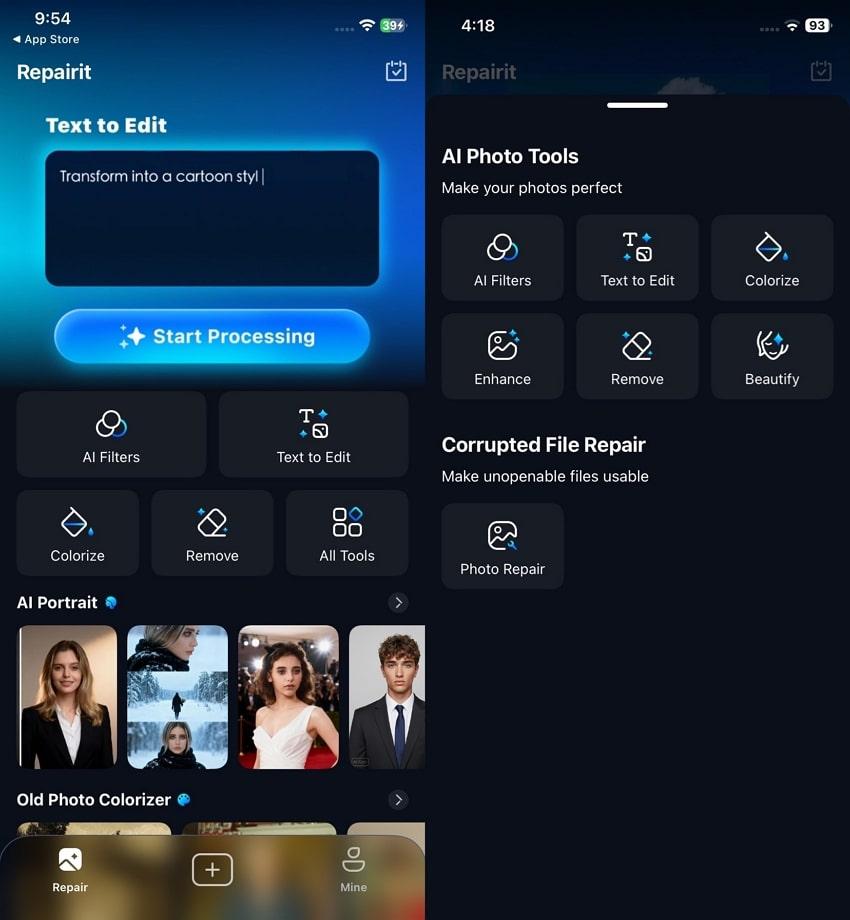
Upon accessing the app’s primary screen, tap the “All Tools” section and then opt for the “Enhance” feature.
Step 2. Import a Blurry Tinder Photo to Enhance It
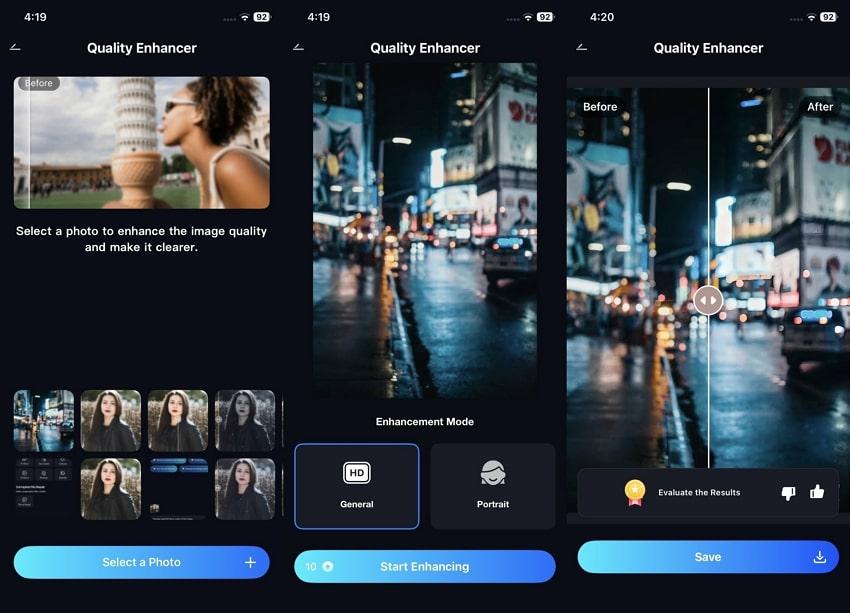
Afterward, press the “Select a Photo” button to import your blurry Tinder image, choose the model, and then hit the “Start Enhancing” button. When your blurry image converts to HD quality, preview the result and tap the “Save” button.
Part 2. How to Fix Tinder Blurry Photos on PC or MacBook
When you upload pictures from your computer, you might still face blurry photos on Tinder. Using a desktop tool helps restore sharpness and improve image quality easily. This section provides a few benefits of using a desktop solution and shows you a dedicated program:
- Working on a bigger screen helps spot minor image flaws clearly. It allows you to adjust sharpness and colors with better accuracy.
- Desktop programs include extra editing options that are not found in most mobile apps. You can refine image clarity and details for better results.
- You can repair multiple photos together without losing quality consistency. This feature saves time, especially for users fixing large photo collections.
Among the best tools, Repairit stands out as it enhances every picture while keeping it natural. It helps users fix Tinder blurry photos with smart and guided processing tools. The AI Photo Enhancer optimizes brightness and color balance for perfect visibility. You can also use its AI Image Sharpener to remove static, lens, and motion blur for crystal clear images.
The Portrait Enhancer also helps brighten faces and restore natural tones for a radiant appearance. Besides, its Accurate Face Focus highlights facial details, making portraits sharper and more expressive. The Facial Features Recognition can improve eyes, lips, and contours for a realistic portrait depth every time. Moreover, its simple drag-and-drop import makes selecting and uploading photos easy without confusion.
Guide to Fix Tinder Blurry Photos on Windows PC or MacBook via Repairit
Adhere to the simple manual below to find out how to use the Repairit desktop tool to enhance your blurry Tinder photos:
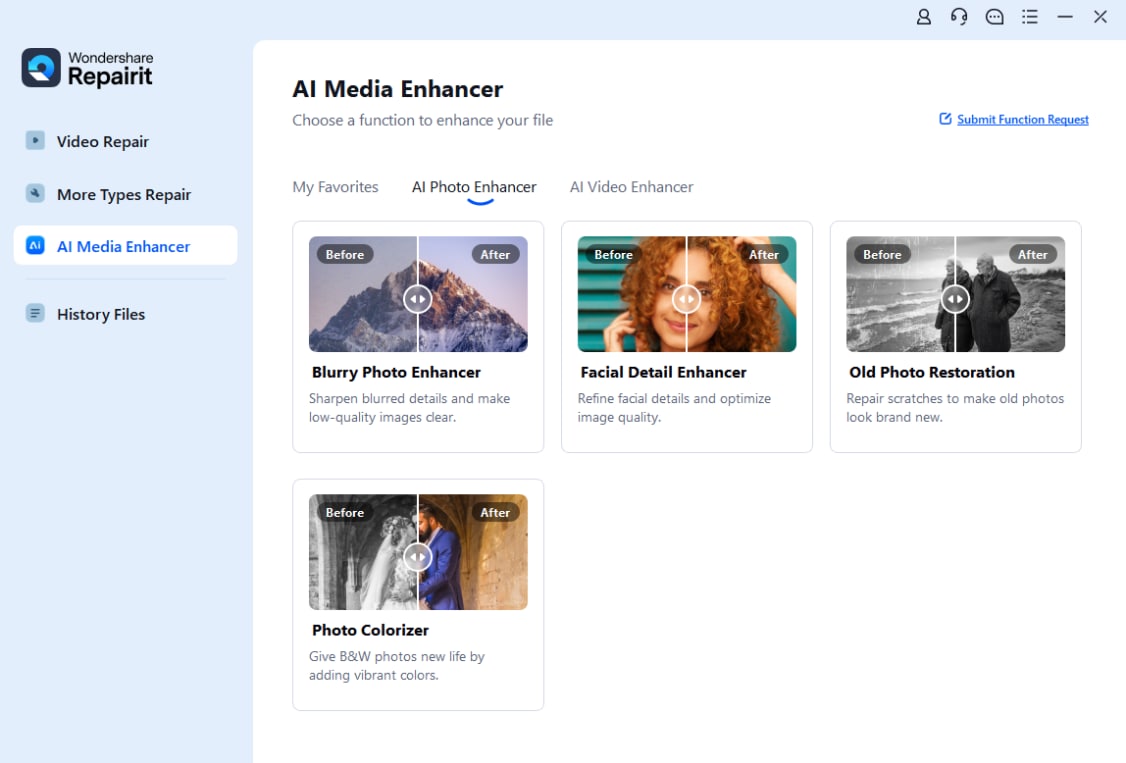
Step 1. Access the AI Photo Enhancer Tool
Upon heading to the “AI Media Enhancer” tab, access the “AI Photo Enhancer” section and opt for “Blurry Photo Enhancer.”
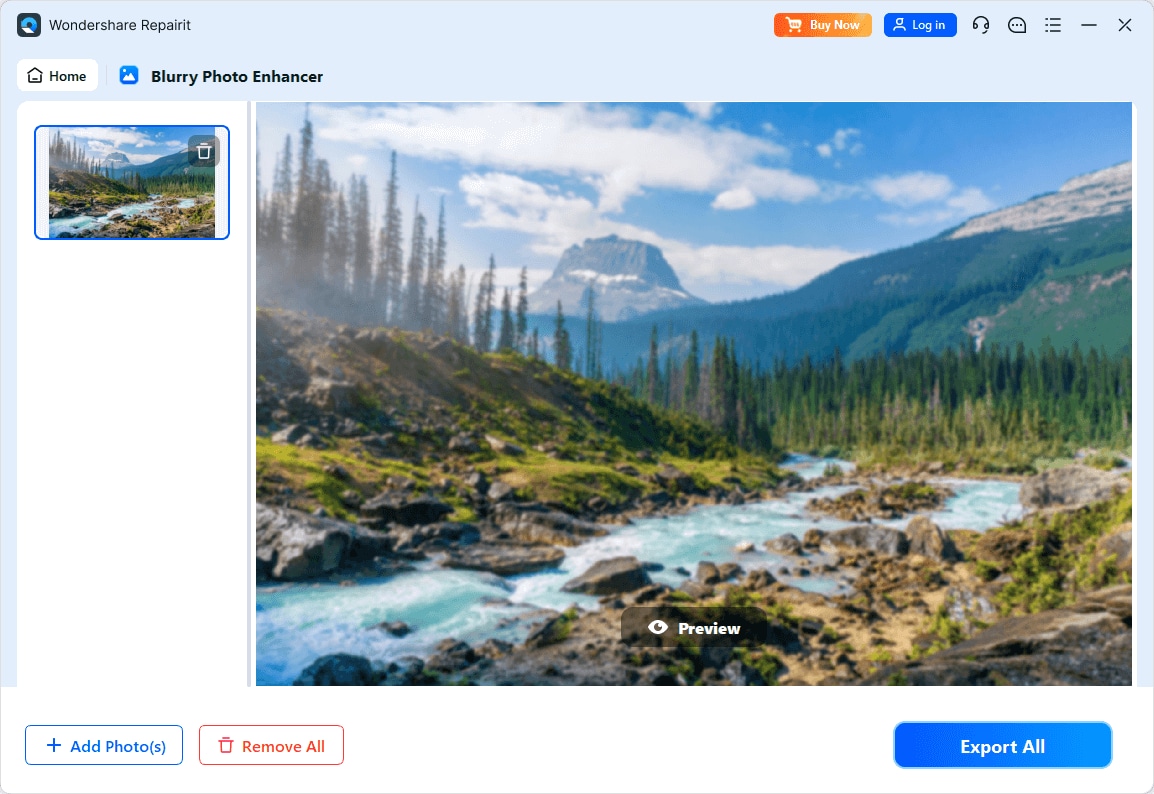
Step 2. Import Tinder Blurry Photos to Enhance
On the following screen, press “+Add” to import your Tinder images and then press “Start Enhancing.” As the process completes, preview the result and press the “Export All” button.
Part 3. 5 Tips & Tricks for Avoiding Tinder Blurry Photos
Sometimes, even after fixing images, Tinder blurry photos can return due to minor mistakes. Following these easy tips helps you avoid such issues and keep your profile sharp:
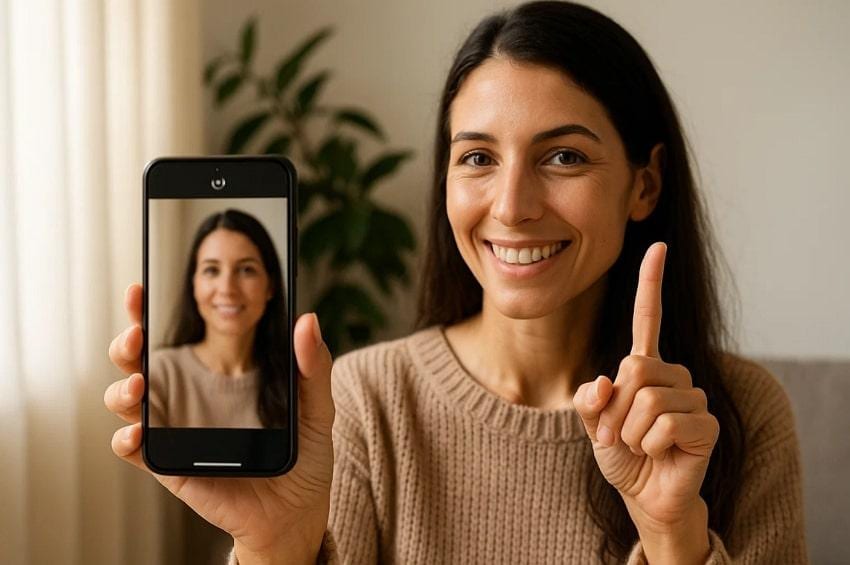
- Use Lighting: Always capture photos in natural light for clear and defined results. It eliminates dark shadows and assists the camera in recording sharper details.
- Avoid Filters: Don’t use heavy filters that reduce texture and make faces look artificial. Simple edits help keep your images sharp and true to real tones.
- Stable Hands: While taking pictures, try to hold your hands steady to prevent shaking. Slight movement can instantly blur your photos, reducing their overall visual quality.
- Avoid Zoom: Try not to zoom in too much when capturing your Tinder photos. Zooming reduces pixel quality and makes images look less sharp or clear.
- Correct Format: Save your images in HD formats like PNG or JPEG. These formats preserve more detail, reducing the risk of blurry photos.
Conclusion
In summary, clear and sharp photos significantly improve how others see your Tinder profile. Following simple steps helps you fix blur and maintain an HD photo appearance. Moreover, always use steady hands and proper formatting to achieve greater clarity. If problems still occur, use Repairit to fix Tinder blurry photos quickly. This innovative tool helps restore sharpness and enhances details for a professional profile.
FAQs
-
Q1. Why do my Tinder photos look blurry after uploading?
Blurry photos happen due to low resolution or poor internet during upload. Tinder also compresses images, which can reduce overall sharpness. Therefore, always use HD images to prevent your pictures from losing clarity. -
Q2. How can I prevent motion blur in Tinder pictures?
It occurs when either the camera or the subject moves during capture. Always keep the device steady and request the subjects to stand still for a few seconds. This problem could also be minimized using burst mode or a higher shutter speed. -
Q3. Can I fix blurry Tinder photos without using an app?
Minor blurs may be improved by adjusting the lighting or camera focus. However, these methods are limited and cannot restore image clarity. Therefore, professional tools like Repairit App make it simple to recover HD images.





