

 TL;DR:
You can animate static photos of celebrities or influencers to make them wave directly at you using the "Wave" preset in the Relumi app.
● The AI animation requires a clear, front-facing photo with a visible face and upper body for the most accurate visual result.
● Generating the motion takes only a few seconds within the Photo Animation menu and allows you to add custom audio tracks before exporting.
● These generated videos are limited to personal use and fan sharing; applying them to commercial projects requires explicit permission.
Ask AI for a summary
 ChatGPT
 Perplexity
 Gemini
 Claude
 Grok
Grok
You have a photo with a celebrity at a meet-and-greet, or a screenshot of your favorite influencer from a live stream. It's a treasured memory. But it's static. You wish you could see them wave at you, personally, the way they wave to their fans in videos. Wouldn't it be amazing if that photo came to life?
Relumi's "Wave" preset can make that happen. By animating a photo of a celebrity or influencer, you can create a fun, personalized video where they appear to wave directly at you. It's a playful way to enhance a fan memory or create engaging content for social media.
In this article
Part 1: The Fan's Desire for a Personal Connection
On fan forums and subreddits dedicated to celebrities, a common theme is the desire for a personal connection. A photo with a celebrity is a prized possession, but it's a static record of a brief moment. Fans wish they could feel that connection again, see that person wave, smile, acknowledge them .
An animated wave brings that feeling back. It transforms a photo from a "proof" of meeting someone into a "moment" of interaction. The celebrity isn't just standing next to you; they're waving to you. It's a small change, but it makes the memory feel more alive and personal.
Part 2: How to Create a Celebrity Wave Video with Relumi

Relumi AI Photo Animation
Bring old photos to life with AI-powered animation.
 Preset motion styles — Wave, Dance, Clap, Cheers & more
-
Works on old, faded, and black-and-white photos
-
No editing skills required — generate in seconds
-
One tap turns any still image into a moving memory.
Creating your own personalized fan video is simple.
Step 1: Find a Clear Photo of the Celebrity or Influencer
Choose a clear photo where the person is facing the camera. This could be a photo you took at a meet-and-greet, a professional headshot, or even a screenshot from a video. The clearer the face and upper body, the better.
Step 2: Upload to Relumi and Apply the "Wave" Preset
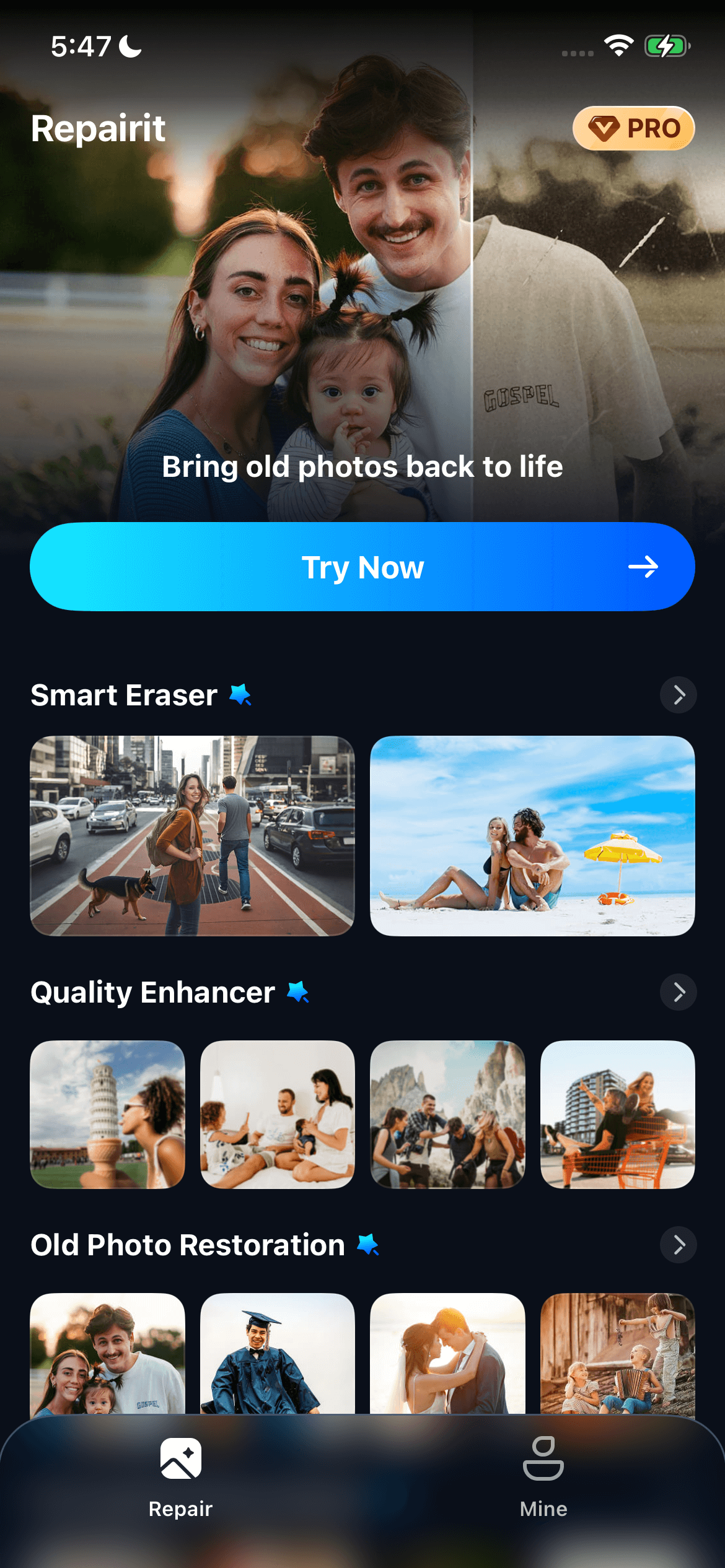
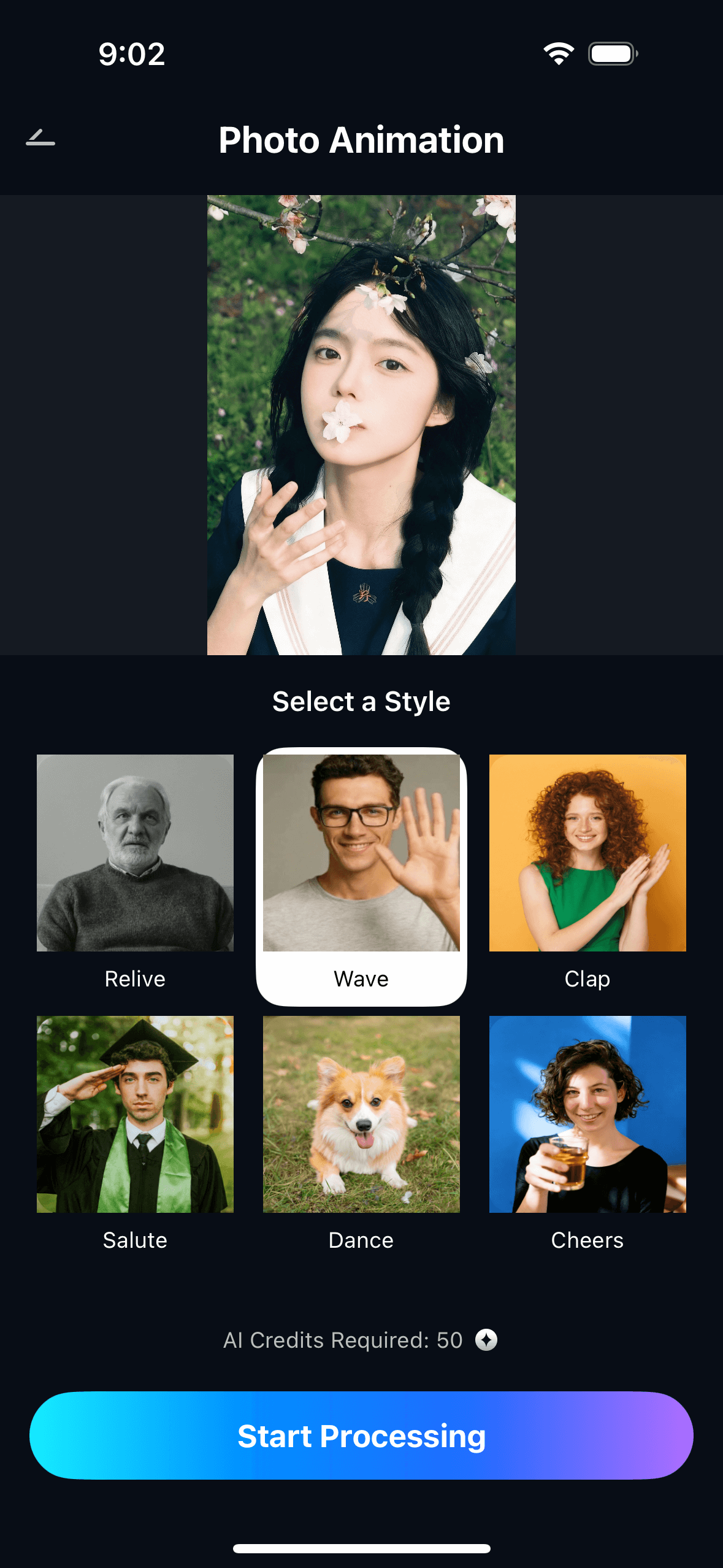
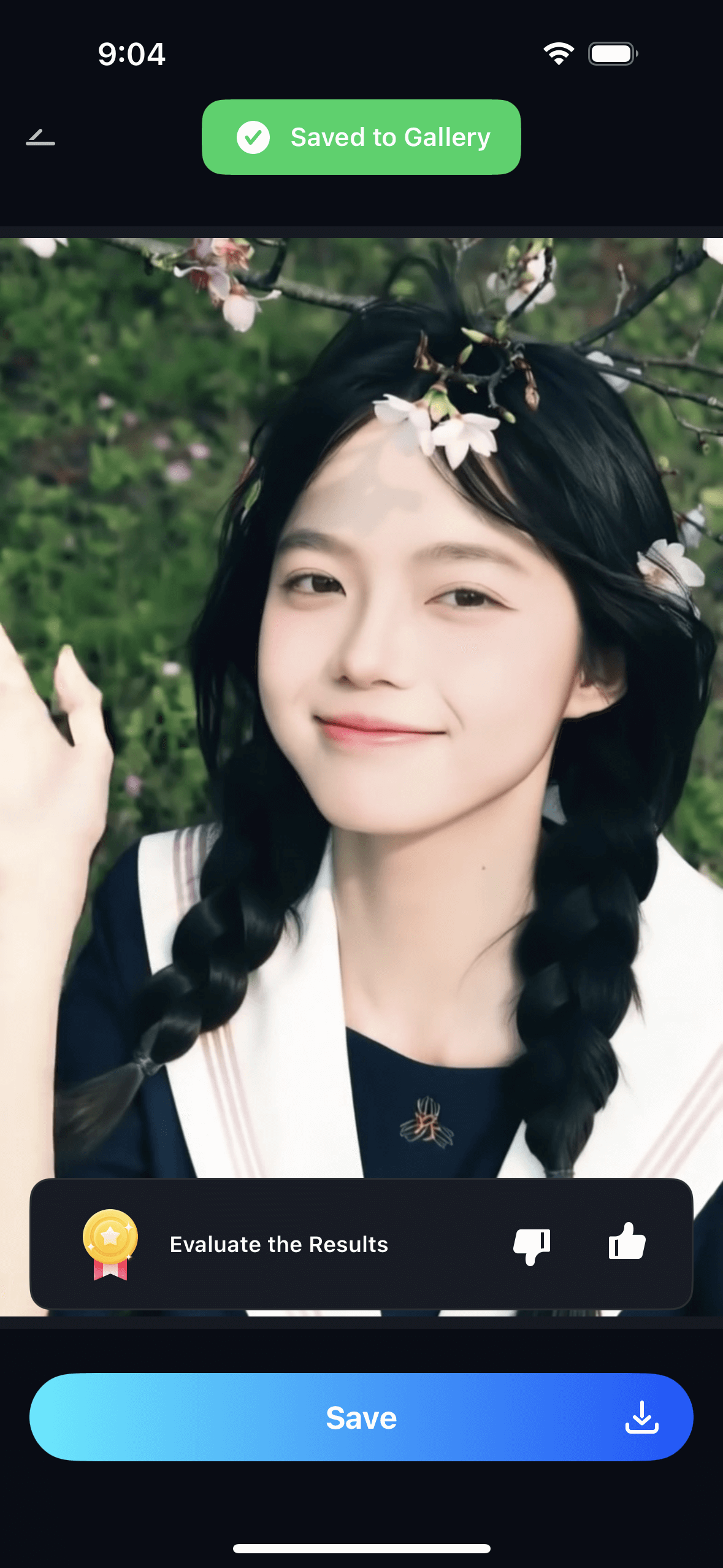
Open the Relumi app, go to Photo Animation, and select the "Wave" preset. The AI will generate a short video where the person waves in a natural, friendly motion. It looks like they're waving hello—or waving at you!
Step 3: Share Your Fun Fan Moment
Export the clip and share it.
- Social Media Post: Post it with a caption like "When you wish your fave was waving just at you..." or "My favorite moment, brought to life!"
- Fan Group Chats: Send it to fellow fans for a fun shared moment.
- Personal Keepsake: Keep it as a fun, unique memory of your fan experience.
Part 3: Creative Uses for Celebrity Wave Videos
This idea can be used in many playful ways.
- "Wish You Were Here" Posts: If you have a photo with a celebrity, animate it waving as if they're greeting your friends who couldn't be there.
- Fan Art Enhancement: If you create fan art, animate a photo of the celebrity to wave as a fun addition to your art posts.
- Concert and Event Memories: Animate a photo of the performer from a concert to wave, as if they're acknowledging the crowd (and you!).
- Influencer Engagement: If you're an influencer, animate a photo of yourself waving to use as an engaging intro or outro for your content.
Conclusion
A fan moment is a memory to treasure. With Relumi's "Wave" feature, you can add a little extra magic, turning a static photo into a living, waving greeting from someone you admire. It's a fun, creative way to celebrate your fandom and share your joy with others.
Frequently Asked Questions
-
Is it okay to animate a photo of a celebrity?
For personal use and sharing among fans, it's generally considered a fun, harmless tribute. For commercial use, you would need permission. Always be respectful. -
Will the wave animation work on a photo where the celebrity isn't looking at the camera?
It can still work, but the effect is most powerful when they appear to be waving at the viewer, so a front-facing photo is ideal. -
How long does the animation take?
Just a few seconds. -
Can I add music to the video?
Yes! Adding a song by the celebrity or a popular track from their content can make the video even more engaging.



