
 TL;DR:
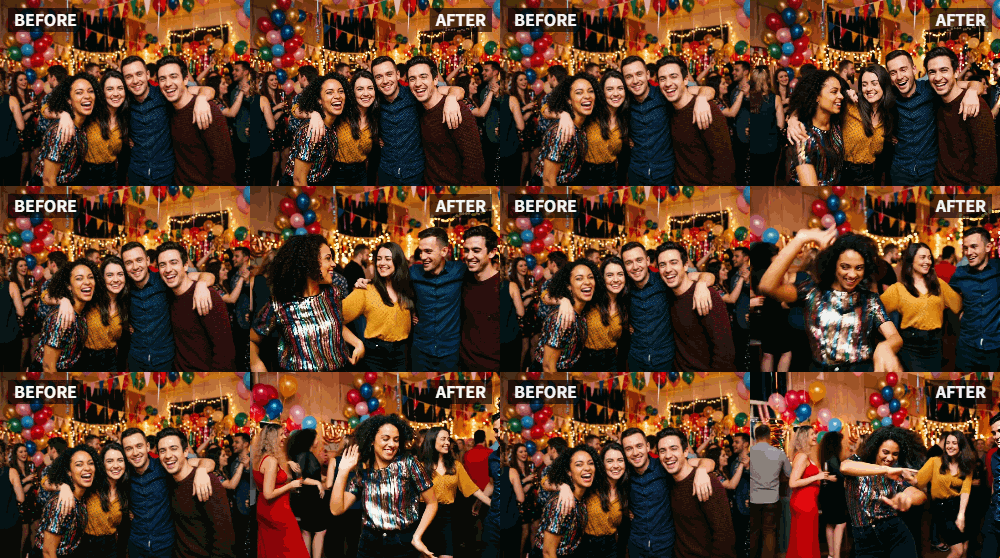
Animate static group photos into moving video clips using the "Dance" preset in Relumi AI Photo Animation to build dynamic, music-synced party highlight reels.
● For the AI to successfully detect and animate multiple people in a single shot, the source image must be high-resolution with clearly visible faces.
● The tool applies the animation to all detected individuals within the scene automatically, meaning you cannot selectively isolate specific people to dance.
● Relumi only generates the individual animated video clips; you must use a separate video editor to compile the final 30-60 second reel and overlay your audio track.
Ask AI for a summary
 ChatGPT
 Perplexity
 Gemini
 Claude
 Grok
Grok
The party was a blast. You have dozens of photos of your friends laughing, hugging, and having a great time. You want to create a highlight reel to share with everyone, a video that captures the energy and joy of the night. But a standard photo slideshow feels too slow, too quiet for such a lively event.
Relumi's "Dance" feature is the perfect tool to inject that party energy into your highlight reel. By animating a few key group photos, you can make your whole friend group seem like they're dancing along to the beat, creating a dynamic and unforgettable video that truly captures the spirit of the celebration.
In this article
Part 1: The Problem with Static Party Photos
After any great party, the inevitable question arises: "How do I share all these photos in a fun way?" A simple photo album or a standard slideshow, while a record of the event, often fails to convey the feeling of being there—the music, the laughter, the dancing.
People want their party recaps to feel as alive as the party itself . This is where video and animation come in. By animating group photos to dance, you transform static memories into dynamic moments. You're not just showing what people looked like; you're showing how they felt.
Part 2: How to Create a Dynamic Party Highlight Reel with Relumi
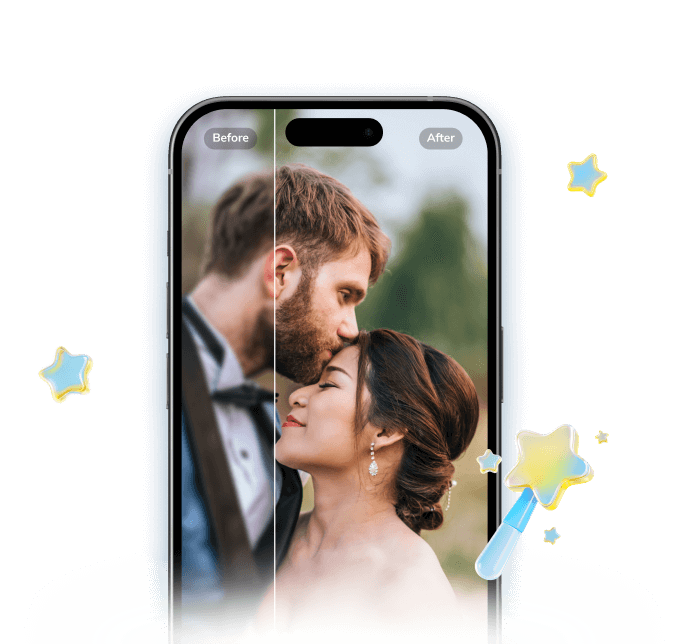

Relumi AI Photo Animation
Bring old photos to life with AI-powered animation.
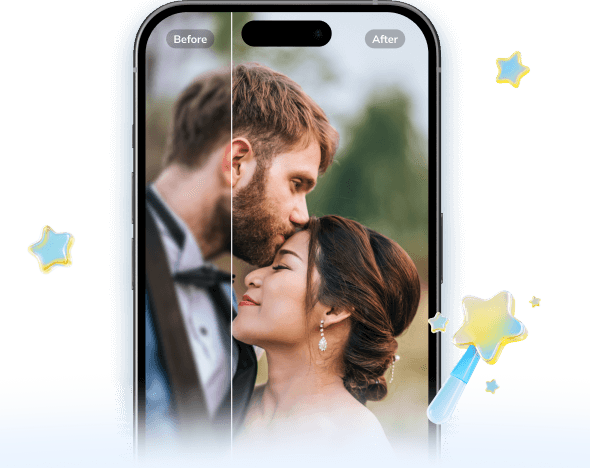
 Preset motion styles — Wave, Dance, Clap, Cheers & more
-
Works on old, faded, and black-and-white photos
-
No editing skills required — generate in seconds
-
One tap turns any still image into a moving memory.
Creating a high-energy party video is simple and can be done in minutes.
Step 1: Select Your Best Group Photos
Choose 3-5 of your favorite group photos from the party. Look for shots where people are smiling, laughing, and clearly visible. The more energy in the original photo, the better the animation will feel.
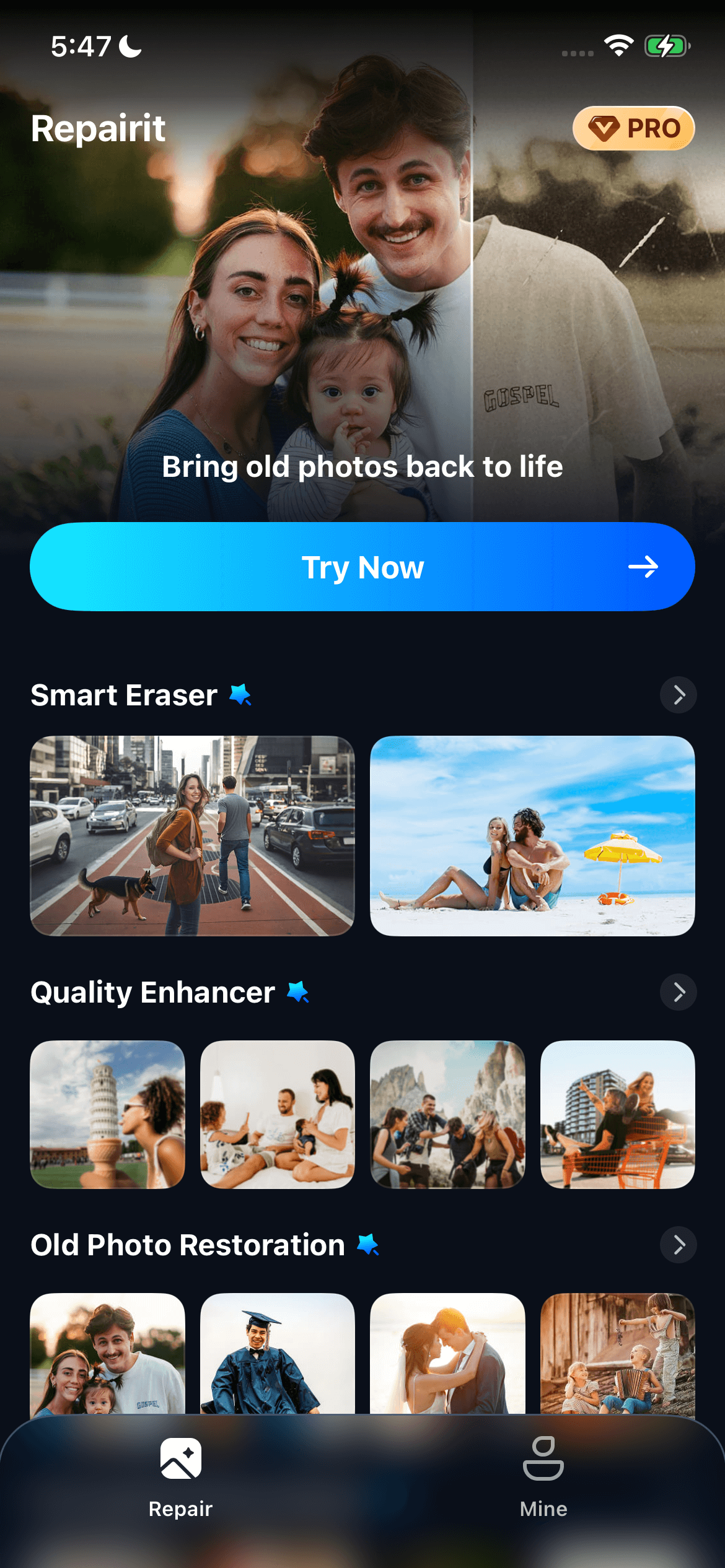
Step 2: Upload to Relumi and Apply the "Dance" Preset
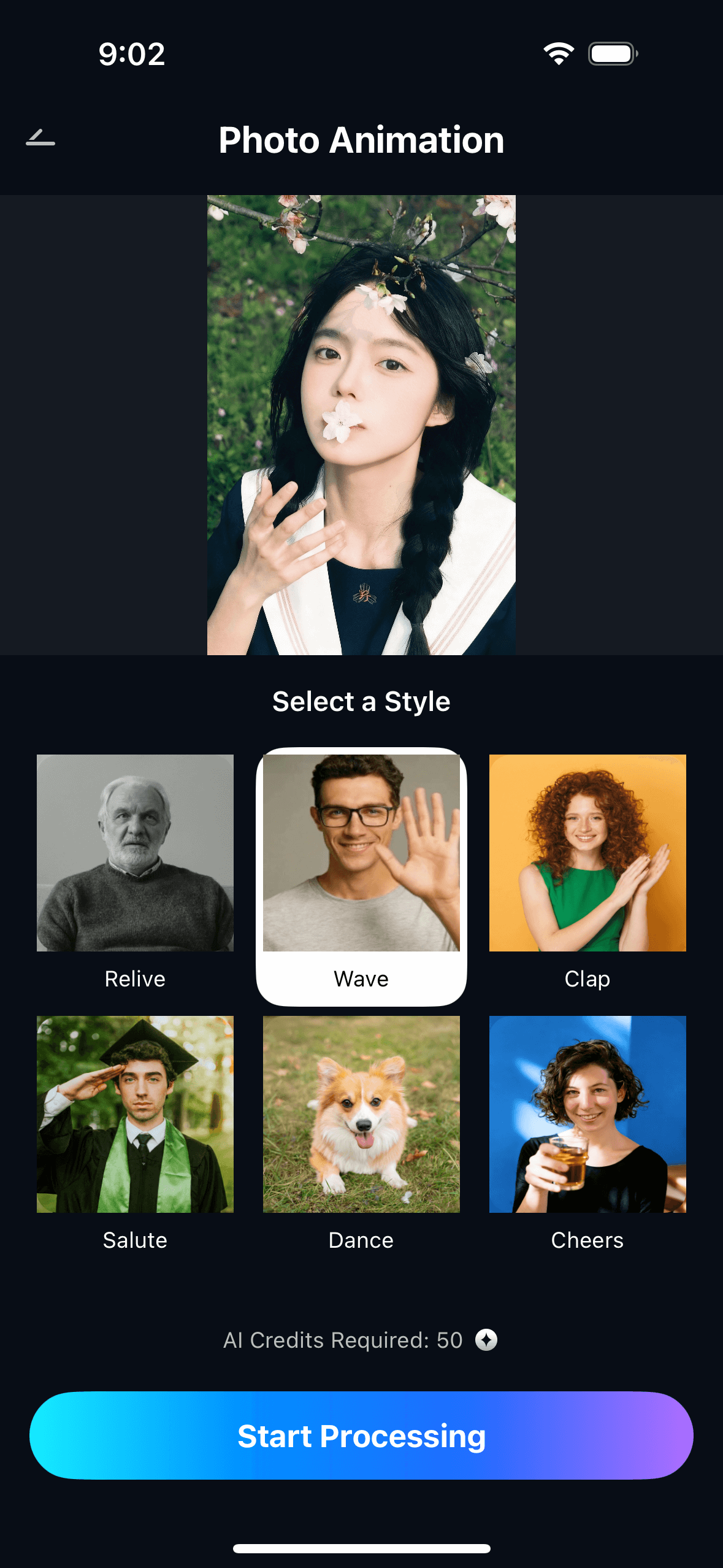
For each selected photo, open Relumi, go to Photo Animation, and choose the "Dance" preset. The AI will work its magic, generating short video clips of each group photo coming to life with rhythmic, celebratory movement. It will look like the whole party has started dancing.
Step 3: Compile Your Highlight Reel with Music
Use a simple video editor (many are free on your phone) to compile your clips.
- Start with a bang: Open with a particularly fun animated dancing photo.
- Mix and match: Intersperse your animated dancing clips with other short video clips you took during the party.
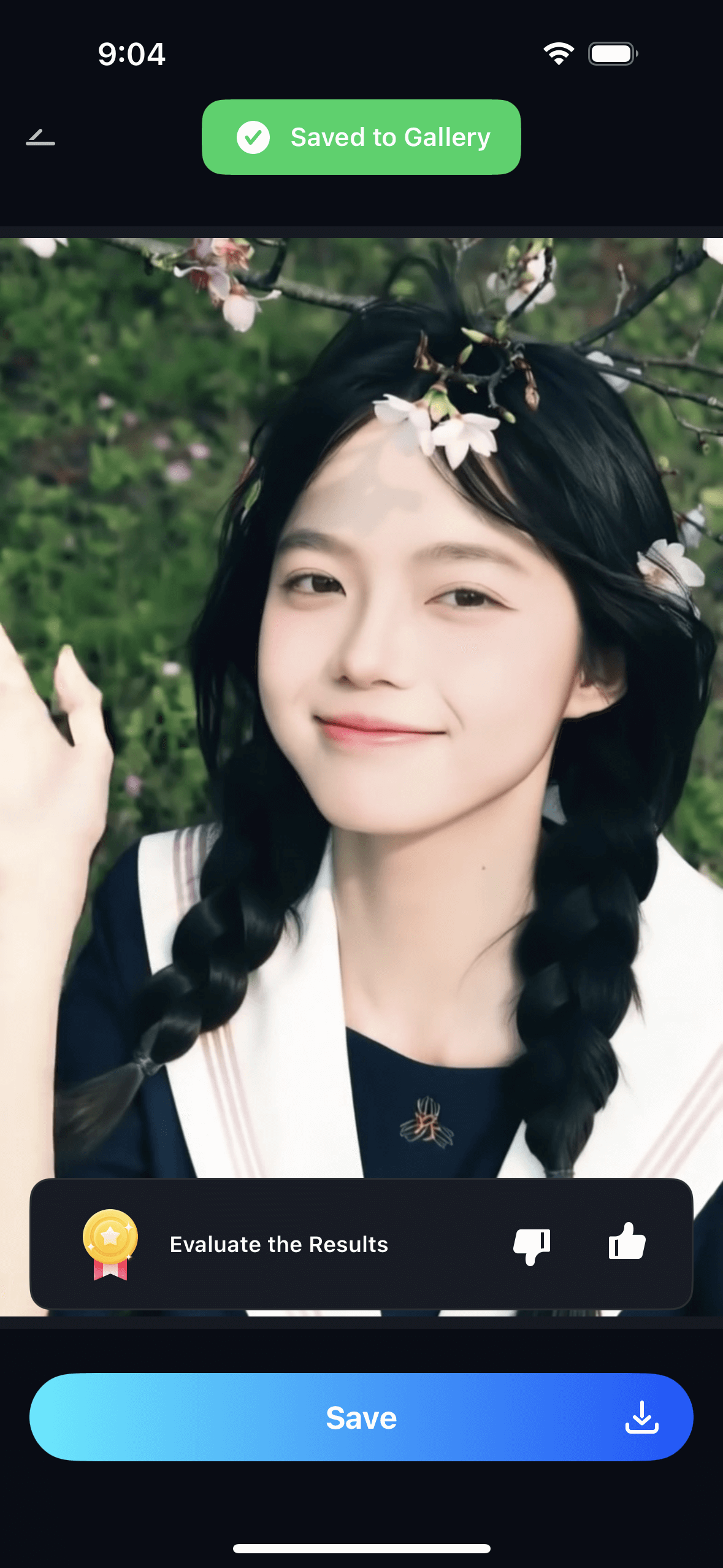
- Add the party soundtrack: This is crucial. Add the song that was playing during the best part of the night. The dancing photos will sync perfectly with the beat, creating an immersive and energetic recap.
Part 3: Other Ways to Use Dancing Group Photos for Celebrations
This idea can be adapted for any social gathering.
- Birthday Party Recaps: Animate group photos from a birthday dinner or party to show everyone celebrating the guest of honor.
- Wedding Reception Highlights: Animate group shots from the dance floor to include in a "morning after" brunch video or a thank-you note to guests. It captures the energy of the reception perfectly .
- Holiday Party Videos: Whether it's a New Year's Eve bash or a Christmas gathering, animating group photos with the Dance preset adds a layer of festive energy to your holiday recap.
- Bachelor/Bachelorette Party Memories: Create a fun, shareable video of the weekend's best moments, using animated dancing group photos to show the group's spirit and celebration.
Conclusion
A great party deserves a great recap. By using Relumi's "Dance" feature to animate your group photos, you can create a highlight reel that doesn't just show the event—it makes viewers feel it. Transform your static memories into a dynamic, musical celebration that everyone will want to watch again and again.
Frequently Asked Questions
-
Will the dance animation work on a large group photo with many small faces?
Yes, Relumi's AI is capable of detecting and animating multiple faces in a single image. For the best results, use a high-resolution photo where faces are as clear as possible. -
Can I control who in the photo dances?
The "Dance" preset is designed to animate the entire scene. It will attempt to animate all the people it detects in the photo, which is usually the desired effect for a party shot. -
How long should my final highlight reel be?
For a social media recap, 30-60 seconds is perfect. This gives you enough time to feature a few animated clips along with other photos and video snippets. -
Can I add text to the video?
Yes! After compiling your clips in a video editor, you can easily add text overlays like "NYE 2026," "Sarah's 30th," or "What a night!" to personalize your video.



