
 TL;DR:
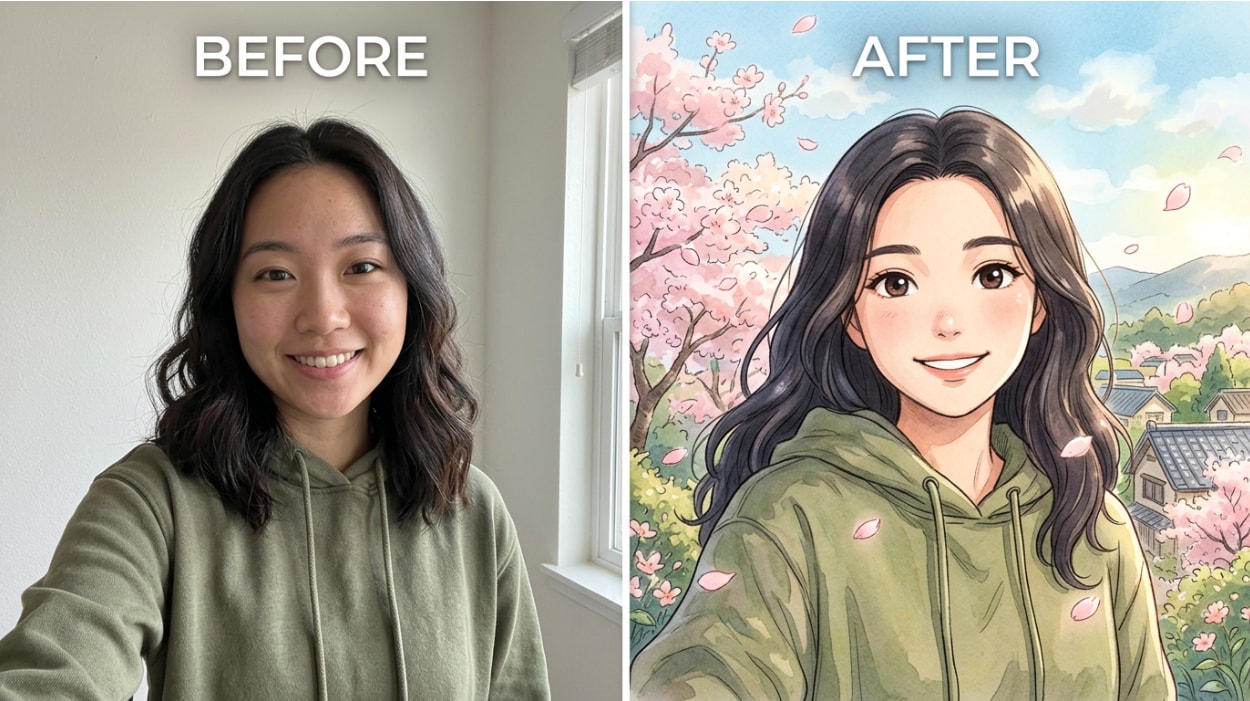
Relumi's Combine Photo feature uses image-to-image AI to transform standard portraits into customizable art styles—such as anime, oil painting, or double exposure—while preserving your recognizable facial structure.
● For accurate facial anchoring, upload clear, front-facing portraits without heavy shadows, hats, or sunglasses before applying a preset or custom text description.
● Instead of overlaying a simple texture filter, the AI fully alters the composition, lighting, and background, allowing users to adjust a style-intensity slider and iterate multiple outputs from a single upload.
● The core Style & Art Fusion tool is free on iOS and Android with standard full-resolution saves, but advanced style options and higher-resolution exports require a paid subscription.
Ask AI for a summary
 ChatGPT
 Perplexity
 Gemini
 Claude
 Grok
Grok
You’ve found a great photo of yourself. Good lighting, good pose — but it still looks like every other photo on your feed. You want something that stands out: an anime portrait, a classical oil painting, a double-exposure art piece. The problem? Every AI tool you try either makes your face unrecognizable, locks the good results behind a paywall, or only offers one style with no way to customize it.
Relumi’s Combine Photo — Style & Art Fusion takes a different approach. Upload your photo, choose an art style — anime, oil painting, double exposure, or describe anything you can imagine — and the AI transforms your photo into a genuine artistic composition while keeping your face recognizably yours. Here’s how it works and what you can make with it.
In this article
Part 1: Why Most Photo-to-Art Apps Get It Wrong
If you’ve already tried a few tools before landing here, you’ve probably run into at least one of these problems.
1. Your face comes out unrecognizable
Most general-purpose AI tools don’t do true image-to-image transformation. They read your photo, write an internal text description of it, then generate a brand-new image from that description. The result looks like a plausible person in the style you asked for — but it’s not you. Your jawline, your eye spacing, your specific features are all gone.
2. You can’t control or iterate on the style
Even when the first result looks promising, most apps give you one shot. There’s no slider, no style intensity control, no way to keep your outfit but change the background. You either accept the first output or start over from scratch.
3. Style apps hit a paywall right when you want to share
It’s common to spend 20 minutes getting a result you’re happy with, only to hit a watermark screen or a content-policy block at the save step. Free tiers often deliver low-resolution exports with watermarks — useless for social media posts where image quality actually matters.
4. Apps offer only one or two styles with no customization
One-trick apps apply a filter. Real art-style fusion means the composition, the lighting logic, the background, and the artistic texture all shift together — while keeping your face as the subject. Most apps only do half of that, which is why the output looks like a photo with a bad filter applied rather than an actual artwork.
Relumi’s Style & Art Fusion solves all four problems. Your face stays recognizable, the style transforms the whole image, you can describe exactly what you want, and the core feature is free on iOS and Android.
Part 2: How Relumi Style & Art Fusion Works
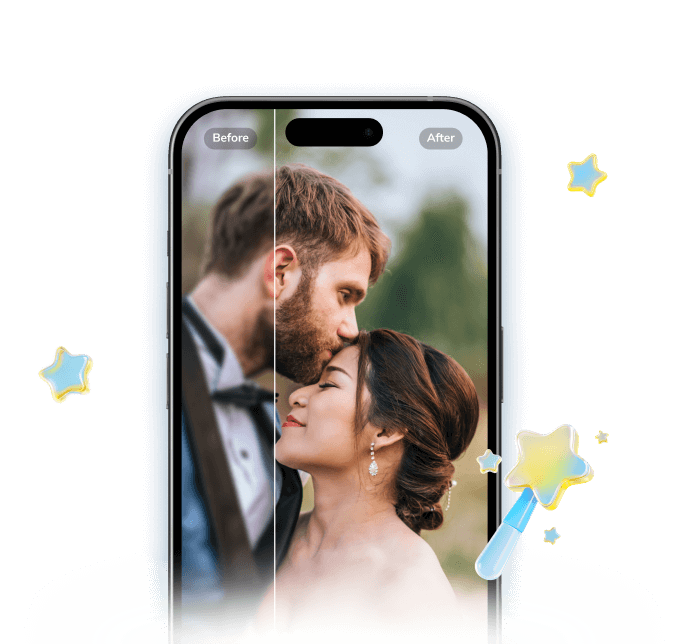

Relumi AI Photo Enhancer
Combine Photo — Style & Art Fusion: Transform Any Photo Into Anime, Oil Painting, Double Exposure, or Any Artistic Style With Face Identity Preserved
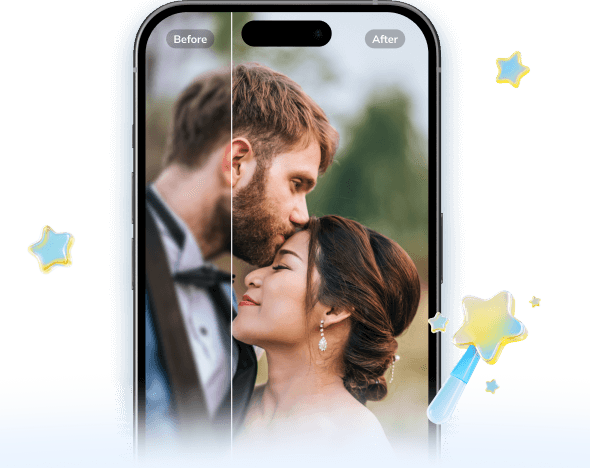
 Face identity preservation: Relumi anchors the transformation to your uploaded photo’s facial structure. The output is you — in a new art style.
-
Full-image style transformation: The AI transforms the entire composition — lighting logic, texture, color palette, background treatment, and art-specific details.
-
Multiple style options + scene description: Choose from anime portrait, oil painting, double exposure, watercolor, and more — or describe your own style in plain text.
The key difference between Relumi and a generic AI image generator is the starting point. A text-to-image tool starts from a description and invents everything. Relumi starts from your actual photo and transforms it — which is why your face stays yours. The style transformation applies to the artistic treatment of the image, not to who’s in it.
How to Use Relumi Combine Photo — Style & Art Fusion on iPhone
Step 1. Open Combine Photo & Upload Your Portrait
Open Relumi, tap Combine Photo from the home screen, then select Style & Art Fusion. Tap the photo slot and select your portrait from your camera roll. Any clear photo works — a selfie, a candid, a group shot. Front-facing portraits with decent lighting tend to produce the sharpest results.
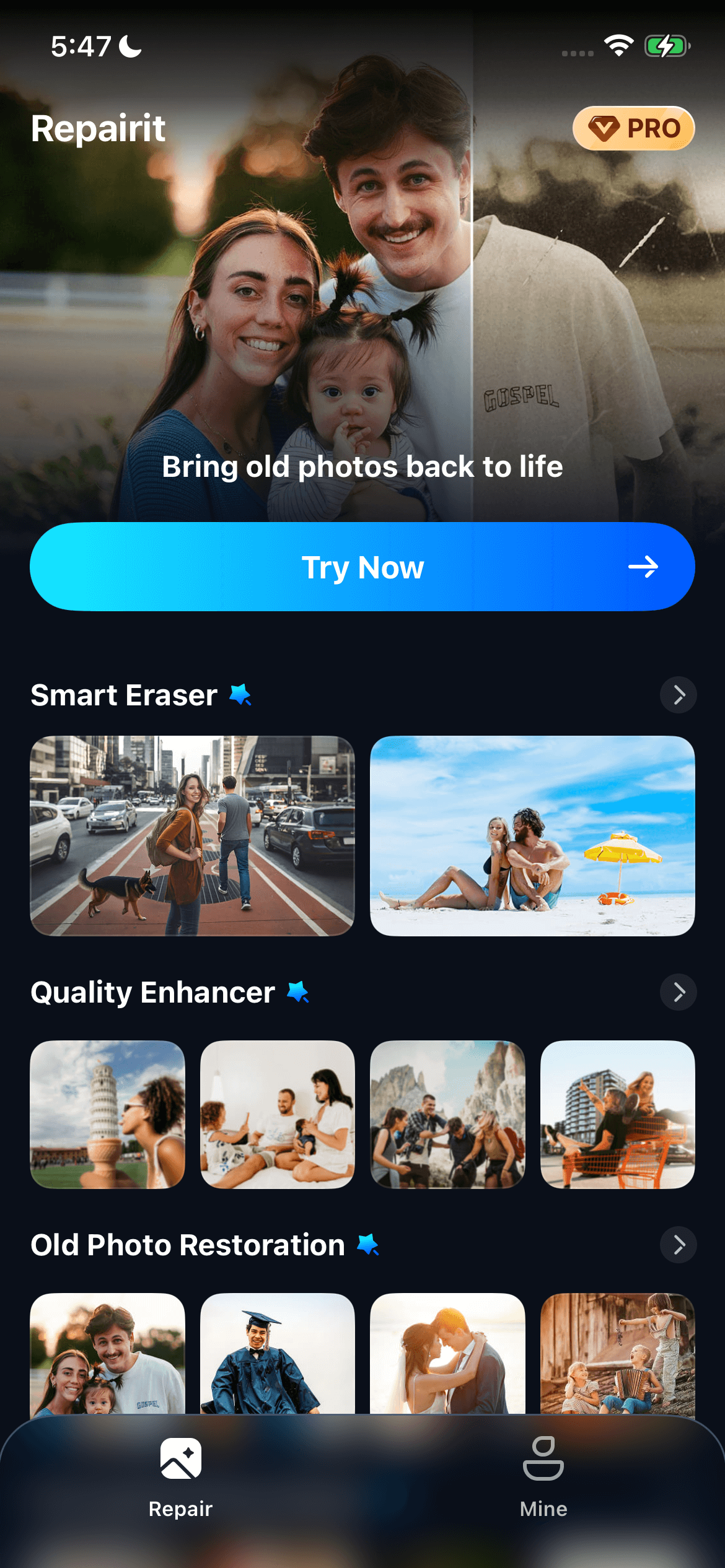
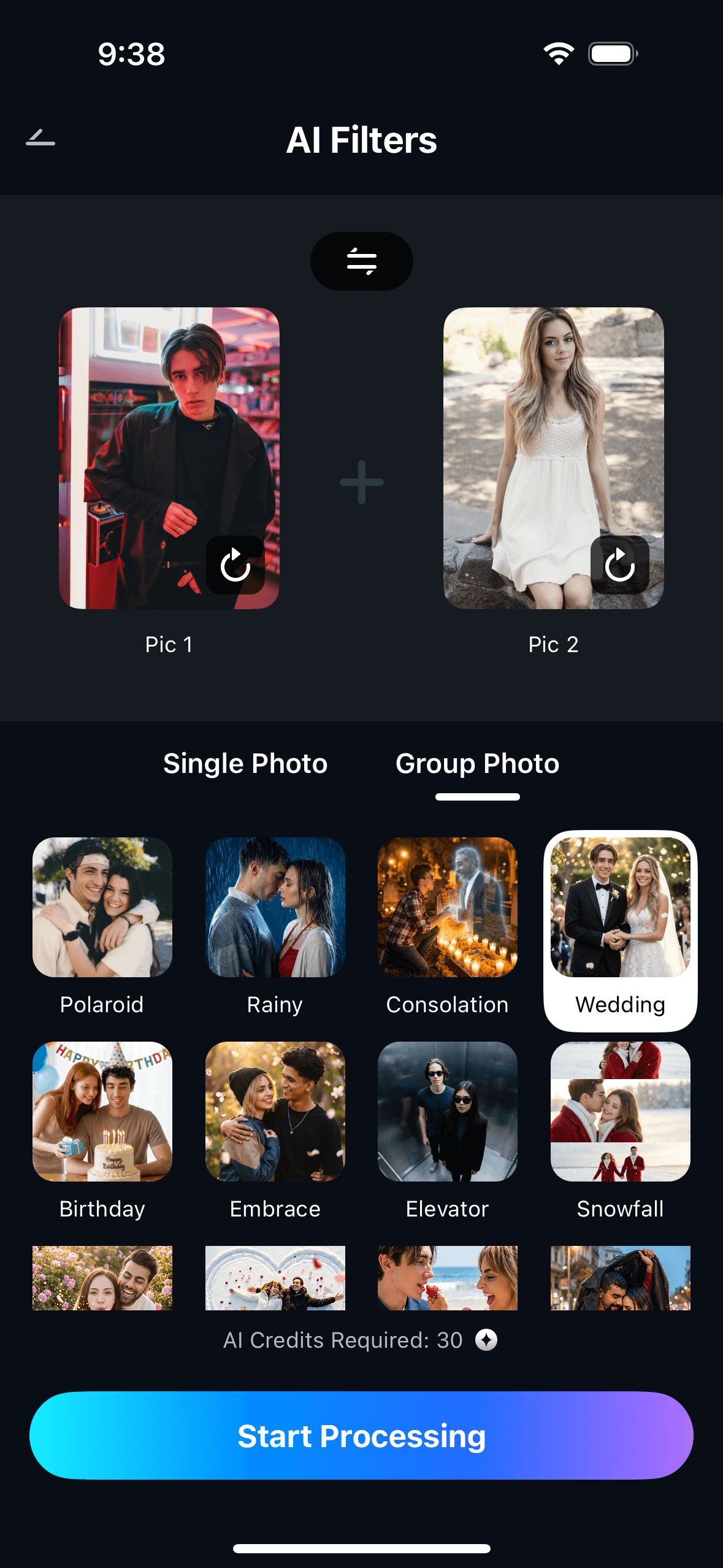
Step 2. Choose a Style & Describe Your Scene
Select an art style from the preset options — anime, oil painting, double exposure, watercolor, charcoal sketch — or type a custom description in the scene field. Examples: “Ghibli-style with soft watercolor tones and cherry blossoms” or “Renaissance oil painting portrait in warm candlelight.” Use the style-intensity slider to decide how strongly the transformation applies. Tap Start Processing.
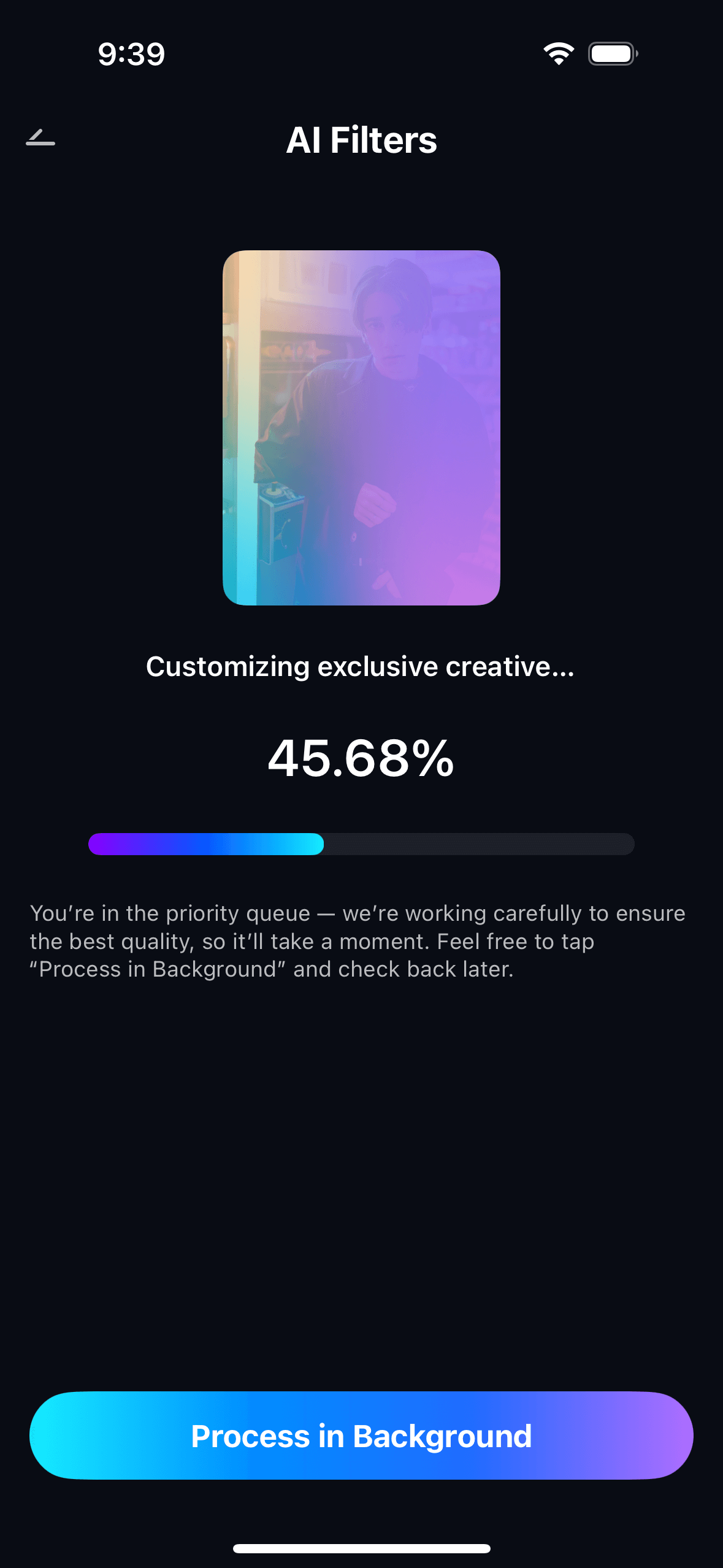
Step 3. Preview, Save & Post Your Art-Style Portrait
Preview the result in full resolution. If you want a different style intensity or a different scene description, adjust and regenerate — the same source photo stays loaded. Tap Save to export to your camera roll. The image lands in your gallery at full resolution, ready for Instagram, TikTok, or printing. Saved results appear in My Creations for easy access later.
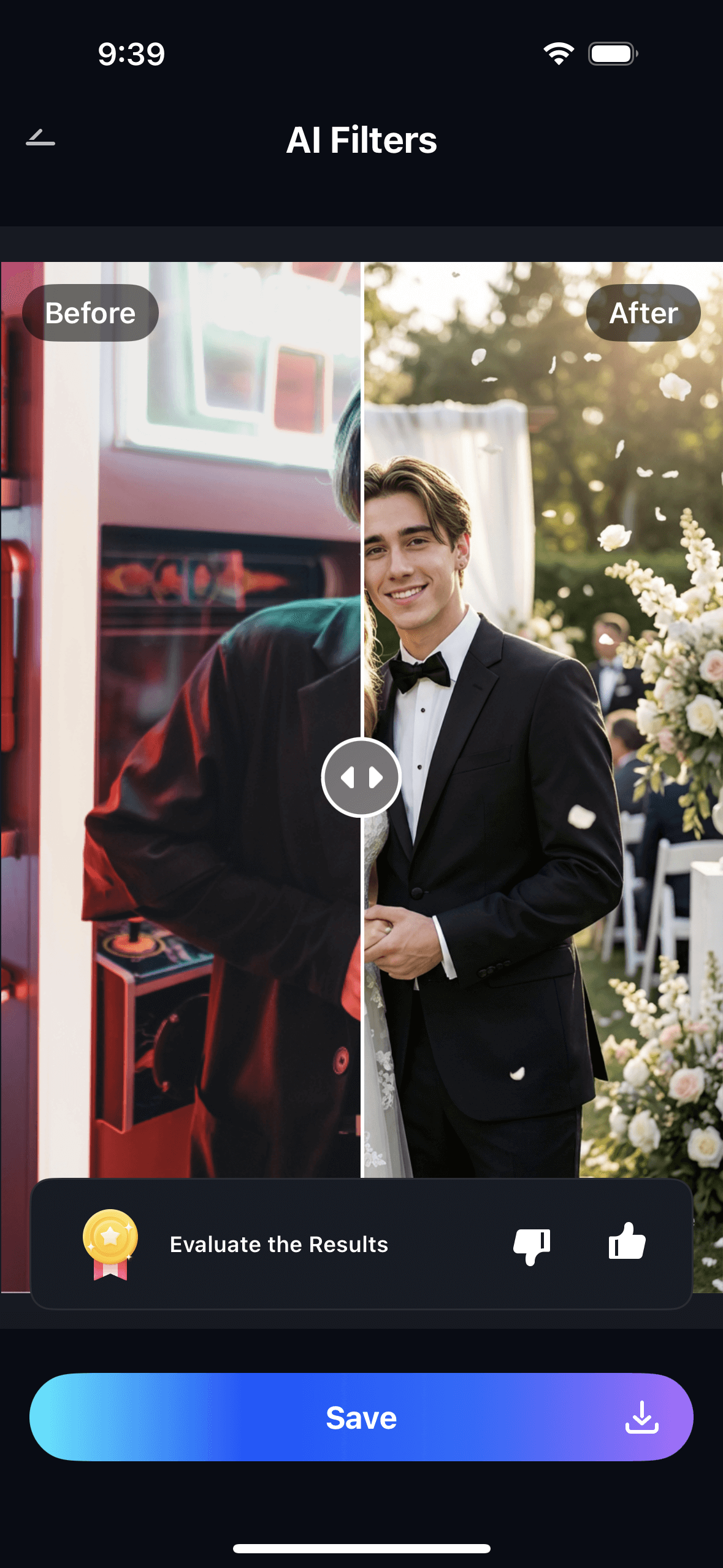
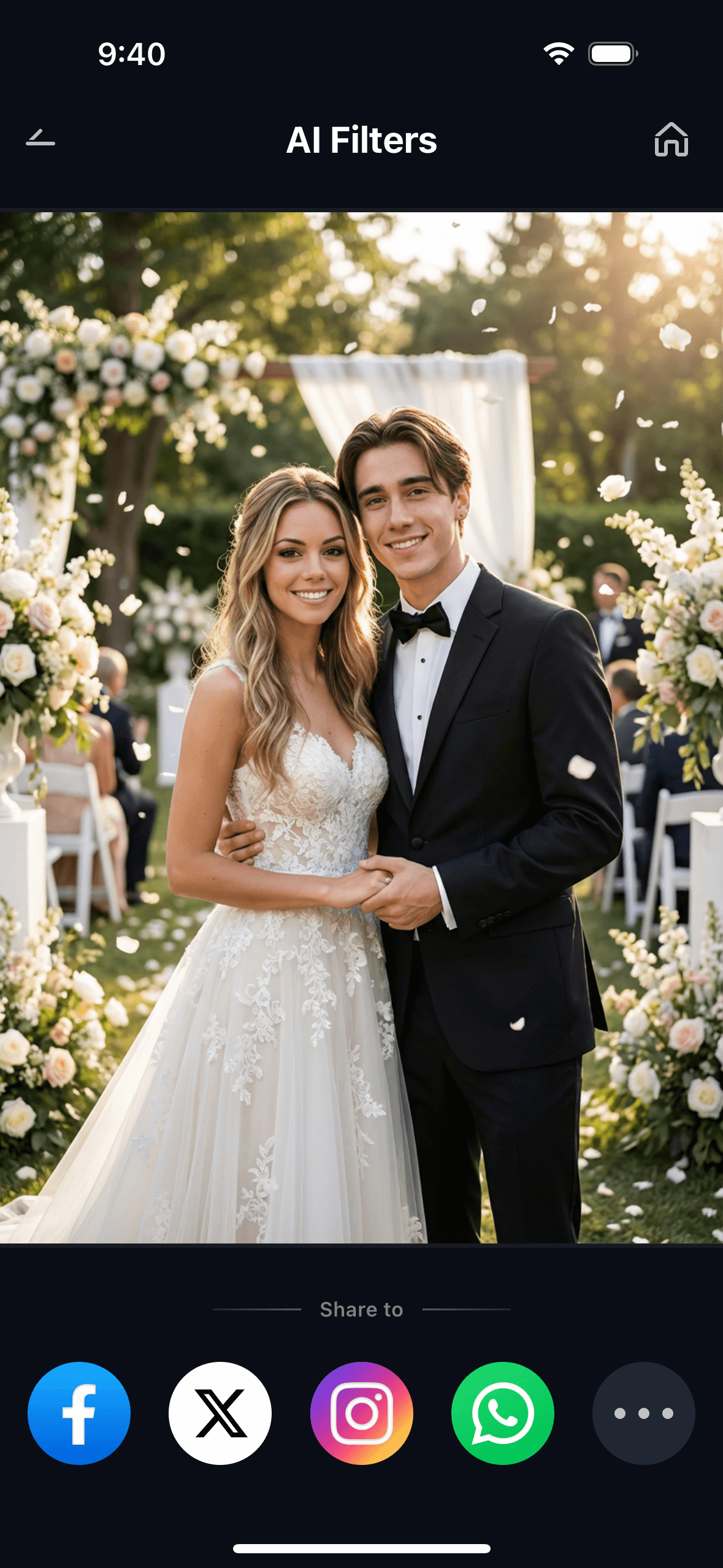
The real advantage of keeping the same photo loaded is iteration speed. Run your portrait through anime at intensity 80%, oil painting at intensity 60%, and double exposure with a forest scene — all from the same upload, in under two minutes. Three completely different artistic outputs, zero re-uploads.
Part 3: Three Art Styles You Can Create With Relumi
The Style & Art Fusion feature covers three distinct creative directions — each one produces a fundamentally different artistic output from the same source photo. Here’s what each style does, what to describe to get the best result, and what you can use the output for.
🌸 1. Anime Portrait — Turn Your Selfie Into an Anime Character
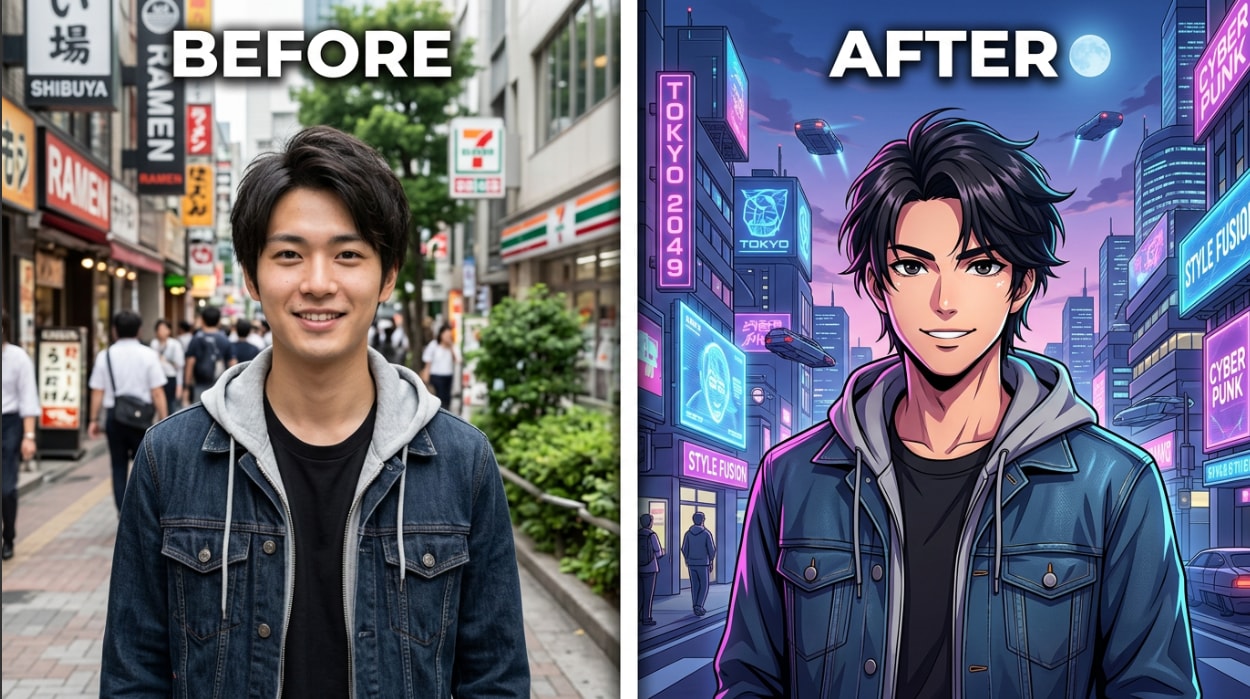
The anime portrait transformation converts your photo into a hand-drawn anime illustration — expressive eyes, cel-shaded skin, line-art definition, and a stylized background that matches the anime subgenre you describe. Ghibli-style anime uses soft watercolor washes and natural scenery. Cyberpunk anime uses neon-lit cityscapes and high-contrast shadows. Shonen anime uses bold outlines and dynamic composition.
Describe the scene: “Ghibli-style anime portrait, soft watercolor tones, cherry blossom petals, warm afternoon light filtering through trees.” Or go more specific: “cyberpunk anime portrait, neon blue and purple city lights at night, dramatic rim lighting, futuristic aesthetic.” The AI preserves your face while transforming the art direction, so the person in the output is unmistakably you — just drawn instead of photographed.
This style works well for social media profile pictures, Discord and gaming avatars, cosplay event materials, and printed keepsakes. It’s also a go-to for anime fans who want a custom portrait that actually looks like them rather than a generic AI character.
🎨 2. Oil Painting — Transform Any Photo Into a Classical Masterpiece
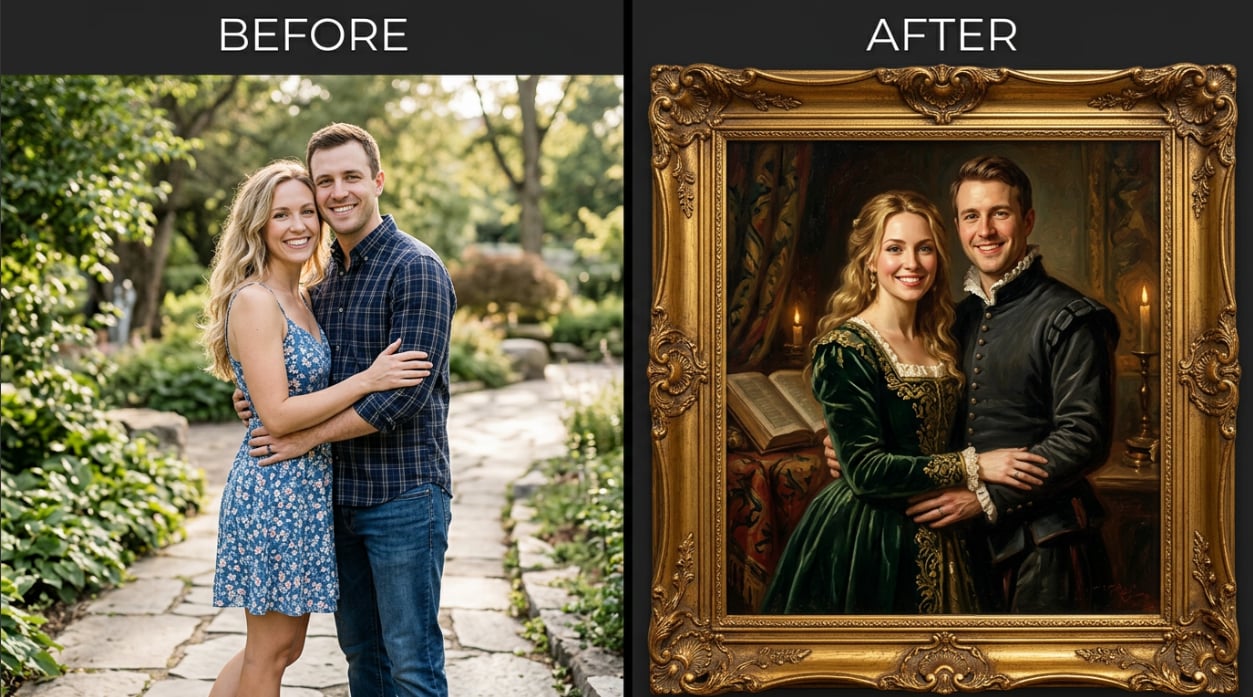
The oil painting transformation converts your photo into a classical painted portrait — rich impasto brushstrokes, tonal depth, warm or cool palette depending on your scene description, and a background treatment that ranges from dark studio draping to outdoor Renaissance landscapes. The output looks like a commissioned portrait painting, not a photo with a texture filter applied.
Describe the scene: “Rembrandt-style oil portrait, warm candlelight from the left, deep shadow background, rich earth tones, visible brushstroke texture.” Or go lighter: “French Impressionist portrait, loose brushwork, dappled outdoor light, soft color palette.” The AI applies the full painterly treatment — not just a texture overlay — so the lighting in the output is consistent with the painting style you described.
Oil painting portraits make strong home décor — printing them on canvas gives you something that genuinely looks like a commissioned artwork. They’re also popular for anniversary and holiday gifts, professional profile photos with a distinctive look, and couples’ portraits that feel more timeless than a standard photograph.
✨ 3. Double Exposure — Blend Your Portrait With a Surreal Scene
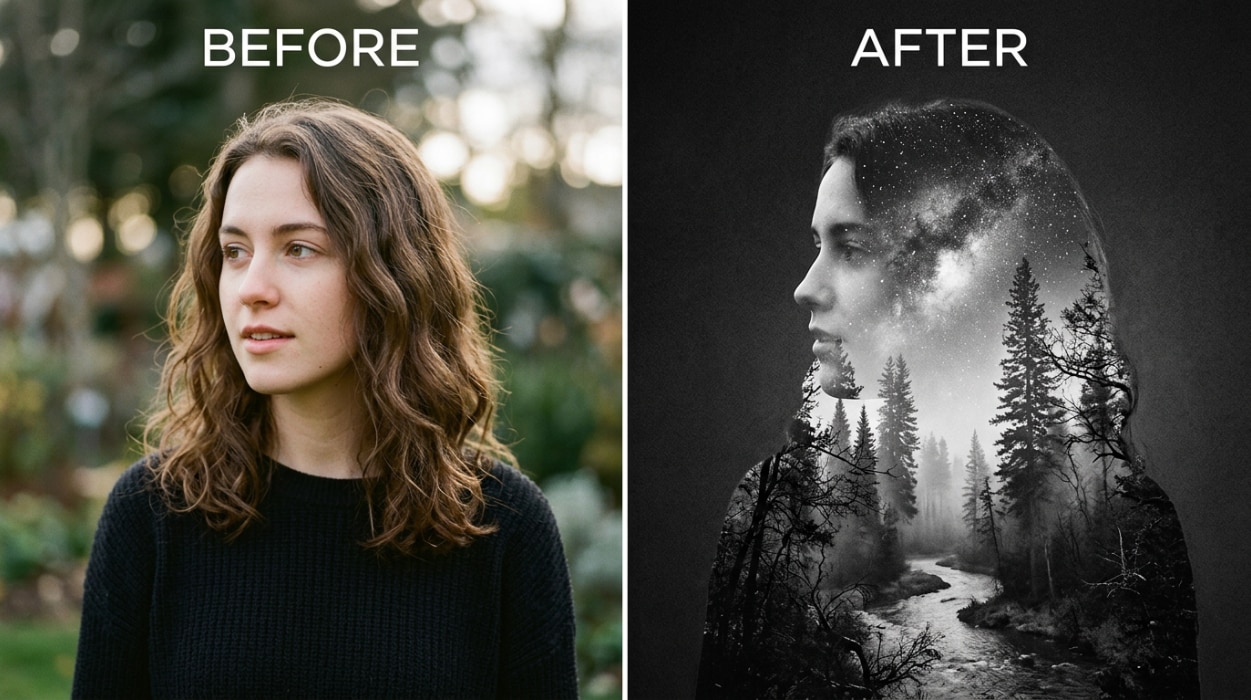
The double exposure style blends your portrait with a second scene — forest, galaxy, ocean waves, city skyline, mountain landscape — to produce a surreal composite where your silhouette becomes the container for the other image. It’s the visual effect you see in fine art photography and concert poster design, achieved in seconds from a single portrait upload.
Describe the scene: “double exposure portrait, silhouette filled with a misty pine forest, monochrome black and white, fine art photography aesthetic, soft fog between the trees.” Or go cosmic: “double exposure, portrait silhouette blended with a galaxy nebula, deep space colors, blue and purple tones, surreal dreamlike mood.” The AI handles the masking, blending, and tonal integration automatically — no Photoshop layers required.
Double exposure portraits are one of the most shareable creative image formats on Instagram and Pinterest, precisely because they look like they took real skill to make. Use them as profile photos, art prints, event invitations, or social media content that stands out from the standard photo grid.
Conclusion
Regular photos look like regular photos. If you want something that actually catches people’s attention — a profile picture that stands out, a portrait worth printing, a social media post that doesn’t look like everything else in the feed — you need a different kind of output. Not a filter. Not a preset. An actual artistic transformation that keeps your face and changes everything else.
Relumi Combine Photo — Style & Art Fusion generates that output from a single photo in under 30 seconds. Upload your portrait. Choose anime, oil painting, double exposure, or describe anything you can imagine. The AI transforms the full image — lighting, palette, texture, background, art style — while keeping your face identifiably yours. One photo. Three styles. Zero Photoshop.
Upload your photo and see what your portrait looks like as art — before you post another standard selfie.
FAQ
-
Will my face look like me in the art-style output?
Yes. Relumi anchors the style transformation to your uploaded photo’s facial structure, so the output face is recognizably yours. This is the core limitation of general text-to-image tools — they generate a fictional person that loosely matches a description rather than transforming a specific individual. Relumi’s output shows the actual person who uploaded the photo, rendered in the chosen art style. -
Can I apply multiple art styles to the same photo?
Yes. Once your photo is loaded, you can generate multiple outputs in different styles without re-uploading. Run the same portrait through anime, oil painting, and double exposure in the same session. Each generation takes about 15–30 seconds, and all results are saved to My Creations for easy comparison and download. -
What makes a good source photo for style fusion?
A clear, reasonably well-lit portrait where the face is clearly visible works best. Front-facing shots work slightly better than profiles because the AI has more facial structure to anchor to. Selfies work fine — you don’t need a professional headshot. Avoid very dark photos, heavy shadow on the face, or images where sunglasses or a hat covers most of the face. -
Can I describe a custom art style that isn’t in the preset list?
Yes. The scene description field accepts free-text input. Describe the painting style, the lighting, the mood, the color palette, the background, or a specific artist’s aesthetic — Rembrandt, Monet, Studio Ghibli, ukiyo-e woodblock print, dark fantasy, retro 80s illustration — and the AI will follow your description rather than defaulting to a preset. More specific descriptions tend to produce more distinctive outputs. -
Is the Style & Art Fusion feature free?
Yes. The core Style & Art Fusion feature is available on Relumi’s free tier for iOS and Android. Upload your photo, choose a style, generate the art-style portrait, and save it at full resolution — no subscription required. Advanced style options and higher export resolutions are available on the paid plan. -
How is this different from a filter or a photo-editing app?
A filter applies a texture or color overlay to a photograph — the underlying image is still a photo. Style & Art Fusion transforms the image into a genuine artistic composition: the lighting logic changes, the background is redrawn in the style’s visual language, the linework or brushstroke structure is generated to match the art form. The output looks like an artwork, not a filtered photo — while keeping your face as the subject.



