Image to Sketch:
Make Your Favorite Photos Look Hand-Drawn
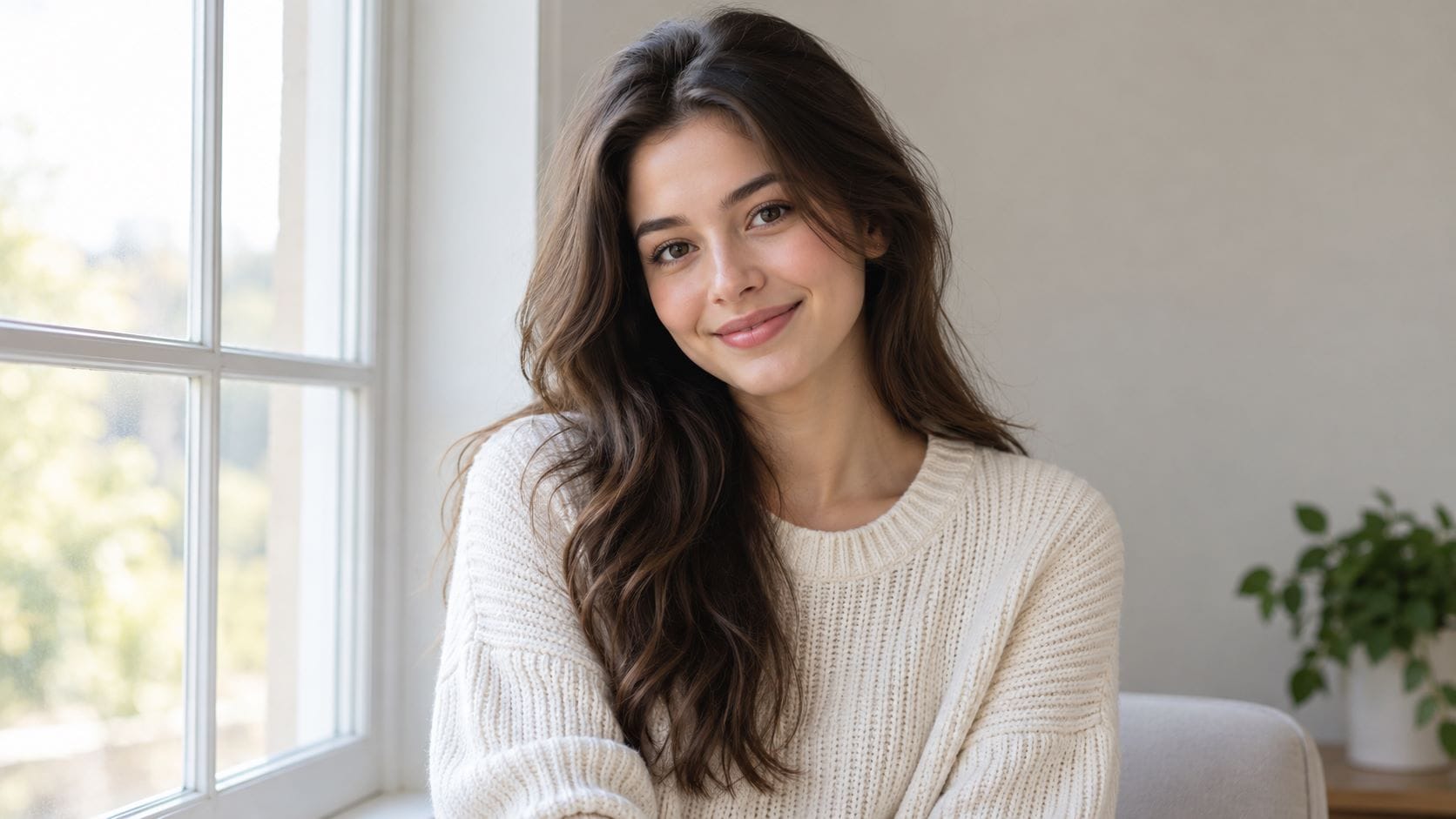
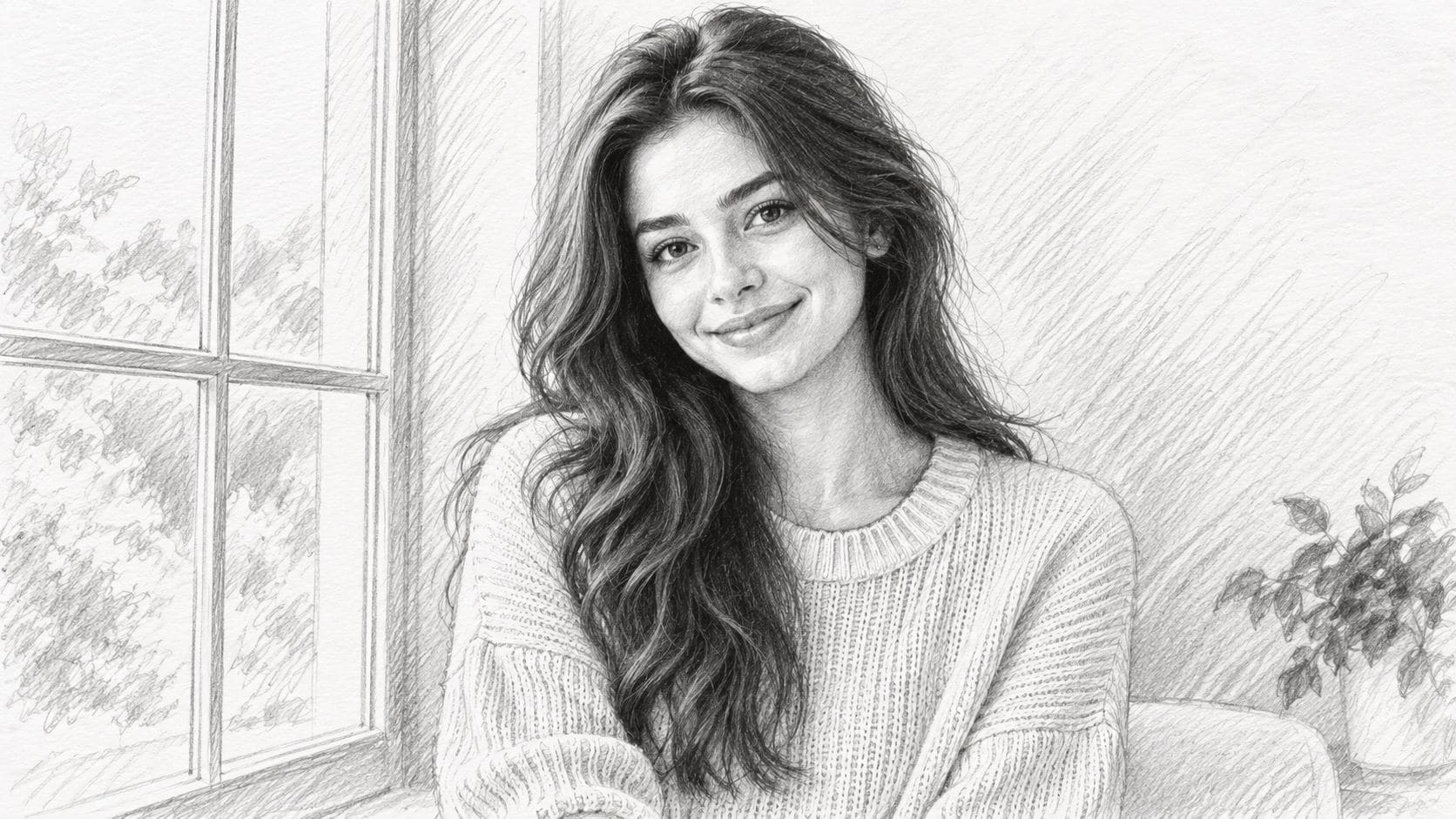


Celebrate the hand-drawn artwork with warm, personal photos. Use Repairit to add sketch-inspired color and atmosphere to portraits, family pictures, and artistic visual concepts.


Turn Portrait Photos Into Pencil Sketches
A favorite portrait captures an expression that deserves more than another standard photo. Drawing someone's face by hand takes practice, while basic monochrome filters do not recreate convincing pencil strokes or shading. Repairit helps reinterpret existing portraits with graphite-inspired textures, delicate outlines, and the feeling of a personal hand-drawn keepsake.
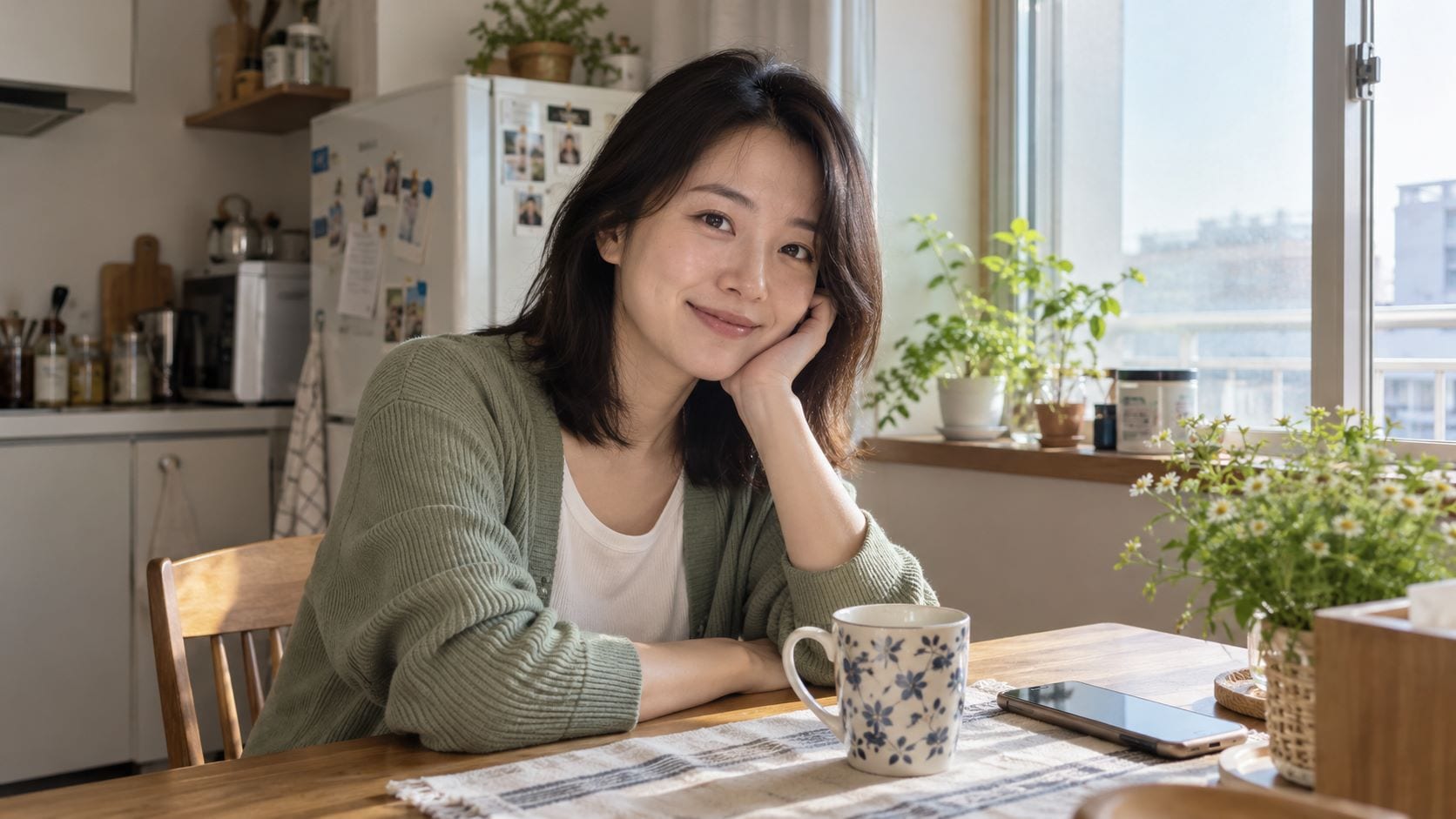
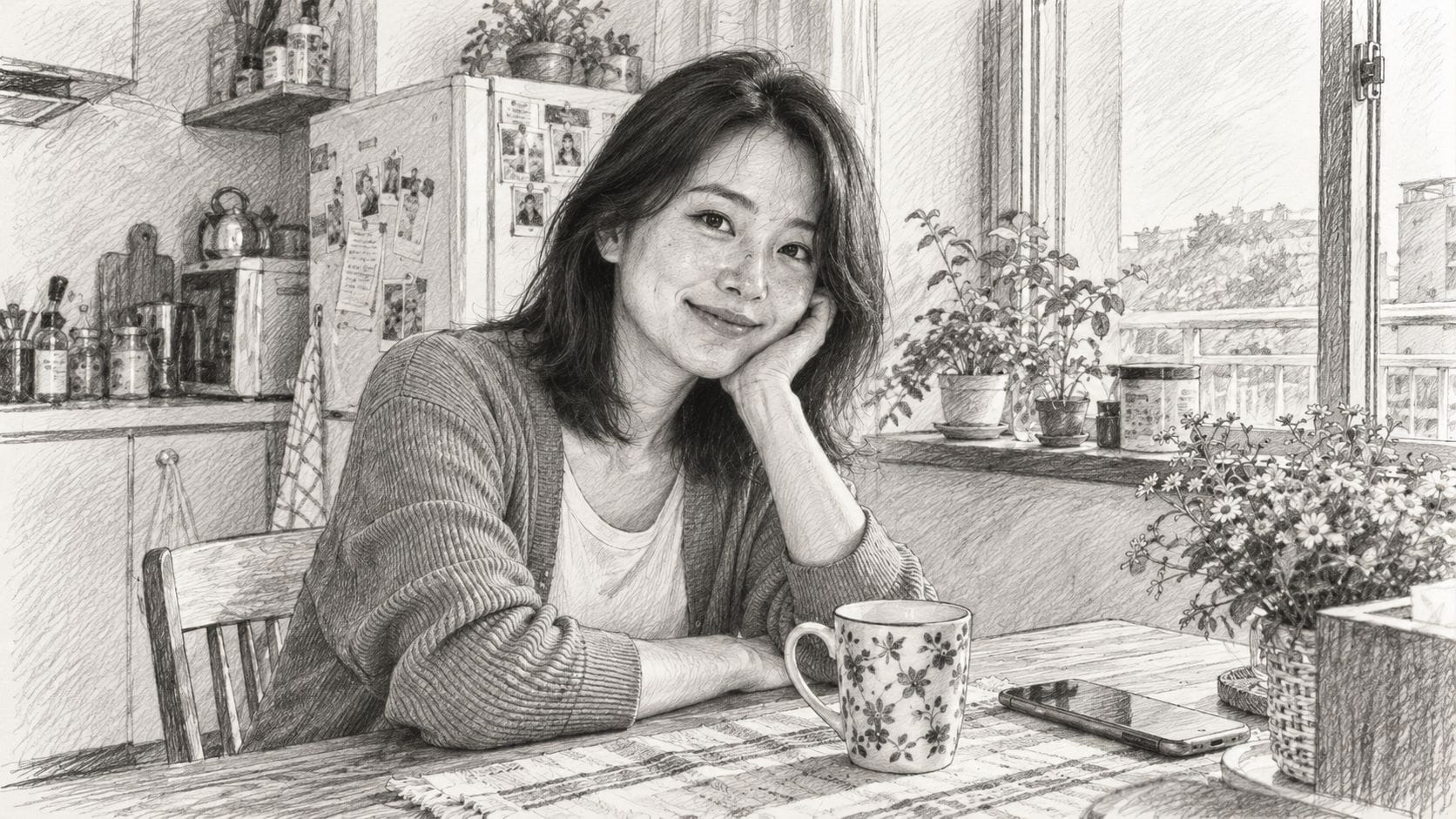
Create Hand-Drawn Pet Sketches From Photos
A pet's familiar expression makes an ordinary photo special, but sketching soft fur, bright eyes, and tiny details by hand is difficult. One-click black-and-white effects can flatten the character that makes the picture memorable. Repairit helps explore pencil-inspired pet artwork with soft shading and hand-drawn textures that suit a meaningful keepsake.
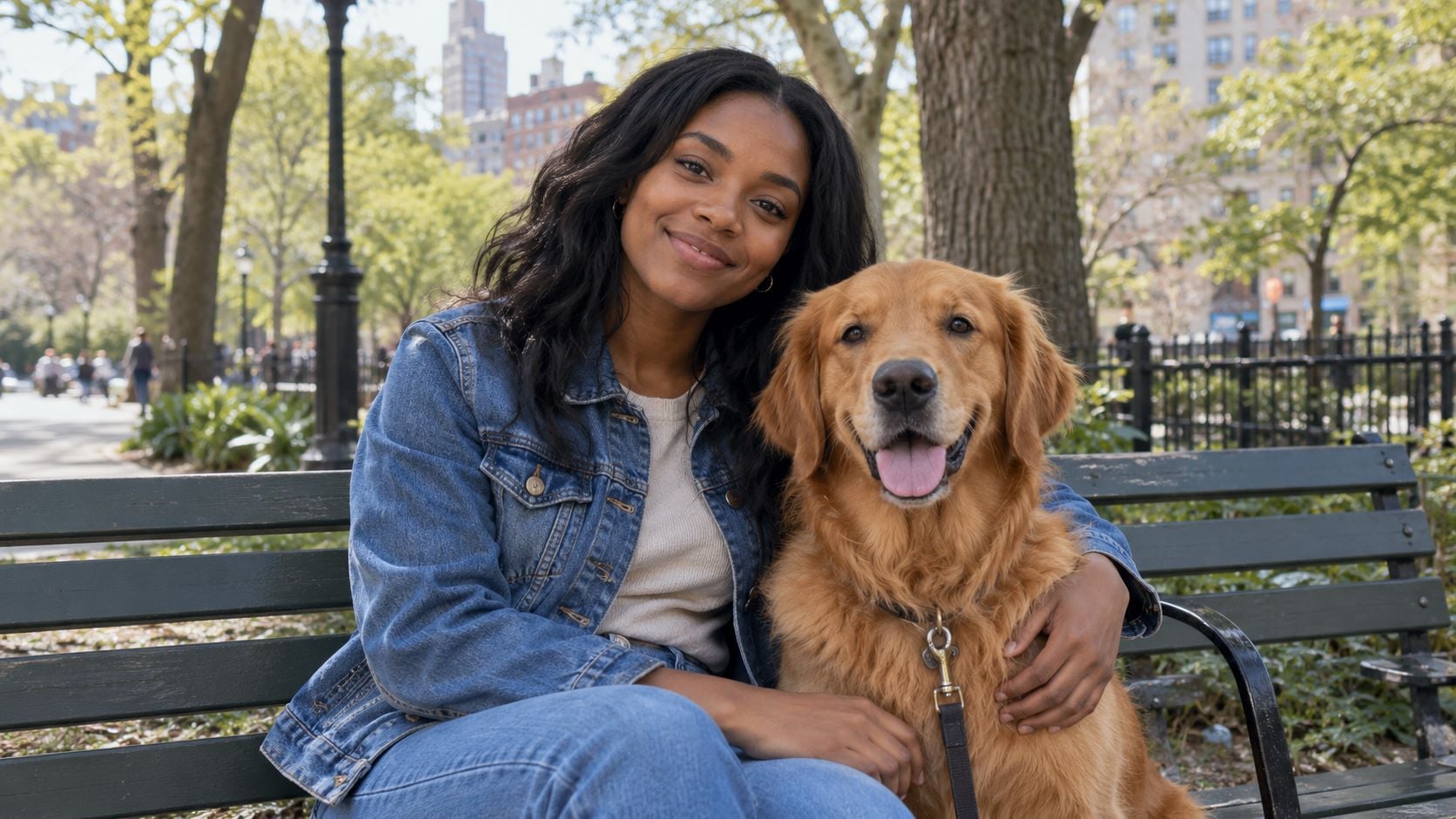
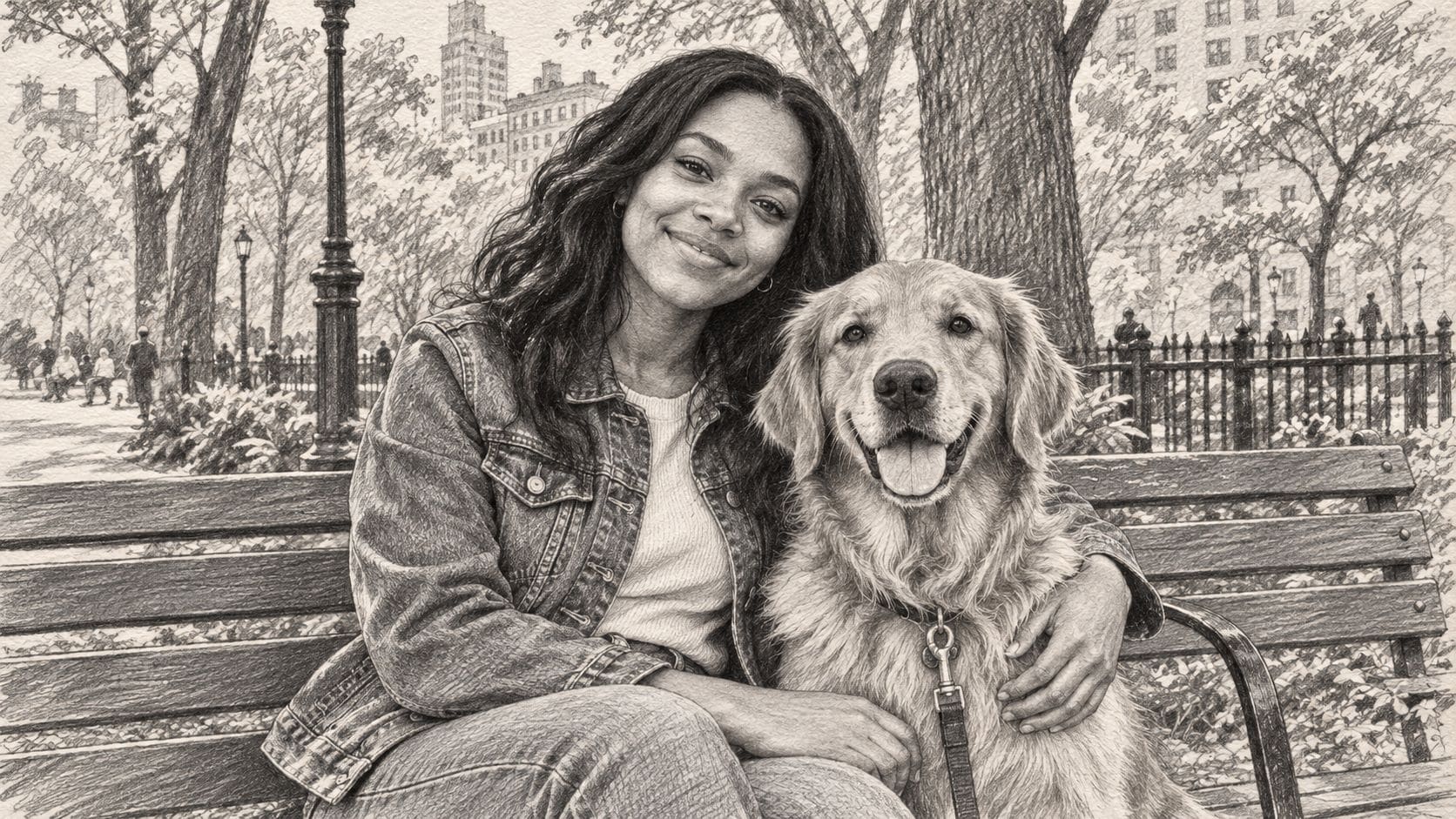
Transform Travel and Landscape Photos Into Art
A memorable landscape or street scene can lose its atmosphere among busy colors and background details. Turning mountains, buildings, or travel memories into charcoal artwork usually requires careful drawing skills. Repairit helps give existing scenic photos expressive strokes, textured shadows, and a simplified sketch-style composition that draws attention to the place itself.
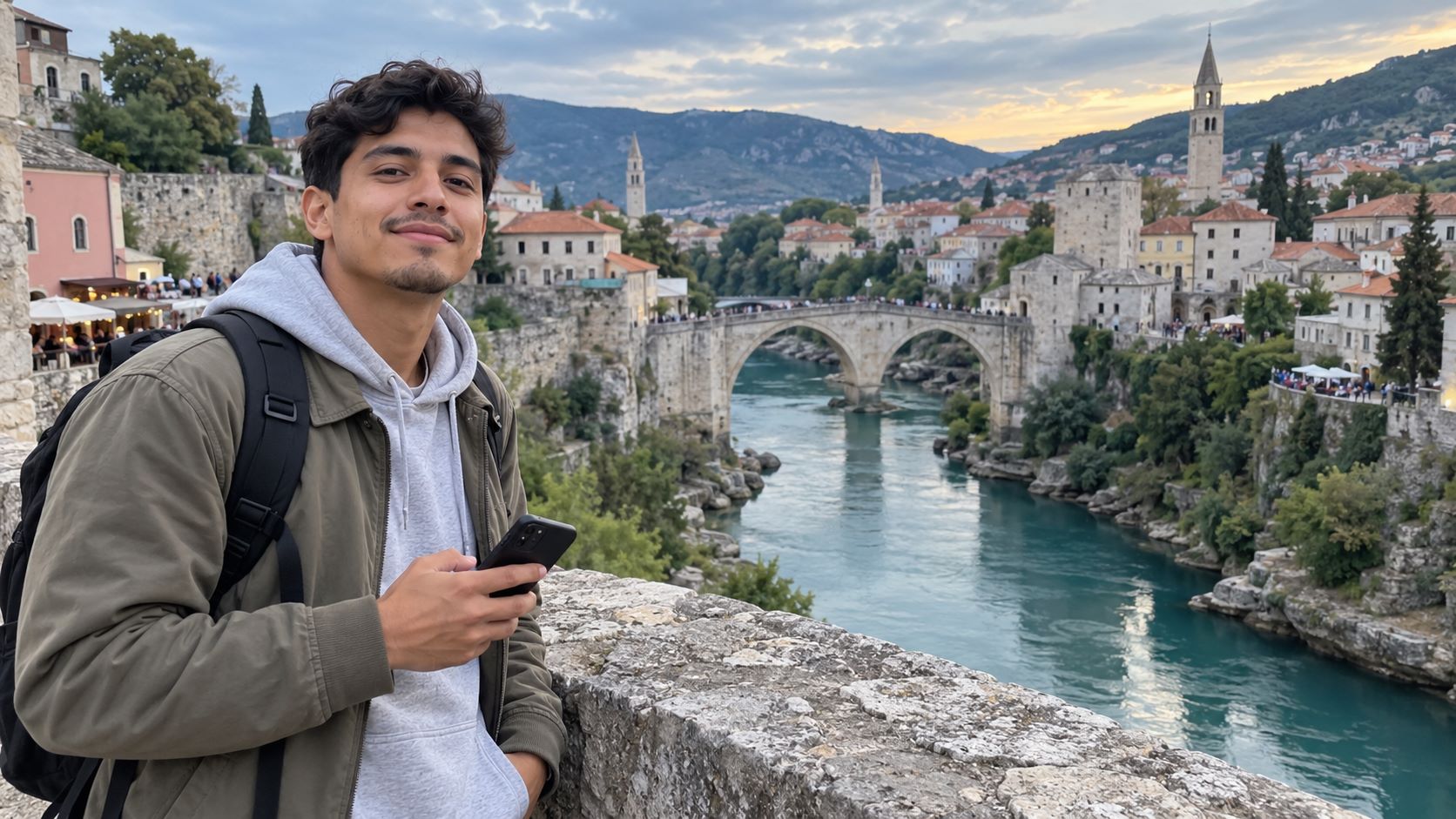
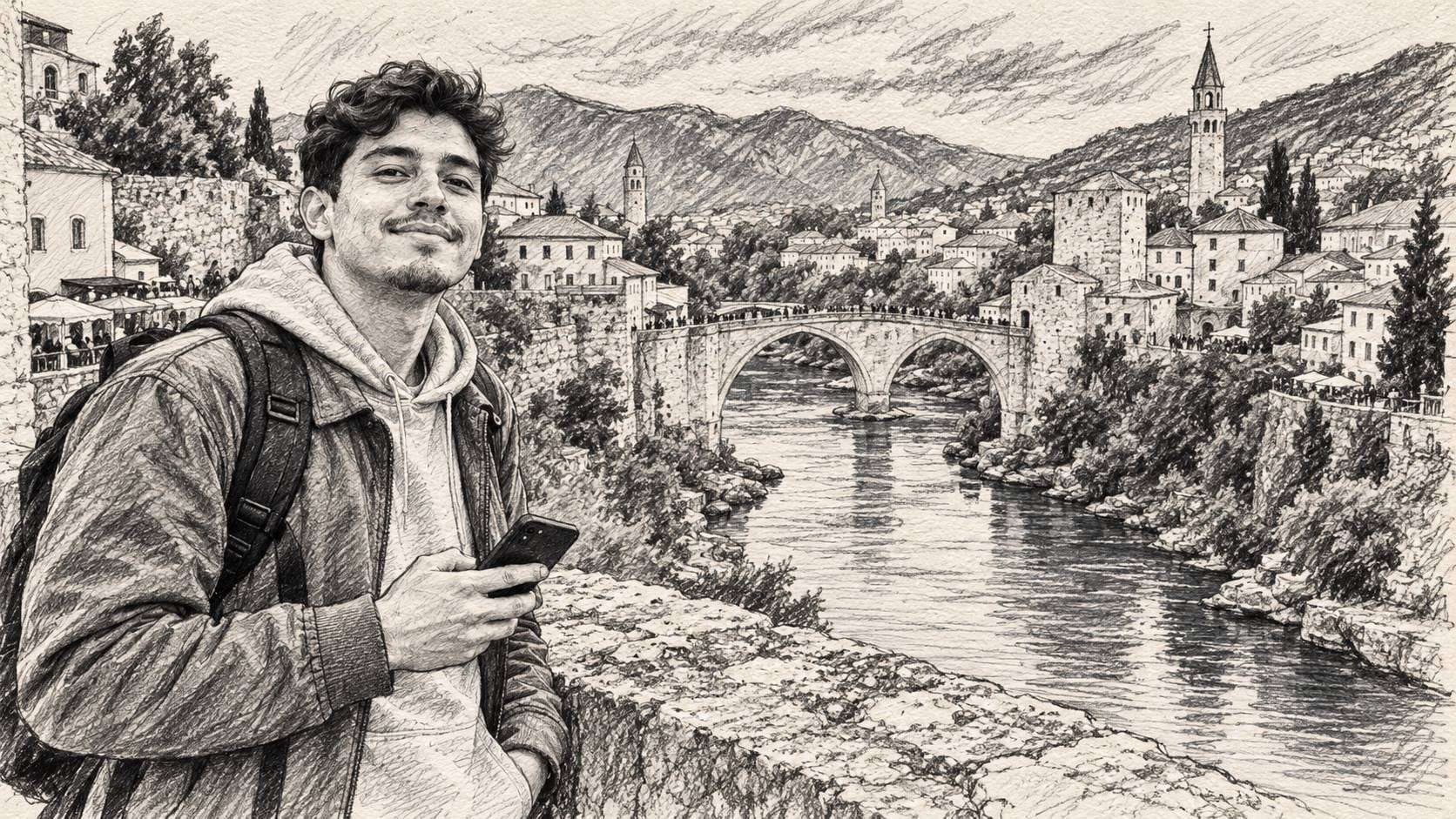
Make Minimalist Line Art From Images
Sometimes a few clean contours say more than a fully detailed picture. Minimalist artwork works beautifully for creative decor, cards, and design concepts, but manually tracing complex outlines takes time, and edge filters can leave visual clutter. Repairit helps reimagine source images as simplified line-art-inspired drawings with a restrained, elegant look.
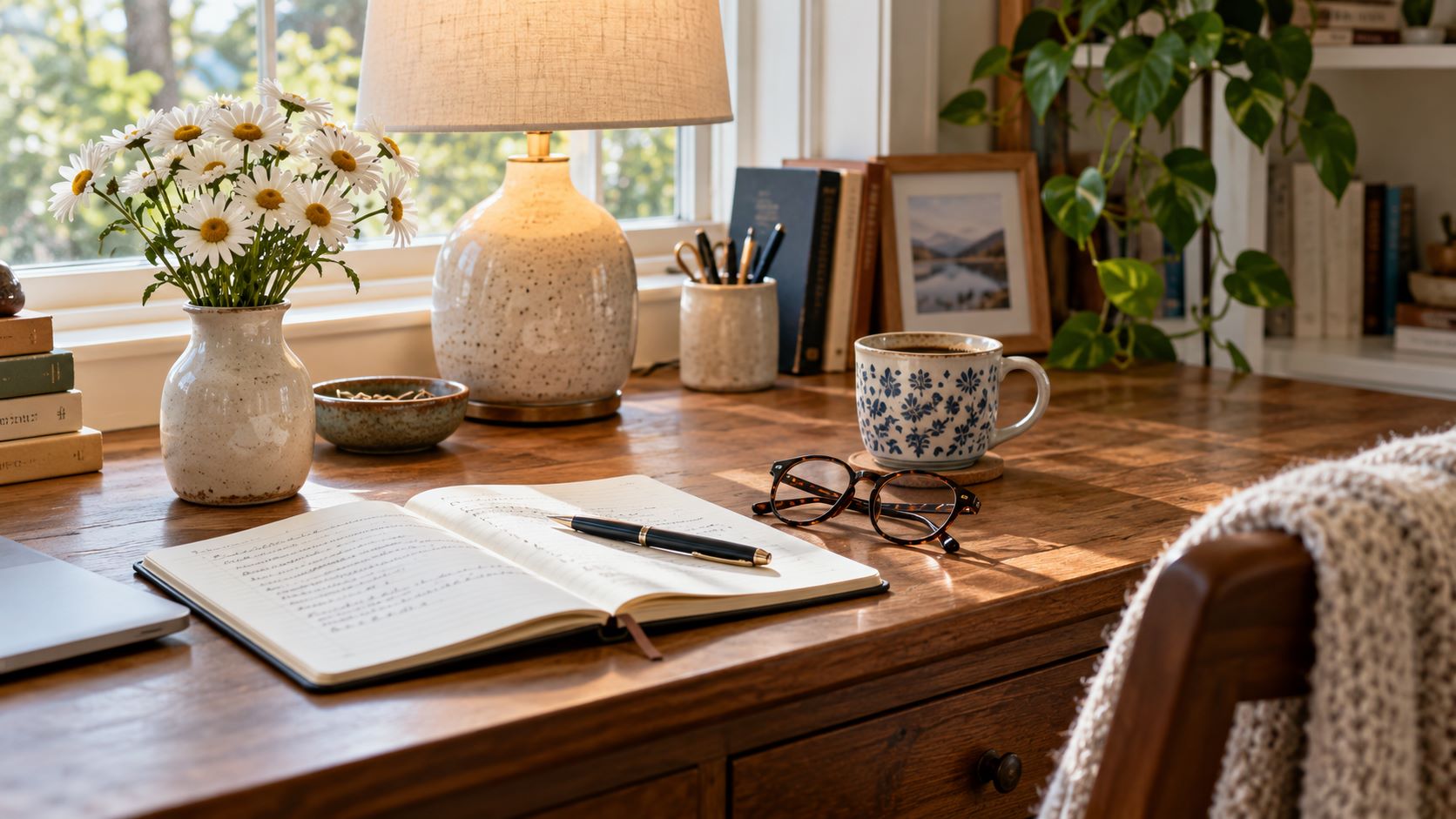
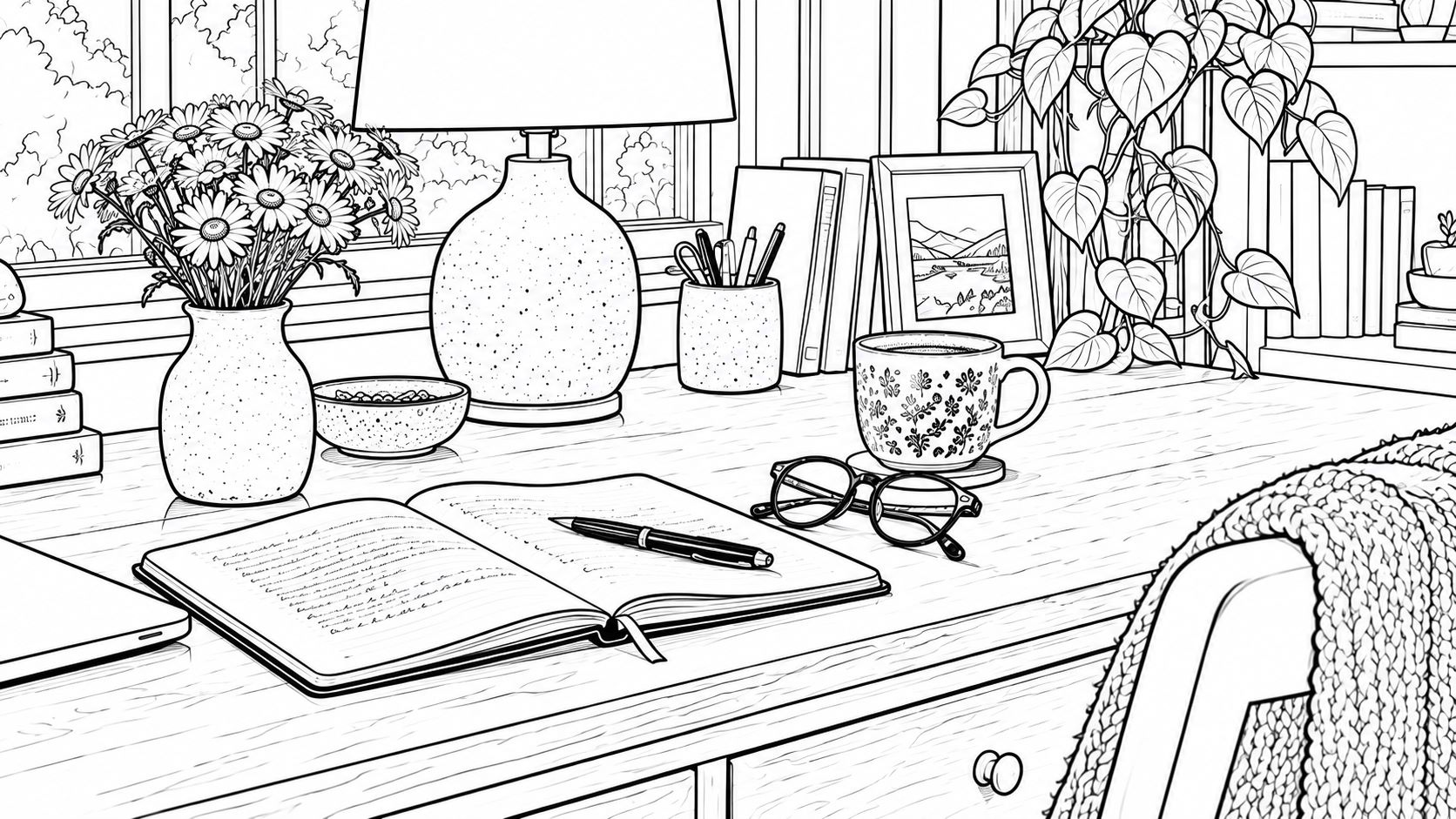
How to Turn an Image Into a Sketch With Repairit

Step 1
Upload Your Favorite Photo
Choose a clear portrait, pet picture, landscape, or still life with recognizable shapes and natural contrast. A busy or blurry source may produce messy sketch lines.

Step 2
Describe Your Sketch Style
Try: “Turn this photo into a realistic graphite pencil sketch on white drawing paper, with delicate strokes and natural shading. Keep the main subject recognizable.” Specify charcoal texture or clean black outlines for other styles.

Step 3
Preview and Save Your Sketch
Check faces, fur, building edges, and line quality. If details look distorted or the lines are too heavy, refine the prompt and review the new result before saving.
Why Choose Repairit for Image-to-Sketch Editing?
✏️Create Without Drawing Skills
Give photos the look of hand-drawn artwork without learning sketching or tracing every line manually.
🎨 Describe the Style You Imagine
Request graphite pencil strokes, expressive charcoal shading, or clean minimalist outlines using ordinary words.
🖼️ Explore Art From Different Photos
Reimagine portraits, pets, landscapes, and still-life images with sketch-inspired looks.
🔍 Refine the Details That Matter
Review the result and use more specific instructions when important shapes or facial features need attention.
Explore More AI Photo Editing Tools
Discover related Repairit features for refining source photos, removing distractions, and exploring creative image styles.
Frequently Asked Questions
An image-to-sketch converter changes an existing photo into artwork that resembles a pencil drawing, charcoal illustration, or simple line drawing. Repairit One Prompt Edit uses a source image and a written style description rather than a dedicated library of sketch presets.
Upload a clear photo, then describe the pencil effect you want. For example, ask for graphite strokes on white paper with natural shading and recognizable subject details. Preview the result, adjust the instructions if necessary, and save the image.
You can explore a sketch-style edit through the Repairit One Prompt Edit feature page and its available workflow. Review the current platform availability before starting; the page is not a dedicated one-click sketch filter.
You can describe different visual directions in your prompt, including fine pencil lines, dramatic charcoal shadows, and minimalist outlines. Results vary by source photo and prompt, so different styles may need separate attempts.
Use well-lit photos with a clear subject, recognizable outlines, and enough contrast between the subject and background. A sharp portrait, pet photo, or landscape usually gives the AI more visual structure than a very blurry or cluttered image.
A low-quality original, distracting background, or an overly broad prompt can cause missing contours, exaggerated shadows, or changed facial details. Start with a clearer image and describe the key features, line thickness, paper background, and shading you want to preserve.
Trial access, usage limits, and AI Credits depend on Repairit’s current offering. Check the One Prompt Edit feature page before editing; do not assume that unlimited sketch generations or exports are free.
Hot Topics
Comprehensive How-to Guides
Want to turn your favorite photo into a hand-drawn sketch? Try One Prompt Edit for prompt-guided sketch styling.