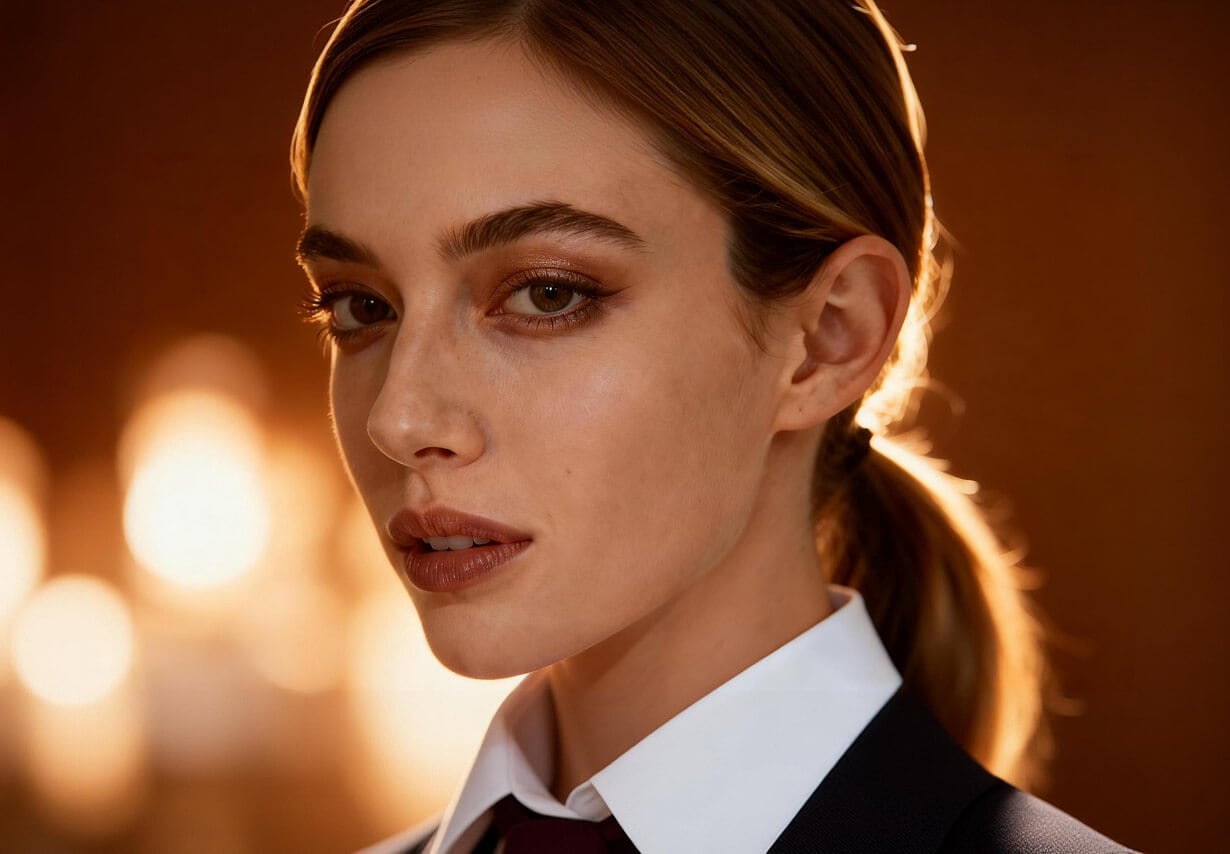
Relumi - AI Photo Enhancer
Nano Banana Pro
Relumi - AI Photo Enhancer
Nano Banana Pro
Relumi - AI Photo Enhancer
AI Photo Retake:
Whiten Teeth in Photo and Perfect Your Smile Instantly



How Relumi Whitens Teeth in Photo & Enhances Your Smile
With Nano Banana Pro, Relumi's AI photo retake can whiten teeth in photo and refine your smile from the inside out—analyzing tooth shade, lip position, and facial lighting so the final portrait still feels like the original moment, just brighter.
Smart Teeth Detection for Precise Photo Whitening
Relumi's teeth whitening photo editor automatically detects every visible tooth in the frame—no manual selection, masking, or brush strokes needed.
It maps each tooth's boundary and shade so it can make teeth whiter in photo precisely, without spilling onto lips, gums, or skin.

Smart Teeth Detection for Precise Photo Whitening
Relumi's teeth whitening photo editor automatically detects every visible tooth in the frame—no manual selection, masking, or brush strokes needed.
It maps each tooth's boundary and shade so it can make teeth whiter in photo precisely, without spilling onto lips, gums, or skin.
- Relumi automatically find and isolate your teeth in the photo, no need to draw masks or select areas manually.
- Edit teeth in photo with pixel-level accuracy so whitening stays strictly on your teeth, not on surrounding skin or lips.
- Get consistent results even when your mouth is slightly open, angled, or partially visible in the shot.
 Try It free
 Try It free
Natural Teeth Whitening in Picture—No Chalky or Over-Bleached Look
Relumi whitens teeth in photo to a shade that looks genuinely bright but not artificially white.
Instead of applying a flat brightness overlay, the AI analyzes your natural tooth color, removes yellowing and stains, and lifts your smile to the cleanest version of itself—so teeth whitening in picture always looks real.

Natural Teeth Whitening in Picture—No Chalky or Over-Bleached Look
Relumi whitens teeth in photo to a shade that looks genuinely bright but not artificially white.
Instead of applying a flat brightness overlay, the AI analyzes your natural tooth color, removes yellowing and stains, and lifts your smile to the cleanest version of itself—so teeth whitening in picture always looks real.
- Make teeth whiter in photo without the neon-white, over-bleached result that gives away heavy retouching.
- Remove yellowing, coffee stains, and surface discoloration while keeping a natural enamel texture and shine.
- Use the best teeth whitening result for any photo—selfies, portraits, or group shots—without it looking obviously edited.
Edit Teeth in Photo Without Touching Skin, Lips, or Background
All whitening adjustments stay precisely within your teeth—your skin tone, lip color, facial lighting, and background remain exactly as captured.
Relumi's teeth whitening picture editor ensures the upgraded smile blends seamlessly, so the photo looks like it was captured with a perfect smile from the start.
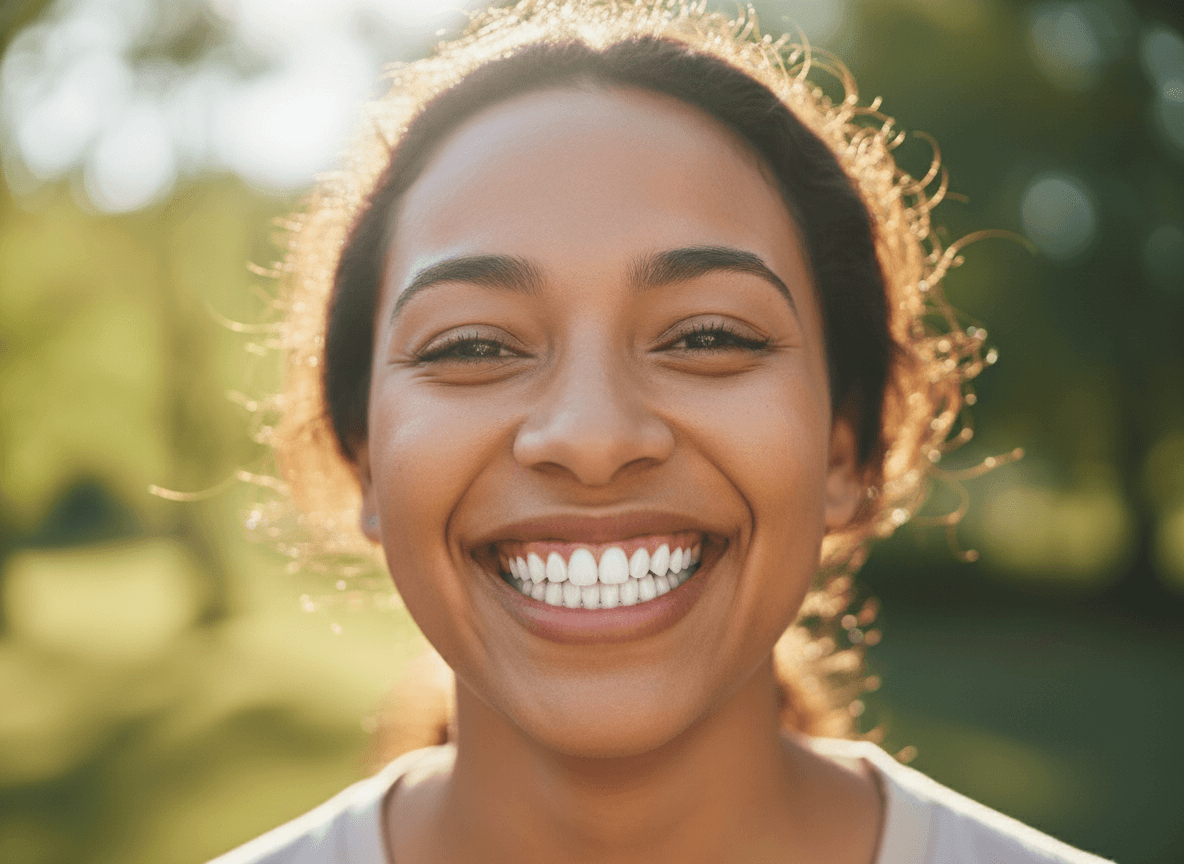
Edit Teeth in Photo Without Touching Lips or Background
Whitening adjustments stay precisely within your teeth, beutify your skin tone, lip color, facial lighting, but background remain exactly as captured.
Relumi's teeth whitening picture editor ensures the upgraded smile blends seamlessly, so the photo looks like it was captured with a perfect smile from the start.
- Whiten teeth in photo without creating mismatched skin tones, color spill onto lips, or unnatural shadows.
- Preserve the original warmth and mood of the portrait—only your smile changes, everything else stays untouched.
- Share your whitened-teeth photo on any platform—social media, professional profiles, or print—without it looking retouched.
Go Beyond Teeth Whitening with AI Retake
Create cleaner, more confident portraits with related AI tools for smiles, skin, wrinkles, and facial touch-ups.
When to Whiten Teeth in Photo with Relumi
Any time you think "this would be a perfect portrait if my smile was brighter," Relumi is the fastest teeth whitening photo app to rescue that shot.
Step-by-Step Guide to Whiten Teeth in Photo
No editing skills required—just three simple steps in Relumi to get a brighter smile.

Add Photos into Relumi
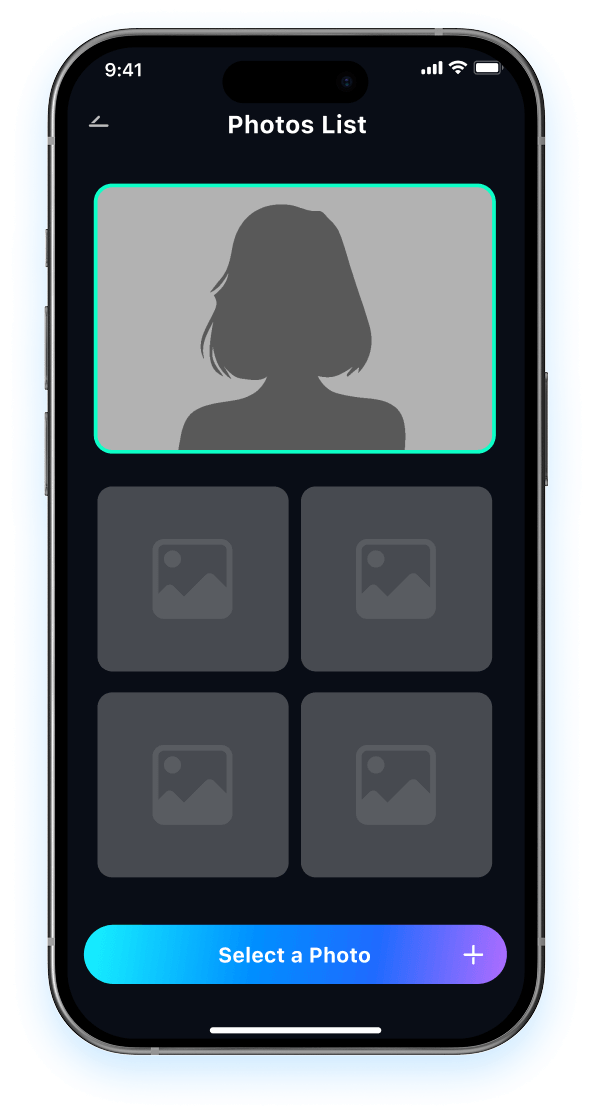
Open Relumi and select any portrait or selfie where you want to whiten teeth in photo, whether the discoloration is mild yellowing or more noticeable staining.

Choose AI Retake Mode
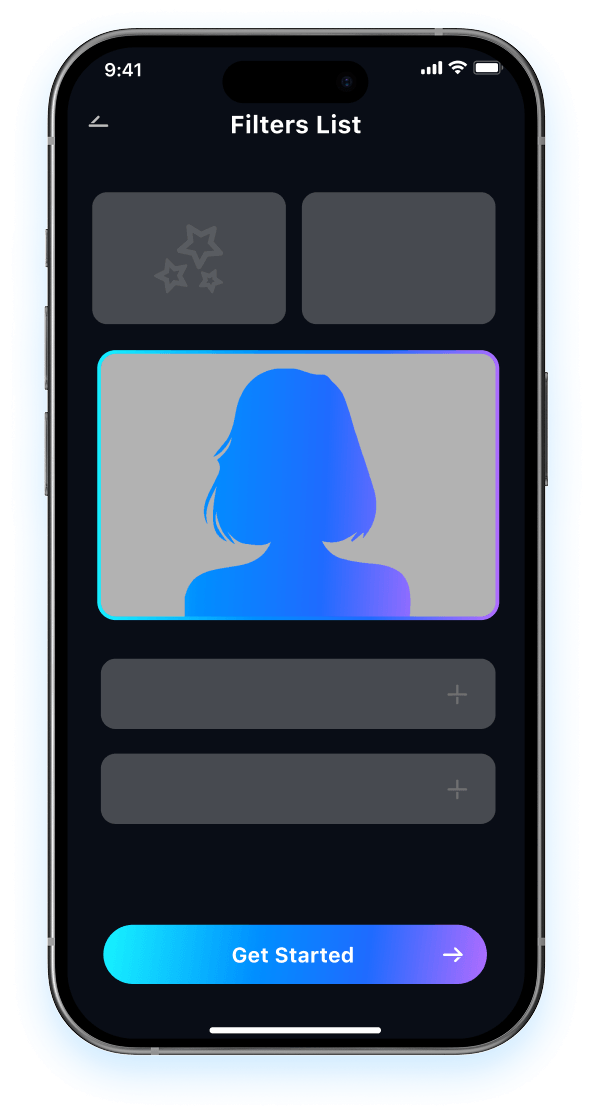
Relumi automatically detects your teeth, analyzes color and staining, and whitens teeth in photo naturally—removing yellowing while keeping your skin tone and background untouched.

Preview and Save
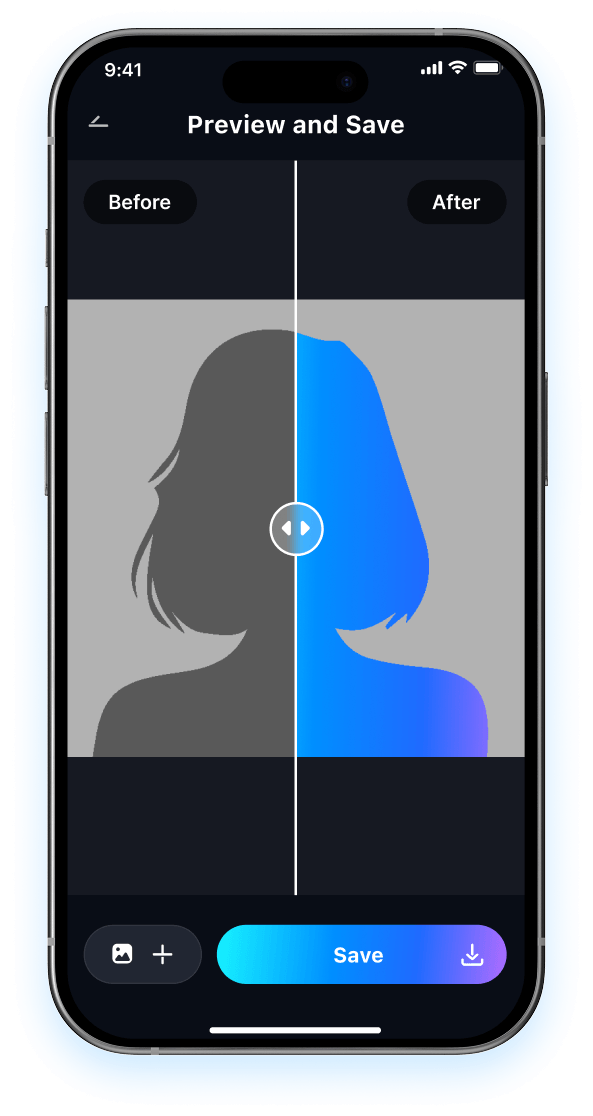
Compare your whitened-teeth photo side-by-side with the original. When you're happy with the result, save in high resolution and share directly to social media or your profile.

FAQ About Whitening Teeth in Photo with Relumi
1 Will the result look fake after I whiten teeth in a photo?
2 How can I get the most natural result when I make teeth whiter in photo?
3 Will Relumi change my lips, skin tone, or the background when whitening teeth?
4 Is Relumi hard to use as a teeth whitening photo app if I've never edited photos before?
5 Is it safe to upload my photos to Relumi's teeth whitening picture editor?
Explore More AI Portrait Fix Tools in Relumi
Relumi is more than a AI tool to fix closed eyes in photo, it's a full photo enhancement toolkit for your portraits.