
 TL;DR:
Relumi AI Retake provides a free iOS and Android tool that uses anatomy-aware AI to remove camera-induced yellow lighting casts from teeth, restoring a natural off-white tone rather than applying an artificial bleach effect.
● Unlike Facetune which requires a subscription and can produce an unnatural glowing blue finish, or Photoshop which demands manual masking skills, Relumi processes the image in one tap while preserving the physical texture and ridges of the teeth.
● The application automatically detects and processes every smiling face in group photos simultaneously, though a premium plan is required to bypass the free tier's limitations on unlimited exports and high-resolution output.
● To guarantee realistic edits, users should ensure the corrected tooth shade does not exceed the whiteness of the subject's eyes and should manually lower the tool's intensity to 20-30% when modifying vintage or scanned film photos to retain original warmth.
Ask AI for a summary
 ChatGPT
 Perplexity
 Gemini
 Claude
 Grok
Grok
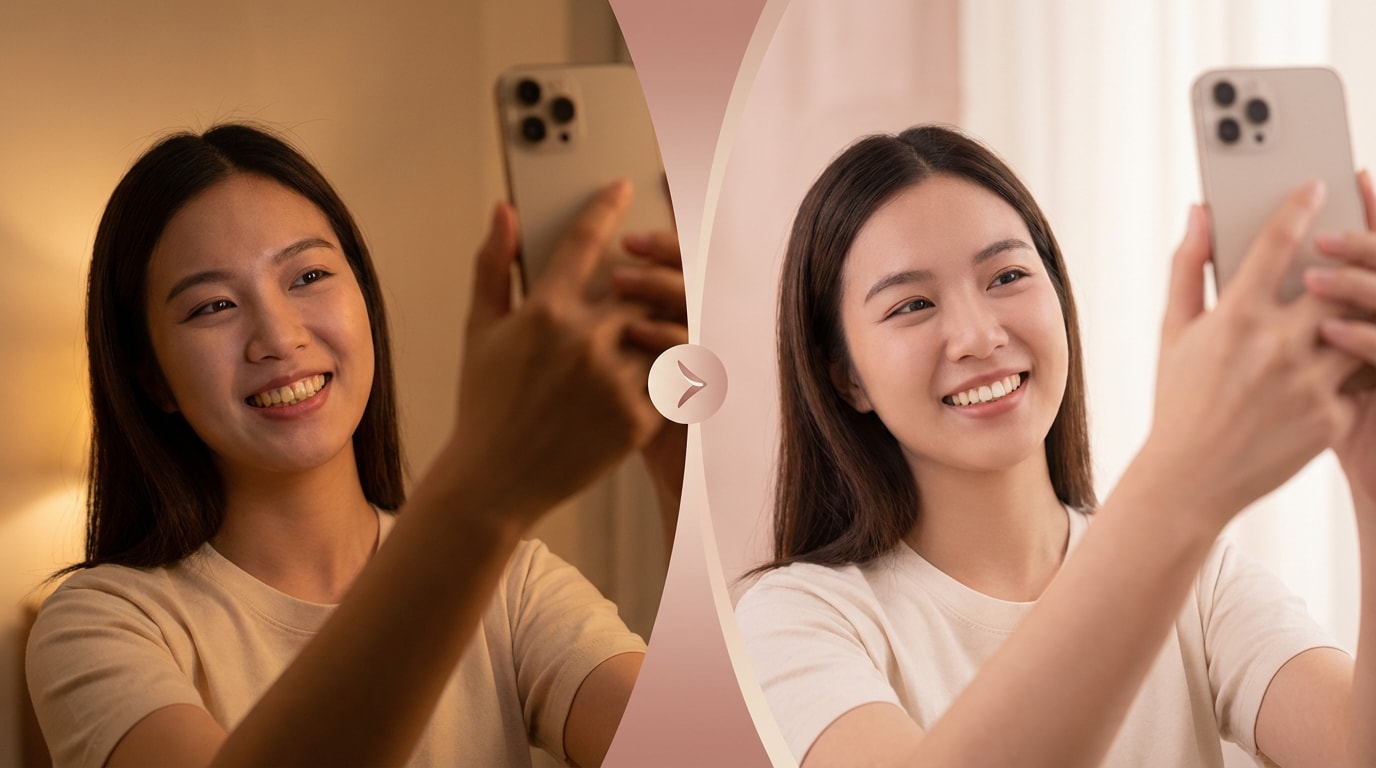
You brush twice a day. Your dentist says your teeth are healthy. But every selfie tells a different story. Camera sensors and smartphone algorithms are optimized to balance the whole frame — not your teeth specifically. The result: warm indoor lighting, skin-teeth contrast, and auto-exposure all conspire to make your teeth look more yellow than they actually are. The camera is lying to you.
That gap between the photo and reality is what sends millions of people searching for a free teeth whitening app — only to find that most options either charge for the feature, blast teeth to a blinding paper-white that looks obviously fake, or require Photoshop skills most people don't have. None of those are the answer.
Relumi AI Retake is. Its Teeth Color Correction feature uses a trained AI model that understands dental anatomy — the difference between natural tooth tone and lighting-induced yellow cast — to correct only what the camera got wrong, while keeping the result completely natural-looking. The result doesn't look edited. It looks like the photo was taken in better light. And it's free to try on iOS and Android.
In this article
Part 1: Why Do Teeth Look Yellow in Photos?
It's not your imagination. Your phone camera genuinely does make teeth look more yellow than they appear in real life — and there are real technical reasons for it.
Camera sensors and smartphone algorithms are optimized to balance the whole frame — not your teeth specifically. Several factors conspire against you:
- Warm indoor lighting: Incandescent and LED "warm white" bulbs cast an orange-yellow tone that the camera locks onto, making teeth appear more yellow than they really are.
- Skin-teeth contrast: Your skin tone reflects more light than teeth do. The camera auto-exposes for skin, leaving teeth slightly underexposed and yellow-cast.
- Tooth angle: If your teeth aren't perfectly straight, some surfaces reflect light away from the lens — what reflects back looks more yellow.
- Warm-toned outfits: Wearing yellow, orange, or beige clothing near your face can bounce warm light onto your teeth.
In short: your teeth aren't necessarily that yellow in real life. The camera is lying to you. And you're not alone — this is one of the most common complaints across Reddit's photography and dental communities.
Part 2: The Problem with Existing Solutions
There's no shortage of options when you Google "app to whiten teeth in pictures free." But every existing path has a major catch:
| Solution | The Problem |
|---|---|
| Photoshop / Lightroom | Requires skill (lasso selection, Hue/Saturation layers, masking). Not mobile-friendly. Not free. |
| Facetune | Subscription required. Easy to overdo it — users report their teeth end up looking "Chiclets white" or glowing blue. |
| FaceApp | All-or-nothing filter. Results often look unnatural. Privacy concerns with data upload. |
| Free browser tools (Pixelbin, etc.) | Web-only, no mobile app, low resolution output. No fine-tuning. |
| Doing nothing | That "school bus yellow" stays in every photo — forever. |
What people actually want — as photographers on Reddit consistently agree — is a subtle fix that makes teeth look like they do on a good day. Not bleach-white. Not toothpaste-ad white. Just… natural. Corrected for the camera's lie.
Part 3: Relumi AI Retake — Teeth Color Correction That Actually Looks Real
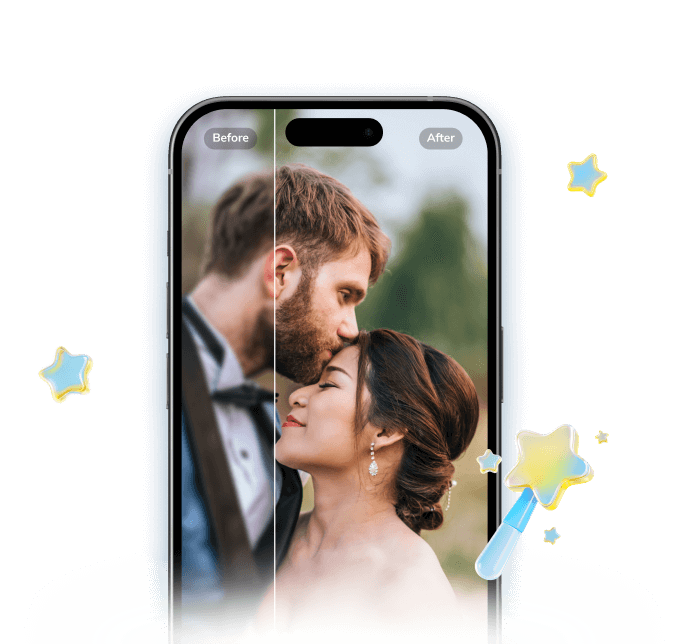

Relumi AI Photo Enhancer
AI Retake — Teeth Color Correction That Looks Completely Natural
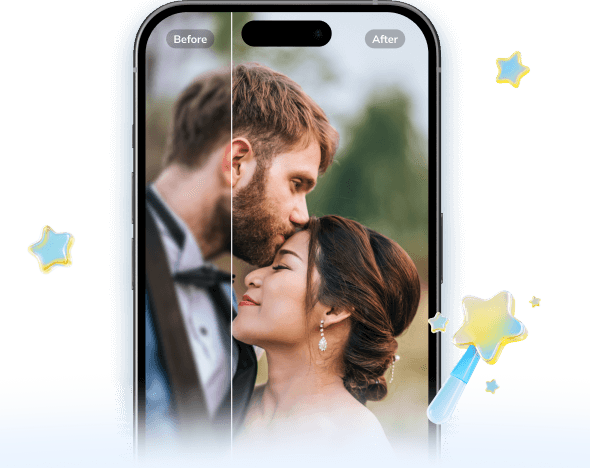
 One tap: No brush tools, no manual selection, no skill required.
-
Anatomy-aware AI: Knows what "natural teeth" look like and corrects toward that — not toward "movie star white."
-
Works on groups: Detects and corrects all smiling faces in a group photo simultaneously.
-
Preserves texture: Keeps the natural ridges and texture of teeth intact — no plastic-looking finish.
-
Adjustable intensity: Dial up or down to match how you actually look in person.
The key difference: Relumi's AI doesn't just "bleach" your teeth the way a brightness slider would. It understands that natural teeth have a warm off-white tone — not the blue-tinted white of over-edited photos. The algorithm targets the yellow/orange cast introduced by camera lighting and removes it, leaving the underlying natural tooth color visible.
The result? A photo that looks like someone took it in good lighting — not like someone went to town in Photoshop.
Part 4: How to Whiten Teeth in Photos with Relumi — Step by Step
Here's exactly how to use Relumi's teeth color correction on any photo in under a minute:
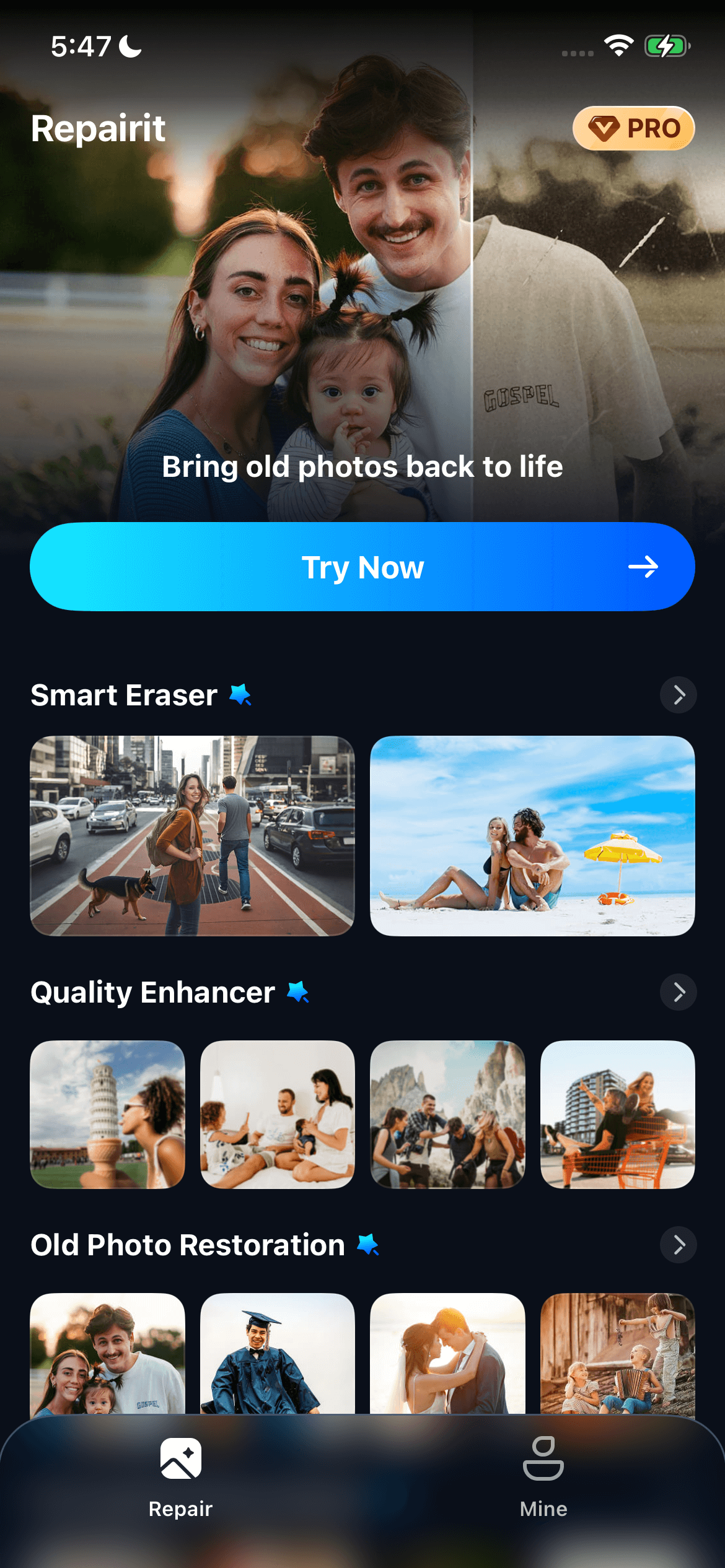
Step 1. Open Relumi and tap the AI Retake tab
Open Relumi on your iPhone or Android. Tap the AI Retake tab from the home screen.
Step 2. Upload your photo
Choose any portrait — selfie, group shot, headshot, or old family photo. Relumi accepts standard JPEG and PNG.
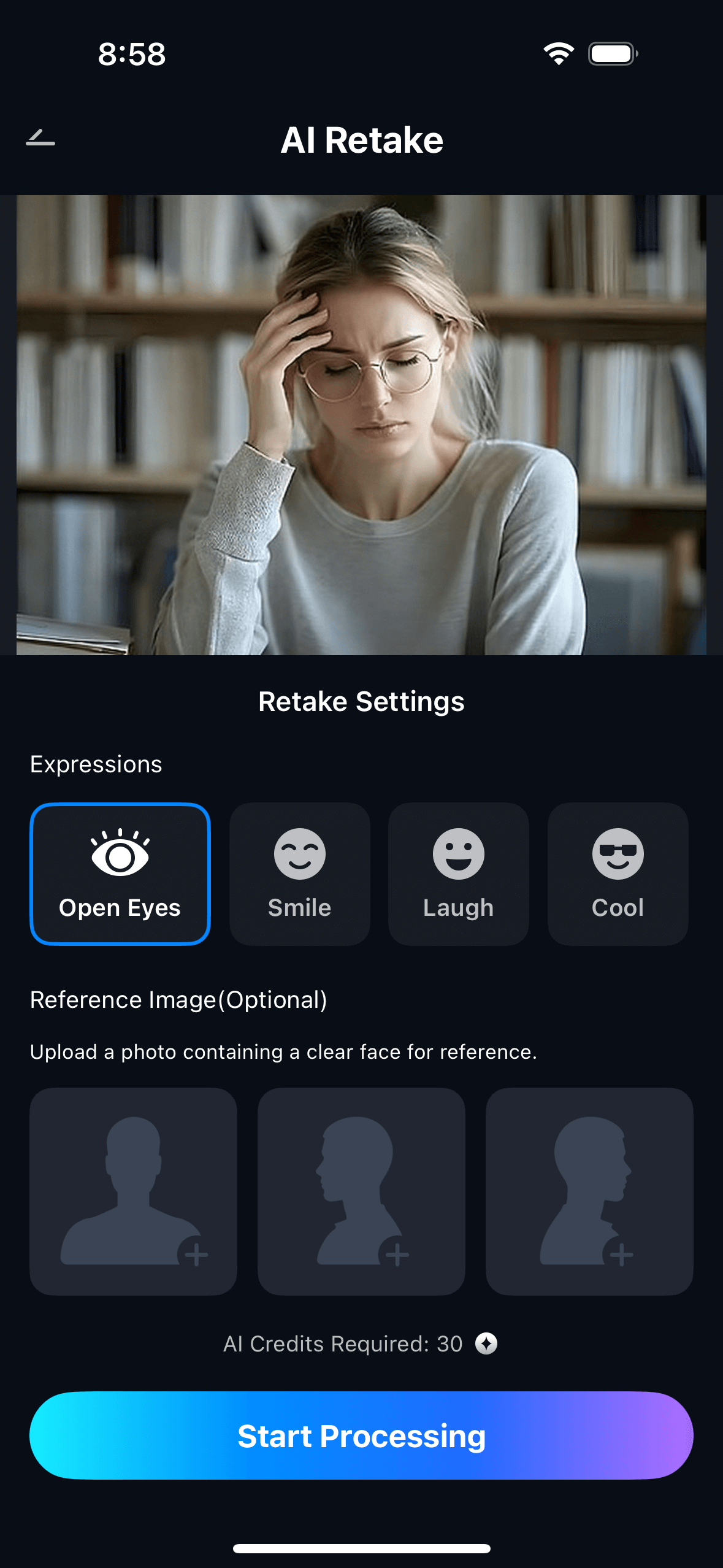
Step 3. Tap "Teeth Color" from the AI Retake menu
The AI will auto-detect all teeth in the photo within seconds.
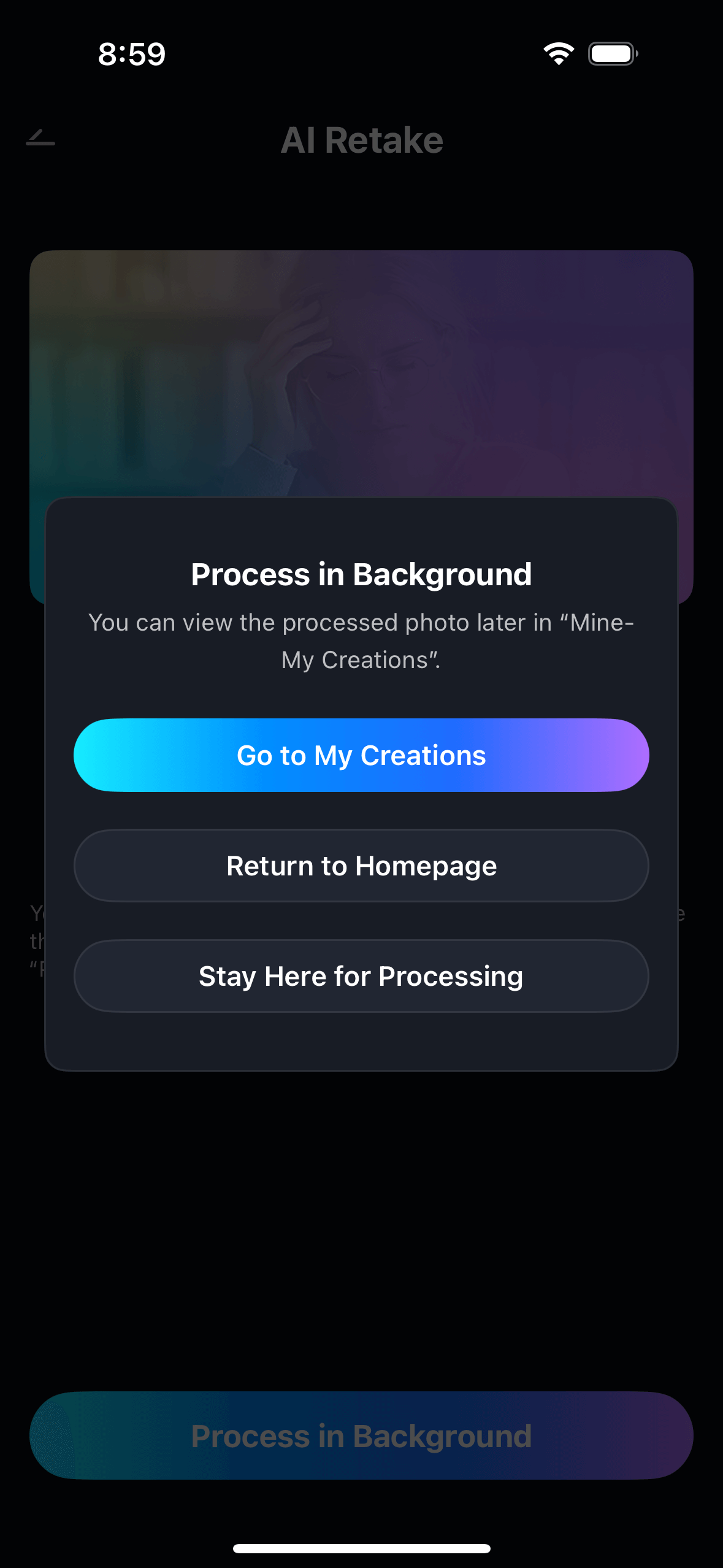
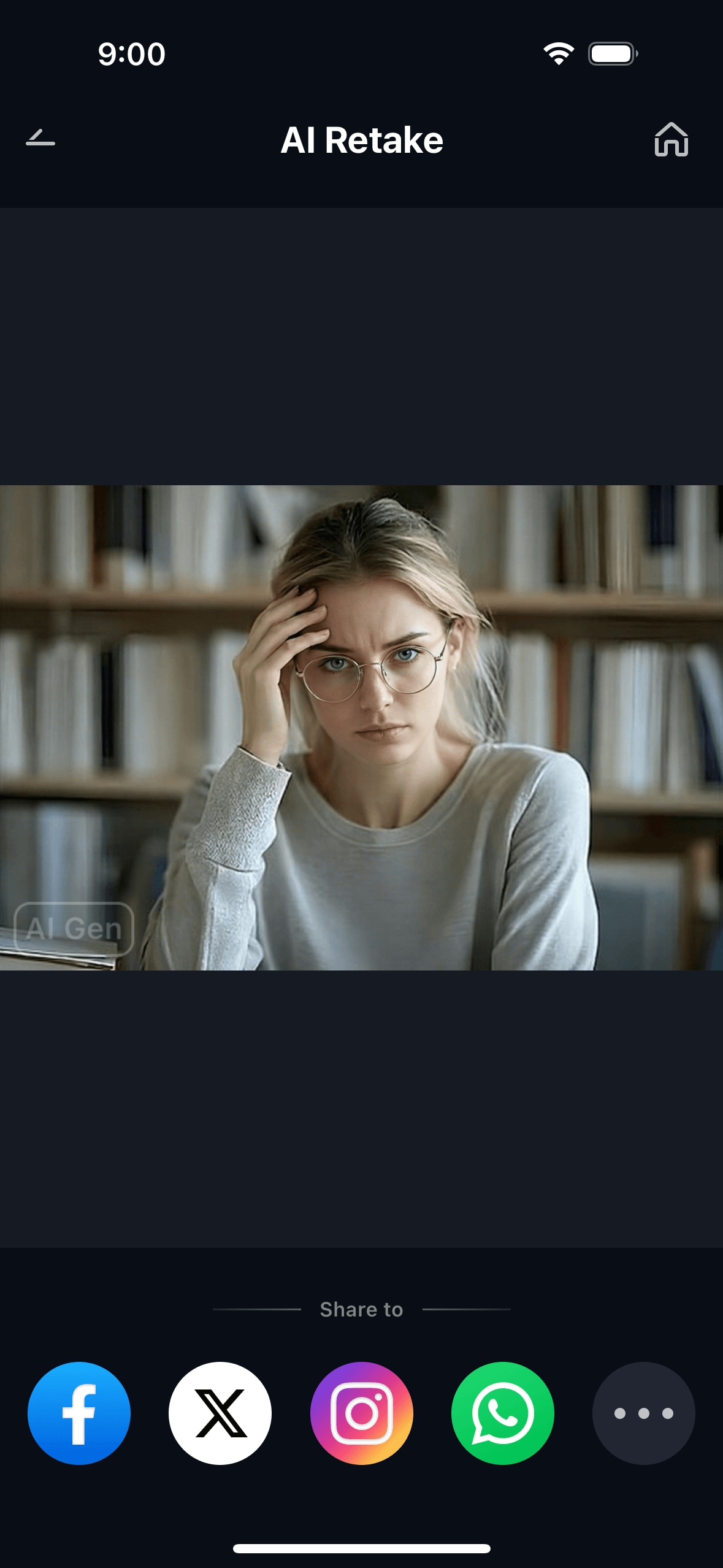
Step 4. Save & share
Export in full resolution. Share directly to Instagram, WhatsApp, LinkedIn, or your camera roll — ready to post.
Part 5: 5 Real Scenarios Where Teeth Color Correction Makes a Difference
The most useful way to understand what AI teeth whitening actually does is to see it in context. Here are five real situations — drawn directly from user questions on Reddit and Quora — where Relumi AI Retake produces results that nothing else quite manages.
🤳 1. The Selfie That Embarrassed You
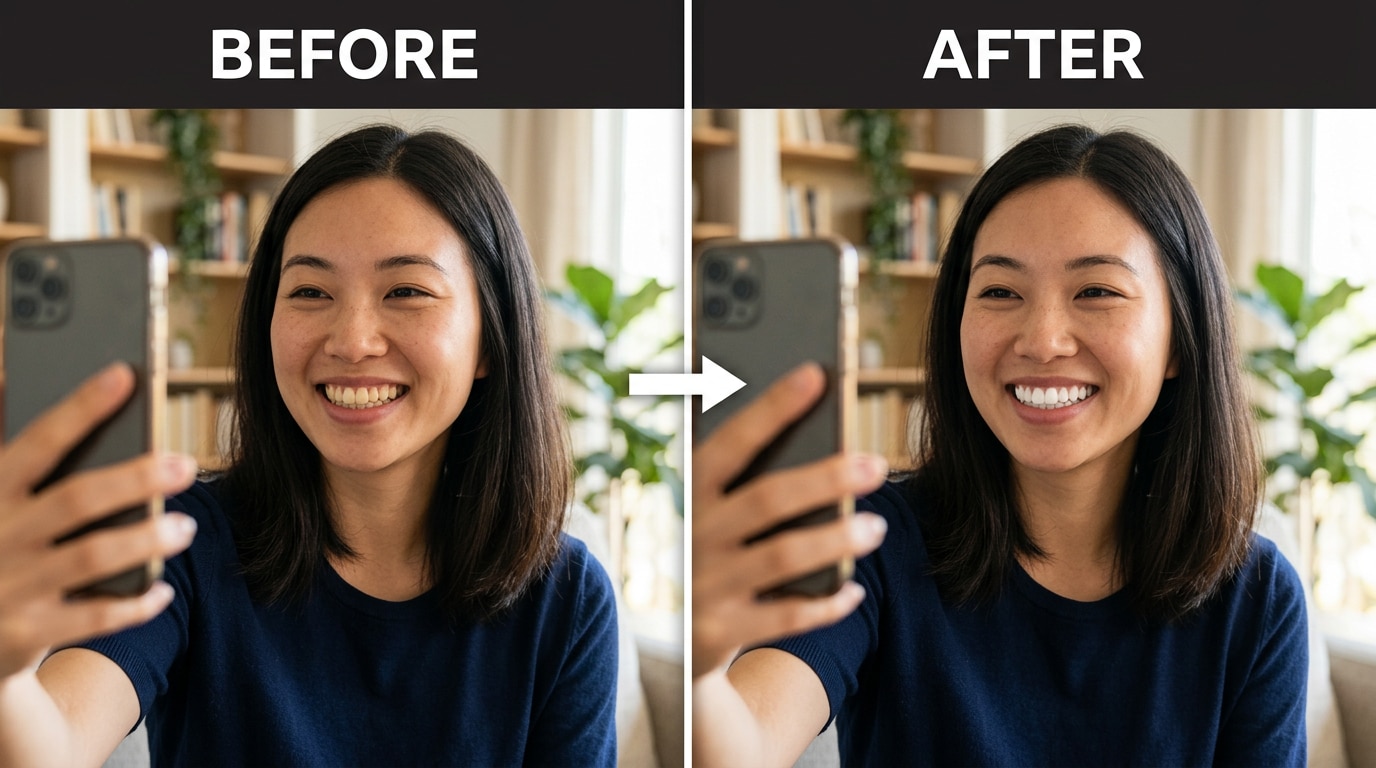
You posted a photo from last weekend. The lighting at the restaurant was warm and golden — beautiful vibes, terrible for your smile. Three people commented on how the food looked. Nobody mentioned your teeth. But you saw it.
Relumi's teeth correction is made for exactly this: upload the photo, one tap, done. No one will know you edited it — it just looks like the restaurant had better lighting.
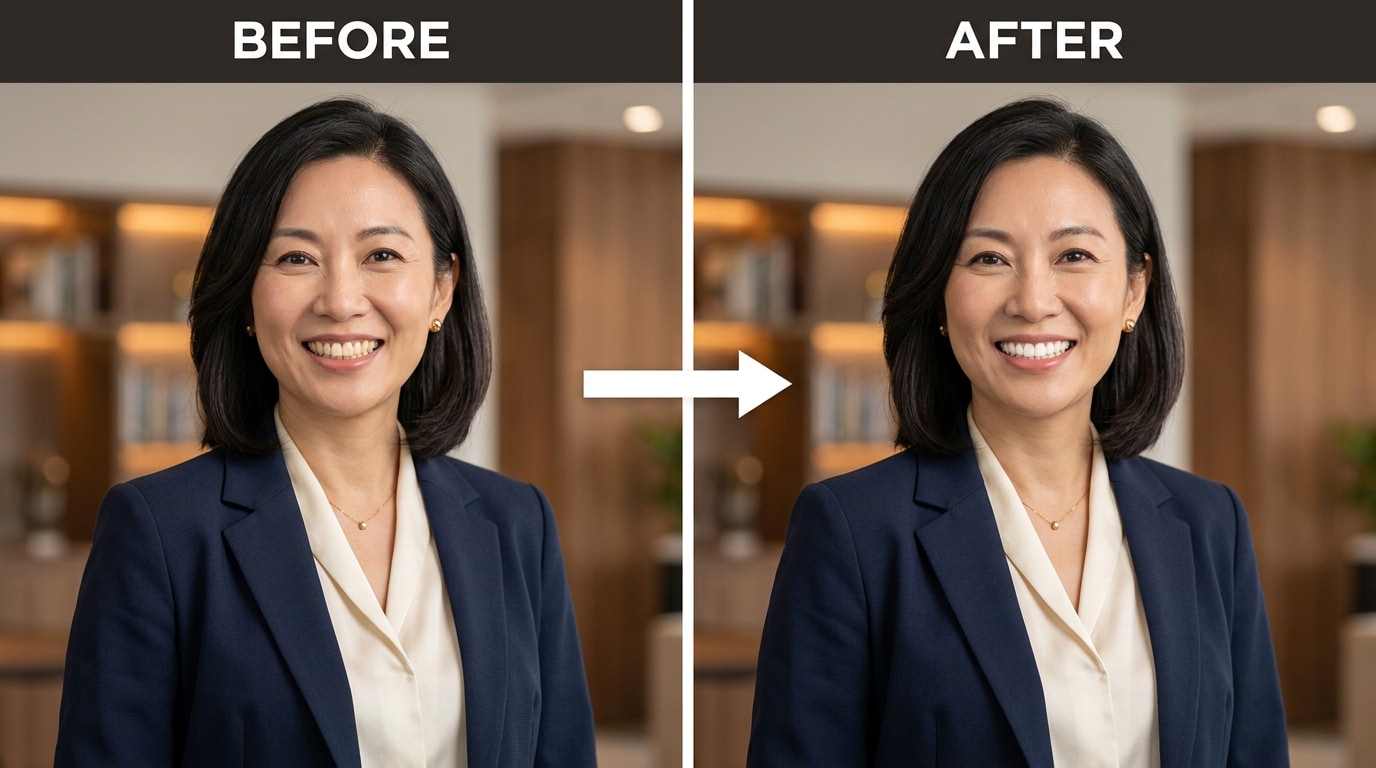
💼 2. The LinkedIn Headshot or Professional Photo
Your LinkedIn profile photo is your first impression for recruiters, clients, and collaborators. A warm-toned headshot with yellow-looking teeth — even slightly — can undercut an otherwise polished photo.
Photographers on r/photography routinely note they always desaturate the yellow on teeth before delivering professional headshots. With Relumi, you can do the same thing yourself, in your phone, for free.
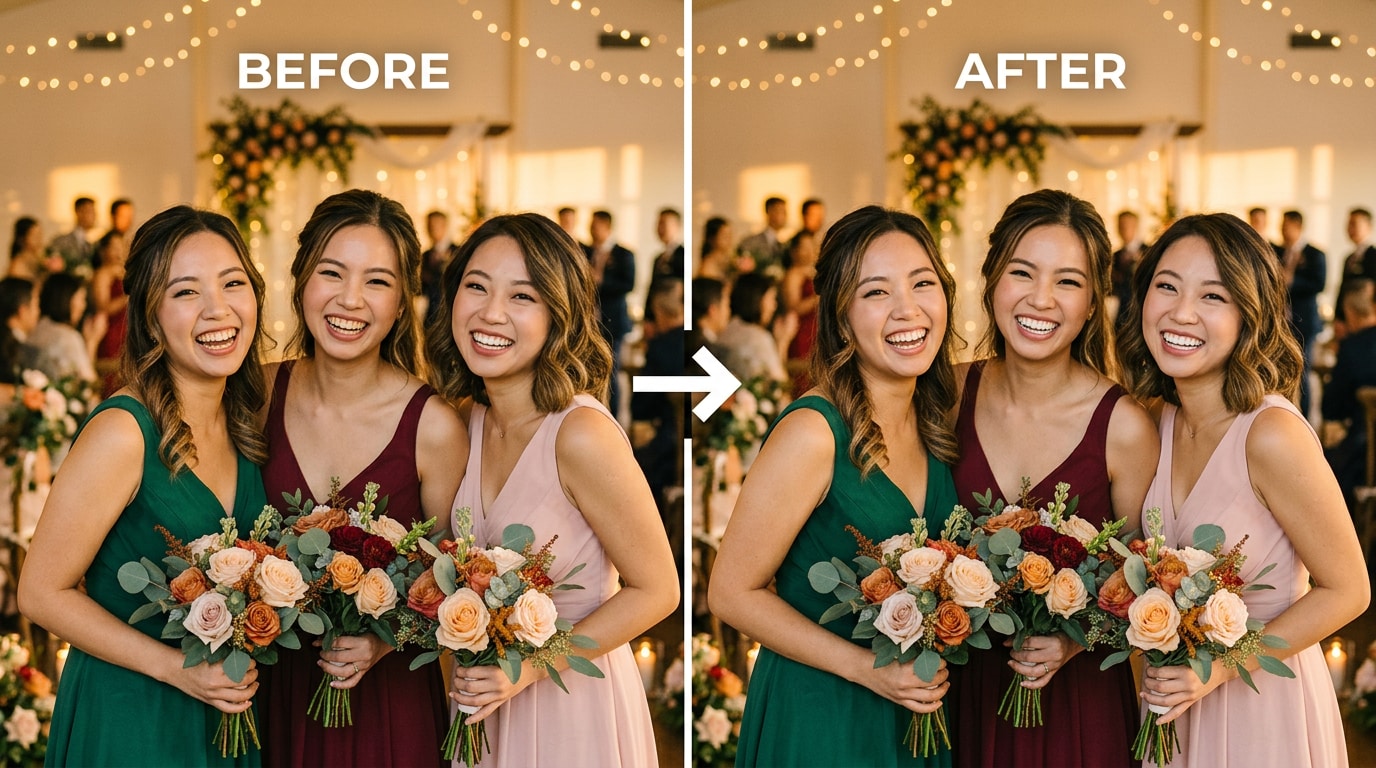
💒 3. Wedding & Group Photos
Wedding venues are designed to feel warm and romantic — golden lights, candles, sunset golden hour. All of that beautiful warmth that looks perfect in the venue makes teeth look yellow in photos.
The best part about Relumi's group detection: it finds every face and every set of teeth in the photo simultaneously. You don't have to edit each person individually. Upload the group shot, tap once, and every smile in the frame gets corrected consistently.
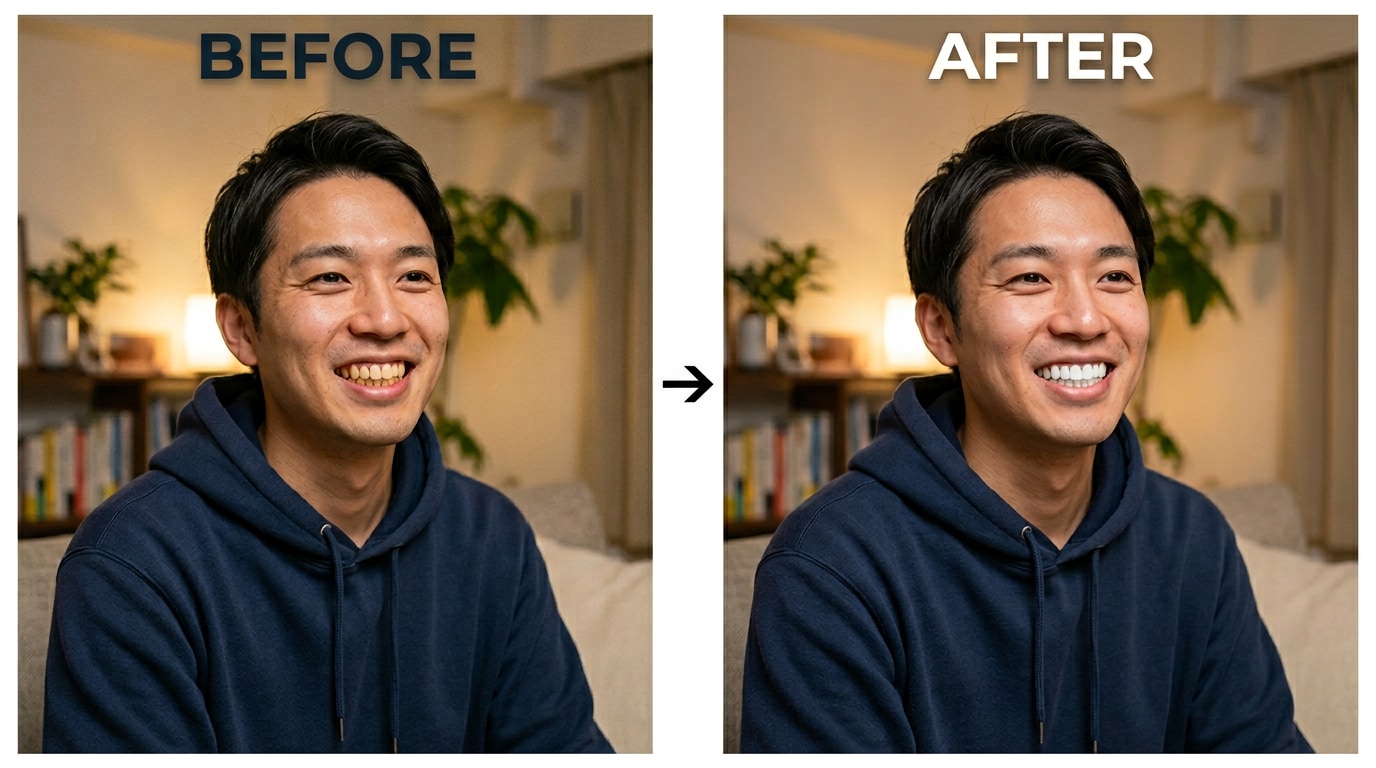
❤️ 4. Dating App Profile Photos
Research consistently shows that a genuine smile is one of the most attractive elements in a dating profile photo. But if camera lighting turns that warm, genuine smile into a yellow one, you're not showing your best self.
Relumi lets you fix the camera's distortion without altering your smile itself. The result looks authentic — because it is. You're not replacing your teeth. You're removing the artifact that the camera introduced.
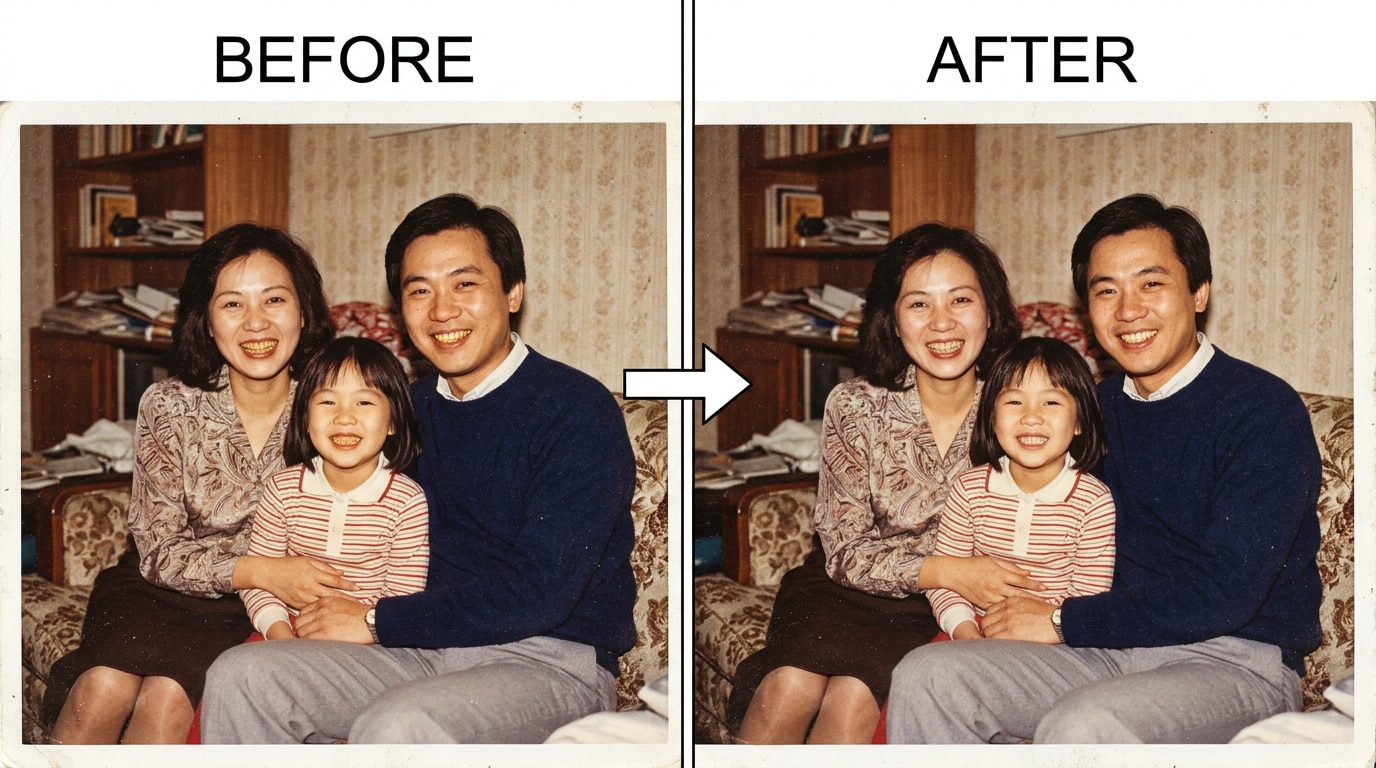
📷 5. Old Family Photos You Want to Share Again
Older photos — especially those scanned from film or taken in tungsten indoor lighting — often have a heavy warm cast that makes teeth look very yellow. Relumi works on these too. Upload a scanned family photo, apply teeth correction, and share a restored version that does the original memory justice.
Part 6: Pro Tips for Natural-Looking Results Every Time
- Target the lighting, not your teeth: If the whole photo is warm-toned (golden hour, candlelight), try a slight cool white-balance correction on the whole image first, then use teeth correction for fine-tuning.
- Use the "natural" preset: Relumi's default intensity is calibrated to match real-life tooth tone. Start there before adjusting.
- Compare against the whites of the eyes: A dentist rule of thumb — natural teeth should be roughly the same shade as the whites of the eyes. If your corrected teeth look whiter than the eye whites, dial it back.
- Group photos: check consistency: After correction, verify that all smiles in the photo look consistent. The AI handles this automatically, but a quick check is always worth it.
- Don't over-whiten vintage/film photos: Old photos have a warm character that's part of their charm. A very light correction (20–30%) preserves the nostalgic feel while removing the worst of the cast.
Conclusion: The Smile You Have — Just Without the Camera's Lie
Your teeth aren't as yellow as your photos make them look. Camera sensors, warm lighting, and auto-exposure algorithms introduce a cast that isn't really there. The goal of teeth color correction isn't to give you a different smile. It's to show the one you already have.
Relumi AI Retake does this in one tap, on your phone, for free — with results calibrated to look natural rather than digitally altered. No Photoshop skill. No subscription required to try it. No "Chiclets" teeth.
The best free teeth whitening app is the one that makes your photos look like they were taken in better light. That's exactly what Relumi does.
FAQ
-
Is Relumi's teeth whitening feature actually free?
Yes. Relumi AI Retake — including teeth color correction — is available on a free tier for both iOS and Android. You can try the feature on your own photos without entering a credit card. A premium plan unlocks unlimited exports and higher resolution output. -
Will the result look fake or over-edited?
Only if you push the intensity too high. Relumi's default "Natural" setting is deliberately calibrated to match real-life tooth tone — off-white, not blinding white. The algorithm preserves natural tooth texture so the result looks like good lighting, not digital editing. Photographers describe the sweet spot as "less yellow, not more white." -
Does it work on group photos?
Yes. Relumi's AI detects all faces and teeth in a photo simultaneously. In a group shot of five people, it will find and correct every smile in one tap — consistently, without you having to select each person individually. -
Can I use it on old scanned photos or film photos?
Absolutely. Relumi works on any portrait photo — old or new, selfie or scanned film print. For vintage photos, we recommend using a lower intensity (20–30%) to preserve the warm character of the original while still removing the worst of the yellow cast. -
How is this different from just increasing brightness?
Brightness affects the whole image equally. Relumi's teeth correction is targeted — it identifies the teeth specifically, analyzes the color cast introduced by lighting, and corrects toward natural tooth tone without affecting skin, background, or any other part of the image. The result looks intentional and precise, not washed out. -
Does Relumi store or share my photos?
Relumi processes photos on-device where possible and does not sell user photos to third parties. Please review the full privacy policy in the app for detailed data handling information.



